
1. Introduction
This manual provides detailed instructions for the ATTACK SHARK X68 HE 60% Gaming Keyboard. Designed for high-performance gaming, this keyboard features magnetic switches, rapid trigger technology, and extensive customization options. Please read this manual thoroughly to ensure proper use and to maximize your gaming experience.

Image 1.1: Overview of the ATTACK SHARK X68 HE keyboard showcasing its magnetic switches, 0.01mm RT accuracy, adjustable actuation point, 0.125ms latency, Snap Tap, RGB lighting, and PC/Mac compatibility.
2. Product Features
- Magnetic Switches (Hall Effect Technology): Provides precise and consistent key presses with high durability.
- 8000Hz Polling Rate: Delivers an ultra-fast 0.125ms response time for competitive gaming.
- 0.01mm Rapid Trigger (RT) Accuracy: Allows for instant key reset and re-press, enhancing responsiveness.
- Adjustable Actuation Point: Customize the key press distance from 0.1mm to 3.4mm to suit your playstyle.
- Snap Tap and Dynamic Keystroke: Advanced features for precise control and rapid input.
- Full RGB Lighting: Over 20 preset light effects with customizable colors and patterns.
- Web Driver Software: Comprehensive customization available via a web-based driver, compatible with Windows and Mac.
- Durable Construction: Features PBT keycaps, an aluminum alloy plate, and PORON foam for enhanced sound and feel.
- Compact 60% Layout: Space-saving design without compromising essential gaming functions.

Image 2.1: Detail showing the 8000Hz polling rate, providing a 0.125ms response time for faster performance.
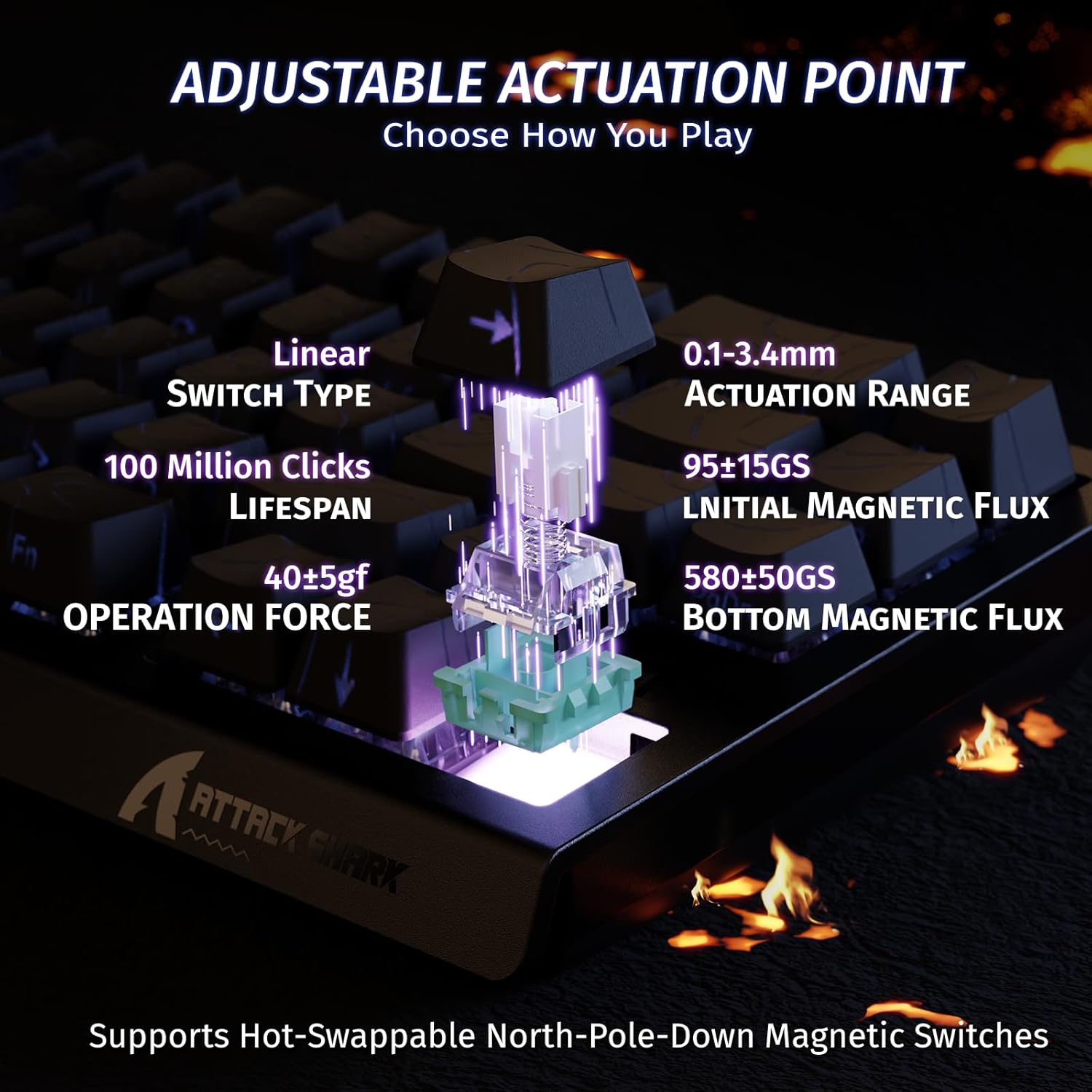
Image 2.2: Visual representation of the adjustable actuation point, allowing users to set the key press distance between 0.1mm and 3.4mm.

Image 2.3: The keyboard illuminated with full RGB light effects, demonstrating the variety of 20+ preset lighting options.

Image 2.4: An exploded diagram of the X68 HE keyboard, showing its internal layers including PBT keycaps, top case, aluminum alloy plate, PCB, PORON foam, ATTACK SHARK magnetic switches, and bottom case.
3. Setup
3.1 Connecting the Keyboard
- Locate the USB-C port on the back of the keyboard.
- Connect the provided USB-C cable to the keyboard.
- Plug the other end of the USB-C cable into an available USB port on your computer (PC or Mac).
- The keyboard will be automatically recognized by your operating system.
3.2 System Compatibility
The ATTACK SHARK X68 HE keyboard is compatible with Windows and Mac operating systems. No additional drivers are required for basic functionality, but the web driver is recommended for full customization.
4. Operating Instructions
4.1 Basic Key Functions
The keyboard features a standard QWERTY layout with 61 keys. All keys function as labeled. For secondary functions (e.g., F-keys, media controls), use the Fn key in combination with the corresponding key.
4.2 RGB Lighting Control
The keyboard offers various RGB lighting effects. Use the following key combinations to adjust:
- Fn + ↑: Increase Backlit Brightness
- Fn + ↓: Decrease Backlit Brightness
- Fn + ←: Decrease Backlit Speed
- Fn + →: Increase Backlit Speed
- Fn + Alt: Switch Light Mode
- Fn + Enter: Switch Light Color
- Fn + Backspace: Turn Light On/Off

Image 4.1: Detail of the pattern shine-through keycaps with side-printed characters, aiding in visibility of secondary functions.
4.3 Web Driver Customization
For advanced customization, including adjusting actuation points, setting Rapid Trigger sensitivity, configuring Snap Tap, and creating macros, use the ATTACK SHARK web driver. Access the web driver through your internet browser. The web driver allows for:
- Key remapping and combination settings.
- Macro creation and management.
- Dynamic Keystroke (DKS) settings.
- Adjusting Trigger Sensitivity Level (TGL).
- Snap Tap configuration.
- Zero Deadzone settings.
- Firmware updates.

Image 4.2: Screenshot of the web driver interface, demonstrating options for key settings, stroke settings, shaft settings, and advanced settings for comprehensive customization.

Image 4.3: Illustration of 0.01mm RT accuracy and 128kHz scan rate, showing the advantage of Rapid Trigger over regular switches in games like Valorant, CSGO, APEX, and osu!.
5. Maintenance
5.1 Cleaning the Keyboard
- Disconnect the keyboard from your computer before cleaning.
- Use a soft, dry cloth to wipe down the keycaps and chassis.
- For stubborn dirt, a slightly damp cloth with mild soap can be used, ensuring no liquid enters the keyboard.
- Use compressed air to remove dust and debris from between the keycaps.
5.2 General Care
- Avoid exposing the keyboard to extreme temperatures, direct sunlight, or high humidity.
- Do not spill liquids on the keyboard. In case of a spill, immediately disconnect it and allow it to dry completely before reconnecting.
- Avoid dropping or subjecting the keyboard to strong impacts.
6. Troubleshooting
If you encounter any issues with your ATTACK SHARK X68 HE keyboard, please refer to the following common solutions:
- Keyboard not responding: Ensure the USB-C cable is securely connected to both the keyboard and your computer. Try a different USB port or cable.
- RGB lighting not working: Check the lighting control key combinations (Fn + Backspace to toggle, Fn + Alt to change mode). Ensure the web driver settings haven't disabled lighting.
- Keys not registering correctly: Ensure the keyboard is clean and free of debris. If using the web driver, check actuation point settings and perform calibration if available.
- Software/Web Driver issues: Ensure your internet connection is stable when accessing the web driver. Try clearing your browser cache or using a different browser. Check the ATTACK SHARK official website for any announcements or updated web driver links.
- Unexpected behavior: Disconnect and reconnect the keyboard. If the issue persists, a factory reset (if available via web driver) might be necessary.
7. Specifications
| Feature | Detail |
|---|---|
| Brand | ATTACK SHARK |
| Model Number | X68 HE |
| Connectivity Technology | USB-C (Wired) |
| Keyboard Description | Gaming |
| Recommended Uses | Daily Use, Gaming, Programming, Business |
| Key Switch Type | Linear Magnetic Switches |
| Actuation Point | Adjustable (0.1mm - 3.4mm) |
| Rapid Trigger Accuracy | 0.01mm |
| Scan Rate | 128 kHz |
| Polling Rate | 8000 Hz |
| RGB Backlighting | Yes (20+ preset effects) |
| Language | English (QWERTY Layout) |
| Number of Keys | 61 |
| Compatible Operating System | Windows, Mac |
| Material | Polybutylene Terephthalate (PBT Keycaps) |
| UPC | 752010391158 |
8. Warranty and Support
8.1 Warranty Information
This product comes with an Importer Guaranteed warranty. Please retain your proof of purchase for any warranty claims. For specific warranty terms and conditions, refer to the documentation provided at the time of purchase or contact your retailer.
8.2 Technical Support
For technical assistance, software updates, or advanced customization, please visit the official ATTACK SHARK website and access their web driver or support resources. The web driver includes integrated memory for saving your settings.


