
cellularline PBULTRON10000D
Cellularline Ultron 10000 Portable Power Bank User Manual
Model: PBULTRON10000D
1. Introduction
The Cellularline Ultron 10000 is a versatile and powerful portable power bank designed to keep your devices charged on the go. Featuring a 10000mAh capacity, multiple fast-charging ports, and an intuitive LCD display with additional functions, it is an ideal companion for smartphones, tablets, and other compatible electronics. This manual provides detailed instructions for safe and efficient use of your Ultron 10000 power bank.

Image: The Cellularline Ultron 10000 Power Bank, showcasing its compact design and LCD display.
2. Key Features
- Capacity: 10000mAh for extended power.
- Output: Max 30W Power Delivery (PD).
- Ports: Two USB-C ports (30W each) and one USB-A port (22.5W).
- LCD Display: Real-time charge input/output, battery percentage, remaining hours, alarm, stopwatch, countdown, and thermometer.
- Compatibility: Universal compatibility with various smartphones and tablets.
- Design: Ultra-compact and portable for easy carrying.

Image: The Ultron 10000 power bank highlighting its three charging ports (2x USB-C, 1x USB-A) and their respective power outputs for fast charging efficiency.

Image: The Ultron 10000 power bank with text indicating its 10000 mAh capacity and providing up to 72 extra hours of battery life.

Image: A close-up of the Ultron 10000's smart LCD display, showing various functions like remaining battery percentage, input/output charge, remaining battery hours, stopwatch, countdown, alarm, and indoor thermometer.
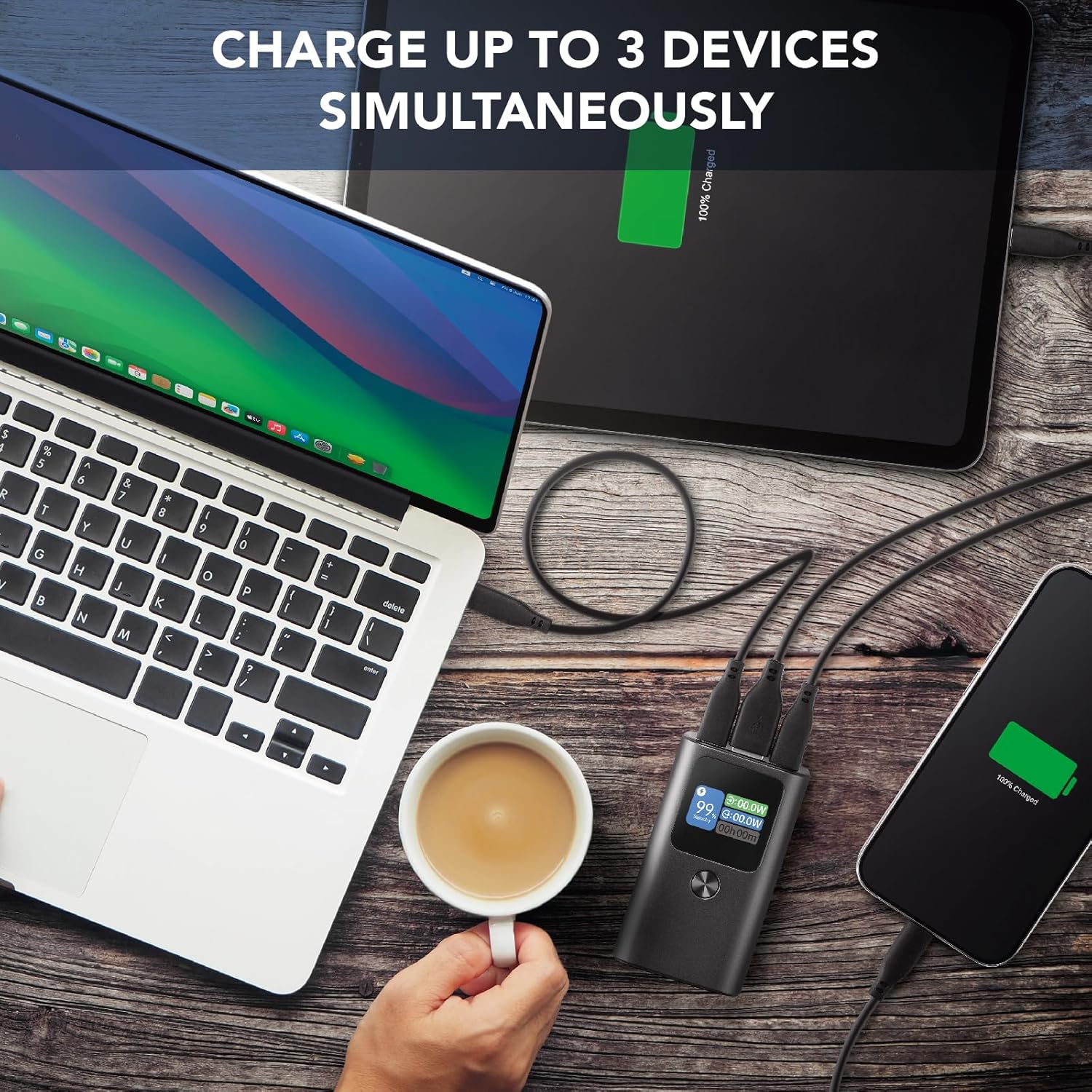
Image: The Ultron 10000 power bank charging a laptop, tablet, and smartphone simultaneously, demonstrating its multi-device charging capability.

Image: The Ultron 10000 power bank surrounded by various smartphones and tablets, illustrating its high compatibility with different devices.

Image: A person holding the Ultron 10000 power bank while using a smartphone, emphasizing its ultra-compact and portable design for on-the-go use.
3. Package Contents
Ensure all items are present in the package:
- Cellularline Ultron 10000 Portable Power Bank
- USB-C to USB-C Charging Cable
- Instruction Manual
4. Setup Guide
4.1 Initial Charge
- Before first use, fully charge the Ultron 10000 power bank.
- Connect the provided USB-C to USB-C cable to one of the USB-C input/output ports on the power bank.
- Connect the other end of the cable to a compatible USB-C wall charger (not included).
- The LCD display will show the charging status and battery percentage. Charging is complete when the display shows 100%.
4.2 Connecting Devices
- To charge a device, connect your device's charging cable to the appropriate port (USB-C or USB-A) on the Ultron 10000.
- Connect the other end of the cable to your device.
- The power bank will automatically begin charging your device. The LCD display will show the output wattage.
5. Operating Instructions
5.1 Checking Battery Level
The LCD display on the Ultron 10000 shows the current battery percentage. Briefly press the power button to activate the display and view the battery status.
5.2 Using Display Functions
The LCD display offers several additional functions:
- Real-time Input/Output: Shows the power (in Watts) being drawn by the power bank during charging (input) or delivered to a device (output).
- Remaining Battery Hours: Estimates the remaining operational time based on current usage.
- Alarm: Set a custom alarm time.
- Stopwatch: Use as a standard stopwatch.
- Countdown: Set a countdown timer.
- Thermometer: Displays the ambient temperature.
Navigate through these functions using the power button or dedicated function button (if present) as indicated on the device or quick start guide.
5.3 Charging Multiple Devices
The Ultron 10000 can charge up to three devices simultaneously using its two USB-C ports and one USB-A port. The power bank will intelligently distribute power to connected devices.
6. Care and Maintenance
- Keep the power bank away from water, moisture, and extreme temperatures.
- Avoid dropping or subjecting the power bank to strong impacts.
- Clean the power bank with a soft, dry cloth. Do not use harsh chemicals or abrasive materials.
- Store the power bank in a cool, dry place when not in use. For long-term storage, charge it to about 50% every three months to preserve battery health.
- Do not attempt to disassemble or repair the power bank yourself. This will void the warranty and may cause damage or injury.
7. Troubleshooting
| Problem | Possible Cause | Solution |
|---|---|---|
| Power bank not charging | Cable or charger issue; power bank fully charged; faulty port. | Try a different cable or wall charger. Ensure the power bank is not already at 100%. Try a different input port. |
| Device not charging from power bank | Cable issue; device fully charged; power bank depleted; incompatible device. | Ensure the power bank is charged. Try a different charging cable. Verify device compatibility. |
| LCD display not working | Power bank off; low battery; malfunction. | Press the power button to activate. Charge the power bank. If the issue persists, contact customer support. |
| Slow charging | Cable quality; device input limit; multiple devices connected. | Use a high-quality cable. Ensure your device supports fast charging. Charging multiple devices may reduce individual charging speeds. |
8. Technical Specifications
| Feature | Detail |
|---|---|
| Brand | Cellularline |
| Model | PBULTRON10000D |
| Capacity | 10000 Milliamperora (mAh) |
| Max Output | 30W PD |
| USB-C Ports | 2 (30W each) |
| USB-A Port | 1 (22.5W) |
| Compatible Devices | Smartphones |
| Battery Cell Composition | Lithium Ion |
| Dimensions | 17.5 x 11 x 4.3 cm |
| Weight | 30 g |
| Color | Black |
9. Warranty and Support
Cellularline products are manufactured to the highest quality standards. This product is covered by a standard manufacturer's warranty against defects in materials and workmanship from the date of purchase. Please refer to the warranty card included in your package for specific terms and conditions.
For technical support, troubleshooting assistance, or warranty claims, please contact Cellularline customer service through their official website or the contact information provided in your product packaging. Keep your proof of purchase for warranty validation.
Related documentsPBULTRON10000D


Ask a question about this manual
Ask about setup, troubleshooting, compatibility, parts, safety, or missing instructions. Manuals+ will review the question and use this page’s manual context to help answer it.