
WARMTUYO B0DR1XY896
WARMTUYO 4K Night Vision Goggles User Manual
Model: B0DR1XY896
1. Introduction
Thank you for choosing the WARMTUYO 4K Night Vision Goggles. This device is designed to provide enhanced visibility in low-light and complete darkness conditions, as well as clear viewing during the day. It features advanced infrared technology, high-resolution imaging, and a durable, portable design for various outdoor activities.

Figure 1: WARMTUYO 4K Night Vision Goggles and accessories including a 32GB TF card and data cable.
2. What's in the Box
The package includes the following items:
- 1 x Night vision goggles
- 1 x Neck strap
- 1 x 32GB TF card
- 1 x Data cable
- 1 x User manual
3. Product Features
- 9-Gear High-Performance Night Vision: Equipped with an 850NM infrared illuminator and 9 adjustable IR levels for optimal night vision both day and night. Higher IR levels provide stronger infrared brightness for clear visibility.
- 4K Ultra HD Camera: Capture stunning 4K Ultra High Definition video and 36 megapixel still images. Features 16x digital zoom to magnify details.
- 5000mAh Extra-Long Battery: Built-in 5000mAh battery provides up to 12 hours of continuous use in daylight mode and 4 to 10 hours in infrared mode, depending on the IR level. No external AA batteries required.
- Portable Design: Compact size, smaller than the palm of your hand, making it ideal for outdoor activities such as patrolling, security, surveillance, camping, and wildlife observation.
- Manual Focus & HD Lenses: Allows for precise focusing to achieve clear images at various distances.

Figure 2: The 3.0-inch HD display showcases the 4K video and 36MP photo resolution of the night vision goggles.

Figure 3: Internal view highlighting the 5000mAh battery, Type-C charging, and 32GB storage capacity.
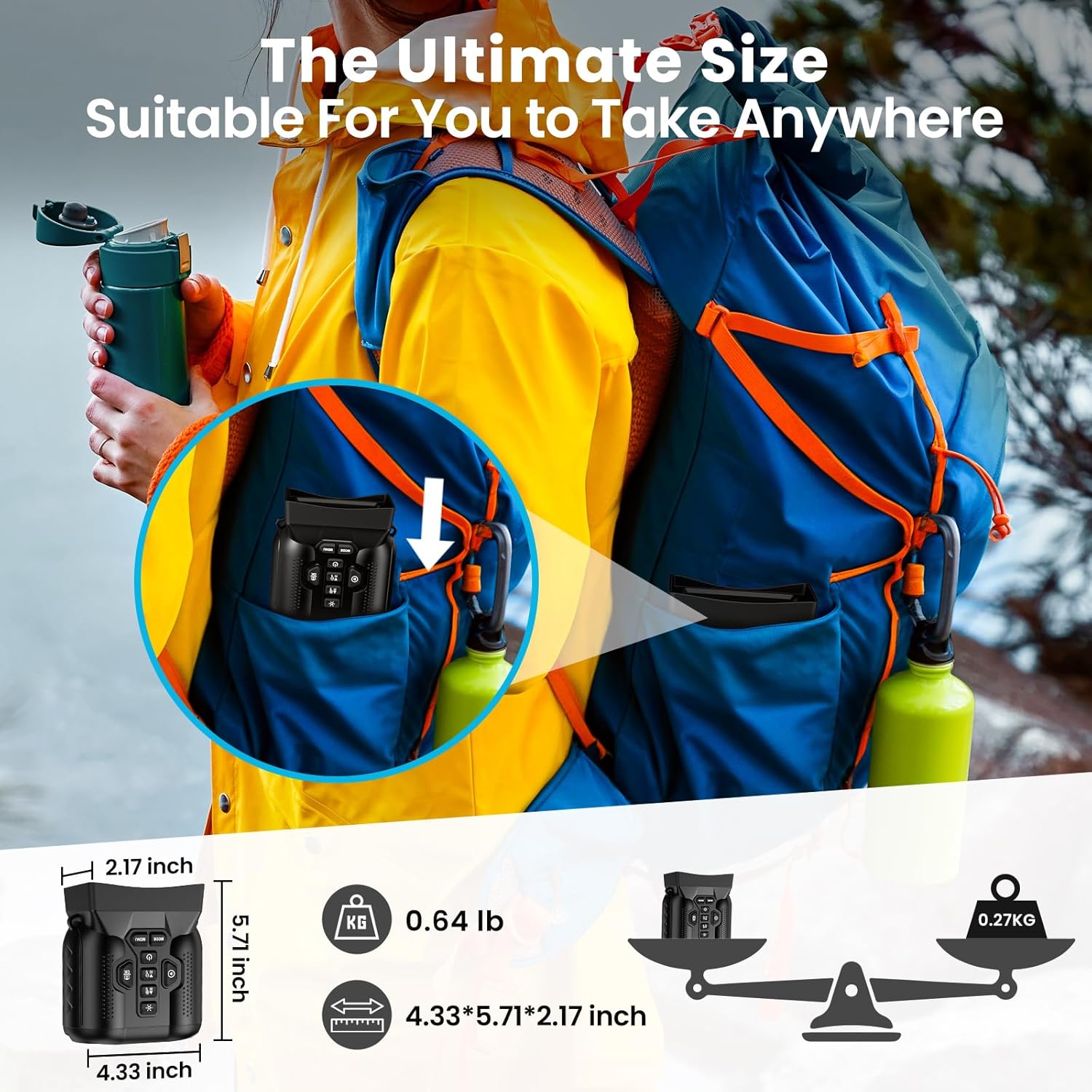
Figure 4: The goggles are designed for portability, weighing 0.64 lbs and measuring 4.33 x 5.71 x 2.17 inches.

Figure 5: The manual focus ring on the bottom left of the device allows for precise image clarity.
4. Setup
4.1 Charging the Device
Before first use, fully charge the night vision goggles using the provided USB-C data cable. Connect the cable to the Type-C charging port on the device and a compatible USB power source.
4.2 Inserting the TF Card
The device comes with a 32GB TF card for storing photos and videos. Locate the memory card slot, typically under a protective cover, and insert the TF card until it clicks into place.
4.3 Powering On/Off
To power on the device, locate the ON/OFF switch (often under a protective flap) and slide it to the 'ON' position. Then, press and hold the power button on the top panel until the screen illuminates. To power off, press and hold the power button again.
5. Operating Instructions
5.1 Button Functions
The device features several buttons on the top panel for easy operation:
- Power Button: Press and hold to turn the device on/off.
- IR +/- Buttons: Short press to adjust the 9 infrared levels. Long press to adjust digital zoom (1x-16x).
- Mode Button: Toggles between video recording mode and photo capture mode.
- OK/Capture Button: In photo mode, press to take a picture. In video mode, press to start/stop recording.
- Playback Button: Accesses stored photos and videos.
- Menu Button: Accesses system settings.
- Light Button: Illuminates the control panel buttons for visibility in the dark.
5.2 Adjusting Infrared (IR) Levels
In night vision mode, use the IR +/- buttons to cycle through 9 infrared intensity levels. Higher levels provide brighter illumination for clearer viewing in darker conditions.
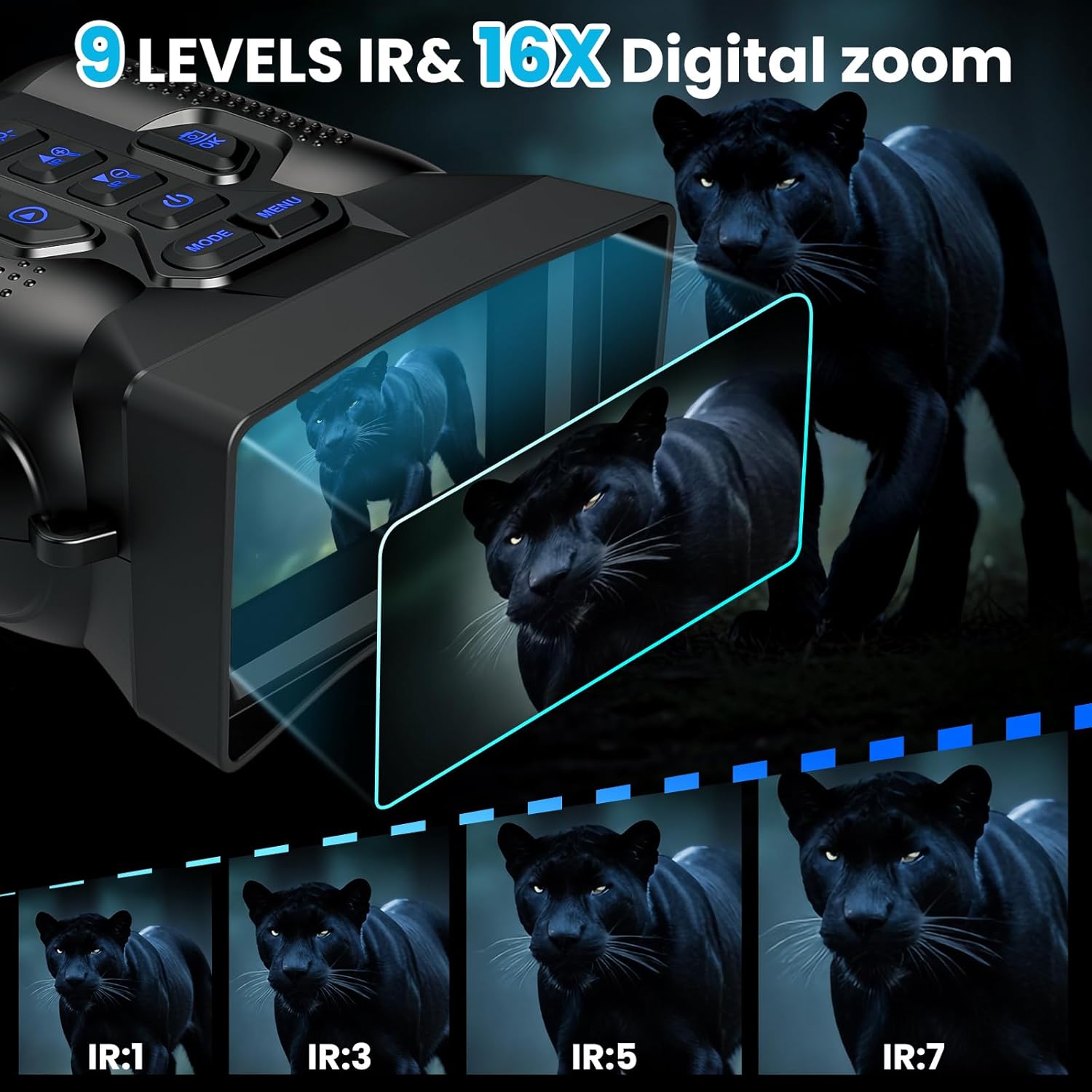
Figure 6: Adjust IR levels to optimize night vision performance.
5.3 Digital Zoom
Long press the IR +/- buttons to adjust the digital zoom from 1x to 16x. This allows for closer inspection of distant objects.
5.4 Manual Focus
Rotate the manual focus ring located on the bottom left of the device to achieve a sharp image. Adjust as needed for objects at different distances.
5.5 Recording Videos and Taking Photos
Switch to the desired mode (video or photo) using the Mode button. Press the OK/Capture button to start/stop video recording or to take a single photo.
5.6 Playback
Press the Playback button to review captured photos and videos on the 3.0-inch HD display.
5.7 Connecting to a Computer
Use the provided data cable to connect the goggles to a computer. This allows you to transfer recorded videos and photos for viewing or backup.
7. Usage Scenarios
The WARMTUYO 4K Night Vision Goggles are suitable for a variety of activities:
- Night Hunting
- Night Fishing
- Camping
- Wildlife Observation
- Security and Surveillance
- Farm Monitoring

Figure 7: Examples of practical applications for the night vision goggles.
8. Maintenance
- Keep the lenses clean using a soft, lint-free cloth. Avoid abrasive materials.
- Store the device in a dry, cool place away from direct sunlight and extreme temperatures.
- Ensure the protective covers for ports are securely closed to prevent dust and moisture ingress.
- Recharge the battery regularly, even if not in use, to maintain battery health.
9. Troubleshooting
| Problem | Possible Cause | Solution |
|---|---|---|
| Device does not power on | Low battery; ON/OFF switch in 'OFF' position | Charge the device; Ensure ON/OFF switch is 'ON' |
| Image is blurry | Incorrect focus; Dirty lens | Adjust manual focus ring; Clean the lens |
| Poor night vision performance | Low IR level; Very dark environment | Increase IR level; Ensure no obstructions to IR illuminator |
| Cannot record/take photos | TF card full or not inserted correctly; Incorrect mode selected | Check TF card, format or replace if full; Switch to correct mode (photo/video) |
10. Specifications
| Feature | Detail |
|---|---|
| Brand | WARMTUYO |
| Model Number | B0DR1XY896 |
| Package Dimensions | 7.29 x 4.93 x 2.64 inches |
| Item Weight | 10.2 ounces |
| Batteries | 1 C batteries required (included) - 5000mAh built-in |
| Age Range (Description) | Adult |
| Special Feature | Focus Knob, Image Stabilization, Lightweight, Night Vision, Tripod Mountable |
| Objective Lens Diameter | 25 Millimeters |
| Magnification Maximum | 16 x |
11. Warranty and Support
For warranty information or technical support, please refer to the contact details provided in your product packaging or visit the official WARMTUYO website.
Ask a question about this manual
Ask about setup, troubleshooting, compatibility, parts, safety, or missing instructions. Manuals+ will review the question and use this page’s manual context to help answer it.