
1. Introduction
The LIANGSTAR HK1 Gaming USB Microphone is designed to provide clear audio for various applications, including gaming, streaming, conferencing, and recording. Featuring a built-in DSP smart chip for noise reduction and multiple customizable settings, this microphone offers a versatile and user-friendly experience.

Figure 1: LIANGSTAR HK1 Gaming USB Microphone
2. Package Contents
Please ensure all items are present in your package:
- LIANGSTAR HK1 Microphone
- USB Cable
- User Manual
3. Setup and Installation
The LIANGSTAR HK1 microphone is designed for plug-and-play functionality, requiring no driver installation.
- Connect the USB Type-C end of the provided USB cable to the microphone.
- Connect the standard USB end of the cable to an available USB port on your PC, laptop, PS4, or PS5.
- The microphone will be automatically recognized by your operating system (Windows 7/8/10/11, Mac OS).
- Verify the microphone is selected as the input device in your system's sound settings or application preferences.

Figure 2: Plug and Play setup and device compatibility
4. Operating Instructions
4.1. Power Indicator and Mute Function
The microphone features an indicator light for its status:
- Blue Light: Microphone is active and recording.
- Red Light: Microphone is muted.
To mute or unmute the microphone, press the dedicated one-button mute control.
4.2. Volume Control
Adjust the microphone's input volume using the convenient volume control button located on the device. Rotate to increase or decrease the volume as needed.
4.3. Voice Change Modes
The microphone offers 5 distinct voice change modes to enhance your gaming or chatting experience:
- N: Original Voice
- F: Female Voice
- M: Male Voice
- B: Monster Voice
- K: KTV Voice
Cycle through these modes by pressing the designated voice change button.

Figure 3: Voice Changing Modes
4.4. RGB Lighting Modes
Enhance your setup with 7 different RGB lighting modes. Press the RGB button to cycle through the available lighting effects.
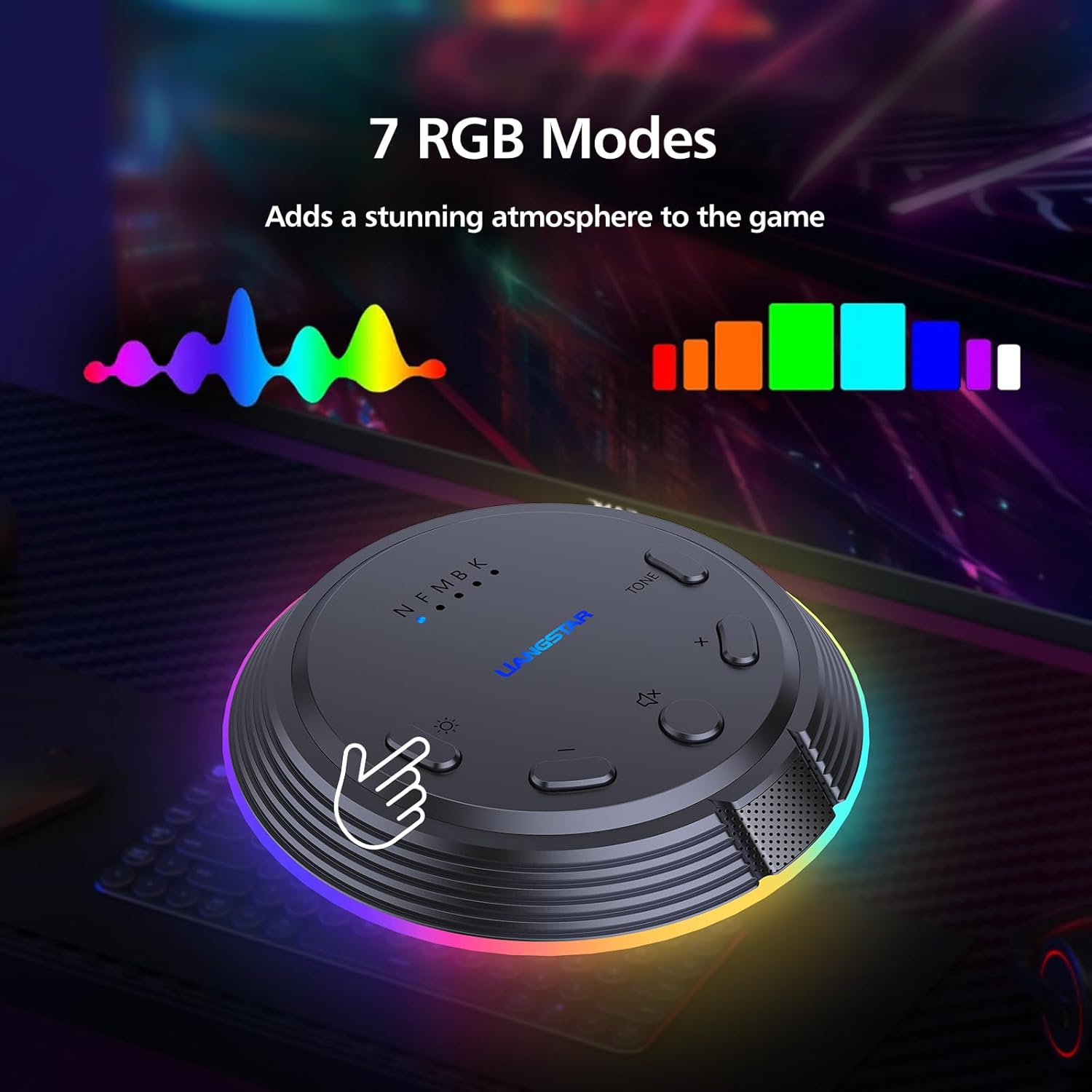
Figure 4: RGB Lighting Modes
5. Key Features
- Clear Sound & Noise Reduction: Equipped with a built-in DSP smart chip, the microphone picks up your voice 360 degrees and automatically reduces background noise, ensuring clear and loud audio.
- Versatile Voice & Lighting Effects: Choose from 5 voice change modes (Original, Female, Male, Monster, KTV) and 7 RGB lighting modes to customize your experience and add atmosphere.
- Intuitive Controls: Features a one-button mute with clear blue/red indicators and a convenient volume control knob for easy audio management.
- Broad Compatibility: Simple plug-and-play operation with no drivers required. Compatible with Windows 7/8/10/11, Mac OS, PS4, and PS5.
- Compact & Portable Design: With a diameter of 4.33 inches, height of 0.78 inches, and weighing only 3.5 ounces, the HK1 microphone is easy to carry and takes up minimal space.
- Multi-Purpose Use: Ideal for gaming, online chatting, video conferencing, virtual classes, live streaming, YouTube content creation, podcasting, and general recording.

Figure 5: Intelligent Noise Reduction Feature

Figure 6: Convenient Button Design
Figure 7: Portable Design
Video 1: LIANGSTAR Gaming RGB Microphone for Computer - This video demonstrates the RGB lighting and overall design of the microphone.
6. Specifications
| Feature | Detail |
|---|---|
| Microphone Form Factor | Boundary |
| Power Source | Corded Electric |
| Material | Acrylonitrile Butadiene Styrene, Metal |
| Signal-to-Noise Ratio | 50 dB |
| Hardware Platform | Desktop/PS4/PS5, Laptop, PC |
| Number of Channels | 1 |
| Item Weight | 6.4 ounces (0.4 Pounds) |
| Package Dimensions | 6.42 x 5.47 x 1.65 inches |
| Item Model Number | HK1 |
| Connectivity Technology | USB |
| Connector Type | USB Type-C |
| Special Features | 5 Voice Changes, 7 RGB Modes, Creative Exterior |
| Compatible Devices | Desktop/Laptop/PC/Computer/MAC OS/Windows/PS4/PS5/Personal Computer |
| Color | Dark Gray |
| Polar Pattern | Omnidirectional |
7. Troubleshooting
- No Sound/Microphone Not Detected: Ensure the USB cable is securely connected to both the microphone and your device. Check your computer's sound settings to confirm the LIANGSTAR HK1 is selected as the default input device. Try a different USB port.
- Poor Audio Quality: Ensure the microphone is positioned appropriately (e.g., on a flat surface, not obstructed). Verify that the noise reduction feature is active if experiencing background noise. Adjust the volume control on the microphone.
- Mute Button Not Working: Check the indicator light. If it's stuck on blue or red, try unplugging and re-plugging the microphone.
- RGB Lights Not Changing: Press the RGB button to cycle through modes. If unresponsive, try reconnecting the microphone.
8. Maintenance
- Keep the microphone clean by wiping it with a soft, dry cloth.
- Avoid exposing the microphone to extreme temperatures, humidity, or direct sunlight.
- Do not attempt to disassemble the microphone, as this may void the warranty and cause damage.
9. Warranty and Support
For warranty information or technical support, please refer to the contact details provided in your product packaging or visit the official LIANGSTAR website. Keep your purchase receipt for warranty claims.