
1. Introduction
The Bisofice A4 Portable Thermal Printer L86 is a compact and versatile printing device designed for various applications, including business travel, school, and office use. This printer utilizes advanced thermal printing technology, eliminating the need for ink cartridges or ribbons. It supports both wireless (Bluetooth) and wired (USB) connections, offering flexible printing options from mobile devices and computers.
Key features include adjustable paper width for various thermal paper sizes (50mm to 216mm, including US Letter and A4), a high-definition 304DPI print resolution for clear output, and a built-in 2600mAh battery for extended portable use.

Image 1.1: The Bisofice L86 printer in a professional environment, highlighting its portability and inkless operation.
2. Package Contents
Please verify that all items are present in the package:
- Bisofice A4 Portable Thermal Printer L86
- USB Cable
- Thermal Paper Rolls (typically 3 rolls)
- Paper Width Adjustment Clip
- User Manual (this document)
3. Product Overview
The Bisofice L86 printer features a sleek, compact design for easy transport. It supports various paper sizes and offers multiple connectivity options.

Image 3.1: The printer's compact dimensions (approximately 31cm x 9cm x 5cm or 12.2in x 3.5in x 2in).
3.1. Key Components
- Power Button/Indicator Light: Controls power and indicates status.
- Paper Exit Slot: Where printed documents emerge.
- Paper Input Slot: For loading thermal paper.
- USB-C Port: For charging and wired connection to computers.
- Paper Width Adjustment Clip: Used to secure different paper widths.
4. Setup
4.1. Charging the Printer
Before first use, fully charge the printer. Connect the provided USB cable to the printer's USB-C port and a compatible power adapter (not included). The indicator light will show charging status and turn solid when fully charged. A full charge provides approximately 2.5 hours of printing time or up to 400 sheets.

Image 4.1: The printer features a 2600mAh battery, supporting USB-C fast charging and printing up to 400 sheets on a full charge.
4.2. Loading Thermal Paper
The printer supports various thermal paper sizes, including rolls and fan-fold sheets. Use the paper width adjustment clip to secure the paper correctly.
- Open the printer's cover.
- Insert the thermal paper, ensuring the printable side faces the print head. For roll paper, place it in the built-in paper bin. For fan-fold paper, feed it through the input slot.
- Adjust the paper width using the provided clip to match the paper size (e.g., 210mm for A4, 216mm for US Letter).
- Close the printer cover.
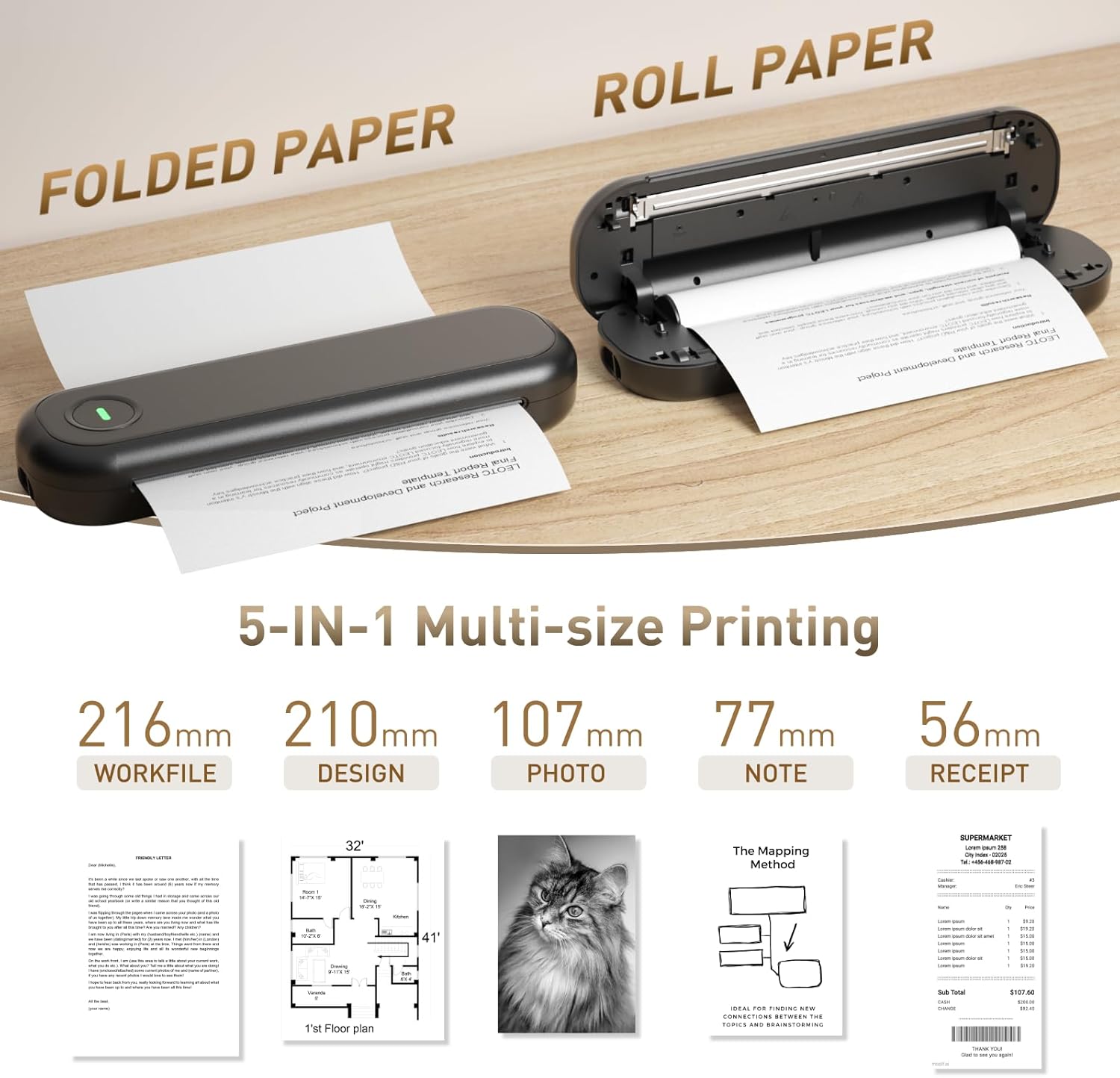
Image 4.2: The printer supports various paper widths, from 50mm to 216mm, and can use both folded and roll thermal paper.

Image 4.3: Illustration of loading fan-fold paper and roll paper into the built-in paper bin.
4.3. Connecting to a Mobile Device (Bluetooth)
The printer connects wirelessly to mobile devices via Bluetooth using the 'Luck Jingle' application.
- Download the 'Luck Jingle' app from the App Store (iOS) or Google Play Store (Android).
- Ensure Bluetooth is enabled on your mobile device.
- Power on the printer.
- Open the 'Luck Jingle' app and follow the in-app instructions to connect to the printer via Bluetooth.

Image 4.4: Visual guide for connecting the printer to a mobile device via the 'Luck Jingle' app.
4.4. Connecting to a Computer (USB)
For wired printing from a computer, install the necessary drivers.
- Visit the official Bisofice website to download the printer drivers for your operating system (Windows, macOS, Linux).
- Install the drivers on your computer.
- Connect the printer to your computer using the provided USB cable.
- Power on the printer. Your computer should recognize the device.

Image 4.5: Instructions for connecting the printer to a computer using a USB cable and installing drivers.
5. Operating Instructions
5.1. Printing from Mobile Devices
After connecting via Bluetooth:
- Open the 'Luck Jingle' app.
- Select the document, image, or template you wish to print. The app offers various editing and printing functions for files, pictures, posters, and lists.
- Adjust print settings (e.g., print tone, paper size) within the app as needed.
- Initiate the print command from the app.
5.2. Printing from Computers
After connecting via USB and installing drivers:
- Open the document or file you wish to print on your computer.
- Select 'Print' from the application's menu.
- Choose the 'Bisofice L86' printer from the list of available printers.
- Adjust print preferences (e.g., paper size, orientation) in the print dialog box.
- Click 'Print'.
5.3. Supported Print Sizes
The printer supports a range of paper widths:
- 50mm (2 inches)
- 56mm (approximately 2.2 inches)
- 77mm (3 inches)
- 107mm (4 inches)
- 210mm (A4)
- 216mm (US Letter, 8.5 inches)

Image 5.1: The printer's capability to print various document types across different paper sizes.
6. Maintenance
6.1. Cleaning the Printer
Regular cleaning helps maintain print quality. Ensure the printer is powered off before cleaning.
- Gently wipe the exterior of the printer with a soft, dry cloth.
- To clean the print head, use a cotton swab lightly dampened with isopropyl alcohol. Wipe the print head carefully to remove any dust or residue. Allow it to dry completely before use.
- Remove any paper dust or debris from the paper path.
6.2. Battery Care
To prolong battery life:
- Avoid fully discharging the battery frequently.
- Store the printer in a cool, dry place when not in use for extended periods.
- Charge the printer periodically if stored for a long time to prevent deep discharge.
6.3. Thermal Paper Considerations
Use only high-quality thermal paper for optimal results. Thermal paper is sensitive to heat and light; store it in a cool, dark place to prevent premature fading. The printer is designed for inkless operation, requiring no ink cartridges.

Image 6.1: The printer's 304DPI resolution provides clear, flat prints without curling, compared to lower DPI alternatives.
7. Troubleshooting
If you encounter issues with your Bisofice L86 printer, refer to the following common problems and solutions:
| Problem | Possible Cause | Solution |
|---|---|---|
| Printer does not power on. | Low battery or power issue. | Charge the printer using the USB-C cable. Ensure the power adapter is working. |
| Cannot connect via Bluetooth. | Bluetooth is off, app issue, or printer not discoverable. | Ensure Bluetooth is enabled on your device. Restart the printer and the 'Luck Jingle' app. Make sure the printer is in pairing mode. |
| Printer not recognized by computer. | Missing or incorrect drivers, faulty USB cable. | Install the correct drivers from the official website. Try a different USB cable or USB port. Restart both printer and computer. |
| Poor print quality (faint, blurry). | Low battery, incorrect paper loading, dirty print head, or old thermal paper. | Charge the printer. Ensure thermal paper is loaded correctly with the printable side facing up. Clean the print head (see Maintenance section). Use fresh thermal paper. |
| Paper jam. | Improper paper loading or foreign object. | Power off the printer. Carefully open the cover and remove any jammed paper or obstructions. Ensure paper is loaded straight and the width clip is correctly set. |
8. Specifications
- Model: L86
- Brand: Bisofice
- Printing Technology: Thermal
- Printer Output: Monochrome
- Connectivity: Bluetooth, USB
- Maximum Print Speed (Monochrome): 30 ppm
- Print Resolution: 304 DPI
- Supported Paper Sizes: 50mm, 56mm, 77mm, 107mm, 210mm (A4), 216mm (US Letter)
- Maximum Media Size: 8.5 x 11 inches
- Max Input Sheet Capacity: 3 (for fan-fold)
- Battery: 2600mAh Lithium Battery
- Battery Life: Approximately 2.5 hours printing, or 400 sheets per full charge
- Product Dimensions: Approximately 3"D x 5"W x 12"H (308mm x 90mm x 50mm)
- Item Weight: Approximately 3.39 pounds (1.54 kg)
- Dual-sided printing: No
- Date First Available: December 19, 2024
9. Warranty Information
This product comes with a limited warranty. For specific terms and conditions, please refer to the warranty card included in your package or visit the official Bisofice website.
10. Customer Support
For further assistance, technical support, or inquiries regarding your Bisofice A4 Portable Thermal Printer L86, please visit the official Bisofice website or contact their customer service department through the contact information provided on their website.