1. Introduction
This manual provides essential information for setting up, operating, and maintaining your Lenovo ThinkPad X13 Gen 2 laptop. Please read this manual thoroughly before using your device to ensure proper function and safety. The ThinkPad X13 Gen 2 is a mobile notebook designed for productivity, featuring an 11th Gen Intel Core i5-1135G7 processor, 8GB of RAM, and a 256GB SSD, running Windows 11 Pro.
2. Safety Information
Observe the following safety precautions to prevent damage to your device or injury to yourself:
- Do not expose the laptop to extreme temperatures, direct sunlight, or high humidity.
- Avoid placing heavy objects on the laptop.
- Use only the power adapter supplied with your device or a Lenovo-approved replacement.
- Keep liquids away from the laptop to prevent electrical shock or damage.
- Do not attempt to disassemble or repair the laptop yourself. Refer to qualified service personnel.
3. Package Contents
Verify that all items are present in your package:
- Lenovo ThinkPad X13 Gen 2 Laptop
- Power Adapter and Cable
- Ethernet Expansion Connector (2 units)
- Ethernet Expansion Cable (2 units)
- Quick Start Guide (if included)
4. Product Overview
Familiarize yourself with the components and features of your ThinkPad X13 Gen 2.
4.1 Front and Top View

This image shows the Lenovo ThinkPad X13 Gen 2 laptop in a closed position, highlighting its sleek design and the ThinkPad logo on the lid. The overall compact form factor is visible.
4.2 Left Side Ports

A view of the left side of the ThinkPad X13 Gen 2, illustrating the various ports available for connectivity, including USB-C and USB-A ports. These ports are used for connecting peripherals and charging.
4.3 Right Side Ports
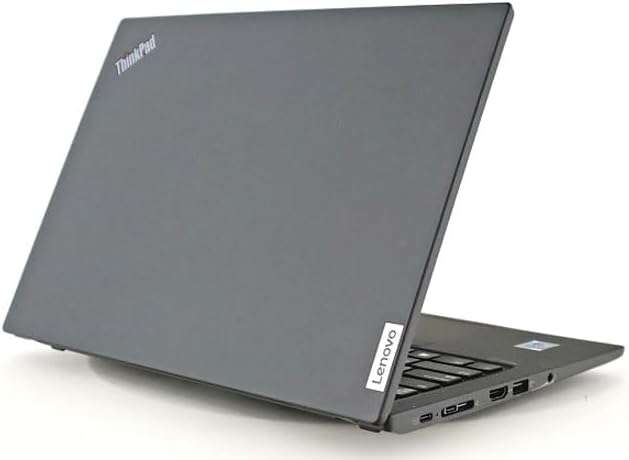
This image displays the right side of the ThinkPad X13 Gen 2, featuring the HDMI port for external display connections and other connectivity options.
4.4 Bottom View

The underside of the ThinkPad X13 Gen 2, revealing the ventilation grilles for cooling and product information labels. Ensure these vents are not obstructed during use.
4.5 Key Features
- TrackPoint: A red pointing stick located in the center of the keyboard for precise cursor control.
- Fingerprint Sensor: For secure and convenient login.
- Webcam: Integrated for video conferencing.
- Wi-Fi & Bluetooth: For wireless connectivity.
- USB Ports: Multiple USB 3.0 and USB Type-C ports for various peripherals.
- HDMI Port: For connecting to external displays.
5. Setup
5.1 Initial Power On
- Connect the power adapter to the laptop's power port and then to an electrical outlet.
- Open the laptop lid.
- Press the power button, usually located on the side or top right of the keyboard area.
- Follow the on-screen instructions to complete the initial Windows 11 Pro setup.
5.2 Connecting to a Network
- Wi-Fi: Click the Wi-Fi icon in the taskbar, select your network, enter the password, and click Connect.
- Wired Ethernet: Connect an Ethernet expansion connector to the laptop, then connect an Ethernet cable from your router to the expansion connector.
5.3 Connecting Peripherals
Use the available USB 3.0 and USB Type-C ports to connect external devices such as mice, keyboards, or external storage drives. The HDMI port allows connection to an external monitor or projector.
6. Operating
6.1 Using the Keyboard and TrackPoint
The ThinkPad X13 Gen 2 features a full-sized keyboard and the iconic TrackPoint pointing device. Use the TrackPoint for precise cursor control by gently pushing it in the desired direction. The three buttons below the spacebar function as left-click, scroll, and right-click for the TrackPoint.
6.2 Fingerprint Sensor
To set up the fingerprint sensor for Windows Hello, go to Settings > Accounts > Sign-in options and follow the instructions to add your fingerprint. This allows for quick and secure login.
6.3 External Display Connection
Connect an external monitor using the HDMI port. Once connected, press Windows key + P to select your preferred display mode (e.g., Duplicate, Extend, Second screen only).
7. Maintenance
7.1 Cleaning Your Laptop
- Use a soft, lint-free cloth slightly dampened with water or a screen cleaner to clean the display.
- For the keyboard and chassis, use a soft cloth. Avoid harsh chemicals.
- Regularly clean the ventilation grilles to ensure proper airflow and prevent overheating.
7.2 Battery Care
- Avoid fully discharging the battery frequently.
- Store the laptop in a cool, dry place if not used for extended periods.
- For optimal battery longevity, avoid continuous charging at 100% when possible.
7.3 Software Updates
Regularly check for and install Windows updates and Lenovo driver updates to ensure optimal performance and security. Go to Settings > Windows Update to check for system updates.
8. Troubleshooting
If you encounter issues with your ThinkPad X13 Gen 2, try the following basic troubleshooting steps:
- No Power: Ensure the power adapter is securely connected to both the laptop and the power outlet. Try a different outlet.
- Display Issues: If the screen is blank, try connecting an external monitor to check if the issue is with the laptop's display. Restart the laptop.
- Connectivity Problems (Wi-Fi/Bluetooth): Check if Wi-Fi or Bluetooth is enabled in Windows settings. Restart your router or modem if network issues persist.
- Slow Performance: Close unnecessary applications. Check Task Manager for processes consuming high CPU or memory. Ensure sufficient free space on the SSD.
- System Not Responding: Press and hold the power button for 10-15 seconds to force a shutdown, then restart the laptop.
For more complex issues, refer to the Lenovo support website or contact customer service.
9. Specifications
| Feature | Specification |
|---|---|
| Brand | Lenovo |
| Model Name | THINKPAD X13 GEN 2 |
| Product Model Number | 20WLS35F00 |
| Screen Size | 13.3 Inches |
| Resolution | 1920x1200 Pixels (WUXGA) |
| CPU Brand | Intel |
| CPU Type | Intel Core i5-1135G7 |
| CPU Speed | 2.4 GHz (up to 4.2 GHz with Turbo Boost) |
| RAM Size | 8 GB DDR4 |
| Hard Disk Size | 256 GB SSD |
| Graphics Accelerator | Intel Iris Xe Graphics |
| Operating System | Windows 11 Pro (64-bit) |
| Wireless Communication | Wi-Fi, Bluetooth |
| USB 3.0 Ports | 2 |
| USB Type-C Ports | 2 |
| HDMI Ports | 1 |
| Optical Drive Type | None |
| Special Features | TrackPoint, Fingerprint Reader |
| Weight | Approx. 1.2 kg |
| Year of Manufacture | 2021 |
10. Warranty and Support
For warranty information and technical support, please refer to the official Lenovo website or the documentation provided with your purchase. Warranty terms may vary based on region and retailer. Keep your proof of purchase for warranty claims.
Lenovo Support Website: support.lenovo.com


