
ATTACK SHARK X68 HE
ATTACK SHARK X68 HE 8KHZ Rapid Trigger Keyboard User Manual
Brand: ATTACK SHARK | Model: X68 HE
Product Overview
The ATTACK SHARK X68 HE is a high-performance 60% mechanical gaming keyboard designed for speed and precision. It features magnetic switches with Hall Effect technology, offering an 8000Hz polling rate and ultra-low latency of just 0.125ms. Paired with an ATTACK SHARK coiled cable, it provides faster transmission speeds. Perfectly suited for typists and gamers, it enhances gaming and work efficiency. The keyboard provides extensive customization options, including adjustable actuation points and comprehensive RGB lighting.

Figure 1: The ATTACK SHARK X68 HE keyboard, showcasing its compact 60% layout, included coiled USB-C cable, and a keycap puller. The keyboard features vibrant RGB backlighting.

Figure 2: An overview of the X68 HE's core features, including magnetic switches, 0.01mm RT accuracy, adjustable actuation points, 0.125ms latency, Snap Tap functionality, RGB lighting, and web driver support for Windows and Mac systems.
Package Contents
Before proceeding with setup, please ensure all components are present in the package:
- ATTACK SHARK X68 HE Keyboard
- USB-C Coiled Cable
- Keycap Puller (often combined with switch puller)
- User Manual (this document)
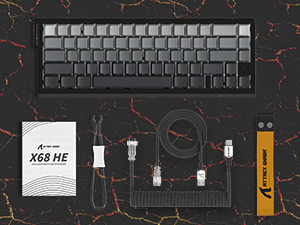
Figure 3: Visual representation of the keyboard package contents, including the keyboard, coiled USB cable, and a small instruction booklet.
Setup Guide
Follow these steps to set up your ATTACK SHARK X68 HE keyboard:
- Connect the Keyboard: Insert the USB-C end of the coiled cable into the port on the back of the keyboard. Connect the USB-A end to an available USB port on your computer (PC or Mac).
- Initial Power On: The keyboard's RGB lighting should illuminate upon successful connection.
- Install Web Driver Software: For full customization, including adjustable actuation points, macros, and advanced RGB settings, download the official web driver software from the ATTACK SHARK website. The software is compatible with both Windows and Mac operating systems.
- Software Calibration: After installing the software, it is recommended to perform a calibration to ensure optimal performance of the magnetic switches and accurate actuation point detection. Refer to the software's internal guide for specific calibration steps.
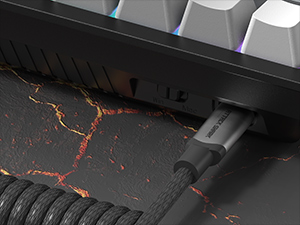
Figure 4: Close-up view of the USB-C port on the keyboard, showing the coiled cable securely connected. Ensure a firm connection for optimal performance.
Operating Instructions
Key Features and Functionality
- 8000Hz Polling Rate: Provides a rapid 0.125ms response time for ultra-fast input.
- Adjustable Actuation Points: Customize the trigger point of each key from 0.1mm to 3.4mm with 0.01mm precision. This allows for personalized tactile feedback and optimized response for different tasks.
- Rapid Trigger (RT) Accuracy: Achieve precise keystrokes with 0.01mm accuracy and zero dead zones, enabling faster resets and re-presses.
- Full Key Anti-Ghosting: Ensures all key presses are registered accurately, even during complex multi-key commands.
- Dynamic Keystrokes (DKS), Snap Tap, Toggle Key (TGL), Mod-Tap (MT): Advanced features configurable via the web driver for enhanced control and personalized input.
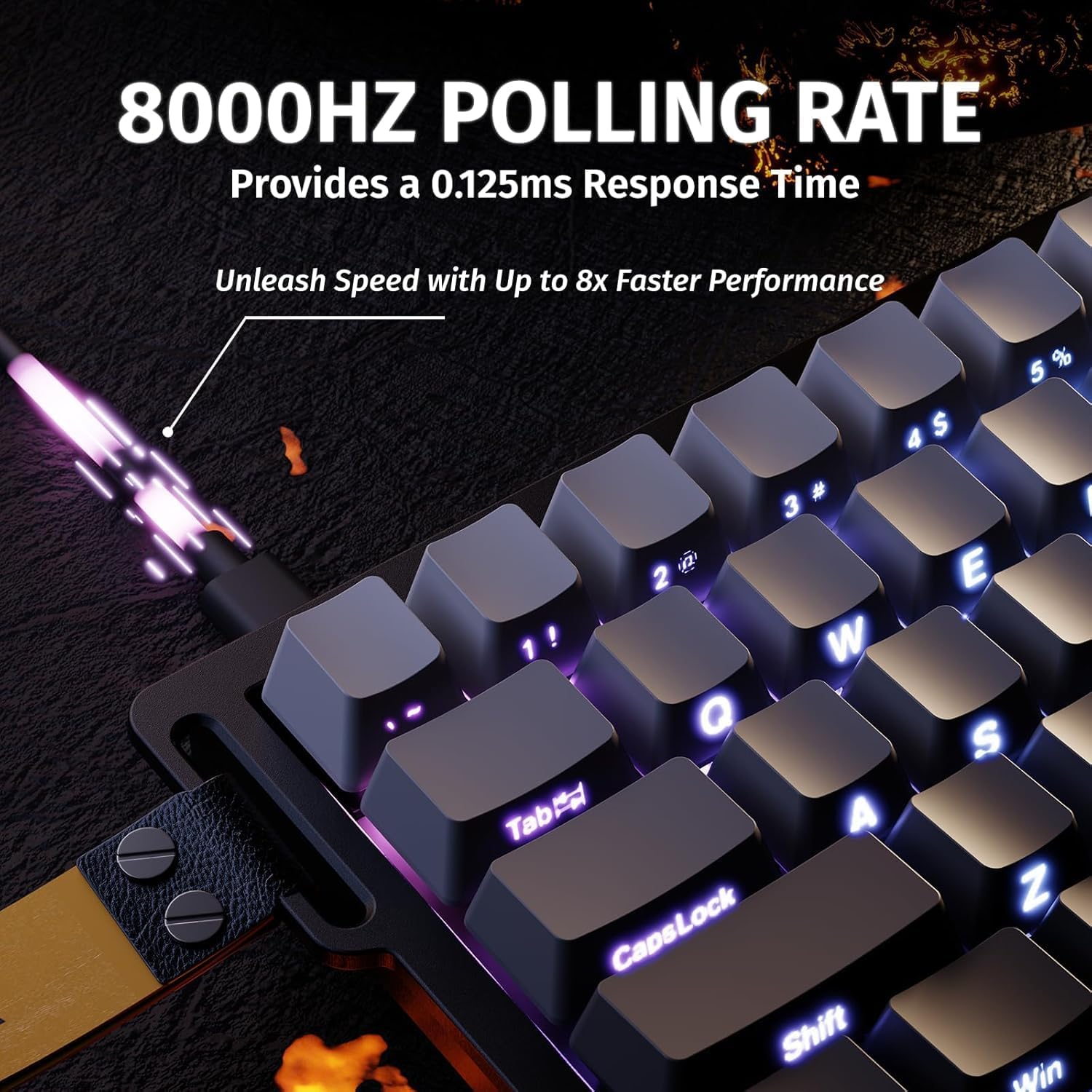
Figure 5: Illustration emphasizing the 8000Hz polling rate, which translates to a 0.125ms response time, crucial for competitive gaming.

Figure 6: Diagram illustrating the adjustable actuation point feature, showing the range from 0.1mm to 3.4mm and the internal magnetic switch mechanism.

Figure 7: Visual examples of how 0.01mm RT accuracy and 128KHz scan rate enhance performance in games like Valorant, CS:GO, Apex, and osu!, demonstrating precise movement and input.
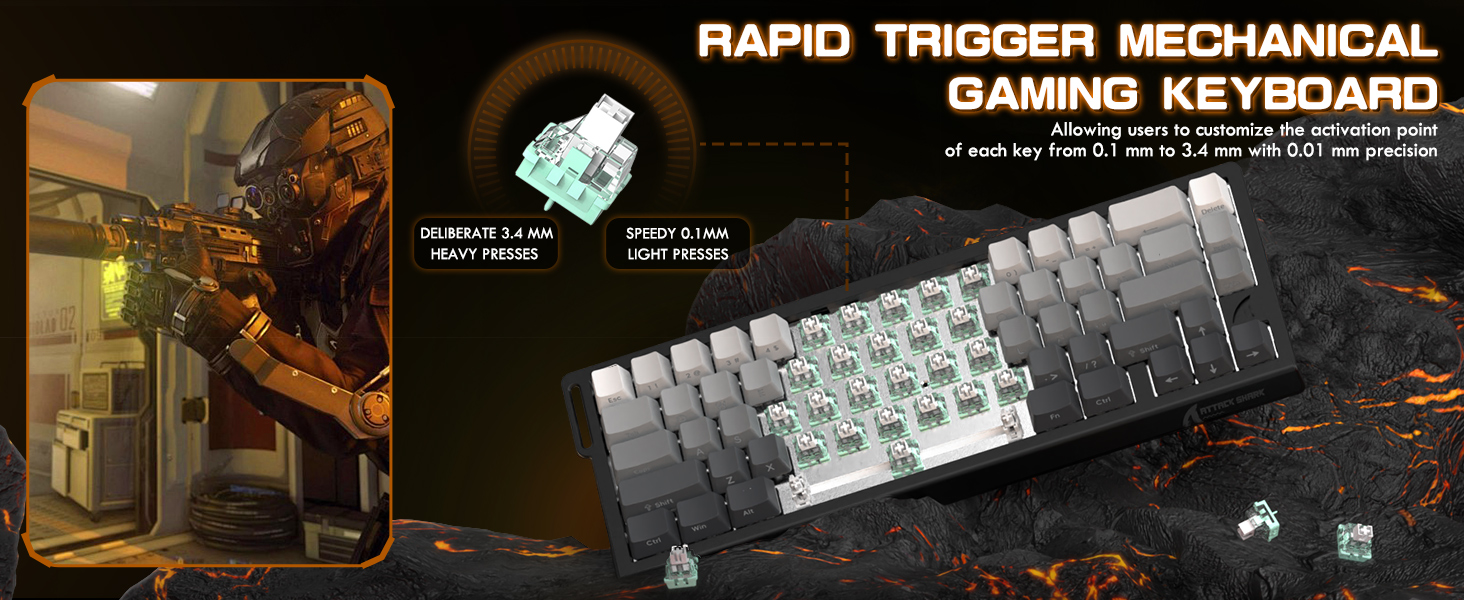
Figure 8: An illustration detailing advanced customization features such as Dynamic Keystrokes (DKS), Snap Key (SOCD), Toggle Key (TGL), and Mod-Tap (MT), which allow for complex key behaviors based on press depth or duration.
RGB Backlighting Control
The keyboard features 16 million-color RGB lighting with over 20 preset light effects. You can control the lighting directly from the keyboard or through the web driver software.
- Brightness Adjustment: Press Fn + ↑ to increase brightness, Fn + ↓ to decrease brightness.
- Speed Adjustment: Press Fn + ← to decrease effect speed, Fn + → to increase effect speed.
- Switch Light Mode: Press Fn + \ | to cycle through different lighting modes.
- Switch Light Color: Press Fn + Enter to change the color of the current lighting mode.
- Light On/Off: Press Fn + Backspace to toggle the lighting on or off.

Figure 9: The keyboard displaying its full RGB light effects, with a visual guide to the function key combinations for controlling brightness, speed, light mode, color, and toggling the lighting on/off.
Web Driver Software Customization
The professional web driver software provides extensive customization options:
- Key Remapping: Reassign functions to individual keys.
- Macros: Create and assign complex sequences of key presses.
- DKS (Dynamic Keystrokes): Configure different actions based on key press depth.
- Actuation Point Adjustment: Fine-tune the actuation point for each key.
- RGB Settings: Design custom lighting profiles and effects.
Access the web driver through your browser after installation. The interface allows for intuitive control over all advanced features.

Figure 10: Screenshot of the web driver software interface, demonstrating the various tabs for key settings, stroke settings, shaft settings, advanced settings, and light customization, enabling comprehensive personalization of the keyboard's functions.
Maintenance
Proper maintenance ensures the longevity and optimal performance of your keyboard.
Cleaning the Keyboard
- General Cleaning: Use a soft, lint-free cloth slightly dampened with water or a mild cleaning solution to wipe down the keycaps and keyboard frame. Avoid excessive moisture.
- Dust Removal: Use compressed air to remove dust and debris from between the keycaps and switches.
- Keycap Removal: For deeper cleaning, use the provided keycap puller to carefully remove the PBT keycaps. Clean the keycaps separately with water and mild soap, then ensure they are completely dry before reattaching.

Figure 11: A close-up image demonstrating the process of removing a keycap from the keyboard, revealing the magnetic switch underneath. This is useful for cleaning or switch replacement.
PBT Keycaps
The keyboard is fitted with durable original height gradient side engraved PBT keycaps. PBT material is known for its resistance to shine and wear over time, ensuring the legends remain clear.

Figure 12: A close-up view of the Doubleshot PBT keycaps, highlighting their texture and the side-engraved legends, which contribute to their durability and aesthetic appeal.
Troubleshooting
If you encounter issues with your ATTACK SHARK X68 HE keyboard, refer to the following common problems and solutions:
| Problem | Possible Cause | Solution |
|---|---|---|
| Keyboard not responding / No input | Loose cable connection, incorrect USB port, software issue. |
|
| RGB lighting not working | Lighting turned off, software conflict, power issue. |
|
| Keys not registering accurately / Double-typing | Incorrect actuation point settings, dust/debris under keycap, software calibration needed. |
|
| Software not detecting keyboard | Driver not installed correctly, USB connection issue, software version. |
|
Specifications
| Feature | Detail |
|---|---|
| Model Number | X68 HE |
| Product Dimensions | 14.25 x 6.18 x 1.93 inches |
| Item Weight | 1.96 pounds |
| Manufacturer | ATTARK SHARK |
| Connectivity Technology | USB-C |
| Keyboard Description | Mechanical |
| Special Features | 0.01mm Rapid Trigger Accuracy, 128KHz Scan Rates, Backlit, Ergonomic, Snap Tap & Dynamic Keystroke |
| Color | Moonlight (RGB Backlighting) |
| Number of Keys | 66 |
| Compatible Devices | Laptop, PC, Tablet |

Figure 13: An exploded diagram of the X68 HE keyboard, showing its internal structure including the PBT keycaps, top case, aluminum alloy plate, PORON foam, PCB, ATTACK SHARK magnetic switches, and bottom case.
Warranty and Support
Your ATTACK SHARK X68 HE keyboard comes with a standard return policy and options for extended protection plans.
- Return Policy: The product is eligible for a refund or replacement within 30 days of purchase.
- Protection Plans: Extended protection plans are available for purchase, including 3-Year and 4-Year options, as well as a monthly "Complete Protect" plan. These plans offer additional coverage beyond the standard return period.
- Manufacturer: ATTARK SHARK
- Seller: For direct support and inquiries related to your purchase, please contact the seller, Ajazz US, through the platform where the product was purchased.
For the most up-to-date warranty information and support resources, please refer to the official ATTACK SHARK website or contact their customer service directly.
Related documentsX68 HE


Ask a question about this manual
Ask about setup, troubleshooting, compatibility, parts, safety, or missing instructions. Manuals+ will review the question and use this page’s manual context to help answer it.