
ATTACK SHARK X68 HE
ATTACK SHARK X68 HE Gaming Keyboard User Manual
Model: X68 HE | Brand: ATTACK SHARK
1. Introduction
The ATTACK SHARK X68 HE is a high-performance 60% mechanical gaming keyboard designed for speed, precision, and customization. Featuring magnetic switches with Hall Effect triggering technology, it offers an 8000Hz polling rate for ultra-low latency and adjustable actuation points from 0.1mm to 3.4mm. Its robust design includes PBT keycaps and full RGB backlighting, making it suitable for both intense gaming and efficient typing across Windows and Mac systems.

Figure 1: Key features of the ATTACK SHARK X68 HE keyboard.
2. Package Contents
Please verify that all items are present in your package:
- ATTACK SHARK X68 HE Gaming Keyboard
- USB-C Coiled Cable
- User Manual
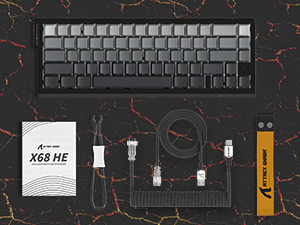
Figure 2: Included items in the product package.
3. Setup
To set up your ATTACK SHARK X68 HE keyboard, follow these simple steps:
- Connect the USB-C Cable: Locate the USB-C port on the back of the keyboard. Insert the smaller end of the provided coiled USB-C cable into this port.
- Connect to Computer: Insert the standard USB-A end of the cable into an available USB port on your computer (PC or Mac).
- Driver Installation: The keyboard is plug-and-play for basic functionality. For advanced customization, including DKS, macros, and RGB settings, download the dedicated web driver software from the official ATTACK SHARK website.
- Placement: Place the keyboard on a stable, flat surface. Consider using a wrist rest for ergonomic comfort during extended use.
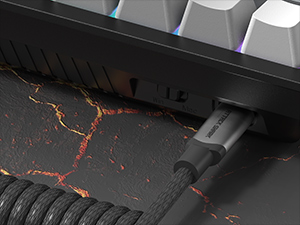
Figure 3: Connecting the USB-C cable to the keyboard.
4. Operating Instructions
The ATTACK SHARK X68 HE is a 60% layout keyboard, meaning some functions are accessed via a function (Fn) layer. Familiarize yourself with the key legends and the Fn key combinations for full functionality.
Basic Key Functions
- Standard Typing: All alphanumeric keys, symbols, and modifiers (Shift, Ctrl, Alt, Win/Cmd) function as standard.
- Function (Fn) Key: Press and hold the Fn key to access secondary functions printed on the front or side of certain keycaps. For example, arrow keys, F-keys, and multimedia controls are typically accessed this way.
Polling Rate and Latency
The keyboard operates at an 8000Hz polling rate, providing a rapid 0.125ms response time. This ensures minimal input lag for competitive gaming and fast-paced tasks.

Figure 4: 8000Hz Polling Rate for ultra-fast response.
5. Customization
The ATTACK SHARK X68 HE offers extensive customization options through its web driver software and on-board controls.
Adjustable Actuation Points & Rapid Trigger
Utilizing magnetic switches, the keyboard allows you to customize the actuation point of each key from 0.1mm to 3.4mm with 0.01mm precision. This feature, combined with Rapid Trigger technology, enables faster resets and re-presses, providing a significant advantage in gaming by allowing dynamic keystrokes (DKS), Snap Tap, and Mod-Tap functions.

Figure 5: Adjustable Actuation Point mechanism.
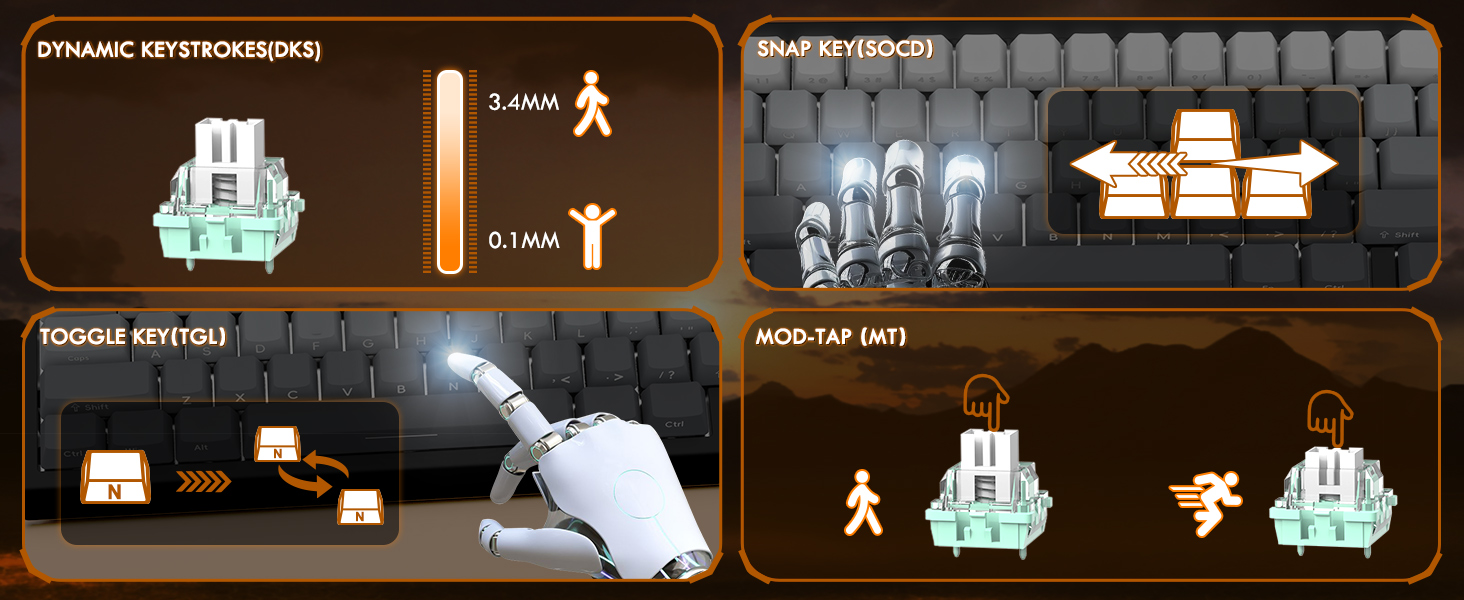
Figure 6: Explanation of DKS, Snap Tap, Toggle Key, and Mod-Tap features.
RGB Backlighting
The keyboard features 16 million-color RGB lighting with over 20 preset light effects and multiple dynamic modes. You can adjust backlight brightness, speed, and switch between different lighting modes and colors using Fn key combinations or the web driver software.
- Fn + Up/Down Arrow: Adjust Backlit Brightness.
- Fn + Left/Right Arrow: Adjust Backlit Speed.
- Fn + \|: Switch Light Mode.
- Fn + Enter: Switch Light Color.
- Fn + Backspace: Light On/Off.

Figure 7: Full RGB light effects.
Web Driver Software
The professional customized web software allows for comprehensive customization on both Windows and Mac. You can easily configure DKS, key combinations, macros, key remapping, and detailed RGB lighting settings. This enables a truly personalized experience for various user needs and gaming styles.

Figure 8: Web driver software interface for customization.
6. Maintenance
Proper maintenance ensures the longevity and optimal performance of your keyboard.
Cleaning
- General Cleaning: Use a soft, dry cloth to wipe down the keyboard surface regularly.
- Dust Removal: Use compressed air to remove dust and debris from between the keycaps.
- Deep Cleaning: For deeper cleaning, you may carefully remove the PBT keycaps using a keycap puller (not included unless specified in package contents). Clean the keycaps with mild soap and water, ensuring they are completely dry before reattaching.

Figure 9: Keycap removal for cleaning.
Storage
When not in use for extended periods, store the keyboard in a cool, dry place away from direct sunlight and extreme temperatures.
7. Troubleshooting
If you encounter issues with your ATTACK SHARK X68 HE keyboard, please refer to the following common solutions:
- Keyboard Not Responding:
- Ensure the USB-C cable is securely connected to both the keyboard and the computer.
- Try connecting the keyboard to a different USB port on your computer.
- Test the keyboard on another computer to rule out system-specific issues.
- RGB Lights Not Working:
- Check if the RGB lighting is turned off using the Fn + Backspace shortcut.
- Ensure the web driver software is installed and updated, and check lighting settings within the software.
- Verify that the keyboard is receiving sufficient power from the USB port.
- Keys Not Registering or Double-Typing:
- Clean under the affected keycaps to remove any debris.
- Adjust the actuation point settings in the web driver software. Sometimes, a very low actuation point can lead to unintended presses or misfires.
- Ensure the keyboard firmware is up to date via the web driver software.
- Software Issues / Customization Not Applying:
- Ensure you are using the correct and latest version of the ATTACK SHARK web driver software for the X68 HE model.
- Run the software as an administrator (on Windows).
- Temporarily disable any antivirus or firewall software that might be interfering with the web driver.
If the problem persists after trying these steps, please contact ATTACK SHARK customer support for further assistance.
8. Specifications
| Feature | Description |
|---|---|
| Model | X68 HE |
| Brand | ATTACK SHARK |
| Connectivity Technology | USB-C (Wired) |
| Keyboard Description | Mechanical Gaming Keyboard |
| Switch Type | Magnetic Switches (Hall Effect) |
| Polling Rate | 8000Hz |
| Response Time | 0.125ms |
| Actuation Point Range | 0.1mm to 3.4mm (0.01mm accuracy) |
| Keycaps | PBT Keycaps (Contour Line 3.0 version) |
| Backlighting | Full RGB (16 million colors, 20+ preset effects) |
| Anti-Ghosting | Full Key Anti-Ghosting |
| Compatible Devices | Laptop, PC, Tablet (Windows/Mac) |
| Product Dimensions | 14.25 x 6.18 x 0.79 inches |
| Item Weight | 2.01 pounds |
| Number of Keys | 66 |
9. Warranty and Support
ATTACK SHARK products are designed for durability and performance. For specific warranty information, please refer to the warranty card included with your product or visit the official ATTACK SHARK website. If you require technical support, have questions about product functionality, or need assistance with troubleshooting, please contact ATTACK SHARK customer service through their official channels.
Online Support: Visit the ATTACK SHARK official website for FAQs, driver downloads, and support contact information.
Email Support: Refer to your product packaging or the official website for the customer support email address.
Related documentsX68 HE


Ask a question about this manual
Ask about setup, troubleshooting, compatibility, parts, safety, or missing instructions. Manuals+ will review the question and use this page’s manual context to help answer it.