
MekedeTech DUDUAUTO
MekedeTech DUDUAUTO Car DVR Dash Cam User Manual
Model: DUDUAUTO | Brand: MekedeTech
1. Introduction
This user manual provides comprehensive instructions for the installation, operation, and maintenance of your MekedeTech DUDUAUTO Car DVR Dash Cam. This device is designed to enhance driving safety and provide reliable video recording capabilities, specifically optimized for use with DUDUAUTO head units.
2. Product Overview and Key Features
The MekedeTech DUDUAUTO Dash Cam is a high-definition vehicle video recorder engineered for seamless integration with DUDUAUTO Android head units. It offers advanced features to improve your driving experience and record critical events.
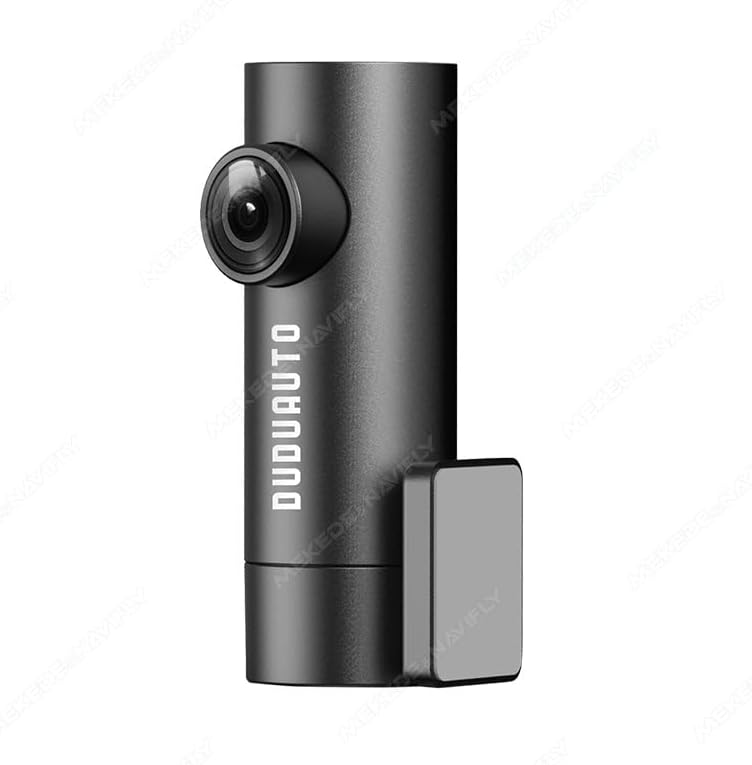
Figure 2.1: Front view of the MekedeTech DUDUAUTO Dash Cam, showcasing its compact and discreet design.

Figure 2.2: Detailed view of the dash cam's dimensions (31mm x 92mm x 31mm) and key parameter configurations, including recording specifications (2K 2560*1440P@30fps, Sony IMX335 F1.6 large aperture H.265), storage method (supports up to 256GB TF card, not included), power supply interface (Type-C recorder end, USB-A car end), and operating temperature (-20 to 70°C).
Key Features:
- High-Resolution Recording: Captures video at 2560*1440P (2K) resolution at 30 frames per second, providing clear and detailed footage.
- Advanced Driver-Assistance Systems (ADAS): Includes features such as Lane Departure Warning System (LDWS) and Forward Collision Warning, providing real-time alerts to enhance driving safety.
- Sony IMX335 Sensor: Equipped with a Sony IMX335 sensor for superior image quality, especially in low-light conditions, supporting starlight night vision.
- 360-Degree Rotational Shooting: Allows for flexible camera angle adjustment to capture various perspectives.
- Seamless Integration: Designed exclusively for compatibility with DUDUAUTO Android head units, ensuring optimal performance and user experience.
- Loop Recording: Automatically overwrites the oldest footage when the memory card is full, ensuring continuous recording.
- Automatic Incident Detection: Built-in G-sensor detects sudden movements or impacts and automatically locks the current video segment to prevent it from being overwritten.
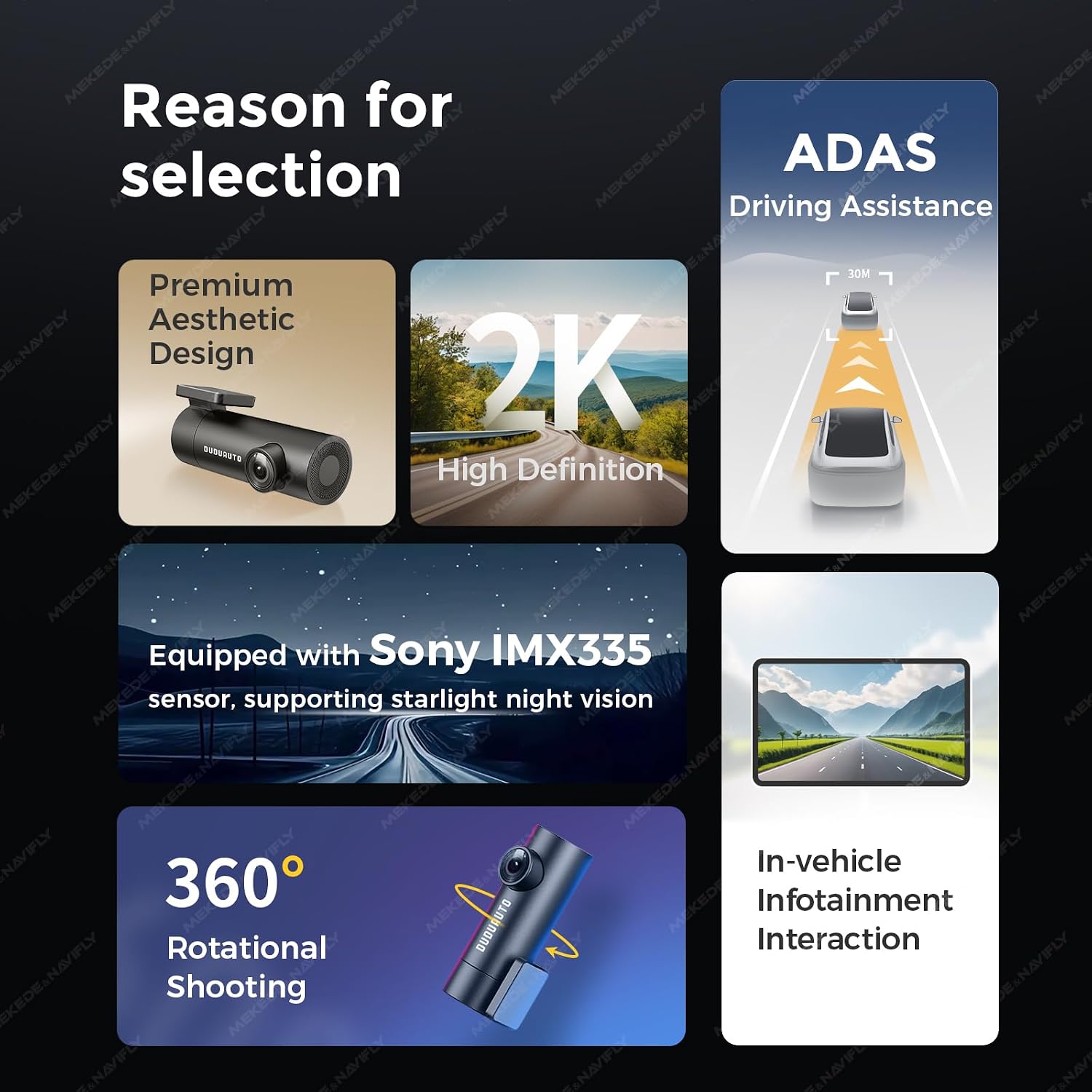
Figure 2.3: Visual representation of key selling points including premium aesthetic design, 2K high definition, ADAS driving assistance, Sony IMX335 sensor with starlight night vision, 360-degree rotational shooting, and in-vehicle infotainment interaction.
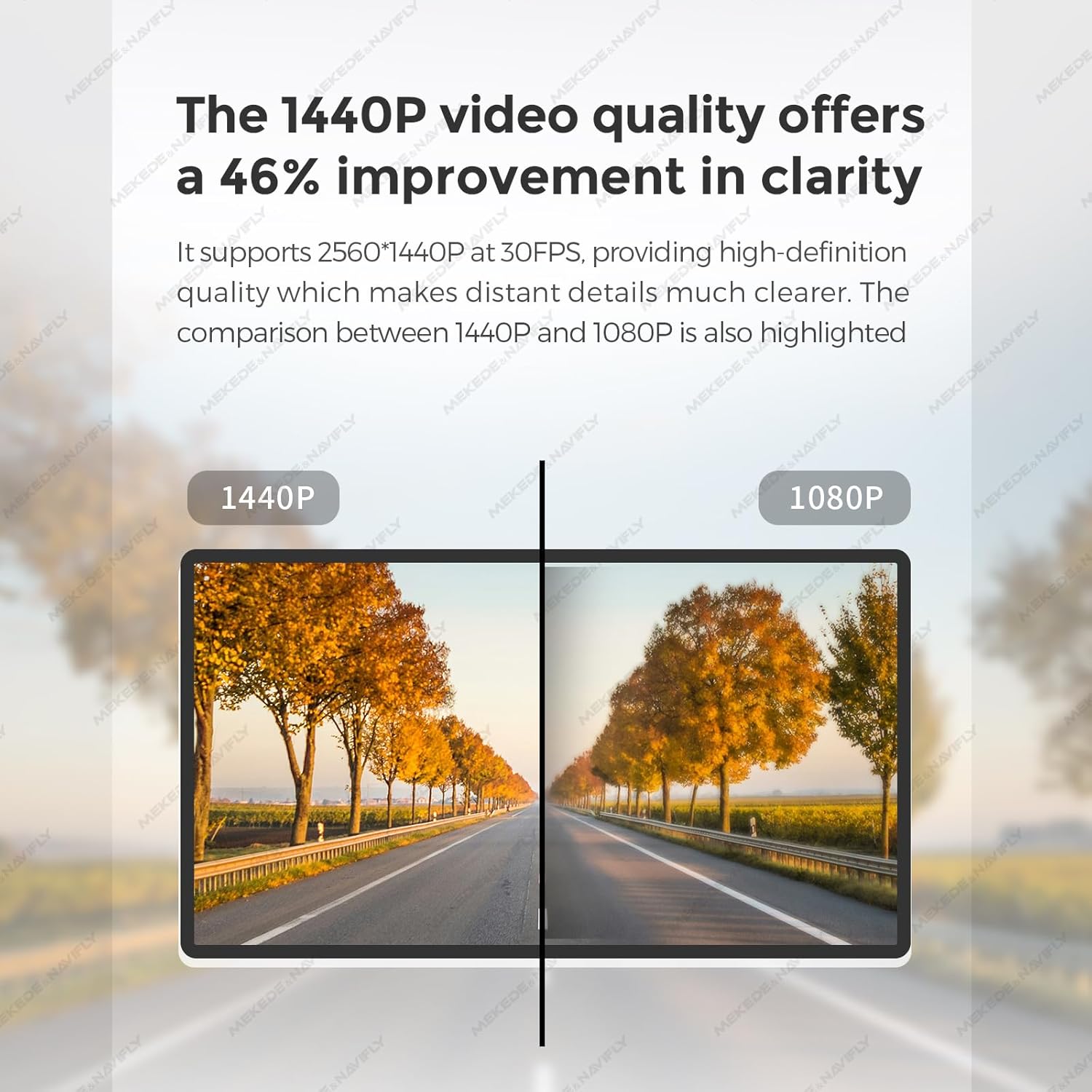
Figure 2.4: Comparison illustrating the improved clarity of 1440P resolution over 1080P, highlighting enhanced detail in recorded footage.
3. Compatibility Note
Important: The DUDUAUTO DVR is exclusively designed to function with DUDUAUTO head units. It is not compatible with other Android head unit screens.
Ensure your vehicle's head unit is a DUDUAUTO brand unit to guarantee proper functionality and performance of this dash cam. If you are unsure about compatibility, please contact MekedeTech support before installation.
4. Setup and Installation
4.1. Package Contents
- MekedeTech DUDUAUTO Dash Cam
- USB Connection Cable
- Car Mount (for windshield mounting)
4.2. Installation Steps
- Choose Mounting Location: Select a suitable location on your windshield, typically behind the rearview mirror, that does not obstruct your view of the road. Ensure the area is clean and dry.
- Attach Dash Cam: Securely attach the dash cam to the windshield using the provided car mount. Ensure it is firmly in place.
- Connect to Head Unit: Connect the dash cam to your DUDUAUTO head unit using the supplied USB cable. The cable is designed to be long enough for discreet routing.
- Install DVR Application:
- Access the files application on your DUDUAUTO head unit.
- Locate and install the DVR application provided by the dash cam. This application is typically found on the dash cam's internal storage when connected.
- Update Application (Optional but Recommended): If an internet connection is available (e.g., via mobile hotspot), update the DVR application to the latest version for optimal performance and features. Grant any necessary permissions on your Android head unit.
- Insert Memory Card: Insert a Class 10 or higher speed TF (microSD) card (up to 256GB, not included) into the dash cam's memory card slot.
- Format Memory Card: Within the DVR application settings on your head unit, format the newly inserted memory card. This prepares it for recording and ensures compatibility.
- Calibrate ADAS:
- Open the DVR application.
- Navigate to the settings or calibration menu (often indicated by a gear icon).
- Follow the on-screen instructions to calibrate the ADAS features, such as lane departure warning. This typically involves aligning a guide on the screen with the road markings.
5. Operating Instructions
5.1. Automatic Recording
Once connected and powered on, the dash cam will automatically begin recording when your DUDUAUTO head unit starts up. Recording will stop when the head unit is powered off.
5.2. Accessing Recordings
Recordings can be accessed directly through the DVR application on your DUDUAUTO head unit. The application allows you to view live footage, browse recorded videos, and manage files.
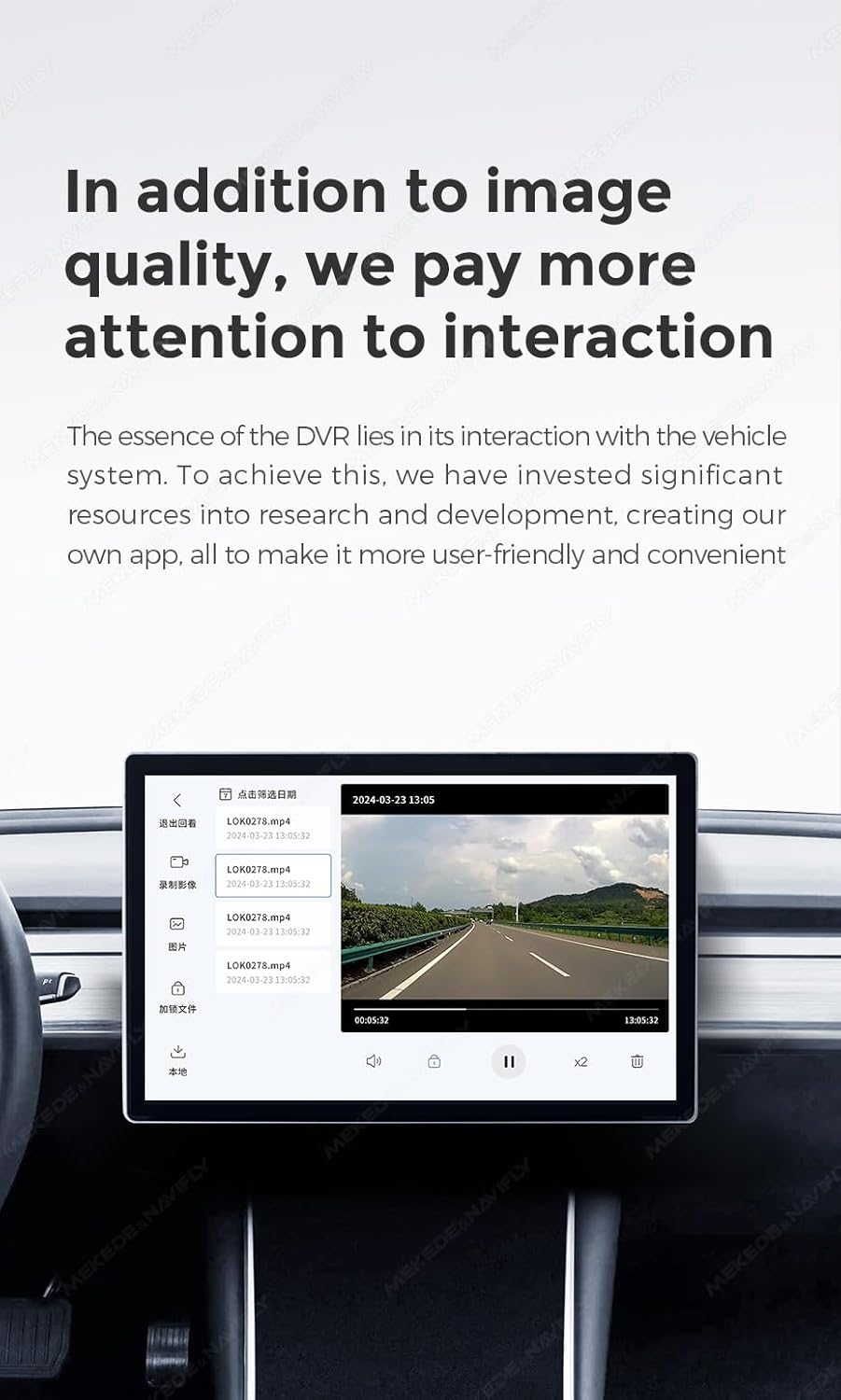
Figure 5.1: Example of the DUDUAUTO DVR application interface displayed on a car's infotainment screen, showing video playback and file management options.
5.3. ADAS Features (Advanced Driver-Assistance Systems)
The ADAS system provides real-time warnings to assist with safer driving. These features operate in the background and can provide audible alerts (beeps) or visual indicators on your head unit screen, even if the camera feed is not actively displayed.
- Lane Departure Warning System (LDWS): Alerts you if your vehicle drifts out of its lane without signaling. Sensitivity can be adjusted in the DVR application settings.
- Forward Collision Warning: Provides an alert if you are approaching a vehicle ahead too quickly.
- Distance Monitoring: Helps maintain a safe following distance.
- Pedestrian Warning: Alerts to potential pedestrian hazards.

Figure 5.2: Illustration of ADAS features including Distance Monitoring, Pedestrian Warning, and Lane Departure Warning, demonstrating how the system detects and alerts to potential road hazards.
5.4. Settings and Customization
Within the DVR application, you can customize various settings:
- Recording Intervals: Adjust the length of individual video files (e.g., 1, 3, or 5 minutes).
- ADAS Sensitivity: Fine-tune the sensitivity of lane departure and collision warnings.
- Audio Recording: Enable or disable audio recording.
- Video Resolution: Confirm the recording resolution (1440P).
- G-Sensor Sensitivity: Adjust the sensitivity for automatic incident detection.
6. Maintenance
6.1. Memory Card Management
- Regular Formatting: It is recommended to format the memory card periodically (e.g., once a month) to maintain optimal performance and prevent data corruption. This can be done through the DVR application.
- Card Replacement: Memory cards have a limited lifespan due to continuous read/write cycles. Replace your memory card if you experience frequent recording errors or data loss.
- Capacity: Use a high-quality Class 10 or higher speed TF card, up to 256GB, for reliable recording.
6.2. Cleaning
- Lens Cleaning: Gently wipe the camera lens with a soft, lint-free cloth to ensure clear video quality. Avoid abrasive materials or harsh chemicals.
- Device Cleaning: Clean the exterior of the dash cam with a dry or slightly damp cloth. Do not use excessive moisture or immerse the device in water.
7. Troubleshooting
If you encounter issues with your MekedeTech DUDUAUTO Dash Cam, refer to the following common problems and solutions:
| Problem | Possible Cause | Solution |
|---|---|---|
| Dash cam does not power on. |
|
|
| No recording or recording errors. |
|
|
| ADAS features not working or inaccurate. |
|
|
| DVR application not installing or updating. |
|
|
8. Specifications
| Feature | Detail |
|---|---|
| Model Name | DUDUAUTO |
| Brand | MekedeTech |
| Video Capture Resolution | 2560*1440P (2K) @ 30fps |
| Sensor | Sony IMX335 |
| Aperture | F1.6 |
| Connectivity Technology | USB |
| Special Features | ADAS (Lane Departure Warning, Forward Collision Warning, Distance Monitoring, Pedestrian Warning), 360 Degree Rotational Shooting, Automatic Incident Detection, Loop Recording, Starlight Night Vision |
| Storage | Supports up to 256GB TF (microSD) card (Class 10 or higher recommended, not included) |
| Product Dimensions | 2 x 1.5 x 1.5 inches (approx. 5.08 x 3.81 x 3.81 cm) |
| Item Weight | 1 pound (approx. 0.45 kg) |
| Color | Black |
| Included Components | Car Mount, Charging Cable |
| Mounting Type | Windshield Mount |
| Operating Temperature | -20°C to 70°C |

Figure 8.1: Detailed comparison table highlighting the superior specifications of the 2K ADAS DVR (DUDUAUTO) over a standard 1080P ADAS DVR, including resolution, sensor, pixel count, aperture, video format, frequency, RAM, ADAS performance, and 360-degree rotational shooting capability.
9. Warranty and Support
For information regarding product warranty, please refer to the terms and conditions provided at the time of purchase or contact MekedeTech customer support directly. Amazon's return policy typically allows for returns within 30 days of receipt for a refund or replacement.
For technical assistance, troubleshooting, or further inquiries, please visit the official MekedeTech website or contact their customer service department. Ensure you have your product model number (DUDUAUTO) and purchase details ready when seeking support.
MekedeTech Official Store: Visit MekedeTech Store on Amazon
Ask a question about this manual
Ask about setup, troubleshooting, compatibility, parts, safety, or missing instructions. Manuals+ will review the question and use this page’s manual context to help answer it.