
1. Product Overview
The PopBloom K212 is a portable, foldable Bluetooth keyboard designed for use with various devices, including smartphones, tablets, and laptops running iOS, Android, or Windows operating systems. Its compact design and rechargeable battery make it suitable for travel and on-the-go productivity.

Image: The PopBloom K212 Foldable Bluetooth Keyboard shown in both black and pink variants, illustrating its compact folded state and its full-size open configuration.
2. Package Contents
Verify that all items are present in the package:
- 1x PopBloom K212 Portable Keyboard
- 1x Protective Carrying Case
- 1x Type-C Charging Cable
- 1x User Manual

Image: An illustration of the package contents, showing the keyboard, protective carrying case, Type-C charging cable, and user guide for the Elegant Blue-Pink variant.
3. Setup Guide
3.1 Initial Charging
Before first use, fully charge the keyboard. Connect the provided Type-C charging cable to the keyboard's charging port and a USB power source (e.g., computer, wall adapter). The charging indicator light will illuminate during charging and turn off when fully charged. A full charge typically takes less than 2 hours.
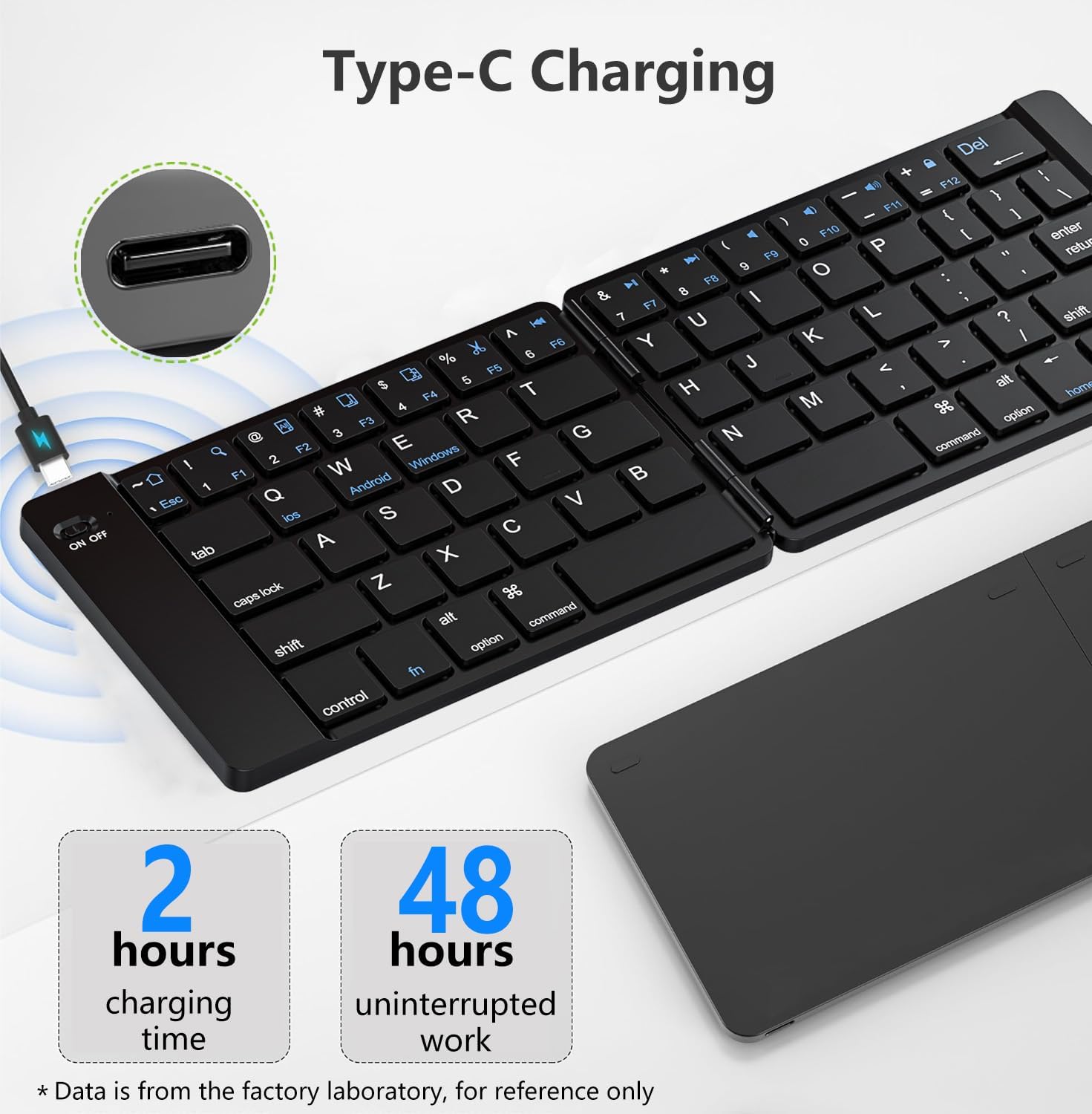
Image: The PopBloom K212 keyboard being charged via its Type-C port, indicating a charging time of 2 hours for 48 hours of use.
3.2 Power On/Off
To power on the keyboard, unfold it completely. The keyboard will automatically power on. To power off, fold the keyboard. It will automatically power off to conserve battery.
3.3 Bluetooth Pairing
- Unfold the keyboard to power it on.
- Press the Fn + C keys simultaneously to enter Bluetooth pairing mode. The Bluetooth indicator light will flash.
- On your device (smartphone, tablet, laptop), enable Bluetooth and search for available devices.
- Select "Bluetooth Keyboard" or a similar name from the list of devices.
- Once connected, the Bluetooth indicator light on the keyboard will stop flashing.
The keyboard will automatically attempt to reconnect to the last paired device when powered on.
3.4 System Switching
The keyboard supports iOS, Android, and Windows operating systems. Switch between systems for optimal key functionality:
- Fn + Q for iOS devices
- Fn + W for Android devices
- Fn + E for Windows devices

Image: A visual guide demonstrating how to switch between iOS, Android, and Windows modes using Fn key combinations, along with compatible device examples.
4. Operating Instructions
4.1 Basic Typing
The keyboard features a standard QWERTY layout. Simply unfold the keyboard and ensure it is paired with your device to begin typing. The scissor-foot key structure provides a quiet and comfortable typing experience.

Image: A detailed view of the scissor switch key structure, emphasizing quiet operation and durability with 3,000,000 press tests and 100,000 folding action tests.
4.2 Multimedia and Function Keys
The top row of keys (F1-F12) includes multimedia and function shortcuts. These functions can be accessed by pressing the Fn key in combination with the desired function key. Functions include volume control, media playback, and screen lock, depending on the operating system.

Image: The keyboard displaying its rich multimedia features, with F-keys assigned to various functions for efficient operation.
4.3 Folding and Portability
The keyboard features a magnetic folding design for easy portability. When folded, it is compact and can be stored in the provided carrying case or a bag. Unfold it to activate and use.

Image: A visual representation of the keyboard's magnetic folding mechanism, tested for over 10,000 folds and designed for over 5 years of use.
5. Maintenance
5.1 Cleaning
To clean the keyboard, gently wipe the surface with a soft, damp cloth. Avoid using harsh chemicals or abrasive materials. Ensure the keyboard is powered off before cleaning.
5.2 Storage
When not in use, fold the keyboard and store it in the provided protective carrying case. This helps prevent dust accumulation and physical damage, extending the product's lifespan.

Image: The protective carrying case, highlighting its portability, full protection with Velcro closure, and soft, supple leather material for durability.
5.3 Battery Care
To maximize battery life, avoid fully discharging the keyboard frequently. Charge the keyboard when the low battery indicator blinks. If storing for an extended period, charge the battery to approximately 50% every few months.
6. Troubleshooting
6.1 Keyboard Not Connecting via Bluetooth
- Ensure the keyboard is fully charged.
- Make sure the keyboard is unfolded and powered on.
- Verify Bluetooth is enabled on your device.
- Put the keyboard into pairing mode (Fn + C) and re-scan for devices on your host device.
- If previously paired, try "forgetting" or "unpairing" the keyboard from your device's Bluetooth settings and then re-pairing.
- Ensure your device is within the Bluetooth range (typically 10 meters or 33 feet).
6.2 Keys Not Responding or Typing Incorrectly
- Check the battery level and charge if necessary.
- Ensure the correct operating system mode is selected (Fn + Q for iOS, Fn + W for Android, Fn + E for Windows).
- Reconnect the Bluetooth connection.
- Restart both the keyboard (fold and unfold) and your host device.
6.3 Charging Issues
- Ensure the Type-C cable is securely connected to both the keyboard and the power source.
- Try a different Type-C charging cable or USB power adapter.
- Verify the power source is functional.
7. Specifications
| Feature | Detail |
|---|---|
| Model Name | K212 Bluetooth Portable Keyboard |
| Connectivity Technology | Bluetooth |
| Compatible Devices | Laptop, PC, Smartphone, Tablet (iOS, Android, Windows) |
| Product Dimensions (Unfolded) | 12"L x 4"W x 0.3"H (30.48 cm x 10.16 cm x 0.76 cm) |
| Product Dimensions (Folded) | 5.95"L x 3.93"W x 0.5"H (approx. 15.1 cm x 10 cm x 1.27 cm) |
| Item Weight | 8.8 ounces (approx. 249 grams) |
| Battery Type | Nonstandard Battery (included) |
| Charging Time | Less than 2 hours |
| Continuous Operation Time | Up to 48 hours |
| Standby Time | Up to 180 days |
| Key Structure | Scissor Foot Key Structure |
| Special Features | Foldable, Lightweight, Low-Profile Key, Portable, Silent |
| Material | Plastic |
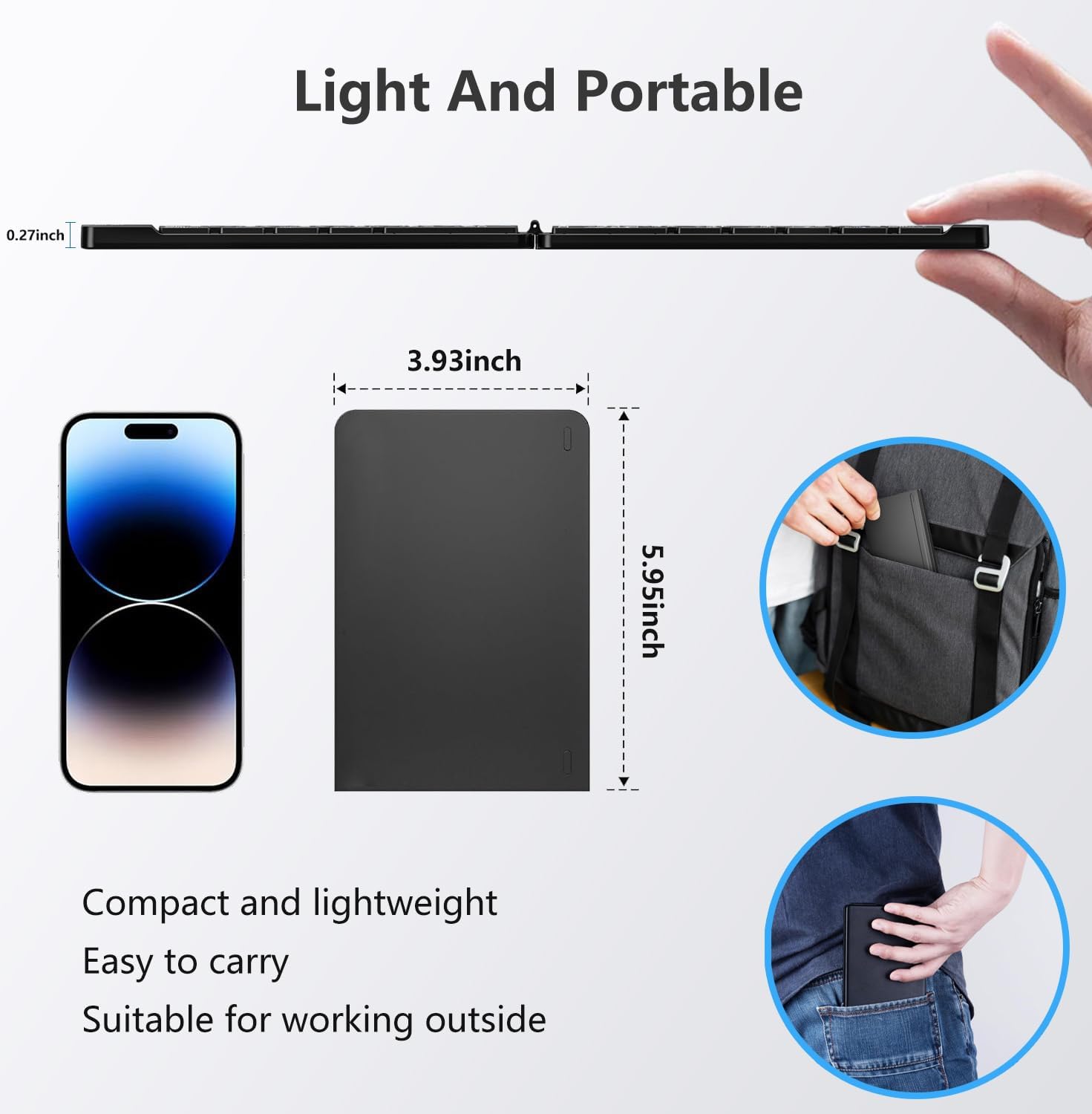
Image: The keyboard's light and portable design, illustrating its thin profile (0.27 inches) and folded dimensions (5.95 x 3.93 inches) for easy carrying.
8. Warranty and Support
PopBloom is committed to customer satisfaction. For any questions, technical support, or service inquiries, please contact PopBloom customer service. We offer 24-hour email response and lifetime technical support.
Please refer to the contact information provided in your product packaging or visit the official PopBloom website for support details.