
1. Product Overview
The CAIWEI A10Q Smart Projector is designed to provide a high-quality visual and audio experience for home entertainment. It features 4K decoding, 2300 ANSI lumens brightness, ToF CMOS auto-focus, and integrated Google TV with Netflix certification.

Image: Front view of the CAIWEI A10Q Smart Projector, showcasing its lens and sleek design.
Package Contents
Upon unboxing, ensure all the following items are present:
- CAIWEI A10Q Auto Focus Projector (1 unit)
- HDMI Cable
- Power Cord
- User Manual (this document)
- Remote Control (batteries not included)
2. Setup Guide
2.1 Placement
Optimal placement is crucial for the best viewing experience. Consider the projection distance and angle.
- Recommended Distance: For a 100-inch screen, a distance of approximately 2.8 meters (9.18 feet) is recommended. For a 120-inch screen, approximately 3.2 meters (10.49 feet).
- Comfortable Viewing Distance: For eye comfort, a 100-inch screen is best viewed from 3 meters (9.84 feet), and a 120-inch screen from 4 meters (13.12 feet).
- Flexible Installation: The projector supports various installation methods including table placement, tripod installation, and ceiling mounting. For ceiling mounting, ensure compatibility with universal ceiling mounts using a 4-screw pattern (M4 size screw holes).

Image: Diagram illustrating various projector installation methods: table placement, tripod, and ceiling mount.
2.2 Power Connection
- Connect the provided power cord to the projector's power input.
- Plug the other end of the power cord into a suitable electrical outlet.
2.3 Initial Power On and Auto-Adjustment
Once powered on, the projector will automatically adjust the image for optimal display.
- Auto Focus: Laser-powered ToF sensors and a high-precision CMOS camera enable instant auto-focus, ensuring a sharp image.
- Auto Keystone Correction: The projector automatically corrects image distortion, providing a perfectly aligned rectangular image.
- Auto Obstacle Avoidance & Screen Alignment: The AI-powered system can detect obstacles and automatically fit the image to your screen area.

Image: Visual representation of the projector's AI-powered 3D ToF Technology and CMOS Camera for fast auto-focus and keystone correction.

Image: Examples of the projector's automatic adjustments, including keystone correction, obstacle avoidance, and screen fitting.
2.4 Network Connection
Connect the projector to your home network for access to online content.
- Navigate to the Settings menu on the projector.
- Select Network & Internet.
- Choose your Wi-Fi network from the list and enter the password. The projector supports Wi-Fi 6 for faster and more stable connections.
2.5 Google Account Setup
To access Google TV features and apps, you will need to log in with your Google account during the initial setup process or via the settings menu.
3. Operating Instructions
3.1 Basic Navigation
Use the provided remote control to navigate the Google TV interface. The remote allows you to select apps, adjust settings, and control playback.
3.2 Streaming Applications
The projector comes with Android TV 14.0, providing access to the Google Play Store. You can download and use various streaming apps, including Netflix, YouTube, and Amazon Prime Video.
- Netflix Certified: Enjoy official Netflix content directly from the projector.
- Access over 700,000 movies, TV episodes, and live TV from 10,000+ licensed apps.
3.3 Voice Control with Google Assistant
The projector integrates Google Assistant for hands-free control.
- Press the Google Assistant button on your remote control.
- Speak commands such as "What's the weather?" or "Play an action movie."
3.4 Screen Mirroring and Casting
Share content from your mobile devices to the projector.
- NFC One-Tap Mirroring: Tap your NFC-enabled phone or tablet to the projector for instant screen mirroring.
- Google Cast: Use the built-in Google Cast feature to stream content from compatible apps on your device.
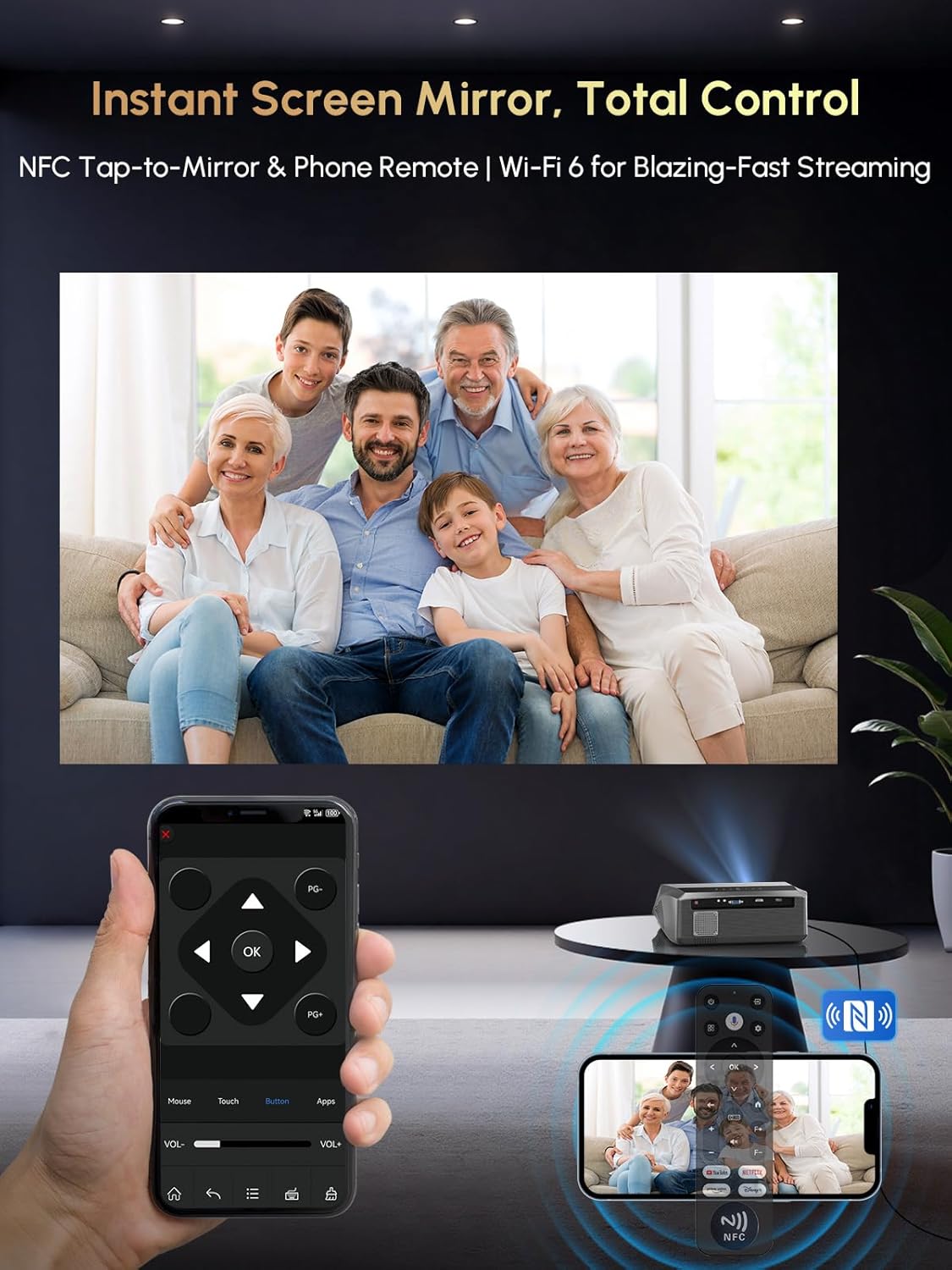
Image: A user mirroring their phone screen to the projector using NFC, and controlling the projector with a phone app.
3.5 Bluetooth Connectivity
Connect external audio devices or use the projector as a Bluetooth speaker.
- Connect to Bluetooth Speakers/Headphones: Pair your Bluetooth audio devices via the projector's settings for enhanced sound.
- Use as Bluetooth Speaker: The projector can function as a standalone Bluetooth speaker, playing audio from your phone or other devices.
3.6 External Device Connection
The projector offers multiple ports for connecting various devices.
- HDMI ARC: Connect laptops, gaming consoles, Fire Stick, Roku, and other HDMI-enabled devices. HDMI ARC supports audio return channel functionality.
- USB: Play media files directly from USB storage devices.
- AV: Connect older devices using an AV cable.
3.7 Brightness Modes
The projector offers selectable brightness modes to suit different viewing environments.
- Economic Mode: Reduces brightness for extended lamp life and lower power consumption, suitable for dark environments.
- High Bright Mode: Provides maximum brightness (2300 ANSI lumens) for clearer viewing in moderately lit rooms.

Image: Visual comparison of the projector's 'Economic Mode' and 'High Bright' mode, showing the difference in light output.
4. Maintenance
4.1 Dust Protection
The projector features a fully sealed optical engine and an air filtration level dust filter, designed to block up to 95% of dust. This helps maintain brightness and extends the projector's lifespan.

Image: Illustration of the projector's fully sealed optic engine and air filtration system for dust protection.
4.2 Cleaning
- Exterior: Use a soft, dry cloth to wipe the exterior of the projector. Avoid abrasive cleaners or solvents.
- Lens: Gently clean the projector lens with a lens cleaning cloth or specialized lens cleaning solution. Do not touch the lens directly with your fingers.
- Air Vents: Periodically check and clean the air vents to ensure proper airflow and prevent overheating.
4.3 Quiet Operation
The full sealed optical engine also contributes to lower operational noise, rated at approximately 25 dB, ensuring a quiet viewing experience.

Image: A visual showing the projector operating quietly at 25 dB, suitable for use in a bedroom.
5. Troubleshooting
5.1 Re-calibrating Auto Keystone & Focus
If the auto keystone or focus appears inaccurate, you can manually re-calibrate it.
- Place the projector approximately 6.56 feet (2 meters) away from the screen, facing it directly.
- Click the "Menu" button on your remote.
- Navigate using the directional buttons: "Left" → "Up" → "Left" → "Up" → "Left".
- In the factory aging mode, select "Horizontal reference correction".
- Click "Camera calibration".
- The projector will automatically re-calibrate.

Image: Step-by-step guide for re-calibrating the projector's auto keystone and focus settings.
5.2 Re-pairing Remote Control with Projector
If the remote control is unresponsive or app shortcuts/voice assistant features are not working, re-pair the remote.
- Go to Settings on the projector.
- Select Remotes & accessories.
- If the remote is listed, select it and choose Unpair.
- To re-pair, hold the Home and Back keys on the remote simultaneously for about 3 seconds, while holding the remote near the projector (within 20 cm). The remote will connect automatically.

Image: Illustrated steps for re-pairing the projector's remote control, including navigating settings and the pairing button combination.
5.3 Common Issues
- No Picture: Ensure the power cord is securely connected, the projector is turned on, and the correct input source is selected. Check HDMI cable connections if using an external device.
- No Sound: Verify volume levels on both the projector and any connected external audio devices. Check Bluetooth connections if using wireless speakers. Ensure Dolby Audio is enabled if desired.
- Network Connection Issues: Confirm your Wi-Fi password is correct. Try restarting your router and the projector. Ensure the projector is within range of your Wi-Fi signal.
6. Specifications
| Feature | Specification |
|---|---|
| Brand | CAIWEI |
| Model | A10Q |
| Display Resolution | 1920 x 1080 (Full HD), 4K Decoding |
| Brightness | 2300 ANSI Lumens |
| Connectivity Technology | WiFi 6, Bluetooth 5.4, HDMI ARC, USB, AV |
| Operating System | Android TV 14.0 (Google TV) |
| Special Features | Netflix Officially Licensed, Google Voice Control, ToF Sensor Auto Focus & Auto Keystone, Electronic Focus & 6D Keystone, Auto Obstacle Avoidance, Auto Screen Alignment, NFC Casting/Mirroring, Dolby Audio, Dust-proof Engine, Digital Zoom, Ceiling Mountable |
| Audio | Dolby Audio, 38W HiFi speaker, DSP chip, 360-degree surround sound |
| Item Weight | 5.68 pounds |
| Product Dimensions | 12.4 x 9.84 x 5.19 inches |

Image: An exploded view illustrating the projector's DSP chip, 38W multi-compound diaphragm cavity, and 360-degree surround sound capabilities.
7. Warranty and Support
CAIWEI provides comprehensive support for your A10Q Smart Projector.
- Warranty: The product includes a 2-year warranty.
- Customer Support: 24-hour customer support is available.
- Technical Support: Lifetime technical support is included with your purchase.
Contact Information
For any inquiries or support needs, please contact us:
- Email: renjingym@outlook.com


