
Introduction
Thank you for choosing the ODK Gaming Desk with LED Lighting. This manual provides essential information for the proper assembly, operation, and maintenance of your new desk. Please read these instructions carefully before beginning assembly and retain them for future reference.
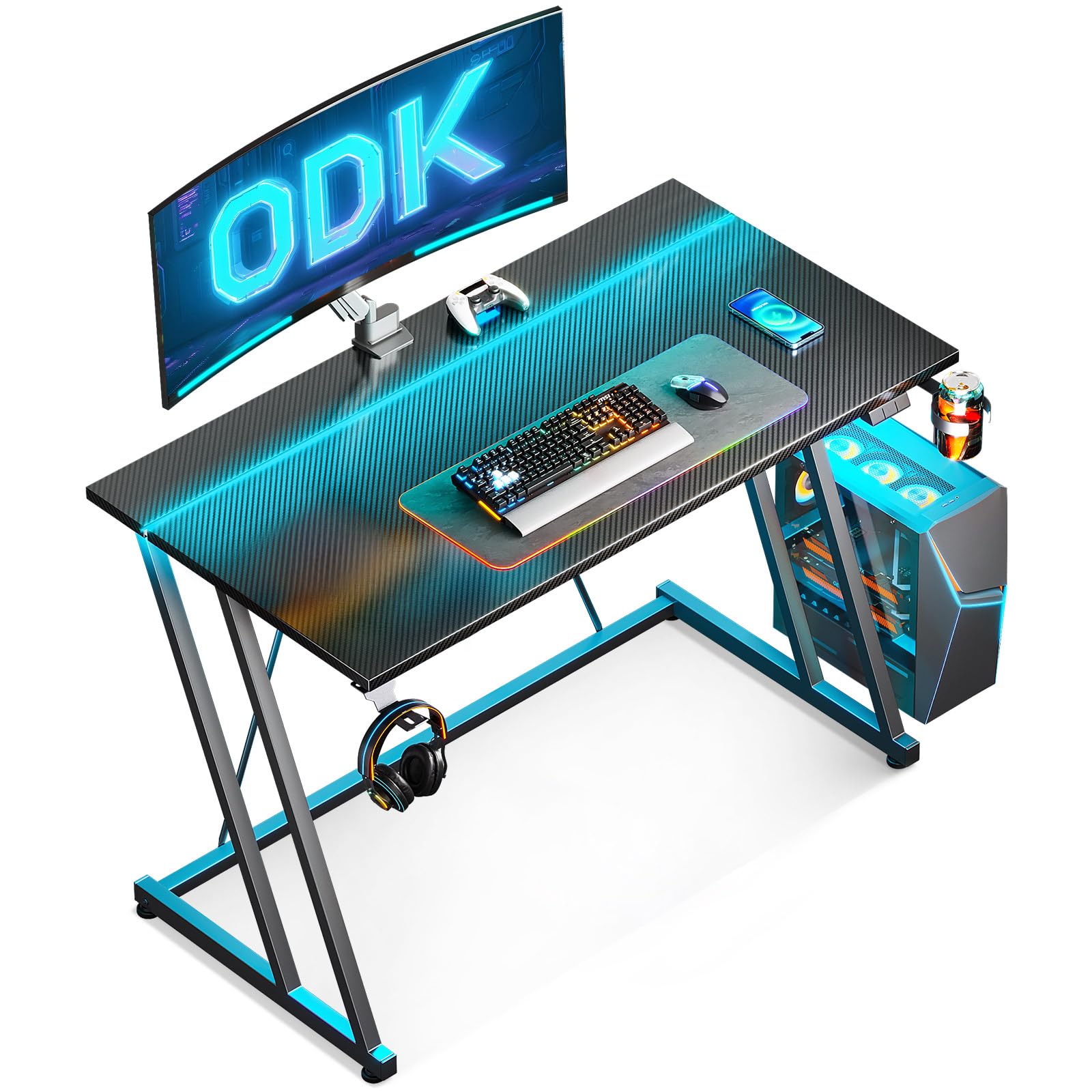
Image: The ODK Gaming Desk with LED lighting integrated into a modern gaming setup, showcasing its carbon fiber texture and illuminated features.
Setup and Assembly
The ODK Gaming Desk requires assembly. All necessary tools and clear instructions are included in the package. Follow the step-by-step guide provided to ensure correct and safe assembly.
- Unpack Components: Carefully remove all parts from the packaging and verify against the parts list in the included assembly guide.
- Prepare Workspace: Ensure you have a clean, spacious area for assembly to prevent damage to components.
- Follow Instructions: Adhere strictly to the provided assembly instructions. Do not overtighten screws, especially when attaching the tabletop, to avoid damage to the carbon fiber material.
- Stability Check: Once assembled, ensure all connections are secure and the desk is stable before placing any equipment on it. The double Z-frame design provides enhanced stability.

Image: A technical illustration highlighting the robust double Z-frame design, emphasizing its contribution to the desk's overall stability.
Operating Instructions
LED Lighting System
The ODK Gaming Desk features an integrated LED lighting strip with a reversible controller for customizable ambiance.
- Power On/Off: Use the 'ON/OFF' button on the controller to activate or deactivate the LED lights.
- Color Selection: Press the 'C' (Color) button to cycle through 10 static colors.
- Dynamic Modes: Press the 'M' (Mode) button to select from 10 dynamic lighting modes.
- Adjustments: Use the speed and brightness controls on the controller to fine-tune the lighting effects.

Image: A detailed view of the LED controller, showing the 'C' button for static colors, 'M' button for dynamic modes, and 'ON/OFF' for power, speed, and brightness adjustments.
Integrated Power and USB Ports
The desk includes built-in power outlets and USB ports for convenient device charging and power supply. Ensure the desk's main power cable is securely connected to a wall outlet.
Accessory Features
- Headphone Hook: Utilize the integrated hook to keep your headphones organized and within reach.
- Cup Holder: The dedicated cup holder helps prevent spills and keeps your beverage secure.

Image: A close-up of the headphone hook, designed to keep your headset conveniently stored.

Image: A close-up of the cup holder, providing a secure spot for your drink.
Maintenance
Regular maintenance will help prolong the life and appearance of your ODK Gaming Desk.
- Cleaning the Surface: Wipe the carbon fiber surface with a soft, damp cloth. Avoid abrasive cleaners or harsh chemicals that could damage the finish.
- LED Strip Care: Keep the LED strip free from dust. If cleaning is necessary, use a dry, soft cloth. Do not apply liquid directly to the LED strip or controller.
- Frame Inspection: Periodically check all screws and connections to ensure they remain tight. Retighten if necessary to maintain desk stability.
- Avoid Overloading: Do not exceed the desk's weight capacity. Distribute weight evenly across the surface.
Troubleshooting
If you encounter any issues with your ODK Gaming Desk, refer to the following common solutions:
| Problem | Possible Cause | Solution |
|---|---|---|
| LED lights do not turn on. | Power cable disconnected; Controller malfunction; LED strip damage. | Ensure the desk's main power cable is securely plugged into a working outlet. Check the connection between the LED strip and the controller. If issues persist, contact customer support. |
| Desk feels wobbly or unstable. | Loose screws; Uneven floor. | Check and tighten all assembly screws. Ensure the desk is placed on a flat, even surface. Adjust leveling feet if present. |
| Power outlets/USB ports not working. | Desk's main power cable disconnected; Internal wiring issue. | Verify the desk's main power cable is firmly connected to a live power source. If other electrical components (like LEDs) are working, there might be an internal issue; contact support. |
Specifications
- Model Number: B04011801002
- Dimensions (Width x Depth x Height): 100 cm x 50 cm x 75 cm
- Weight: 8.55 Kilograms
- Material: Carbon Fiber (Top and Base)
- Color: Carbon Fiber Black
- Special Features: Integrated LED lighting (10 colors, 10 modes), Power outlet and USB ports, Double Z-frame design, Split-board tabletop design, Headphone hook, Cup holder.
- Assembly Required: Yes (Tools included)

Image: A visual representation of the ODK Gaming Desk with key dimensions labeled: 100cm width, 50cm depth, and 75.4cm height.
Warranty and Support
Limited Warranty
This ODK Gaming Desk comes with a limited warranty. Please refer to the warranty card included in your package for specific terms and conditions. The warranty covers manufacturing defects under normal use.
Customer Support
Should you require assistance with assembly, operation, or encounter any issues not covered in this manual, our responsive customer service team is available to help. We aim to provide a response within 24 hours.
For support, please visit the ODK brand store on Amazon or contact us through the platform where you purchased the product.


