
1. Introduction
The Makayuron D1ProUltra is an advanced CNC full aluminum smart door lock designed for enhanced home security and convenience. It integrates multiple unlocking methods, including facial recognition, fingerprint, palm print, password, RFID card, mechanical key, and remote control via the Tuya app. This manual provides essential information for the proper installation, operation, and maintenance of your smart door lock.
2. Safety Information
- Read all instructions carefully before installation and use.
- Do not attempt to disassemble or repair the lock yourself. Contact qualified personnel for service.
- Keep mechanical keys in a safe location outside the property, accessible only for emergencies.
- Ensure the battery compartment is sealed properly to prevent moisture ingress.
- Avoid exposing the lock to extreme temperatures or direct sunlight for prolonged periods.
- Before permanent installation, connect the lock to your mobile phone and test all functions to ensure proper operation.
3. Package Contents
Verify that all components are present in the package:
- 6068 Mortise Lock Body (including plate and box) x 1
- Induction Card x 6
- Mechanical Key x 2
- 5000 mAh Lithium Battery x 1
- Standard Package (includes mounting screws and accessories) x 1

Image: Front and back view of the Makayuron D1ProUltra Smart Door Lock, showcasing the sleek design and integrated keypad, camera, and handle.
4. Setup and Installation
4.1 Pre-Installation Check
Important: Before installing the smart door lock onto your door, it is crucial to connect it to your mobile phone and test all functions. This ensures proper operation and allows for troubleshooting before permanent fixture. We recommend completing the pairing and testing process prior to proceeding with physical installation.
4.2 Installation Steps
The Makayuron D1ProUltra smart door lock is designed for installation with a 6068 mortise. While detailed steps are typically provided in a separate installation guide included with your product, the general process involves:
- Door Preparation: Ensure your door is prepared with the correct mortise cutout and drilling for the lock components.
- Mortise Installation: Install the 6068 mortise lock body into the door edge.
- Front Panel Installation: Connect the front panel (with keypad and camera) to the mortise and secure it.
- Back Panel Installation: Connect the back panel (with battery compartment and internal handle) to the mortise and front panel, ensuring all cables are properly routed and connected.
- Battery Insertion: Insert the 5000mAh lithium battery into the designated compartment.
- Function Test: Perform a comprehensive test of all unlocking methods and app connectivity after installation.
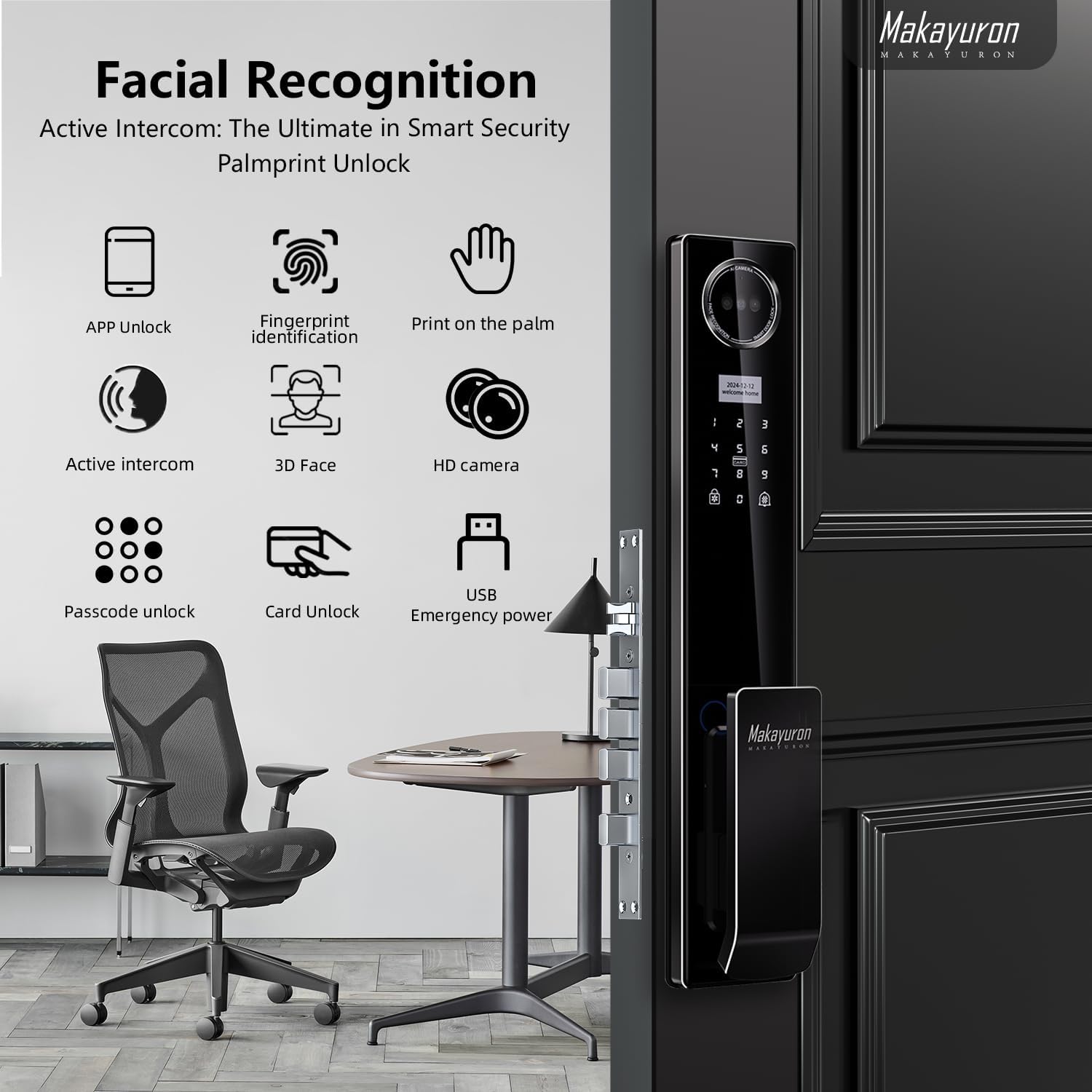
Image: The smart door lock integrated into a door, illustrating the various biometric and digital unlocking options available.
5. Operating Instructions
5.1 Unlocking Methods
The D1ProUltra offers multiple secure and convenient ways to unlock your door:
- Fingerprint Recognition: Place your registered finger on the fingerprint sensor. The lock will unlock in approximately 0.25 seconds.
- 3D Infrared Dual-Face Recognition: Stand in front of the lock's camera for instant facial recognition. This method provides high precision and enhanced security.
- Palm Vein Recognition: Present your registered palm to the palm print sensor. The lock identifies based on your unique palm vein patterns for fast and secure access.
- Password Entry: Enter your registered passcode on the touchscreen keypad.
- RFID Card: Present a registered RFID card to the designated card reader area on the lock.
- Mechanical Key: In case of emergency or battery depletion, use the provided mechanical key to unlock the door manually.
- Tuya App Remote Unlock: Use the Tuya app on your smartphone to remotely unlock the door from anywhere with an internet connection.

Image: A visual representation of the palm vein recognition feature, highlighting the identification process based on unique palm vein patterns.

Image: A user interacting with the smart lock's 3D facial recognition system, illustrating its ease of use for family members.
5.2 Tuya App Integration
The Tuya app allows for comprehensive control and management of your Makayuron D1ProUltra smart door lock:
- Remote Unlock: Unlock your door from anywhere.
- Alarm Notifications: Receive real-time alerts for suspicious activity or low battery.
- Operation Logs: View a history of who entered and when.
- User Management: Add, modify, or delete user access (fingerprints, faces, passwords, cards).
- Temporary Passwords: Generate one-time or time-limited passwords for guests.
- Device Sharing: Share control of the lock with family members.
- Intelligent Scene Customization: Integrate with other smart home devices.
- Do Not Disturb Mode: Enable or disable quiet mode.

Image: Screenshot of the Tuya app interface demonstrating various control and management features for the smart door lock, including remote access and settings.
6. Maintenance
6.1 Battery Management
The D1ProUltra is equipped with a 5000mAh lithium battery for extended operation. The lock will provide low battery alerts when power is running low. To charge or replace the battery:
- Charging: The battery can be recharged via the Type-C emergency power input port located on the lock's exterior.
- Replacement: If replacement is necessary, use only genuine Makayuron 5000mAh lithium batteries.
- Emergency Power: In case of complete battery depletion, connect a power bank to the Type-C port to temporarily power the lock and gain access.

Image: A visual representation of the 5000mAh large capacity battery, indicating its rechargeable nature and low battery alert feature.
6.2 Cleaning
To maintain the appearance and functionality of your smart lock:
- Wipe the surface with a soft, damp cloth.
- Do not use abrasive cleaners, solvents, or chemical sprays, as these can damage the finish and electronic components.
- Keep the fingerprint sensor, camera, and palm print sensor clean and free from dust or debris for optimal performance.
7. Troubleshooting
If you encounter issues with your Makayuron D1ProUltra smart door lock, refer to the following common problems and solutions:
- Lock not responding: Check battery level. Use emergency power or mechanical key if battery is depleted.
- Biometric recognition failure: Ensure sensors are clean and dry. Re-register fingerprints, faces, or palm prints if necessary.
- App connectivity issues: Verify Wi-Fi connection. Restart the lock and your router. Ensure the Tuya app is updated to the latest version.
- Incorrect password entry: Ensure you are entering the correct password. Check for smudges on the keypad.
- Lock mechanism jammed: Do not force the handle. Check for any obstructions in the door frame or mortise.
For persistent issues, contact Makayuron customer support.
8. Specifications
| Feature | Detail |
|---|---|
| Model Number | D1ProUltra |
| Brand | Makayuron |
| Material | Aluminum |
| Finish | Precision engraving |
| Color | Black |
| Lock Type | Biometric |
| Unlocking Methods | Face, Fingerprint, Palm Print, Password, Card, Mechanical Key, Tuya App |
| Battery | 5000mAh Lithium Ion (included) |
| Emergency Power | Type-C Input |
| Mortise Type | 6068 |
| Item Weight | 4.64 Kilograms |
| Product Dimensions | 6.9 x 5 x 42 cm |
| Special Features | Fingerprint, 3D Face Recognition, Palm Vein, Tuya WiFi, Built-in Doorbell |

Image: Visual representation of the lock's durability, highlighting 100,000 open door tests, 200H salt spray test, and 8000N panel strength.
9. Warranty and Support
For warranty information, technical support, or service inquiries, please contact Makayuron customer service through their official website or the retailer where the product was purchased. Please have your model number (D1ProUltra) and purchase details ready when contacting support.