
Biuone A21W Dash Cam
Biuone A21W Dash Cam Front and Rear Instruction Manual
Model: A21W Dash Cam
1. Product Overview
The Biuone A21W Dash Cam is a dual-channel recording system designed to enhance driving safety and provide reliable evidence in case of incidents. It features high-resolution front and rear cameras, advanced recording functionalities, and smart connectivity options.
Key Features:
- 2.5K Front & 1080P Rear Recording: Captures clear details with a 170° wide-angle front lens and a 140° wide-angle rear lens.
- Built-in 5G WiFi: Enables fast video downloads, live previews, and easy sharing via the "Viidure" app on iOS/Android devices.
- Loop Recording: Automatically overwrites older files to ensure continuous recording, with emergency files protected.
- G-Sensor: Detects collisions and automatically locks the current video footage as evidence.
- 24H Parking Monitor: Provides continuous surveillance when parked (requires separate hardware kit).
- Superior Night Vision: Equipped with a high-resolution CMOS sensor, F1.8 large aperture, and HDR/WDR technology for clear night recordings.
- 3-inch IPS Screen: Offers clear visuals without obstructing driving view.
Package Contents:
The complete package includes all necessary components for installation and operation:
- Biuone A21W Dash Cam (Front Camera)
- 1080P Rear Camera
- 64GB Memory Card (pre-installed)
- Car Charger with USB Port (Type-C)
- Rear Camera Cable
- 2 Suction Cup Holders (for front camera)
- USB Reader
- Card Needle
- Lens Cleaning Cloth
- Car Wire Trim Tool
- 8-10 Pcs Cable Hiding Clips
- User Manual
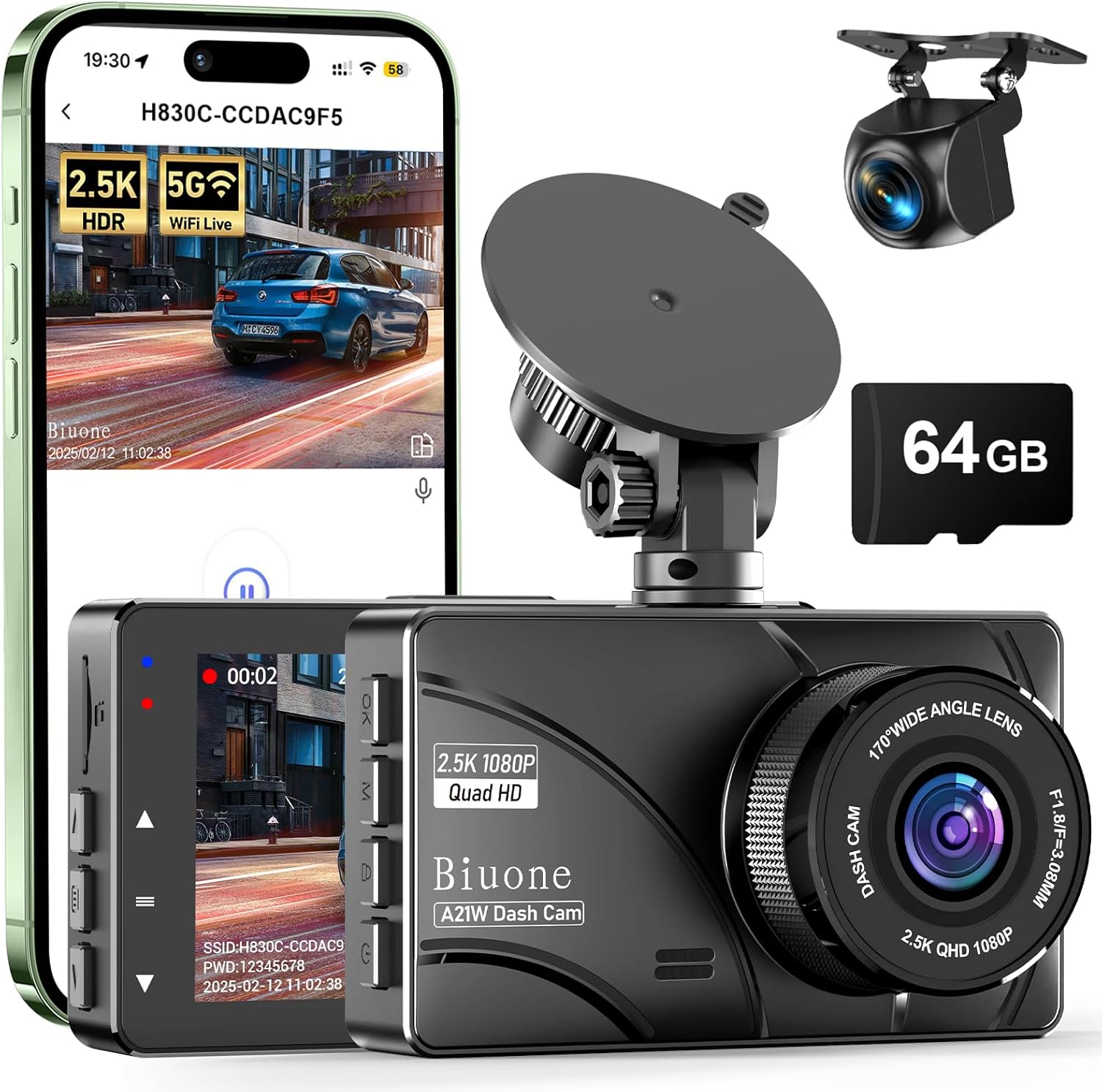
Figure 1.1: Biuone A21W Dash Cam and included accessories.

Figure 1.2: Detailed view of all items included in the Biuone A21W Dash Cam package.
2. Setup and Installation
Proper installation ensures optimal performance and reliable recording. Follow these steps for setting up your dash cam.
2.1 Important Notice Before Installation:
- Please TEAR OFF the screen/lens film protector before use.
- FORMAT the included 64GB SD Card before first use. The dash cam supports up to 512GB Class 10, U3 memory cards.
- The dash cam has a small built-in battery for saving files and settings. It is designed to power off automatically after 5-10 minutes without external power. Always ensure a continuous power connection for proper function.
- If the dash cam is connected to WiFi, it cannot operate the screen for playback or recording on the mobile device.
2.2 Front Camera Installation:
The front dash cam can be mounted on your windshield using one of the two provided suction cup holders. Choose a location that does not obstruct your view and allows for optimal recording angle.
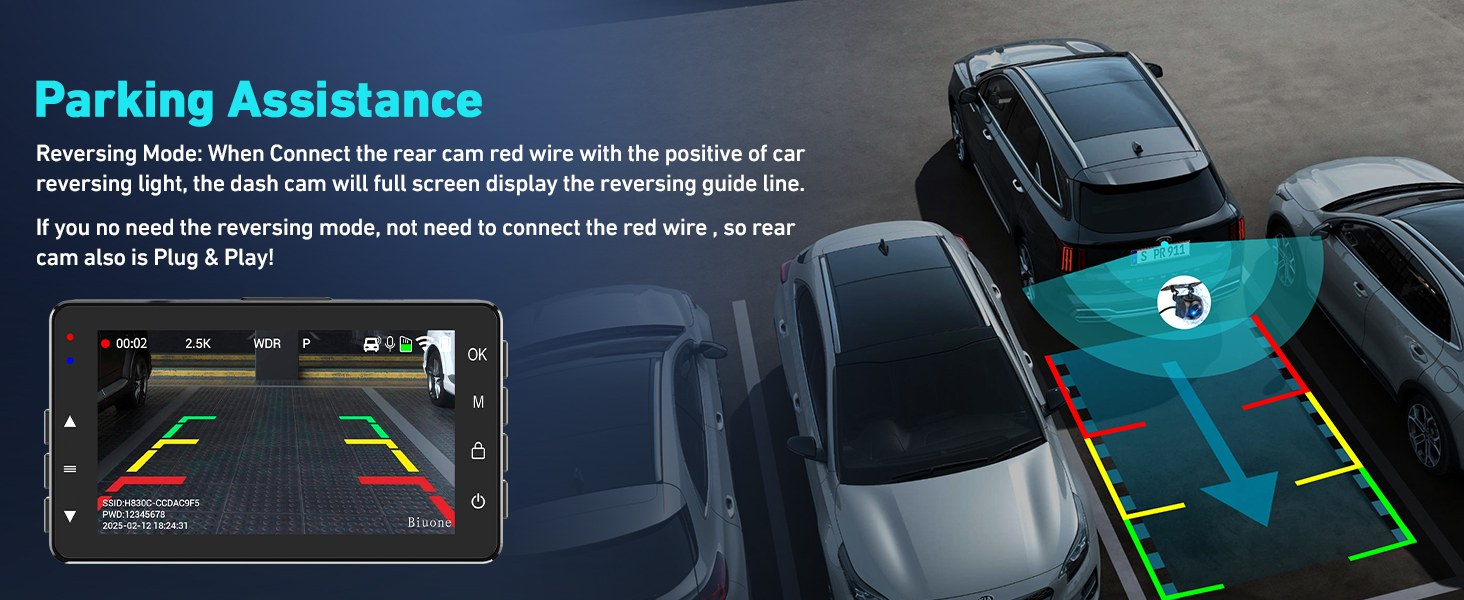
Figure 2.1: Attaching the dash cam to the suction cup mount.
The suction cup holders allow for 360° rotation, enabling you to adjust the camera angle for the best view. Ensure the mount is securely attached to a clean, dry surface on your windshield.
2.3 Rear Camera Installation:
The rear camera provides a 1080P view and can be installed on the rear windshield. For parking assistance functionality, connect the red wire of the rear camera cable to the positive lead of your car's reversing light.

Figure 2.2: Wiring diagram for front and rear dash cam installation.
Use the provided car wire trim tool and cable hiding clips to neatly route the cables along the car's interior, ensuring they do not interfere with driving or vehicle operation.
2.4 Power Connection:
Connect the car charger to your vehicle's cigarette lighter socket and the Type-C end to the dash cam's power port. The dash cam will automatically power on and begin recording when the vehicle starts.
Video 2.1: Overview of the Biuone dash camera and its components, demonstrating initial setup and connections.
Video 2.2: Demonstration of connecting the dash cam and rear camera, showing the display and basic functionality.
3. Operating Instructions
Understand the various functions and settings of your Biuone A21W Dash Cam to maximize its utility.
3.1 Camera Overview and Buttons:
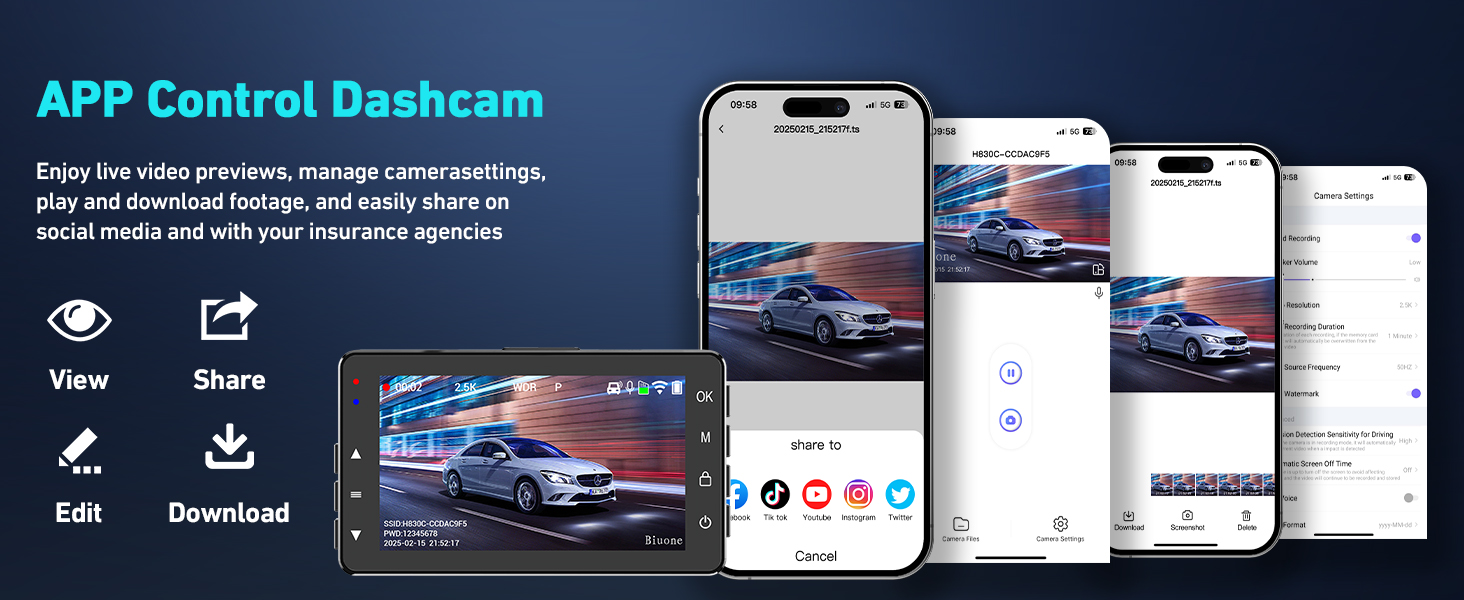
Figure 3.1: Front camera components and controls.
| Button/Port | Function |
|---|---|
| OK Button | Press to enter/confirm choice. |
| Mode Button | Short press to enter Playback Mode. |
| Lock Button | Short press to lock/unlock the current recording file. |
| Power Button | Long press to turn on/off. Short press to turn screen on/off. |
| Up/Down Buttons | Navigate menu options. |
| Menu Button | Enter menu settings. Press again to return to previous step. |
| TF Slot | MicroSD card slot. |
| AV Port | Connects to the rear camera. |
| DC IN (Type-C) | Power input port. |
3.2 Recording Modes and Features:
- Dual Recording: The dash cam simultaneously records from the front (2.5K) and rear (1080P) cameras, providing comprehensive coverage.
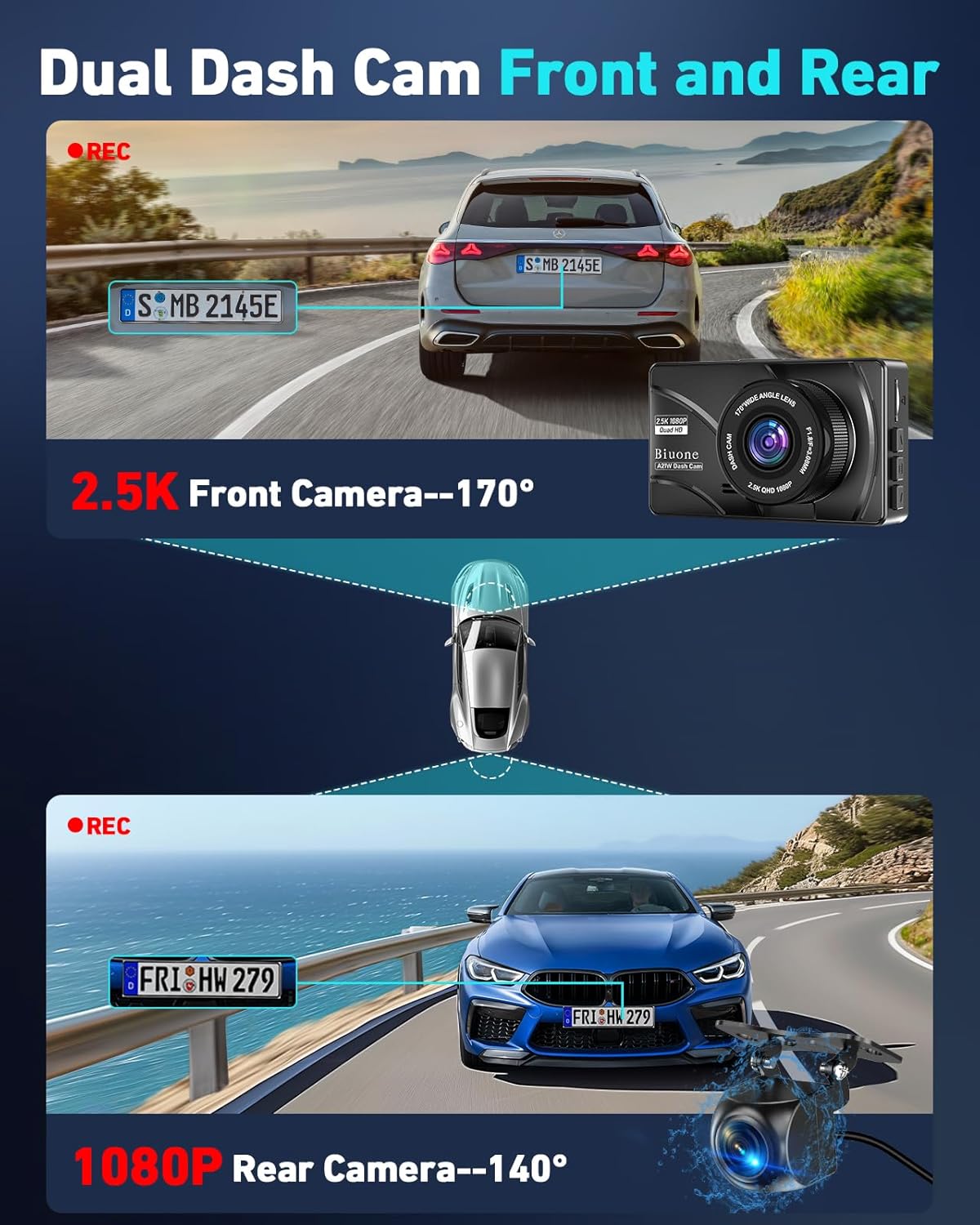
Figure 3.2: Dual dash cam recording capabilities.
- Loop Recording: When the memory card is full, the dash cam automatically overwrites the oldest unlocked video files. Locked files are protected from being overwritten.
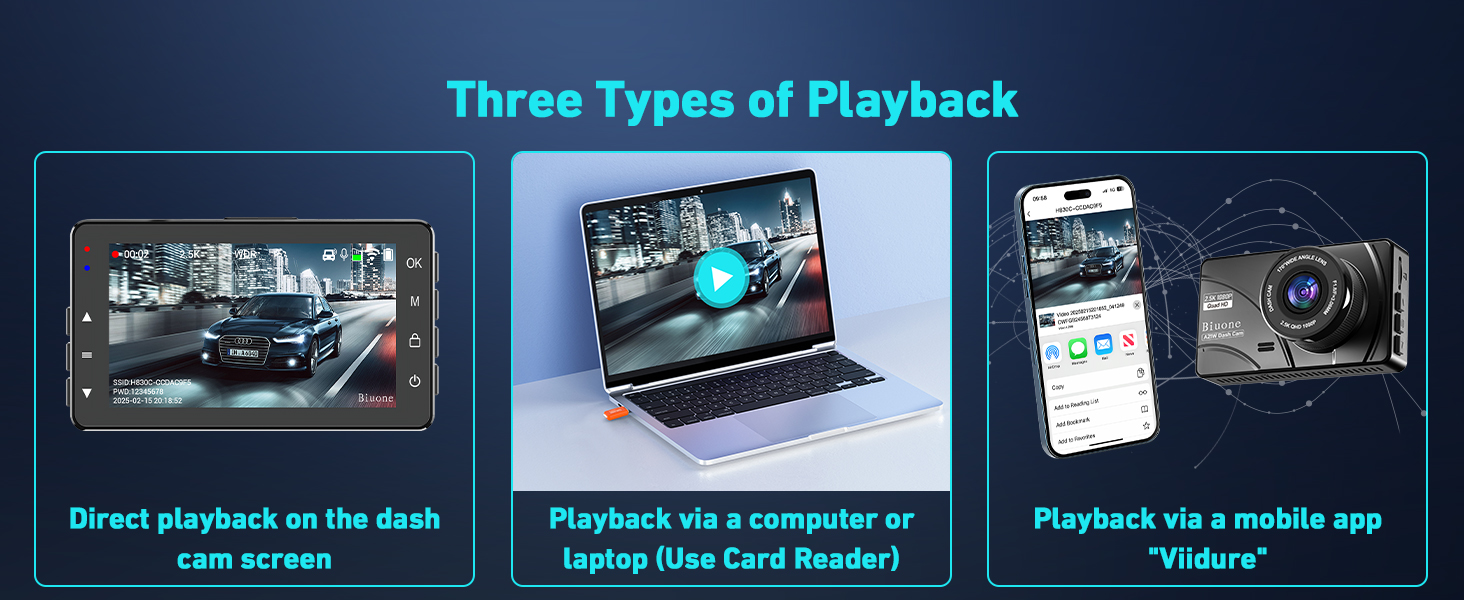
Figure 3.3: Seamless loop recording process.
- G-Sensor (Emergency Lock): In the event of a sudden impact or collision, the built-in G-sensor automatically detects the event and locks the current video file to prevent it from being overwritten. This ensures critical footage is preserved.

Figure 3.4: G-Sensor emergency lock feature.
- 24H Parking Monitor: When enabled (with a separately purchased hardwire kit), the dash cam can monitor your vehicle continuously for 24 hours, recording incidents even when parked.
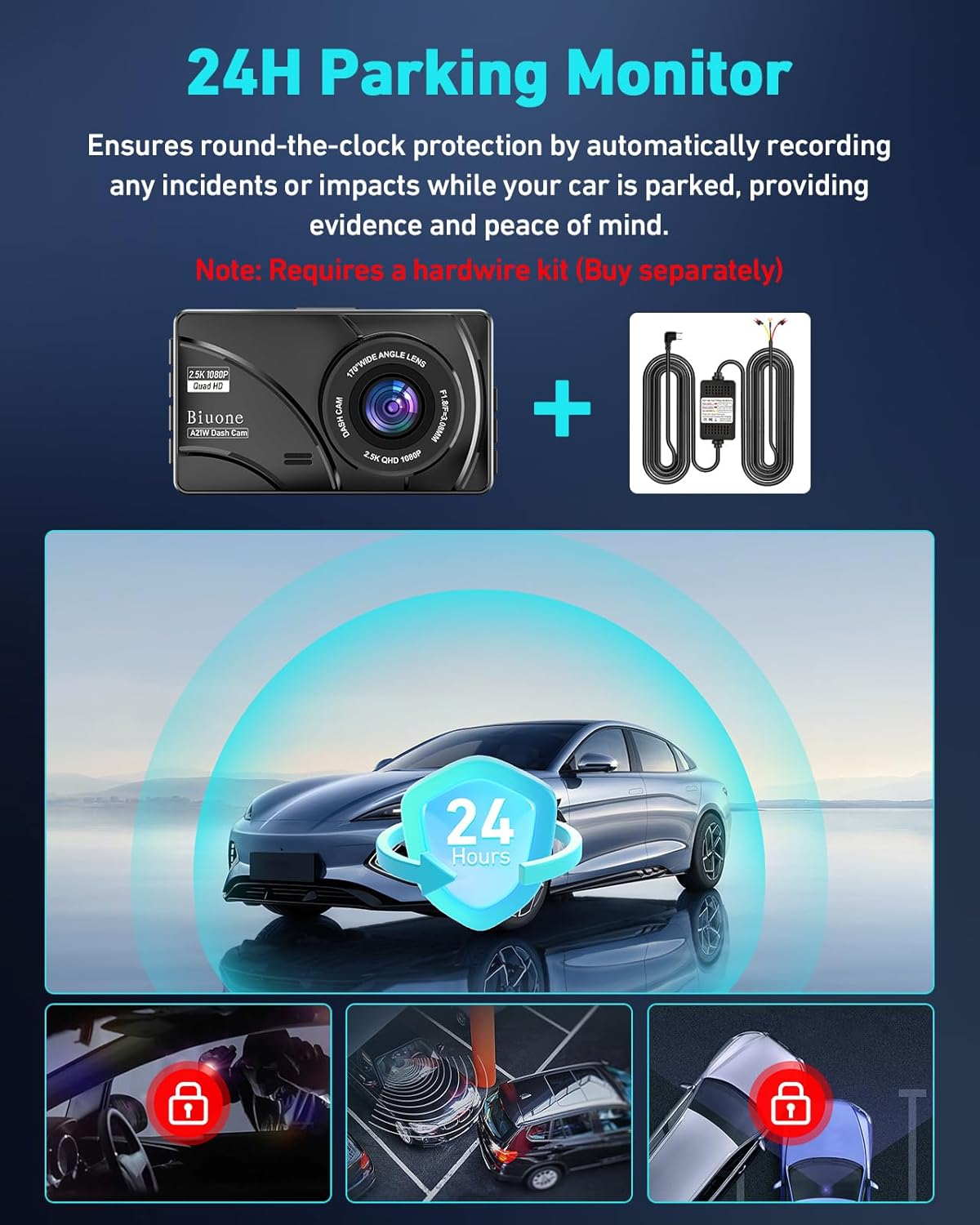
Figure 3.5: 24-hour parking monitor functionality.
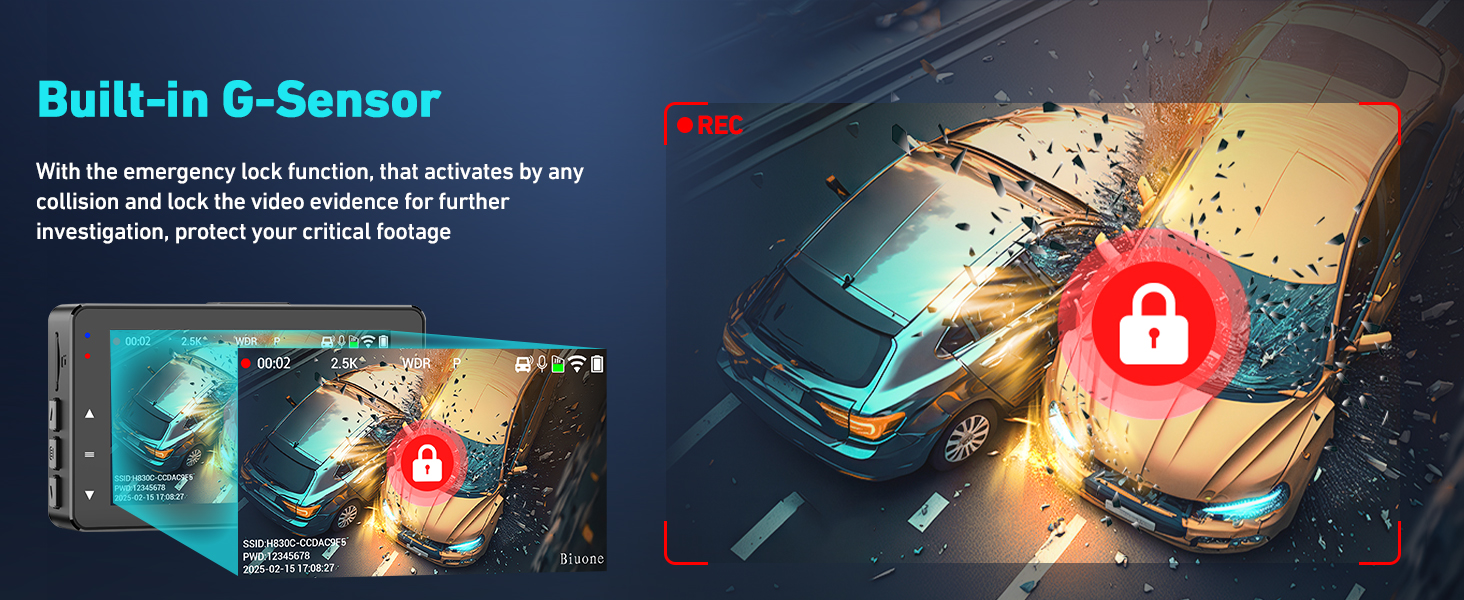
Figure 3.6: Visual representation of 24/7 parking guard.
- Night Vision: The dash cam utilizes a high-resolution CMOS sensor, 6-layer optical lens with F1.8 large aperture, and HDR/WDR technology to provide clear video footage in low-light conditions and at night.
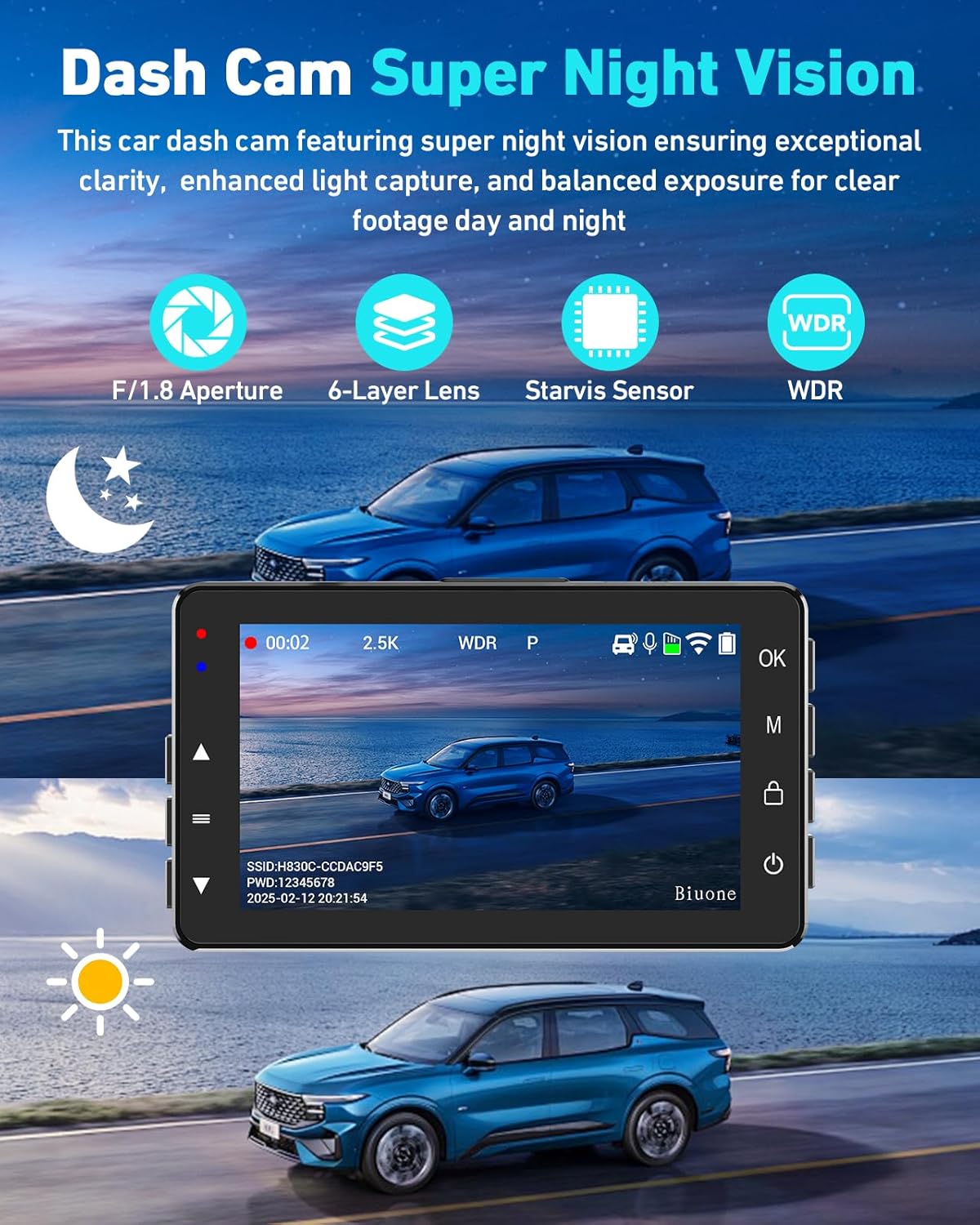
Figure 3.7: Superior night vision in action.

Figure 3.8: Technology behind superior night vision.
- Parking Assistance (Rear Cam): When the rear camera's red wire is connected to the reversing light, the dash cam display will automatically show reversing guidelines for easier parking.
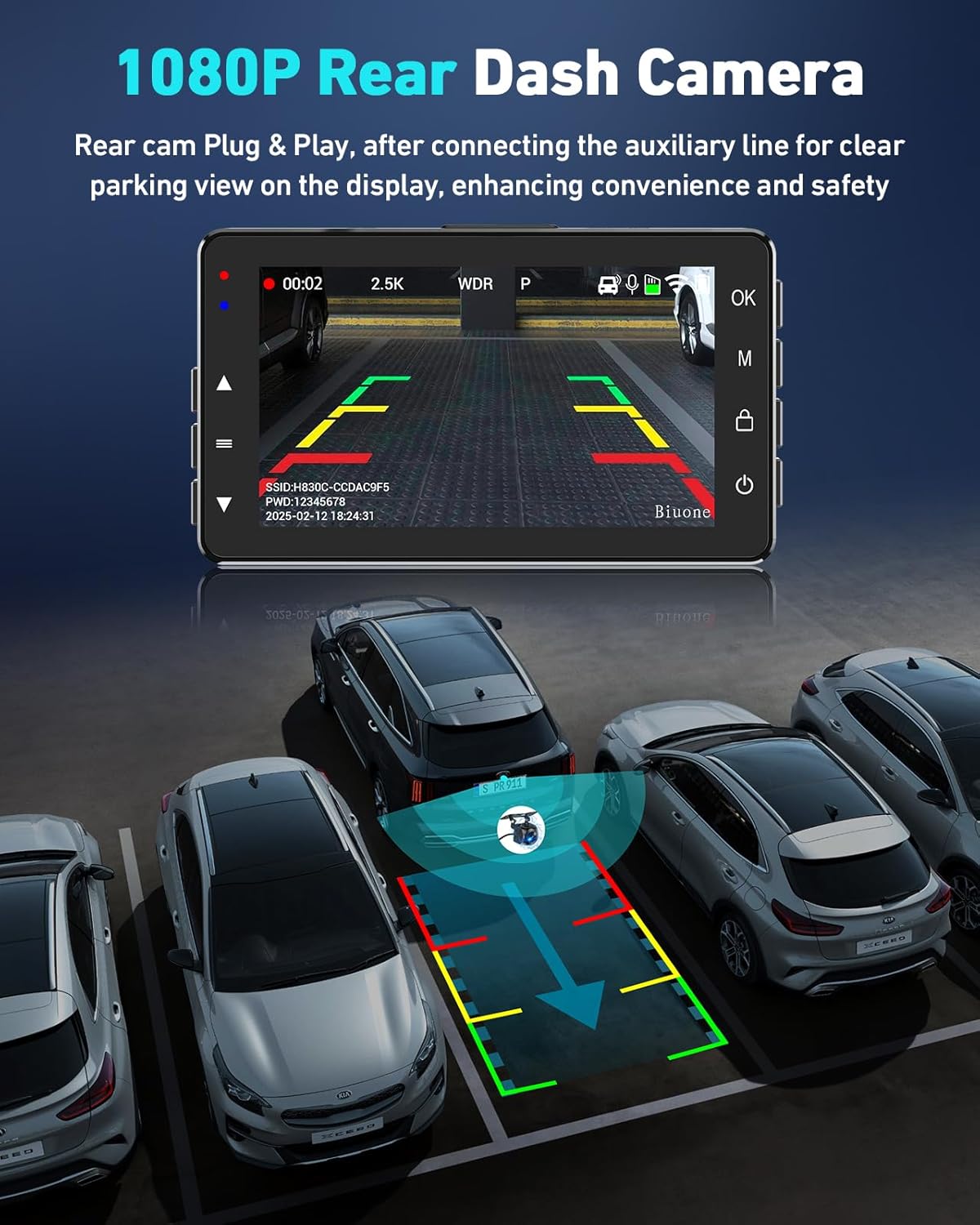
Figure 3.9: Rear camera parking assistance view.

Figure 3.10: Parking assistance with reversing guidelines.
3.3 WiFi Connectivity and App Control:
The built-in 5G WiFi allows for seamless connection to the "Viidure" app on your smartphone (iOS or Android). This enables live preview, video playback, settings adjustment, and easy sharing of footage.
- Download the "Viidure" app from your phone's application store or scan the QR code in the user manual.
- Enable WiFi on your dash cam and connect your smartphone to the dash cam's WiFi network (SSID and password displayed on the dash cam screen).
- Once connected, you can view live footage, access recorded videos, download files to your phone, and modify camera settings directly from the app.
- Note: The effective WiFi distance is 3-5 meters. Remote connection is not supported.
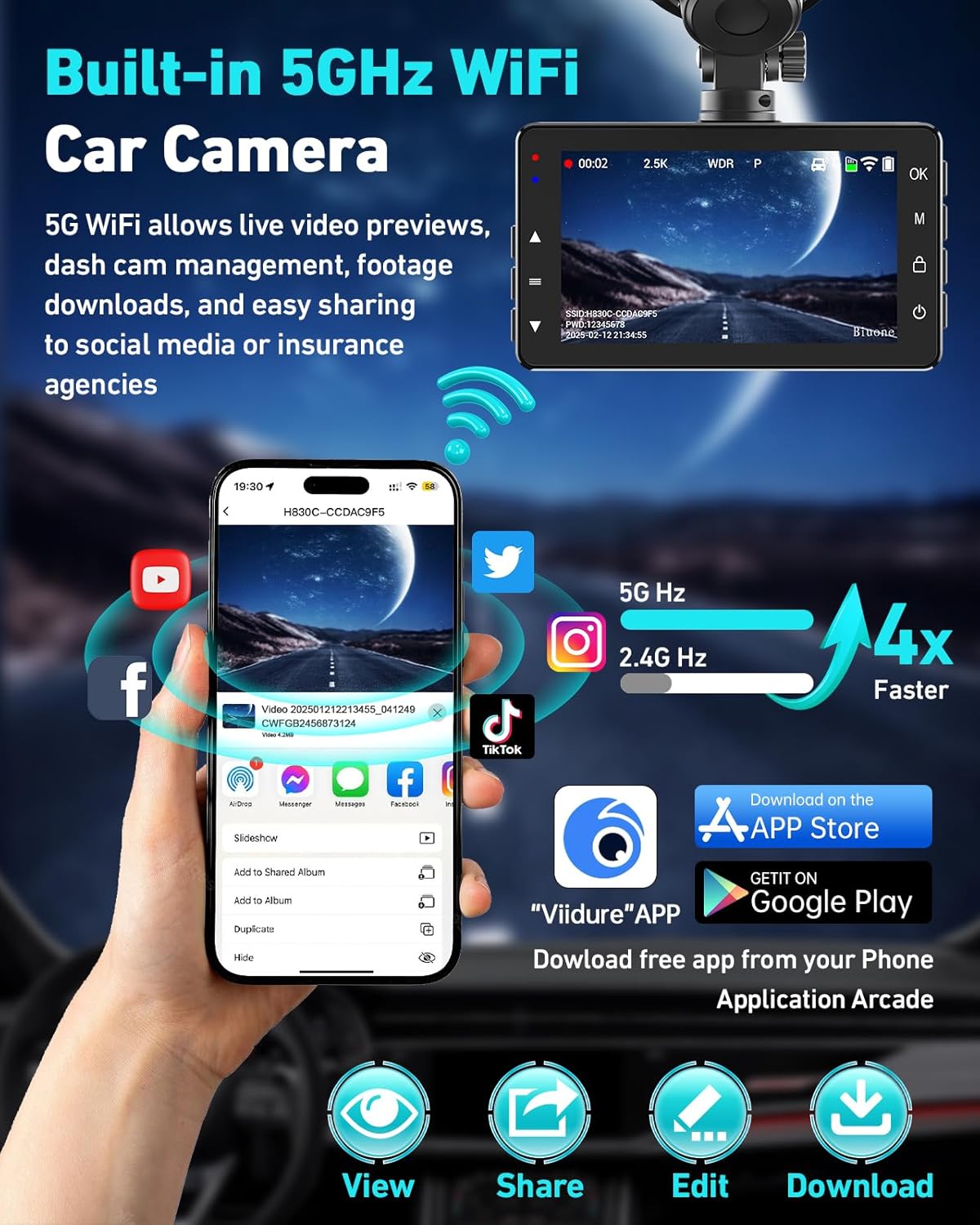
Figure 3.11: 5G WiFi and app control interface.
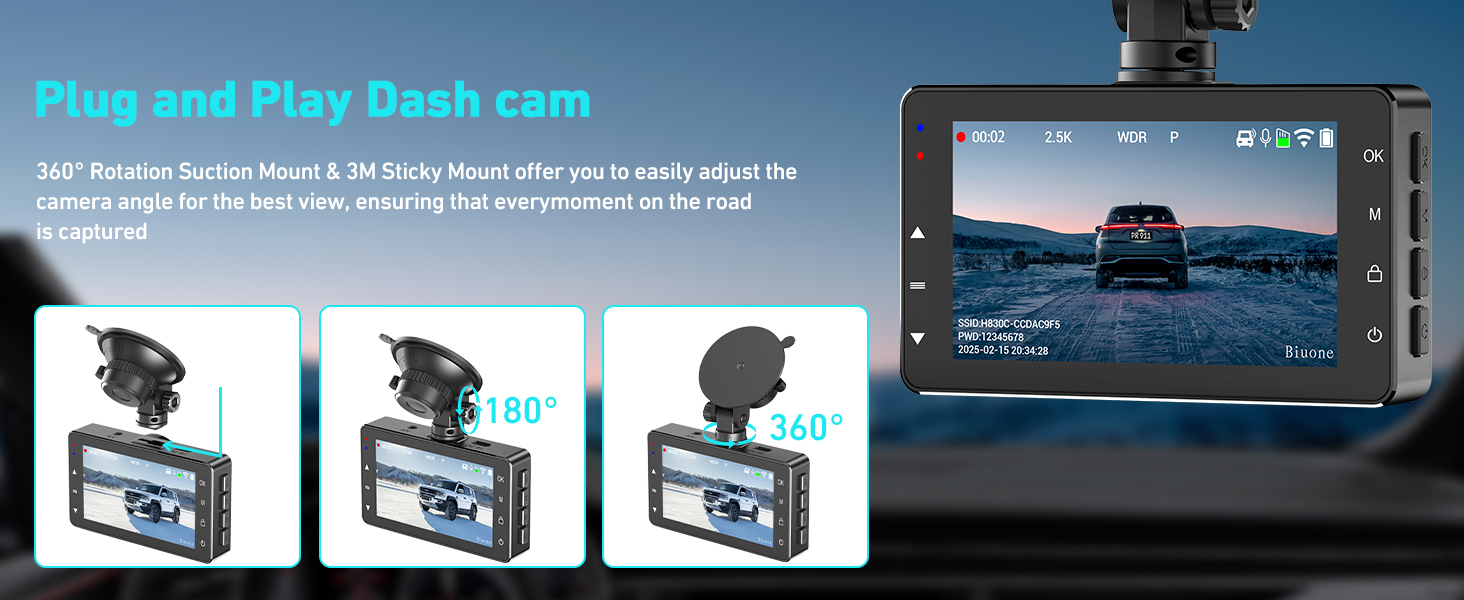
Figure 3.12: Benefits of built-in 5G WiFi.
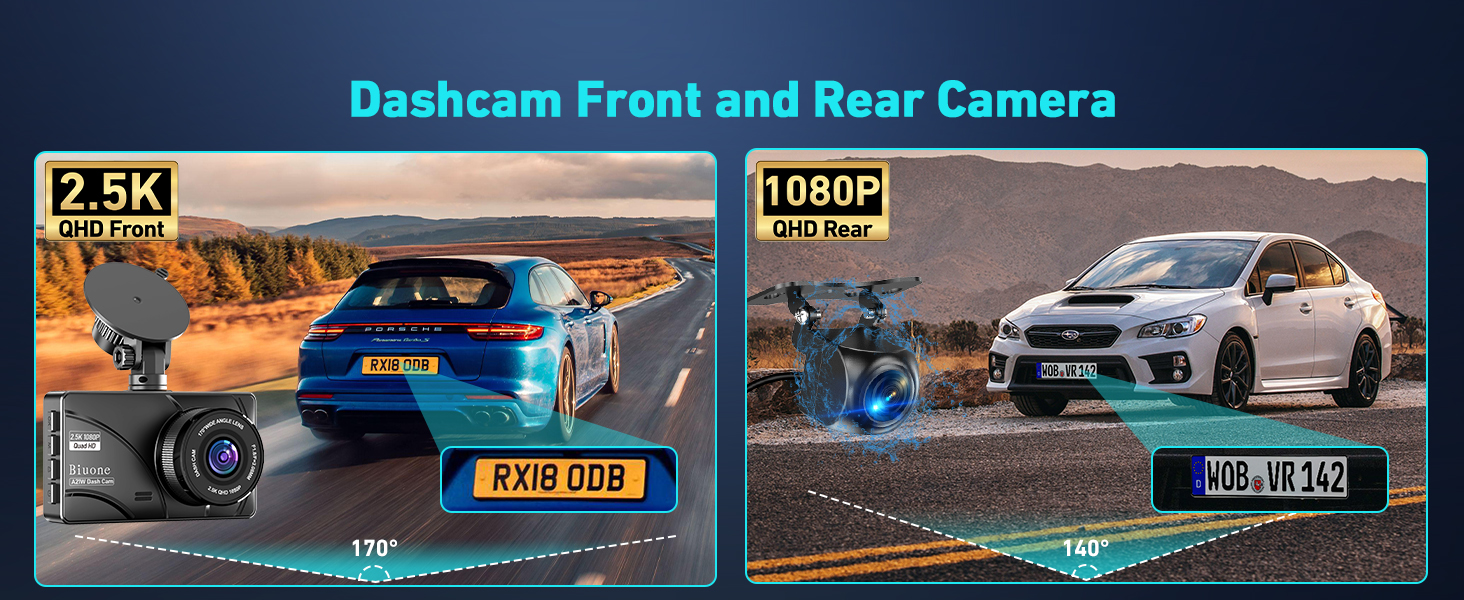
Figure 3.13: Viidure app control features.
For app download, visit: https://www.6zhentan.com/app/d0001/index.html
3.4 Video Playback:
You can playback recorded videos directly on the dash cam screen, via a computer using a card reader, or through the "Viidure" mobile app.

Figure 3.14: Multiple playback options.
Video 3.1: Demonstration of the dash cam's recording quality and features in a driving scenario.
4. Maintenance
Regular maintenance ensures the longevity and optimal performance of your dash cam.
- Clean the Lenses: Use the provided lens cleaning cloth or a soft, lint-free cloth to gently wipe the front and rear camera lenses. Avoid abrasive materials that could scratch the lens.
- Format Memory Card: Regularly format the memory card (e.g., once a month) to prevent data corruption and ensure smooth loop recording. Back up any important videos before formatting.
- Check Connections: Periodically inspect all cable connections (power, rear camera) to ensure they are secure and free from damage.
- Temperature Considerations: Avoid exposing the dash cam to extreme temperatures for prolonged periods. While designed to withstand various conditions, excessive heat can affect battery life and performance.
5. Troubleshooting
If you encounter any issues with your Biuone A21W Dash Cam, refer to the following common troubleshooting tips:
- Dash Cam Not Turning On/Off Automatically: Ensure the power cable is securely connected to both the dash cam and the car's cigarette lighter socket. Verify that the car's power outlet is functioning. The dash cam is designed to power on/off with the vehicle's ignition.
- "Card Full" Error / Not Recording: This usually indicates the memory card needs formatting or is not compatible.
- Format the 64GB memory card within the dash cam's settings.
- Ensure you are using a Class 10, U3 or higher speed memory card if replacing the original.
- Check if loop recording is enabled in the settings.
- Poor Picture Quality / Blurry Images:
- Ensure the protective film has been removed from the lens.
- Clean the camera lenses with a soft cloth.
- Verify the recording resolution settings in the menu.
- Check if the camera is securely mounted and not vibrating.
- WiFi Connection Issues:
- Ensure the "Viidure" app is installed correctly on your smartphone.
- Verify that WiFi is enabled on the dash cam and your phone is connected to its network.
- Remember that the dash cam screen may not be fully functional when connected via WiFi.
- Dash Cam Gets Hot: It is normal for the dash cam to become slightly warm during operation, especially when recording at high resolution. If it becomes excessively hot (e.g., above 170°F/75°C), ensure it has adequate ventilation and is not exposed to direct sunlight for extended periods.
- Screen Turns Off During Recording: Check the screen saver settings. This feature is designed to prevent distraction while driving and does not affect recording. You can adjust the screen saver timeout or disable it in the settings.
If you encounter persistent issues not covered here, please contact customer support.
6. Specifications
| Feature | Detail |
|---|---|
| Product Dimensions | 3.26 x 0.6 x 2 inches |
| Item Weight | 0.634 ounces |
| Item Model Number | A21W Dash Cam |
| Batteries | 1 A battery required (included) |
| Connectivity Technology | Wi-Fi (5G) |
| Video Capture Resolution | 2.5K front dash cam + 1080P rear camera |
| Field Of View | 170 Degrees (Front) |
| Screen Size | 3-inch IPS Screen |
| Memory Card Support | 64GB included, supports up to 512GB (Class 10, U3) |
| Manufacturer | Biuone |
| Country of Origin | China |
| Date First Available | February 25, 2025 |
7. Warranty and Support
Biuone is committed to providing excellent customer service and product support.
- Warranty: All our products are covered by a 1-year warranty.
- Customer Support: For any product questions, missing accessories, damage, or technical assistance, please contact our customer service team. We aim to respond promptly, typically within 24 hours.
- Contact Method: You can email us at damai_service@163.com. Please provide proof of original purchase (online order receipts are acceptable) for warranty service.
- We value your feedback and suggestions to continuously improve our products and services.
Thank you for choosing Biuone!
Ask a question about this manual
Ask about setup, troubleshooting, compatibility, parts, safety, or missing instructions. Manuals+ will review the question and use this page’s manual context to help answer it.