
1. Introduction
This manual provides detailed instructions for the setup, operation, maintenance, and troubleshooting of your MELETRIX Chilkey BOOG75 Mechanical Keyboard. Please read this manual thoroughly to ensure proper use and to maximize your keyboard's performance.

Image: The MELETRIX Chilkey BOOG75 Mechanical Keyboard in black, showcasing its 75% layout and RGB lighting.
2. Package Contents
Verify that all items are present in your package:
- MELETRIX Chilkey BOOG75 Mechanical Keyboard
- USB Cable
- User Manual (this document)
- Carrying case
- Hex tools
- Spare rubber feet covers

Image: The BOOG75 keyboard alongside its included USB cable and other accessories.
3. Setup
3.1 Connecting the Keyboard
- Locate the USB-C port on the MELETRIX Chilkey BOOG75 keyboard.
- Connect one end of the provided USB cable to the keyboard's USB-C port.
- Connect the other end of the USB cable to an available USB port on your computer (PC or Mac).
- The keyboard will be automatically recognized by your operating system.
3.2 Initial Software Setup
For full functionality and customization, it is recommended to install the MELETRIX BOOG75 software. This software allows for key remapping, RGB effect customization, Rapid Trigger settings, and more.
- Visit the official MELETRIX website to download the latest BOOG75 software.
- Follow the on-screen instructions to install the software.
- The software supports Windows and macOS.

Image: The BOOG75 keyboard connected via its USB-C cable to a desktop computer setup.
4. Operating Instructions
4.1 Key Features
- Magnetic Hall Sensor Switches: Provide ultra-fast response with adjustable actuation points and instant 1ms actuation with zero debounce delay.
- Rapid Trigger: Allows keys to activate on the way down and reset on the way up, enabling quick, repeated inputs.
- Dynamic Keystroke (DKS): Assigns up to four different actions to a single key based on press depth.
- Mod Tap: Assigns different functions for tapping and holding a key.
- Toggle Key: Toggles an action on or off by holding a key.
- Per-key RGB Lighting: Customizable backlighting for each key with energy-smart LEDs.
- Hot-Swappable Switches: Easily change switches without soldering. Compatible with Gateron KS37, GATERON MAGNETIC FOX Switch, and GATERON Dual-rail Magnetic Jade Mini E Switch.
- Full Aluminum Case: Durable, rigid, CNC-machined 6063 aluminum chassis with a matte anodized finish.
- Gasket Mount Design: Enhances typing feel and sound.
- PBT Doubleshot Keycaps: Durable keycaps with Cherry profile.
4.2 Customizing Actuation Point and Rapid Trigger
The BOOG75 allows for precise customization of each key's actuation point from 0.1mm to 4.0mm. This can be done via the BOOG75 software or directly on the keyboard using LED visual cues.
- Software Adjustment: Open the BOOG75 software, navigate to the "Rapid Trigger" section, and adjust the actuation distance for individual keys or the entire board.
- On-Keyboard Adjustment: Refer to the keyboard's quick guide for specific key combinations to adjust actuation points and Rapid Trigger sensitivity without software. LED indicators will guide you through the process.

Image: Diagram illustrating the customizable trigger points (0.1mm to 4.0mm) for magnetic switches compared to fixed points in regular gaming keyboards.

Image: Detailed specifications of the Gateron KS-37B Magnetic Switches, including actuation distance, force, and materials.
4.3 Dynamic Keystroke (DKS)
DKS allows you to assign multiple actions to a single key based on how deep you press it. For example, a light press could be 'walk', and a deeper press could be 'run'.
- Configure DKS settings within the BOOG75 software.
- Define different actuation depths for up to four distinct actions per key.

Image: Screenshot of the BOOG75 software interface demonstrating Dynamic Keystroke (DKS) configuration.
4.4 RGB Lighting Customization
The keyboard features per-key RGB lighting. Use the BOOG75 software to customize lighting effects, colors, and brightness.
- Open the BOOG75 software and navigate to the "RGB Effect" section.
- Choose from various preset effects or create your own custom lighting profiles.
- Adjust brightness and speed of effects.
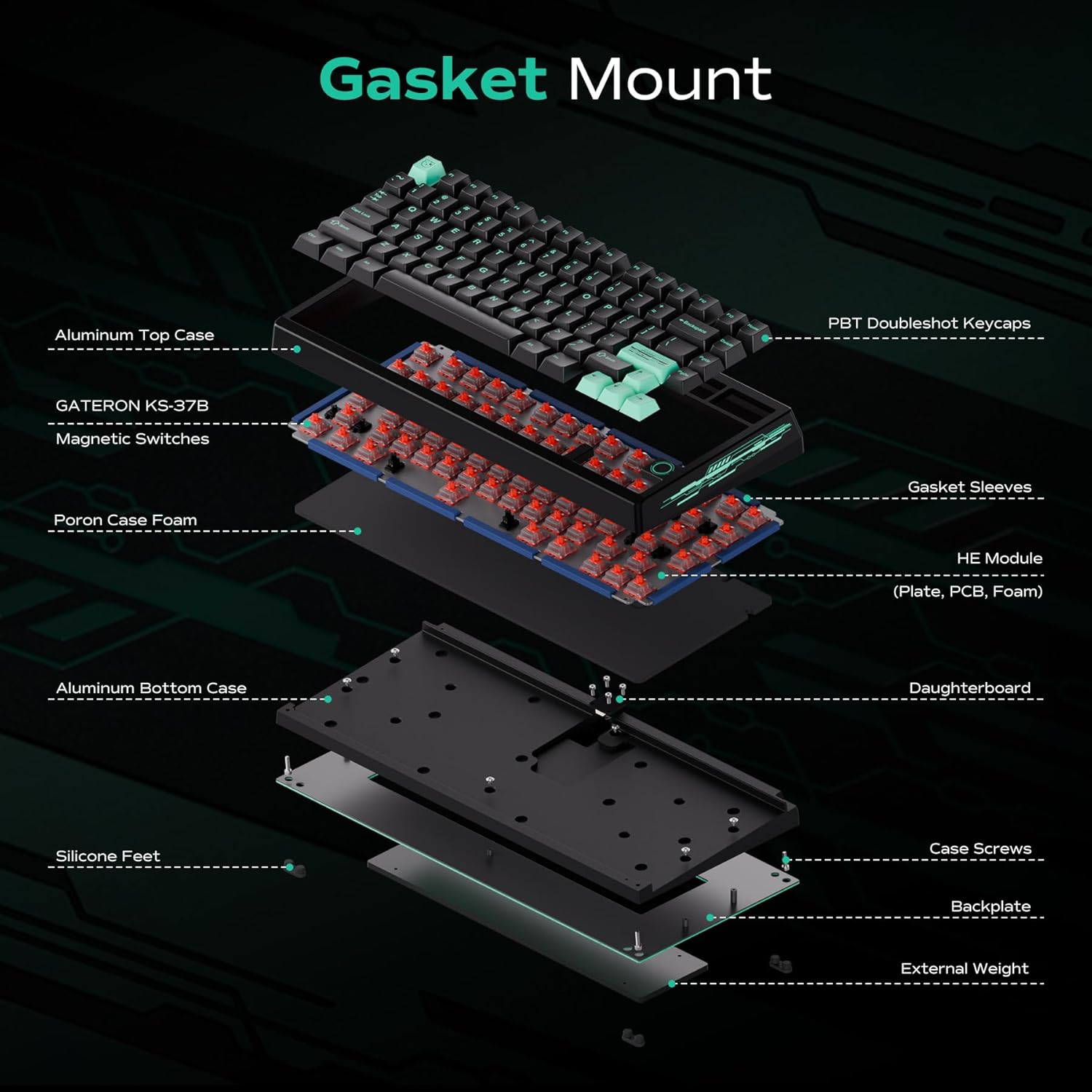
Image: The BOOG75 keyboard displaying its customizable RGB backlighting.
4.5 Hot-Swappable Switches
The BOOG75 keyboard supports hot-swappable magnetic switches. This allows you to change switches without soldering.
- Power off the keyboard and disconnect it from your computer.
- Use a switch puller (not included) to carefully remove the desired switch.
- Align the pins of the new compatible magnetic switch with the sockets on the PCB.
- Gently press the new switch into place until it clicks. Ensure it is seated properly.
- Reconnect the keyboard and test the new switch.
Note: Only use compatible magnetic switches. Incompatible switches may damage the keyboard.

Image: The BOOG75 keyboard with keycaps removed, showing the hot-swappable magnetic switches.
5. Maintenance
5.1 Cleaning the Keyboard
- Disconnect the keyboard from your computer before cleaning.
- Use a can of compressed air to remove dust and debris from between the keycaps.
- For general cleaning of keycaps and the aluminum case, use a soft, damp cloth with a mild cleaning solution. Avoid harsh chemicals.
- For deeper cleaning, keycaps can be removed (using a keycap puller, not included) and washed with warm, soapy water. Ensure they are completely dry before reattaching.
5.2 Water Resistance
The MELETRIX Chilkey BOOG75 keyboard has an IP54 rating, indicating protection against limited dust ingress and water spray from any direction. While it offers some water resistance, it is not fully waterproof. Avoid submerging the keyboard in liquids. In case of accidental spills, disconnect the keyboard immediately, dry it thoroughly, and allow it to air dry completely before reconnecting.
6. Troubleshooting
6.1 Keyboard Not Responding
- Ensure the USB cable is securely connected to both the keyboard and the computer.
- Try connecting the keyboard to a different USB port on your computer.
- Test the keyboard on another computer to rule out system-specific issues.
- Restart your computer.
6.2 RGB Lighting Issues
- Check the BOOG75 software to ensure RGB effects are enabled and configured correctly.
- Verify that the keyboard's firmware is up to date.
- If specific keys are not lighting up, ensure the switches are properly seated.
6.3 Software/Firmware Updates
Regularly check the official MELETRIX website for software and firmware updates. Updates can provide new features, performance improvements, and bug fixes.
- Download the latest firmware from the MELETRIX support page.
- Follow the provided instructions carefully to update the keyboard's firmware. Incorrect firmware updates can render the device inoperable.
7. Specifications
| Feature | Detail |
|---|---|
| Brand | MELETRIX |
| Model Number | BOOG75 Mechanical Keyboard |
| Connectivity Technology | USB-C |
| Number of Keys | 81 |
| Switch Type | Linear (Magnetic Hall Sensor) |
| Actuation Distance | 0.1mm - 4.0mm (Adjustable) |
| Total Travel | 4.0 ± 0.2mm |
| Initial Force | 30 ± 10gf |
| Bottom-out Force | 50 ± 10gf |
| Operation Lifetime | 150 Million Keystrokes |
| Keyboard Backlighting | Per-key RGB |
| Enclosure Material | Aluminum |
| Product Dimensions (L x W x H) | 12.74" x 5.73" x 1.37" |
| Item Weight | 6.6 Pounds |
| Water Resistance Level | IP54 |
| Compatible Devices | Laptop, PC (Windows, macOS, Linux, ChromeOS) |

Image: Technical drawing showing the dimensions and weight of the BOOG75 Mechanical Keyboard.
8. Warranty and Support
8.1 Warranty Information
The MELETRIX Chilkey BOOG75 Mechanical Keyboard comes with a 1-Year Limited Warranty from the date of purchase. This warranty covers manufacturing defects and workmanship under normal use. It does not cover damage caused by misuse, accidents, unauthorized modifications, or normal wear and tear.
Please retain your proof of purchase for warranty claims.
8.2 Customer Support
For technical assistance, warranty claims, or general inquiries, please contact MELETRIX customer support through their official website or the vendor from whom you purchased the product.
Official MELETRIX Store: https://www.amazon.com/stores/Meletrix/page/E0B07765-83D1-47F4-93D2-1E5EF139DF79
9. Official Product Videos
Video: "BOOG75 HE Rapid Trigger Keyboard with Magnetic Switches" by Meletrix Direct. This video demonstrates the rapid trigger functionality and magnetic switches of the BOOG75 keyboard.