
1. Product Overview
The MELETRIX BOOG75 is a high-performance 75% gaming keyboard designed for enthusiasts and professional gamers. It features GATERON KS-37B Magnetic Switches, offering adjustable actuation and rapid trigger capabilities for precise and responsive keystrokes. Constructed with a durable aluminum alloy, the keyboard provides a robust and stable typing experience. Its wired design ensures minimal input lag, making it suitable for intense gaming sessions. The BOOG75 also supports advanced customization through its web-based driver, including key remapping, RGB effects, and dynamic keystroke settings.

Figure 1.1: Top and bottom view of the BOOG75 75% Gaming Keyboard, showcasing its elegant white finish and unique wave pattern on the base.
2. Key Features
- GATERON KS-37B Magnetic Switches: These switches offer an adjustable actuation range from 0.1mm to 4.0mm, allowing users to fine-tune sensitivity. They are pre-lubed and rated for 100 million keypresses.
- Rapid Trigger Performance: Hall Effect technology enables dynamic activation and reset points, ensuring highly responsive keystrokes for competitive gaming. Customizable trigger points range from 0.1mm to 4.0mm.
- Durable Aluminum Build: The keyboard chassis is crafted from high-quality aluminum alloy, providing exceptional durability and a premium feel. The anodized surface is smooth and wear-resistant.
- Gasket Mount Design: Utilizes a gasket mounting system for an improved typing feel and acoustic profile, reducing harsh impacts and enhancing overall comfort.
- Hot-Swappable Switches: The design allows for easy replacement of switches, compatible with Gateron KS37, GATERON Magnetic FOX Switch, and GATERON Dual-rail Magnetic Jade Mini E Switch.
- Web-Based Driver Support: Offers an intuitive web interface for customizing RGB lighting effects, remapping keys, and configuring advanced functions like Dynamic Keystroke (DKS), Mod Tap (MT), and Toggle Key (TGL).
- PBT Doubleshot Keycaps: Equipped with durable PBT doubleshot keycaps, ensuring legends do not fade over time and providing a premium texture.

Figure 2.1: Detailed specifications of the GATERON KS-37B Magnetic Switches, including actuation distance, force, and material composition.

Figure 2.2: Visual comparison illustrating the difference in trigger points between traditional mechanical switches and the dynamic rapid trigger of magnetic switches.
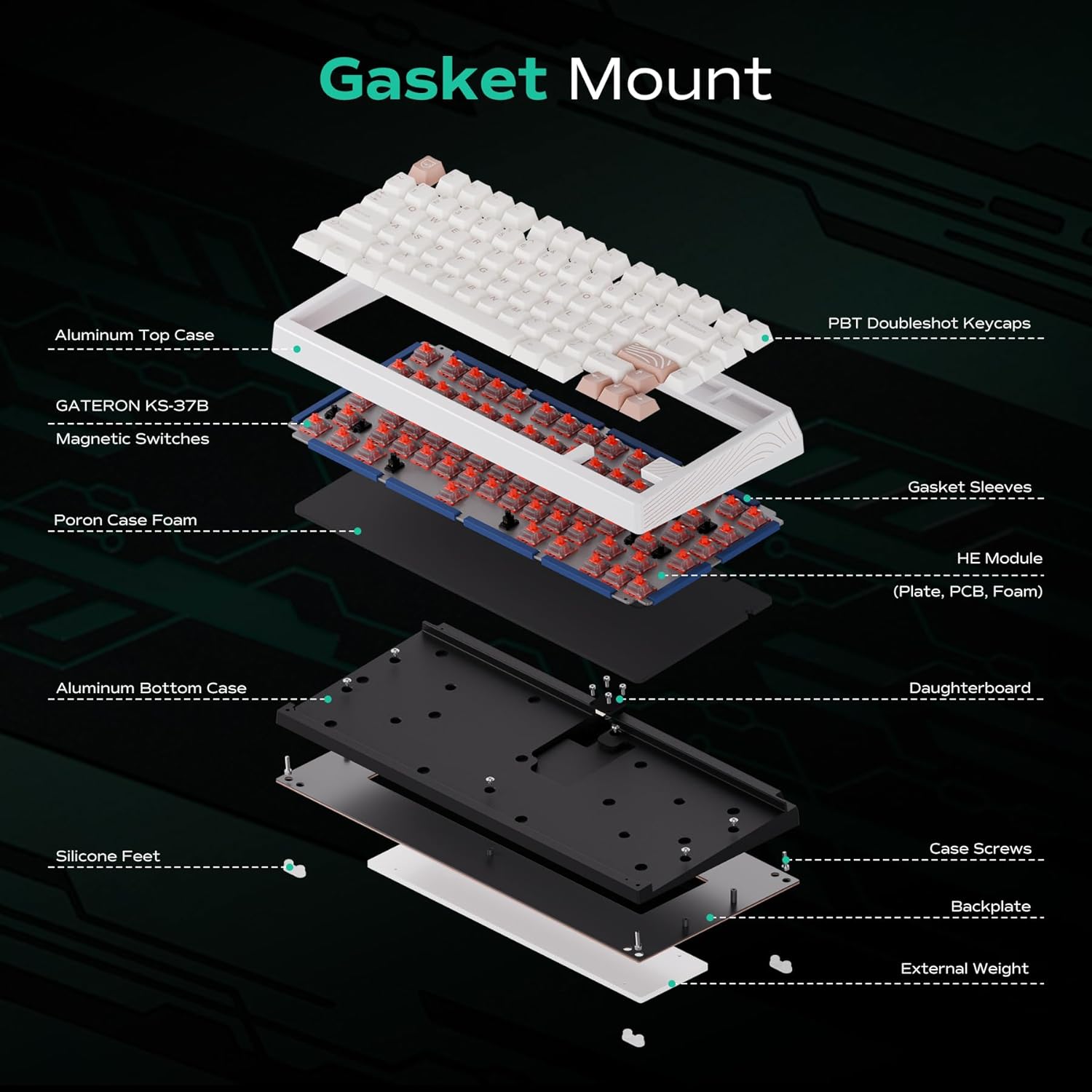
Figure 2.3: Exploded diagram showing the components of the BOOG75's gasket mount structure, including the aluminum top and bottom cases, switches, and gasket sleeves.

Figure 2.4: Screenshot of the easy-to-use web driver, demonstrating options for RGB effects, key remapping, and rapid trigger settings.
3. Setup Guide
3.1 Connecting the Keyboard
- Locate the USB-C port on the BOOG75 keyboard, typically found on the rear or side.
- Connect the provided USB-C cable to the keyboard's USB-C port.
- Connect the other end of the USB-A or USB-C cable to an available USB port on your computer (Laptop or PC).
- The keyboard will be automatically recognized by your operating system (Windows or macOS). No additional drivers are typically required for basic functionality.

Figure 3.1: Side view of the BOOG75 keyboard highlighting the USB-C connection port.
3.2 Initial Software Configuration (Web Driver)
For advanced customization, including RGB lighting, key remapping, and rapid trigger settings, access the MELETRIX web-based driver. Refer to the official MELETRIX website for the specific URL to access the driver. Ensure your keyboard is connected to your computer when using the web driver.
4. Operating Instructions
4.1 Rapid Trigger Adjustment
The BOOG75 allows for on-the-fly adjustment of rapid trigger sensitivity without needing to open the software. Specific key combinations (e.g., Fn + a designated key) can be used to cycle through actuation point settings. Refer to the web driver or manufacturer's online resources for the exact key combinations.
4.2 Dynamic Keystroke (DKS)
DKS allows a single key to perform different actions based on the depth of the keypress. This can be configured via the web driver to assign multiple functions to one key.
4.3 Mod Tap (MT) and Toggle Key (TGL)
These features provide enhanced flexibility for key assignments. Mod Tap allows a key to act as a modifier when held and a regular key when tapped. Toggle Key enables a key to switch between two different functions with each press. Configuration is performed through the web driver.

Figure 4.1: Illustration of Mod Tap functionality, showing how a single key can have different actions based on hold or tap.
4.4 RGB Lighting Customization
The BOOG75 features per-key RGB backlighting. Lighting effects, colors, and brightness can be customized extensively using the web driver. Pre-set lighting modes may also be available via keyboard shortcuts.
5. Maintenance
5.1 Cleaning the Keyboard
- Disconnect the keyboard from your computer before cleaning.
- Use a soft, lint-free cloth slightly dampened with water or a mild cleaning solution to wipe down the keycaps and chassis. Avoid excessive moisture.
- For dust and debris between keycaps, use compressed air or a small brush.
- Do not use harsh chemicals, abrasive cleaners, or solvents, as these can damage the finish and keycap legends.
5.2 Replacing Switches and Keycaps
The BOOG75 is hot-swappable, allowing for easy replacement of switches without soldering. Use a switch puller to carefully remove the existing switch. Align the new compatible magnetic switch with the socket and press firmly until it clicks into place. For keycaps, use a keycap puller to gently remove them and press new keycaps onto the switch stems.

Figure 5.1: Demonstration of the hot-swappable feature, showing switches being removed and replaced using appropriate tools.
6. Troubleshooting
| Problem | Possible Cause | Solution |
|---|---|---|
| Keyboard not responding | Loose USB connection; Faulty USB port; Driver issue. | Ensure USB cable is securely connected. Try a different USB port. Restart your computer. Check the manufacturer's website for driver updates if necessary. |
| Keys not registering or double-typing | Dust/debris under keycap/switch; Switch malfunction; Incorrect actuation setting. | Clean under the keycap with compressed air. If hot-swappable, try reseating or replacing the switch. Adjust rapid trigger actuation points via the web driver. |
| RGB lighting not working | Lighting disabled; Software conflict; Firmware issue. | Check keyboard shortcuts for RGB control (e.g., Fn + arrow keys). Verify settings in the web driver. Ensure firmware is up to date. |
| Web driver not detecting keyboard | Browser compatibility; USB connection issue; Firewall/Antivirus blocking. | Try a different web browser. Ensure the keyboard is directly connected to the computer. Temporarily disable firewall/antivirus to test. |
7. Specifications
| Feature | Detail |
|---|---|
| Product Dimensions | 12.74"L x 5.74"W x 1.37"H (32.36 cm x 14.58 cm x 3.48 cm) |
| Item Weight | 6.6 pounds (approx. 2.99 kg) |
| Manufacturer | MELETRIX |
| ASIN | B0DQSC5PQN |
| Connectivity Technology | USB-C (Wired) |
| Keyboard Description | Gaming Keyboard (75% Layout) |
| Switch Type | GATERON KS-37B Magnetic Switches |
| Actuation Range | 0.1mm - 4.0mm (Adjustable) |
| Keycap Material | PBT Doubleshot |
| Special Features | Backlit (RGB), Hot-Swappable, Hotkeys and Media Keys, Programmable Keys, Rapid Trigger, Dynamic Keystroke (DKS), Mod Tap (MT), Toggle Key (TGL) |
| Compatible Devices | Laptop, PC |
| Material | Aluminum Alloy |
8. Warranty and Support
MELETRIX products are designed for durability and performance. For specific warranty terms and conditions, please refer to the warranty information provided with your product packaging or visit the official MELETRIX website. Support for the BOOG75 keyboard, including software updates and technical assistance, is available through MELETRIX customer service channels.
For further assistance, please visit the MELETRIX Store on Amazon or contact MELETRIX customer support directly.