
1. Introduction
This manual provides detailed instructions for the Nanoleaf Matter Smart Floor Lamp, designed to enhance your living space with customizable smart lighting. This LED standing lamp offers 16 million colors, tunable whites, and smart control options.

Image 1: The Nanoleaf Matter Smart Floor Lamp with its packaging and a smartphone displaying the control application.
Key features include:
- Matter-enabled: Compatible with major smart home ecosystems like Apple Home, Google Home, and Amazon Alexa. Requires iOS/tvOS 16.5+ or Android OS 8.1+ and a Matter compatible hub.
- Dynamic Color-Changing Animations: Over 16 million colors and tunable whites (1200K-6500K) with adjustable brightness (1700 lumens).
- Screen Mirror & Music Sync: Synchronize lighting with your PC screen via the Nanoleaf Desktop App or react to music.
- Schedules: Automate on/off times through your smart home ecosystem or voice assistant.
- Multiple Control Options: Use the in-line controller, Nanoleaf App (Wi-Fi/Bluetooth), or voice commands.
2. Setup and Assembly
Follow these steps for proper assembly and initial setup of your Nanoleaf Matter Smart Floor Lamp.
- Unpack Components: Carefully remove all parts from the packaging. Ensure all components are present: lamp pole sections, base, power adapter, and silicone lightstrip.
- Assemble the Pole: Connect the lamp pole sections securely.
- Insert Lightstrip: Insert the Silicone Lightstrip into the top of the assembled pole. Wrap your hand around the pole and firmly push the Lightstrip into place using the ball of your palm. Ensure the end of the Lightstrip aligns with the Top Cap.
- Address Excess Lightstrip: If there is excess Lightstrip after assembly, DO NOT cut it. Instead, press and slide the Lightstrip slightly upwards and downwards along the pole until it is correctly positioned within the pole.
- Attach Base: Securely attach the lamp pole to the base.
- Connect Power: Plug the power adapter into the lamp and then into a wall outlet.
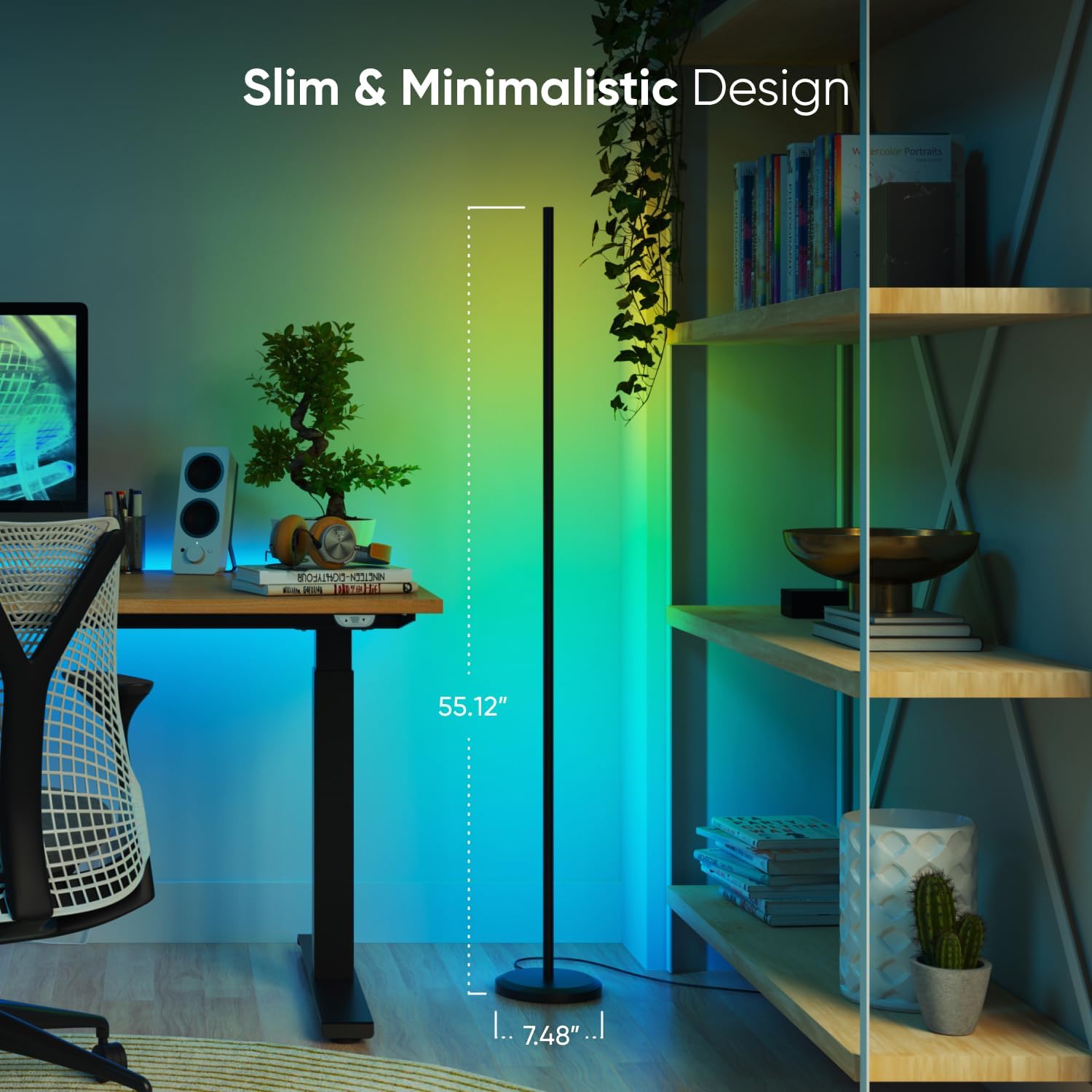
Image 2: The slim and minimalistic design of the Nanoleaf Matter Smart Floor Lamp, highlighting its dimensions.
For visual guidance, refer to the official setup video if available from Nanoleaf.
3. Operating Instructions
The Nanoleaf Matter Smart Floor Lamp offers multiple control methods for a personalized lighting experience.
3.1. Control Methods
- In-line Controller: Use the attached physical controller to adjust brightness, cycle through pre-set scenes, and turn the lamp on/off.
- Nanoleaf App: Download the Nanoleaf App from the App Store or Google Play. Connect the lamp via Wi-Fi or Bluetooth for extensive customization options, including color selection, scene creation, and advanced settings.
- Smart Home Ecosystems (Matter): Integrate the lamp with Apple Home, Google Home, or Amazon Alexa using a Matter-compatible hub. This enables voice control and integration into smart home routines.
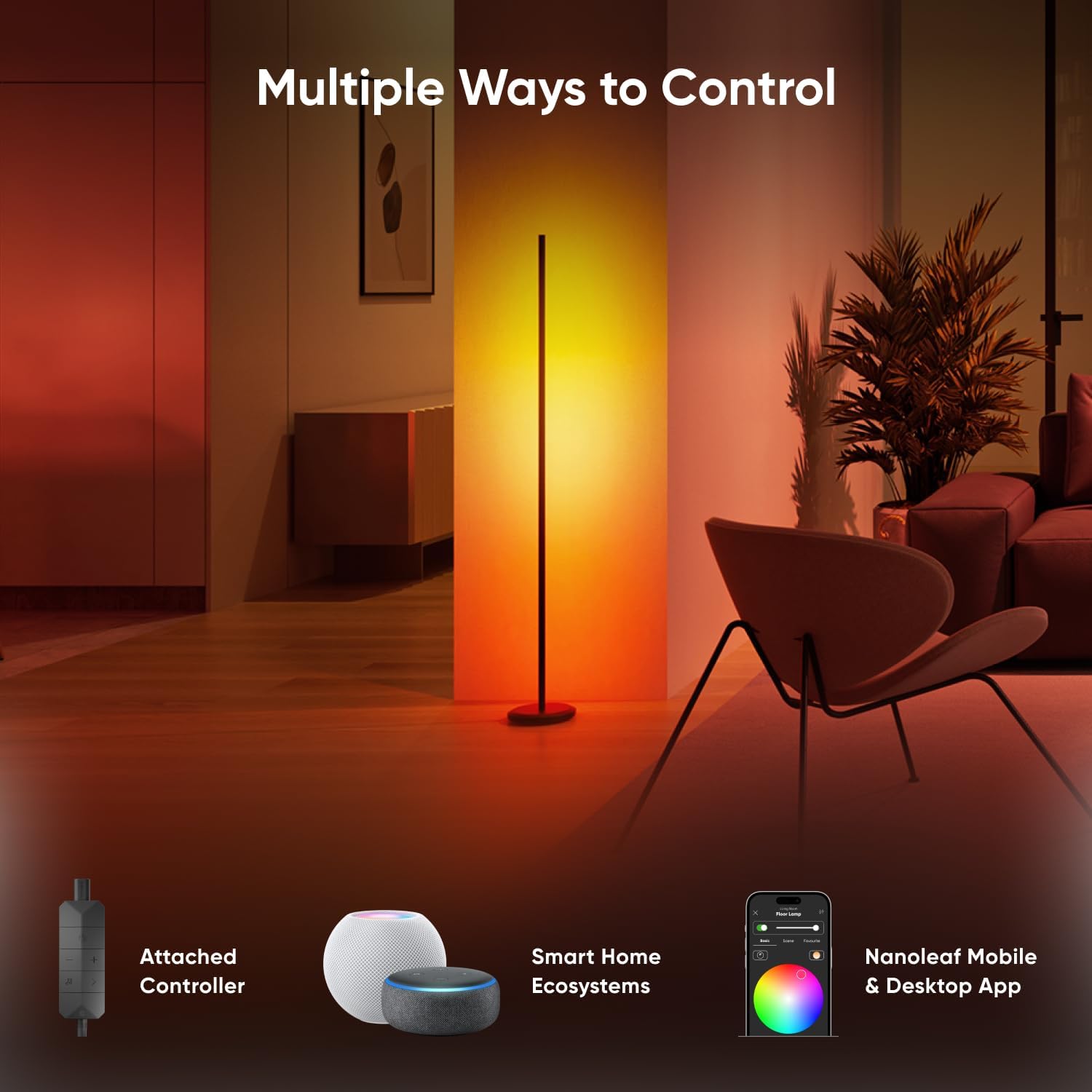
Image 3: Overview of the multiple ways to control the Nanoleaf Matter Smart Floor Lamp.
3.2. Color and Brightness Adjustment
Utilize the Nanoleaf App or smart home assistant to select from over 16 million colors and tunable whites (1200K to 6500K). Adjust brightness up to 1700 lumens to suit your preference.

Image 4: Customizing colors using the Nanoleaf App.

Image 5: Demonstrating the tunable white light options from 1200K to 6500K.
3.3. Music Sync and Screen Mirror
- Music Sync: The lamp can react to sound and synchronize with the beat of your music. Activate this feature through the Nanoleaf App.
- Screen Mirror: Reflect the colors from your computer screen onto the lamp for an immersive experience. This feature is available via the Nanoleaf Desktop App.
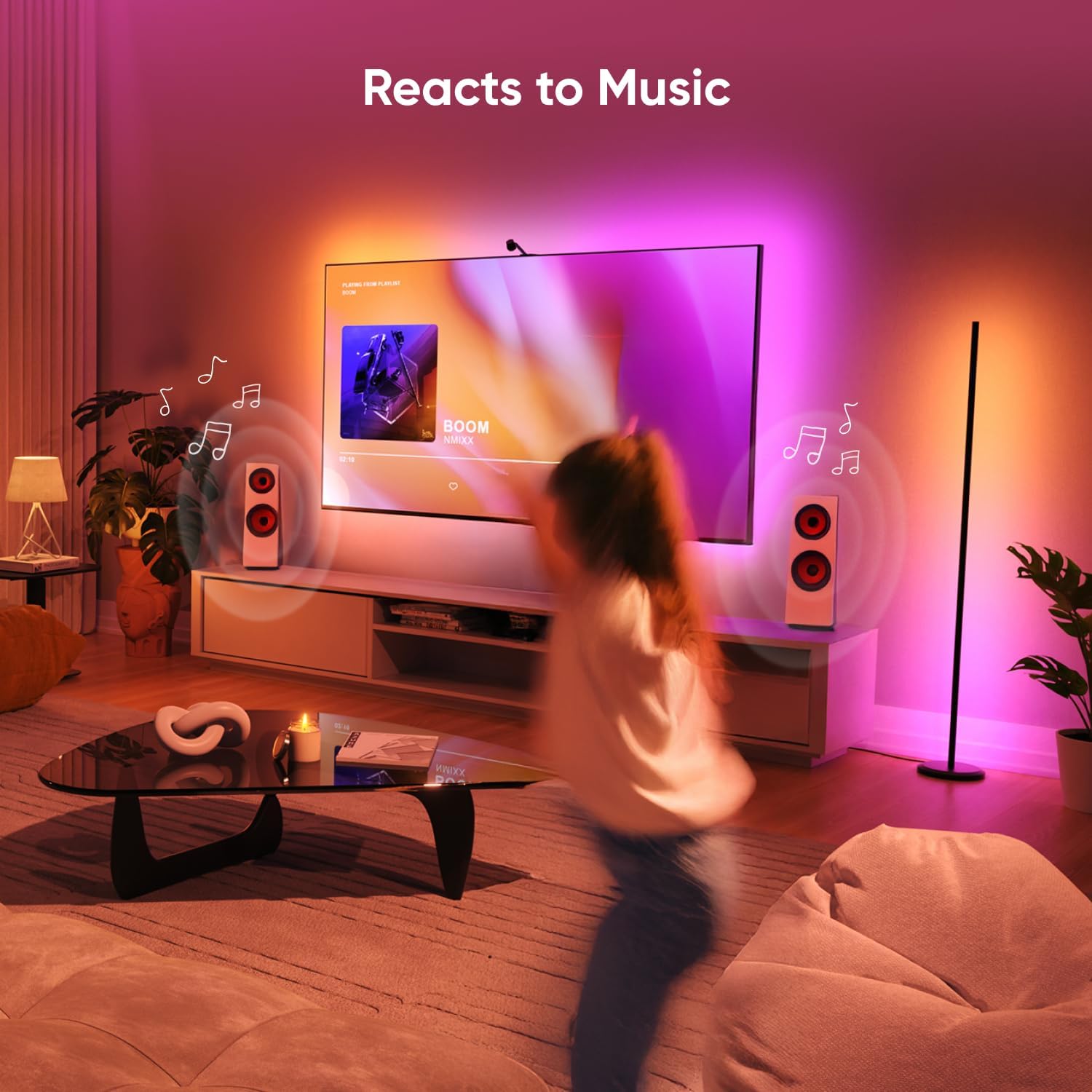
Image 6: The Nanoleaf lamp synchronizing its lighting effects with music.

Image 7: The Nanoleaf lamp using screen mirror functionality with a PC.
3.4. Setting Schedules
Automate your lamp to turn on or off at specific times using the Nanoleaf App or your integrated smart home ecosystem. This requires a Matter-compatible smart home hub.
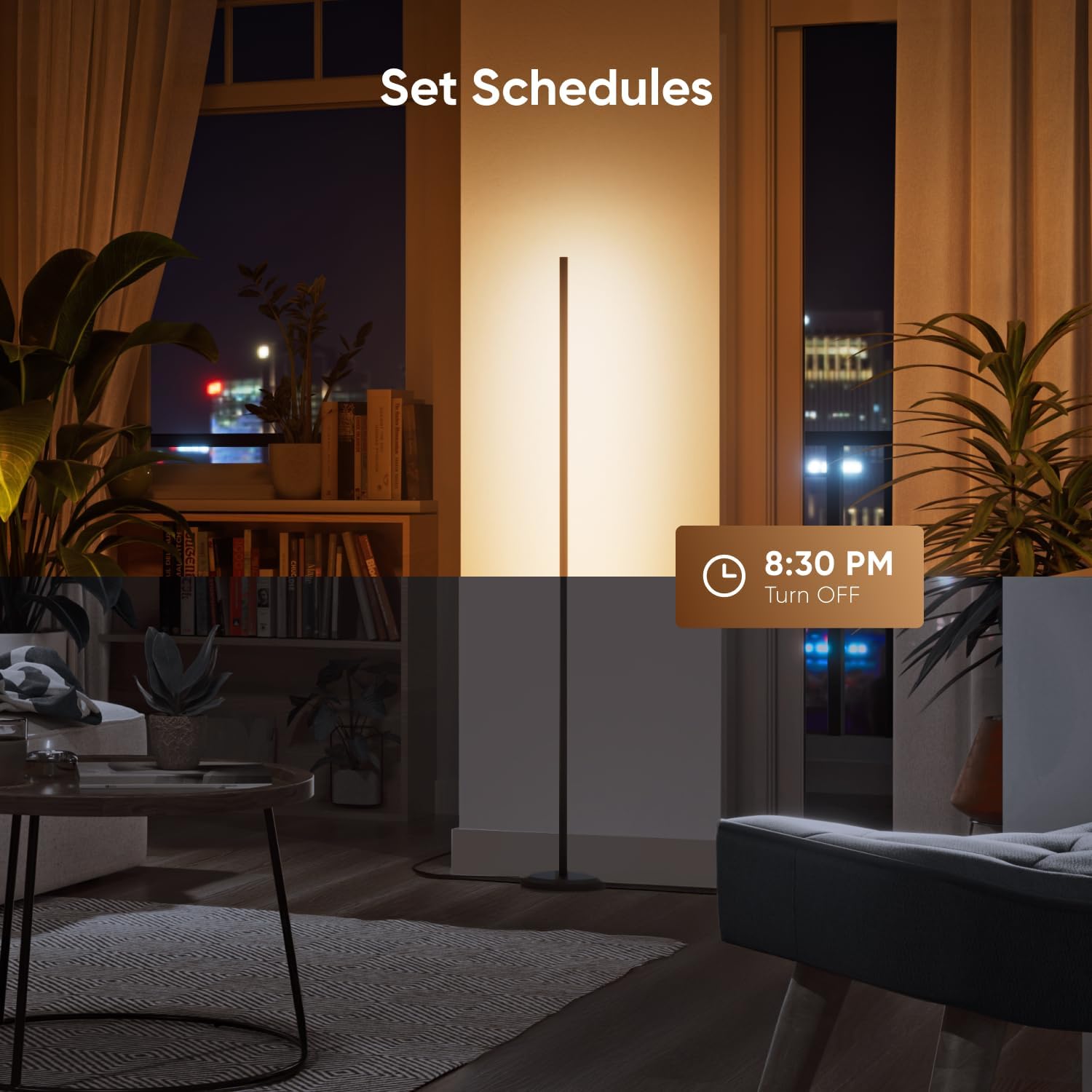
Image 8: Setting a schedule for the Nanoleaf lamp to turn off at a specific time.
4. Maintenance
To ensure the longevity and optimal performance of your Nanoleaf Matter Smart Floor Lamp, follow these simple maintenance guidelines:
- Cleaning: Disconnect the lamp from power before cleaning. Use a soft, dry, or slightly damp cloth to wipe the surface. Avoid abrasive cleaners, solvents, or harsh chemicals, as these can damage the finish.
- Lightstrip Care: The integrated LED lightstrip does not require replacement. If any issues arise with the light output, refer to the troubleshooting section or contact support.
- Storage: If storing the lamp for an extended period, ensure it is clean and dry. Store in a cool, dry place away from direct sunlight and extreme temperatures.
5. Troubleshooting
If you encounter issues with your Nanoleaf Matter Smart Floor Lamp, try the following solutions:
- Lamp Not Turning On:
- Ensure the power adapter is securely plugged into both the lamp and a working wall outlet.
- Check if the wall outlet is receiving power by testing it with another device.
- Verify that the in-line controller is not damaged and the lamp is not accidentally turned off.
- Cannot Connect to App/Smart Home:
- Ensure your Wi-Fi network is active and the lamp is within range.
- Restart your Wi-Fi router and the lamp.
- Confirm your smartphone or smart home hub meets the Matter compatibility requirements (iOS/tvOS 16.5+ or Android OS 8.1+).
- Try resetting the lamp (refer to Nanoleaf support for specific reset procedures if needed).
- Colors Not Displaying Correctly:
- Ensure the Nanoleaf App is updated to the latest version.
- Check app settings for any active scenes or effects that might override manual color selection.
- If using Screen Mirror, ensure the Nanoleaf Desktop App is running and configured correctly.
- Music Sync Not Working:
- Verify that the lamp's microphone (if applicable) is not obstructed.
- Ensure the music source is loud enough for the lamp to detect sound.
- Check settings within the Nanoleaf App for Music Sync activation.
If these steps do not resolve the issue, please contact Nanoleaf customer support for further assistance.
6. Specifications
| Feature | Detail |
|---|---|
| Model Number | B0DQSB2B5H |
| Finish Type | Matte |
| Base Material | Iron with black spray coating |
| Bulb Base | G4 (Integrated LED) |
| Product Dimensions (Lamp) | Approx. 55.12" H x 7.48" Base Diameter (140 cm H x 19 cm Base Diameter) |
| Product Dimensions (Package) | 8.07"D x 4.33"W x 19.09"H (20.5 cm D x 11 cm W x 48.5 cm H) |
| Item Weight | 4.4 Pounds (2 kg) |
| Brightness | 1700 lumens |
| Color Range | 16 Million Colors, Tunable Whites (1200K-6500K) |
| Connectivity | Matter, Wi-Fi, Bluetooth |
| Compatibility | Apple Home, Google Home, Amazon Alexa (Matter compatible hub required) |
7. Warranty and Support
For warranty information and customer support, please refer to the official Nanoleaf website or contact their customer service directly. Keep your purchase receipt as proof of purchase.
Nanoleaf Official Website: nanoleaf.me


