
1. Introduction
Thank you for choosing the Ease Life 1080P Security Camera. This manual provides detailed instructions to help you set up, operate, and maintain your security camera system. Please read this manual carefully before use and keep it for future reference. This camera is designed to provide reliable surveillance for your home, offering features such as 1080P clear images, color night vision, motion detection, and two-way audio communication.
2. Product Overview
The Ease Life 1080P Security Camera is an advanced surveillance solution designed for outdoor use, providing comprehensive monitoring capabilities. Key features include:
- 1080P Full HD Resolution: Captures clear and detailed video footage.
- Color Night Vision: Provides enhanced visibility in low-light conditions, offering full-color images at night.
- 360° Pan/Tilt View: Allows for wide-area coverage with remote control of camera direction.
- Motion Detection & Alerts: Automatically detects movement and sends real-time notifications to your smartphone.
- Two-Way Talk: Enables real-time communication through the camera's built-in microphone and speaker.
- 2.4GHz Wi-Fi Connectivity: Easy wireless connection to your home network.
- Cloud & Memory Card Storage: Flexible options for storing recorded video footage.

Figure 2.1: Two Ease Life 1080P Security Cameras, showing their design and dual antenna setup.

Figure 2.2: Illustration of the camera's 360-degree pan and 90-degree tilt capabilities, along with icons representing 1080P resolution, multi-person sharing, night vision, HD image quality, 2-way audio, 360-degree full view, and 2.4G Wi-Fi support.

Figure 2.3: Depiction of the three night vision modes: Infrared night vision (black and white), Full color night vision, and Sound and light alarm night vision, showing how the camera adapts to different low-light scenarios.
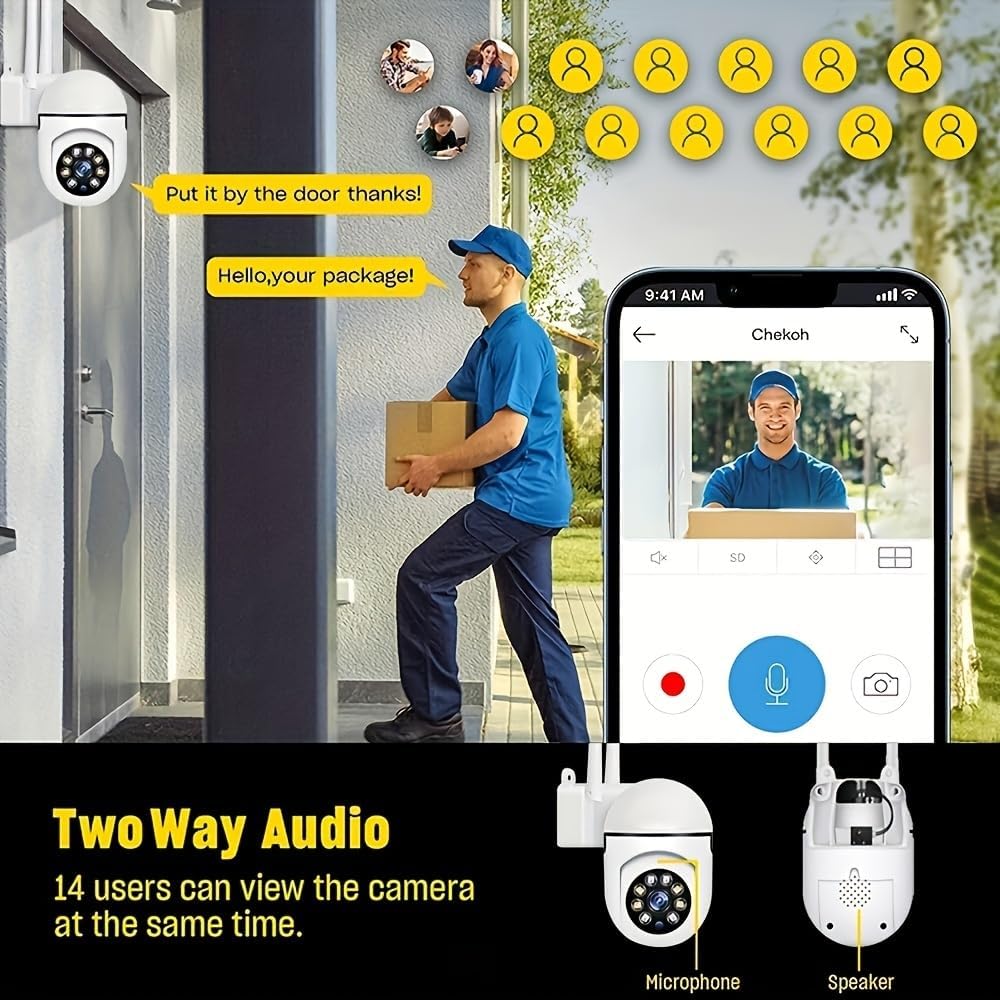
Figure 2.4: Demonstration of the two-way audio feature, showing a person speaking through the camera to a delivery person, and the camera's microphone and speaker components.
3. What's in the Box
Upon opening the package, please verify that all components are present and in good condition:
- Camera Body (2 units)
- Power Adapter (Corded Electric)
- Mounting Screws and Anchors
- User Manual (this document)
4. Specifications
| Feature | Description |
|---|---|
| Model Number | Y108-2 |
| Video Capture Resolution | 1080p |
| Connectivity Protocol | Wi-Fi (2.4GHz) |
| Power Source | Corded Electric |
| Controller Type | App (Smartphone) |
| Mounting Type | Ceiling Mount |
| Low Light Technology | Night Color |
| Indoor/Outdoor Usage | Indoor (Note: Product title states Outdoor, but specifications indicate Indoor. Please verify product suitability for outdoor installation.) |
| Number of Items | 2 |
| Special Feature | Adjustable |
5. Setup Guide
Follow these steps to set up your Ease Life Security Camera:
5.1. Preparation
- Choose a Location: Select a suitable location for mounting the camera. Consider Wi-Fi signal strength and power outlet accessibility. The camera is designed for ceiling mount.
- Download the App: Search for the official BoyKeep app (or specified app in packaging) on your smartphone's app store (iOS or Android) and install it.
- Create an Account: Open the app and register for a new account, or log in if you already have one.
5.2. Camera Installation
- Power On: Connect the camera to a power outlet using the provided power adapter. The camera will power on and typically enter a pairing mode (indicated by a flashing LED light).
- Mounting: Using the included screws and anchors, securely mount the camera to the desired ceiling location. Ensure the mounting surface is stable enough to support the camera's weight.
5.3. App Pairing
- Add Device: In the app, tap the "Add Device" or "+" icon.
- Select Camera Type: Choose the appropriate camera model or type from the list.
- Connect to Wi-Fi: Follow the on-screen prompts to connect the camera to your 2.4GHz Wi-Fi network. You may need to scan a QR code displayed on your phone with the camera, or enter your Wi-Fi password.
- Name Your Camera: Once connected, give your camera a recognizable name (e.g., "Front Door Camera", "Living Room").

Figure 5.1: Example of the security camera mounted outdoors, illustrating its potential placement and features like HD, 2-way audio, cloud storage, built-in Wi-Fi, and 360-degree head rotation.
6. Operating Instructions
Once your camera is set up, you can begin using its various features:
6.1. Live View and Pan/Tilt Control
- Open the app and select your camera from the device list to view the live feed.
- Use the on-screen joystick or swipe gestures to pan (rotate horizontally up to 360°) and tilt (rotate vertically up to 90°) the camera lens to adjust the viewing angle.
6.2. Two-Way Talk
- While in live view, tap the microphone icon to speak through the camera's speaker. Release the icon to listen.
- The camera also supports a one-touch call button for immediate communication from the camera side.
6.3. Motion Detection and Alerts
- Navigate to the camera settings in the app.
- Enable motion detection and adjust sensitivity levels as needed.
- Configure alert notifications to receive push messages on your phone when motion is detected.
6.4. Night Vision Modes
- The camera automatically switches to night vision in low light.
- You can typically select between Infrared (black and white), Full Color, or Sound and Light Alarm night vision modes within the app settings, depending on your preference and the environment.
6.5. Recording and Storage
- Memory Card: Insert a compatible microSD card (not included) into the camera's slot for local storage and 24/7 continuous recording.
- Cloud Storage: The camera supports cloud storage services. Refer to the app for details on subscription plans and a 30-day trial.
- Access recorded footage through the playback section in the app.
6.6. Multi-Device Viewing and Sharing
- You can add multiple Ease Life cameras to the same app account.
- The app allows viewing up to four real-time video feeds simultaneously.
- Share camera access with family members or trusted individuals (up to 10 devices simultaneously) through the app's sharing feature.
7. Maintenance
Regular maintenance ensures the longevity and optimal performance of your security camera:
- Cleaning: Gently wipe the camera lens and body with a soft, dry cloth to remove dust and smudges. Do not use harsh chemicals or abrasive materials.
- Firmware Updates: Periodically check the app for available firmware updates. Keeping the firmware updated ensures you have the latest features and security patches.
- Storage Management: If using a memory card, regularly review and delete old footage to free up space, or ensure loop recording is enabled if desired. For cloud storage, monitor your subscription status.
- Connectivity Check: Occasionally verify that your camera has a stable Wi-Fi connection.
8. Troubleshooting
If you encounter issues with your camera, refer to the following common problems and solutions:
- Camera Offline:
- Check if the camera is powered on and the power adapter is securely connected.
- Ensure your Wi-Fi router is working and the camera is within range.
- Restart the camera by unplugging and replugging it.
- Verify your Wi-Fi password in the app settings.
- Poor Image Quality:
- Clean the camera lens.
- Ensure sufficient lighting in the area, especially for color night vision.
- Check your internet connection speed.
- Motion Detection Not Working:
- Verify motion detection is enabled in the app settings.
- Adjust motion sensitivity.
- Check the detection zone settings to ensure the area of interest is covered.
- Two-Way Audio Issues:
- Ensure your phone's volume is up and the app has microphone permissions.
- Check the camera's speaker and microphone for any obstructions.
- Reduce background noise in the environment.
- Cannot Connect to Wi-Fi:
- Ensure you are connecting to a 2.4GHz Wi-Fi network, as 5GHz is not supported.
- Double-check the Wi-Fi password.
- Move the camera closer to the Wi-Fi router during setup.
- If issues persist, try resetting the camera (refer to app or product support for reset instructions).
9. Warranty and Support
The Ease Life 1080P Security Camera is manufactured by BoyKeep. For specific warranty information, please refer to the warranty card included with your product or contact BoyKeep customer support directly. If you require technical assistance or have questions not covered in this manual, please reach out to the manufacturer's support channels.


