Introduction
This manual provides detailed instructions for the Contixo V10 7-inch Kids Learning Tablet and the Contixo KW1 Kids Smart Watch bundle. Please read this manual thoroughly before using your devices to ensure proper operation and to maximize their educational and entertainment potential.

Image: The Contixo V10 Kids Tablet and KW1 Smart Watch bundle, including the blue tablet in a protective case, a blue stylus, and a blue smartwatch with a dinosaur-themed strap.
What's Included
The Contixo V10-KW1 bundle includes the following items:
- 1 x Contixo V10 7-inch IPS HD 1024 x 600 Kids Learning Tablet
- 1 x Contixo Kids Smart Watch KW1
- 1 x Stylus
- 1 x AC Adapter with USB-C Cable
- 1 x Case with Kick Stand
Product Overview - Contixo V10 Kids Learning Tablet
Tablet Components

Image: A diagram illustrating the components of the Contixo V10 tablet, including the Front Facing Camera, 7" IPS Display, Headphone Jack, MicroSD Card Slot, Type C Charging Port, Microphone, Rear Facing Camera, Digital Pen, Volume Control, Power Button, and Reset Button.
Key Features
- Display: 7-inch IPS HD screen (1024 x 600 pixels)
- Operating System: Android 11 Go OS
- Processor: 1.5GHz Quad-Core
- Storage: 32GB internal storage
- Cameras: Dual cameras (front and rear)
- Connectivity: Wi-Fi (802.11n), Bluetooth
- Battery: 3,000mAh battery, providing up to 6 hours of use
- Pre-installed Content: 50 Disney e-books and 15+ teacher-approved learning games/apps
- Parental Controls: Google Family Link integration for content management and screen time limits
- Language Settings: Supports 189 languages
Product Overview - Contixo KW1 Kids Smart Watch
Key Features
- Games: 14 engaging educational games designed to enhance coordination, logical analysis, and creative thinking.
- Camera: Adjustable rotating camera for photos and videos.
- Music Playback: Supports HD music playback via SD card (not included).
- Storage: 1GB built-in SD card for saving media.
- Design: Non-toxic ABS plastic material with a soft, durable, and adjustable silicone strap. Sweatproof.
- Battery Life: Built-in rechargeable battery with 3 to 7 days standby time. Approximately 2 hours for a full charge.
Setup
Contixo V10 Kids Learning Tablet
- Charging: Before first use, fully charge the tablet using the provided AC adapter and USB-C cable. The charging port is located on the side of the tablet.
- Power On: Press and hold the Power Button (located on the side) until the Contixo logo appears.
- Initial Setup: Follow the on-screen prompts to select your language, connect to a Wi-Fi network, and set up your Google account.
- Google Family Link: For parental control features, download and set up Google Family Link on your own device and link it to the tablet. This allows you to manage content, screen time, and app permissions.
Contixo KW1 Kids Smart Watch
- Charging: Connect the smart watch to its charger. Ensure it is fully charged before first use.
- Power On: Press and hold the power button on the smart watch until the screen illuminates.
- Time and Date: Set the correct time and date through the watch settings.
Operating Instructions
Using the Contixo V10 Kids Learning Tablet
- Navigation: Use touch gestures (tap, swipe, pinch) to navigate the Android interface.
- Accessing Disney E-books: The tablet comes pre-loaded with 50 Disney e-books. Locate the Disney Books application icon on the home screen or in the app drawer and tap to open. Browse and select books for reading.
- Educational Apps & Games: Access the pre-loaded educational games and apps from the app drawer. Additional kid-friendly apps can be downloaded from Google Play Store.
- Parental Controls: Utilize Google Family Link to set daily screen time limits, manage app access, and filter web content. These settings can be adjusted as your child grows.
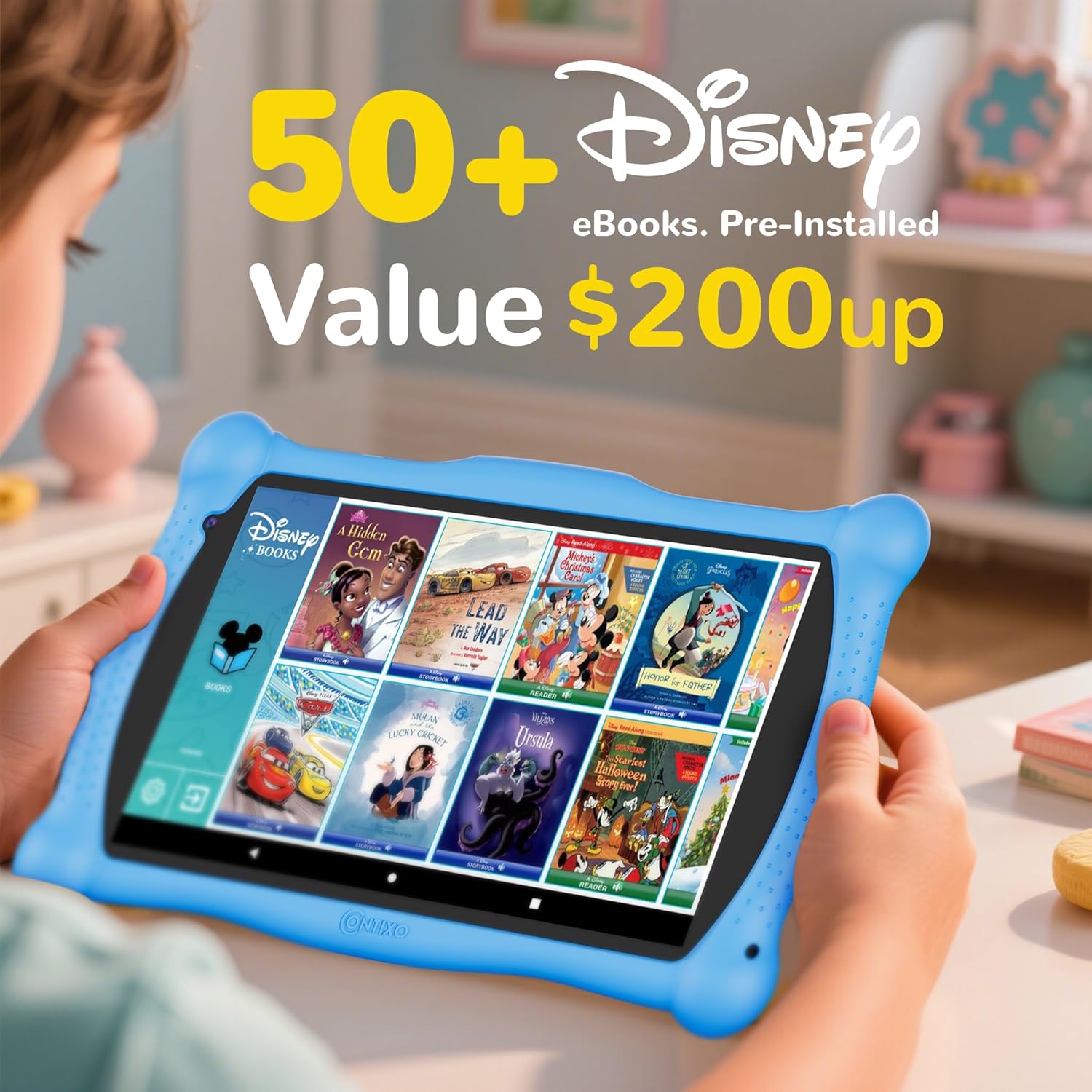
Image: The Contixo V10 tablet screen showing a selection of Disney e-books, including titles like 'Mickey's Christmas Carol' and 'Beauty and the Beast'.

Image: A parent and child interacting with the Contixo V10 tablet, with an overlay showing 'Intelligent Parental Controls' features like 'Control Screen Time', 'Set Educational Goals', 'Block From Unsafe Internet Content', and 'Manage Permissions and Apps' via Google Family Link.
Using the Contixo KW1 Kids Smart Watch
- Playing Games: Navigate through the watch interface to find and select from the 14 pre-installed educational games.
- Camera Function: Use the adjustable rotating camera to take photos and record videos. Saved media can be set as wallpaper.
- Listening to Music: Transfer media files to an SD card (not included) and insert it into the watch to access and play HD music. The watch can also connect directly to a computer for file transfer.
Media Integration
Contixo Kids Tablet V10 Overview
Video: An overview of the Contixo Kids Tablet V10, demonstrating its features such as Disney e-books, educational games, and the durable design. This video highlights the tablet's user interface and protective casing.
Contixo Kids Tablet Pre-Loaded Disney E-Books
Video: A demonstration of the pre-loaded Disney e-books on the Contixo Kids Tablet, showcasing the variety of titles and the interactive reading experience available to users.
Maintenance
- Cleaning: Use a soft, dry cloth to clean the screens and surfaces of both the tablet and smart watch. Avoid abrasive cleaners or excessive moisture.
- Battery Care: To prolong battery life, avoid fully discharging the devices frequently. Charge them regularly.
- Storage: When not in use for extended periods, store the devices in a cool, dry place.
- Software Updates: Periodically check for software updates on the tablet to ensure optimal performance and security.
Troubleshooting
Contixo V10 Kids Learning Tablet
- Device Not Turning On: Ensure the tablet is fully charged. If the issue persists, press and hold the power button for 10-15 seconds. If still unresponsive, use a pin to press the Reset Button (refer to the component diagram).
- Wi-Fi Connectivity Issues: Check if other devices can connect to the Wi-Fi network. Restart the tablet and your Wi-Fi router. Ensure the Wi-Fi password is entered correctly.
- Apps Crashing/Freezing: Close and reopen the app. Clear the app's cache in the tablet's settings (Settings > Apps > [App Name] > Storage > Clear Cache). If the problem continues, uninstall and reinstall the app.
- Slow Performance: Close unnecessary background applications. Clear cached data. Consider uninstalling unused apps to free up storage space.
Contixo KW1 Kids Smart Watch
- Watch Not Turning On: Ensure the watch is fully charged.
- Screen Unresponsive: Restart the watch by holding down the power button.
- Music Not Playing: Verify that an SD card with music files is properly inserted and that the files are in a compatible format.
Specifications
Contixo V10 Kids Learning Tablet
| Feature | Specification |
|---|---|
| Standing Screen Display Size | 7 Inches |
| Screen Resolution | 1024 x 600 pixels |
| Max Screen Resolution | 1024 x 600 Pixels |
| Processor | 1.5 GHz Quad-Core |
| Wireless Type | 802.11n |
| Average Battery Life | 4 Hours (up to 6 hours of play) |
| Operating System | Android 11 Go |
| Item Weight | 1.5 pounds |
| Product Dimensions | 7.46 x 4.31 x 0.39 inches |
| Memory Storage Capacity | 32 GB |
| Batteries | 1 Lithium Ion battery (included) |
Contixo KW1 Kids Smart Watch
| Feature | Specification |
|---|---|
| Material | Non-Toxic ABS Plastic, Silicone Strap |
| Internal Storage | 1GB (for media) |
| Battery Life (Standby) | 3 to 7 days |
| Charging Time | Approx. 2 hours |
Warranty and Support
The Contixo V10 Kids Learning Tablet and KW1 Smart Watch bundle includes a 1-year warranty. For technical support, warranty claims, or further assistance, please refer to the contact information provided on the official Contixo website or your purchase documentation.


