
1. Product Overview
The Podofo 9-inch Android 13 Car Stereo is a universal double DIN audio system designed to enhance your in-car entertainment and connectivity. It features a high-resolution IPS touchscreen, robust processing power, and a comprehensive suite of features for a modern driving experience.
- Operating System: Android 13
- Memory: 4GB RAM + 64GB ROM
- Display: 9-inch IPS Touchscreen, 1280x720P Resolution
- Connectivity: Wireless Apple CarPlay, Wireless Android Auto, Bluetooth 5.0, WiFi, USB
- Navigation: Integrated GPS receiver
- Audio: FM/RDS Radio, EQ Sound Control
- Control: Steering Wheel Control (SWC) support, Manual Control
- Additional Features: Mirror Link, Split Screen Function, AHD Backup Camera support (camera optional)

Image: Main interface of the Podofo 9-inch Android 13 Car Stereo, highlighting key features such as Bluetooth, FM radio, WiFi, GPS, EQ settings, and touchscreen functionality.
2. Setup and Installation
This section provides guidance for installing your Podofo car stereo. Professional installation is recommended to ensure proper functionality and safety.
2.1 Package Contents
Before installation, verify that all components are present:
- Podofo 9-inch Android 13 Car Stereo Unit
- Power Cable
- RCA Cable
- USB Cable (x2)
- GPS Antenna
- Rear Camera Input Cable
- Mounting Brackets
- Users Manual
- External Microphone

Image: Detailed view of all items included in the Podofo car stereo package, illustrating the main unit and its accessories.
2.2 Connection Reference
Refer to the wiring diagram for correct connections. Ensure all cables are securely connected to prevent malfunctions.
- Power Cable: Connect to your vehicle's power supply (constant 12V, accessory 12V, and ground).
- RCA Cables: For audio output (FR, FL, RR, RL), AUX input, video output, and subwoofer.
- USB Cables: For data transfer and charging.
- GPS Antenna: Mount in a location with a clear view of the sky for optimal signal reception.
- Rear Camera Input: Connect your optional AHD backup camera here.
- External Microphone: Connect for improved hands-free call quality.
- SWC (Steering Wheel Control) Wires: Connect to your vehicle's steering wheel control wires for button functionality.

Image: Wiring diagram illustrating the various input and output connections on the rear of the car stereo unit.
3. Operating Instructions
This section details the operation of the main features of your Podofo car stereo.
3.1 Wireless CarPlay and Android Auto
Connect your smartphone wirelessly to access navigation, music, calls, and messages directly on the car stereo's touchscreen. Use voice commands via Siri or Google Assistant for hands-free operation.
- Ensure Bluetooth and Wi-Fi are enabled on your smartphone.
- Pair your phone with the car stereo via Bluetooth.
- Follow the on-screen prompts to initiate CarPlay or Android Auto.

Image: The car stereo screen displaying both Apple CarPlay and Android Auto, demonstrating wireless connectivity for smartphone integration.
3.2 Bluetooth 5.0
The integrated Bluetooth 5.0 module allows for hands-free calling, voice assistant activation, and wireless audio streaming from your paired devices.
- Navigate to the Bluetooth menu on the stereo.
- Enable Bluetooth on your phone and search for available devices.
- Select the car stereo from the list and confirm pairing.

Image: A visual representation of Bluetooth 5.0 technology, indicating its integration within the car stereo system.
3.3 FM/RDS Radio
Tune into your favorite radio stations with the built-in FM tuner. RDS (Radio Data System) provides additional information like station names and traffic announcements where available.
- Select the 'Radio' application from the main menu.
- Use the scan function or manual tuning to find stations.
- Save preferred stations to presets for quick access.

Image: The FM radio interface on the car stereo, showing frequency display and RDS features.
3.4 Mirror Link
Mirror Link allows you to display your smartphone's screen directly onto the car stereo. This feature supports one-way control for iPhones (iOS 13.4 and earlier) and two-way control for Android phones (Android 10.1 and earlier) via USB cable.
- Connect your smartphone to the stereo using a USB cable.
- Select the 'Mirror Link' application on the stereo.
- Follow the on-screen instructions to establish the connection.

Image: The Mirror Link feature in action, showing a smartphone's screen duplicated on the car stereo display.
3.5 Steering Wheel Control (SWC)
Program your vehicle's steering wheel buttons to control the car stereo functions, allowing you to manage audio and calls without taking your hands off the wheel.
- Access the 'SWC Learning' or 'Steering Wheel Settings' menu in the stereo's settings.
- Follow the on-screen instructions to assign functions to each button.

Image: A user interacting with steering wheel controls, demonstrating the SWC functionality for safe operation.
3.6 GPS Navigation
The integrated GPS module allows for precise navigation. Users can download and use various navigation apps from the Play Store for offline maps and real-time directions.
- Ensure the GPS antenna is properly installed and has a clear view of the sky.
- Open your preferred navigation application.
- Download maps for offline use if desired.

Image: The car stereo screen displaying a GPS navigation map, providing directions and location information.
3.7 WiFi Connectivity
Connect the car stereo to a Wi-Fi hotspot (e.g., from your smartphone) to access online features, download apps, and browse the internet.
- Go to 'Settings' and then 'Wi-Fi'.
- Select your desired Wi-Fi network and enter the password.

Image: The car stereo display showcasing various applications, highlighting the WiFi connectivity feature for online access.
3.8 Split Screen Function
The split-screen feature allows you to run two applications simultaneously on the display, such as navigation and music playback.
- Open an application.
- Press and hold the recent apps button or drag an app to one side of the screen to activate split-screen mode.
- Select a second application to fill the other half of the screen.
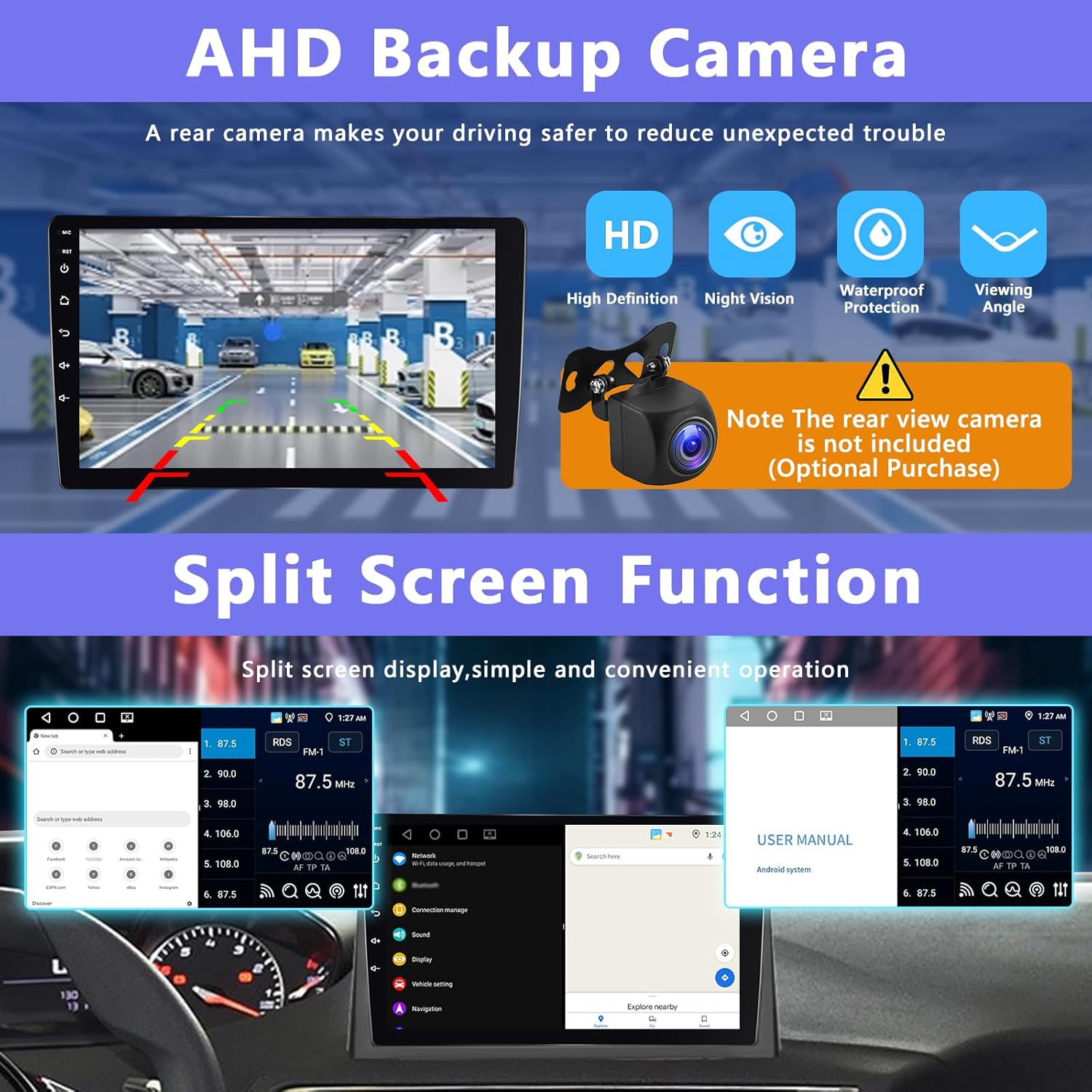
Image: The split-screen function demonstrated on the car stereo, displaying two applications side-by-side for multitasking.
3.9 EQ Sound Settings
Customize your audio experience with the built-in Equalizer (EQ). Adjust frequency bands to match your preferences or select from various preset sound modes.
- Access the 'EQ' application from the main menu.
- Adjust the frequency sliders or select a preset (e.g., Jazz, Pop, Rock).
- Fine-tune the balance and fader settings for optimal sound distribution.

Image: The EQ settings interface on the car stereo, allowing users to customize audio output with various frequency adjustments and presets.
3.10 AHD Backup Camera Support
The stereo supports an AHD (Analog High Definition) backup camera (optional, not included). When connected, the display automatically switches to the rear view when the vehicle is in reverse, enhancing parking safety.
- Connect the AHD backup camera to the dedicated input.
- Ensure the camera's power is correctly wired to the reverse light trigger.

Image: The car stereo displaying the view from an AHD backup camera, complete with parking assistance lines, and a separate image of the camera unit.
4. Maintenance
Proper maintenance ensures the longevity and optimal performance of your car stereo.
- Cleaning: Use a soft, dry cloth to clean the screen and unit. For stubborn marks, slightly dampen the cloth with water. Avoid harsh chemicals or abrasive materials.
- Software Updates: Periodically check for software updates provided by Podofo to ensure the system runs efficiently and has the latest features and security patches. Updates can typically be found on the manufacturer's website or through the device's settings if an OTA (Over-The-Air) update feature is available.
- Environmental Conditions: Avoid exposing the unit to extreme temperatures, direct sunlight for prolonged periods, or excessive moisture.
5. Troubleshooting
If you encounter issues, refer to the following common troubleshooting steps:
| Problem | Possible Cause | Solution |
|---|---|---|
| No Power | Incorrect wiring, blown fuse, vehicle battery issue. | Check power connections (ACC, B+, GND). Inspect vehicle fuses. Ensure battery is charged. |
| No Sound | Speaker wiring issue, volume too low, incorrect audio source. | Verify speaker connections. Increase volume. Select correct audio source. Check EQ settings. |
| Touchscreen Unresponsive | System freeze, software glitch. | Restart the unit (turn off vehicle ignition and restart). If issue persists, perform a factory reset (refer to settings menu). |
| GPS Signal Lost/Weak | GPS antenna obstruction, faulty antenna. | Ensure GPS antenna is mounted in a clear location. Check antenna connection. |
| CarPlay/Android Auto Not Connecting | Bluetooth/Wi-Fi off, phone compatibility, cable issue (for wired). | Ensure phone's Bluetooth/Wi-Fi is on. Check phone compatibility with CarPlay/Android Auto. Try a different USB cable if applicable. Restart phone and stereo. |
If these steps do not resolve the issue, please contact Podofo customer support or your installer.
6. Specifications
| Feature | Detail |
|---|---|
| Brand | Podofo |
| Model Number | 8c7581b9-eb24-4417-a373-795b8e040b22 |
| Operating System | Android 13 |
| RAM | 4GB |
| ROM | 64GB |
| Screen Size | 9 inches |
| Screen Resolution | 1280x720P IPS Touchscreen |
| Connectivity Technology | Bluetooth 5.0, WiFi, USB |
| Special Features | Wireless CarPlay, Android Auto, GPS, FM/RDS Radio, SWC, Mirror Link, Split Screen |
| Audio Output Mode | Stereo (4.0 channel configuration) |
| Output Power | 180 Watts (4 channels) |
| Compatible Devices | Smartphone |
| Supported Formats | AVI, WAV, WMA, RM (Video Encoding) |
| Item Weight | 1.13 Kilograms |
| Country of Origin | China |
7. Warranty and Support
7.1 Product Warranty
This Podofo car stereo comes with a 1-year warranty from the date of purchase. The warranty covers manufacturing defects and malfunctions under normal use. It does not cover damage caused by improper installation, misuse, accidents, or unauthorized modifications.
7.2 Customer Support
For technical assistance, troubleshooting beyond this manual, or warranty claims, please contact Podofo customer support through the retailer where the product was purchased or visit the official Podofo website for contact information.
- When contacting support, please have your product model number (8c7581b9-eb24-4417-a373-795b8e040b22) and proof of purchase readily available.


