
Two trees TTS 10
Two trees TTS-10 Pro Laser Engraver User Manual
Model: TTS 10
1. Introduction
Thank you for choosing the Two trees TTS-10 Pro Laser Engraver. This device utilizes advanced laser technology for precise engraving and cutting on a variety of materials. This manual provides essential information for safe operation, setup, maintenance, and troubleshooting to ensure optimal performance and longevity of your engraver.

Figure 1.1: Assembled Two trees TTS-10 Pro Laser Engraver.
2. Safety Information
Operating a laser engraver involves inherent risks. Adhere to the following safety guidelines to prevent injury and damage to the equipment:
- Eye Protection: Always wear certified laser safety goggles when the laser is active. The TTS-10 Pro includes a red circular laser shield, but additional eye protection is mandatory.
- Ventilation: Ensure adequate ventilation in the work area. Laser engraving and cutting can produce fumes and particles that may be harmful if inhaled.
- Fire Hazard: Laser processing can ignite flammable materials. Never leave the engraver unattended during operation. Keep a fire extinguisher nearby.
- Material Compatibility: Only engrave or cut materials specified as safe for laser processing. Avoid materials that produce toxic fumes or are highly reflective.
- Children and Pets: Keep children and pets away from the operating area.
- Electrical Safety: Ensure the power supply is stable and correctly grounded. Do not operate with wet hands or in damp environments.
- Emergency Stop: Familiarize yourself with the location of the emergency stop button (if present) or the power switch to quickly shut down the machine in an emergency.
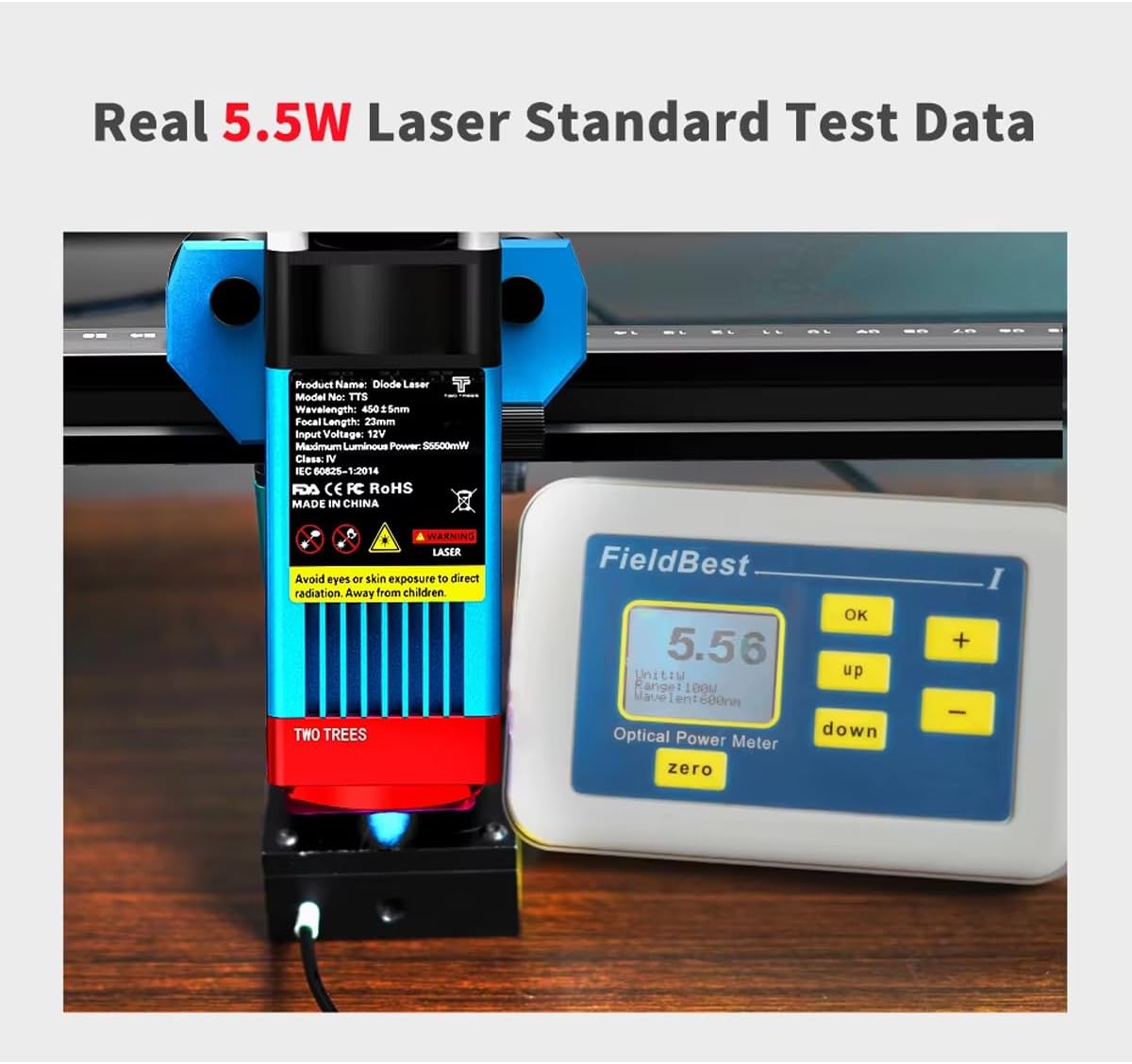
Figure 2.1: Laser module with safety warnings and a power meter indicating 5.5W optical output.
3. Product Features
The TTS-10 Pro Laser Engraver is designed with advanced features for high-precision engraving and efficient cutting:
- Advanced Laser Technology: Utilizes LD+FAC+C-Lens compression spot technology for a fine laser spot as small as 0.08mm, enabling delicate and high-precision engraving.
- Fixed Focus Laser Module: The laser module has a fixed focal length of 23mm, providing superior engraving and cutting capabilities compared to long-focus lasers.
- Powerful Performance: Features an 80W machine power with a 5.5W optical output laser module, capable of cutting materials up to 5mm thick.
- Wide Material Compatibility: Capable of engraving and cutting various materials including wood, plastic, paper, leather, bamboo, sponge paper, alumina, stainless steel, Chevron board, and acrylic.
- Air Assist Nozzle: Includes a metal air assist nozzle for improved cutting performance and cleaner edges.
- Circular Laser Shield: Equipped with a red circular laser shield for enhanced safety during operation.
- Multiple Connectivity Options: Supports WiFi, USB, and mobile app (MKSLaser) connections for flexible control. Offline use is also supported.
- Software Compatibility: Compatible with popular engraving software such as LaserGRBL (Windows), Lightburn (Windows, Mac), and MKSLaser (Android/iOS app).
- Durable Construction: Features an all-aluminum alloy body for stability and longevity.
- 32-bit Motherboard: Ensures fast and efficient processing of engraving tasks.
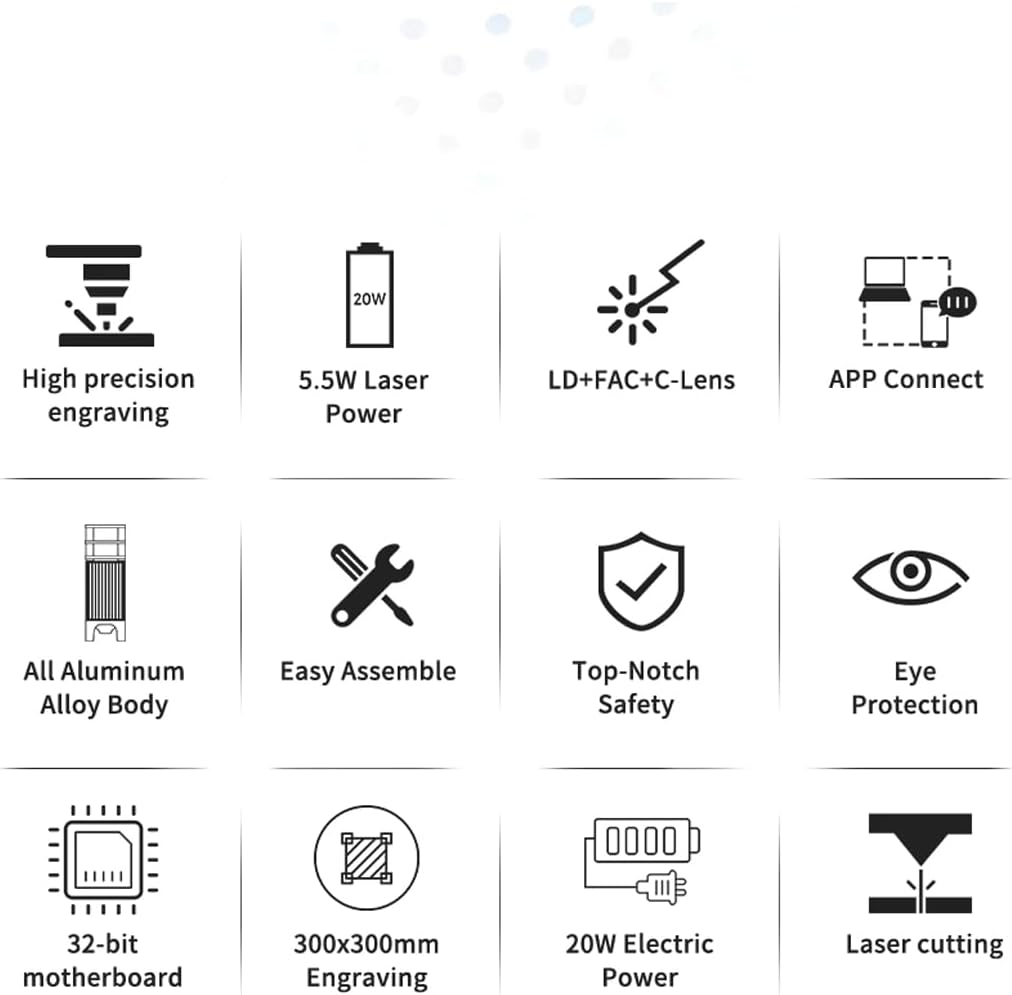
Figure 3.1: Visual representation of key product features.
4. Package Contents
Upon unboxing, verify that all components are present. The package typically includes:
- TTS-10 Pro Laser Engraver Frame Assembly
- Laser Module (TTS-55 Pro Diode Laser Module)
- Power Adapter and Cable
- USB Cable
- Safety Goggles
- Air Assist Nozzle and Tubing
- Small Tool Kit for Assembly
- User Manual (this document)
- Test Materials (e.g., small wood piece)
Note: The product description states "NO INCLUYE LA PLACA BASE" (DOES NOT INCLUDE THE BASE PLATE). This refers to an optional base plate for the working area, not the machine's motherboard.
5. Setup Guide
5.1 Assembly
The TTS-10 Pro is designed for easy assembly. Follow the included quick start guide or assembly video (if provided) for detailed steps. Ensure all screws are tightened securely for stability.
5.2 Software Installation
Choose your preferred software for operating the engraver:
- LaserGRBL: Free software for Windows. Download from the official LaserGRBL website.
- Lightburn: Paid software compatible with Windows and Mac. Download from the official Lightburn website.
- MKSLaser App: Mobile application for Android and iOS devices. Search for "MKSLaser" in your device's app store.
Install the necessary drivers if prompted by the software or operating system.
5.3 Connectivity
The engraver offers multiple connection methods:
- USB Connection: Connect the engraver to your computer using the provided USB cable.
- WiFi Connection: Follow the software's instructions to connect the engraver to your local WiFi network. This allows for wireless control.
- App Control: Use the MKSLaser app on your mobile device to connect and control the engraver via Bluetooth or WiFi.
- Offline Use: The engraver supports offline operation, allowing you to load designs via an SD card (if applicable) and run jobs without a continuous computer connection.

Figure 5.1: Various connectivity options for the TTS-10 Pro.
5.4 Focusing the Laser
The TTS-10 Pro features a fixed-focus laser module with a focal length of 23mm. To adjust the laser height for optimal focus:
- Place your material on the working surface.
- Use the spiral button on the laser module to raise or lower the module until the bottom of the laser module is approximately 23mm from the surface of your material.
- Some models may include a focus gauge or a multi-scale positioning column to assist with precise height adjustment.

Figure 5.2: Spiral button for convenient height adjustment and multi-scale positioning column.
5.5 Air Assist Setup
For enhanced cutting performance and to reduce charring, connect the air assist tubing to the metal nozzle on the laser module and to an external air pump (not included, unless specified in package contents). Ensure the air flow is directed at the laser's focal point.
6. Operating Instructions
6.1 Preparing Your Design
Create or import your design using your chosen software (LaserGRBL, Lightburn, or MKSLaser). Adjust parameters such as power, speed, and number of passes according to the material and desired effect. Refer to the software's documentation for detailed instructions on design preparation.

Figure 6.1: Examples of creative displays and materials suitable for engraving and cutting.
6.2 Loading Material
Place the material securely on the working surface. Ensure it is flat and does not obstruct the laser's path or the movement of the gantry.
6.3 Starting the Engraving/Cutting Process
- Ensure all safety precautions are in place, including wearing safety goggles and ensuring proper ventilation.
- Power on the engraver.
- In your software, home the laser (if applicable) and set the origin point for your job.
- Initiate the engraving or cutting process from the software.
- Monitor the process closely for any issues, such as material ignition or unexpected behavior.
6.4 High-Precision Engraving
The TTS-10 Pro's laser source, guided by LD+FAC+C-Lens technology, produces a spot as small as 0.08mm. This allows for highly detailed and delicate engraving works, capturing intricate designs with precision.
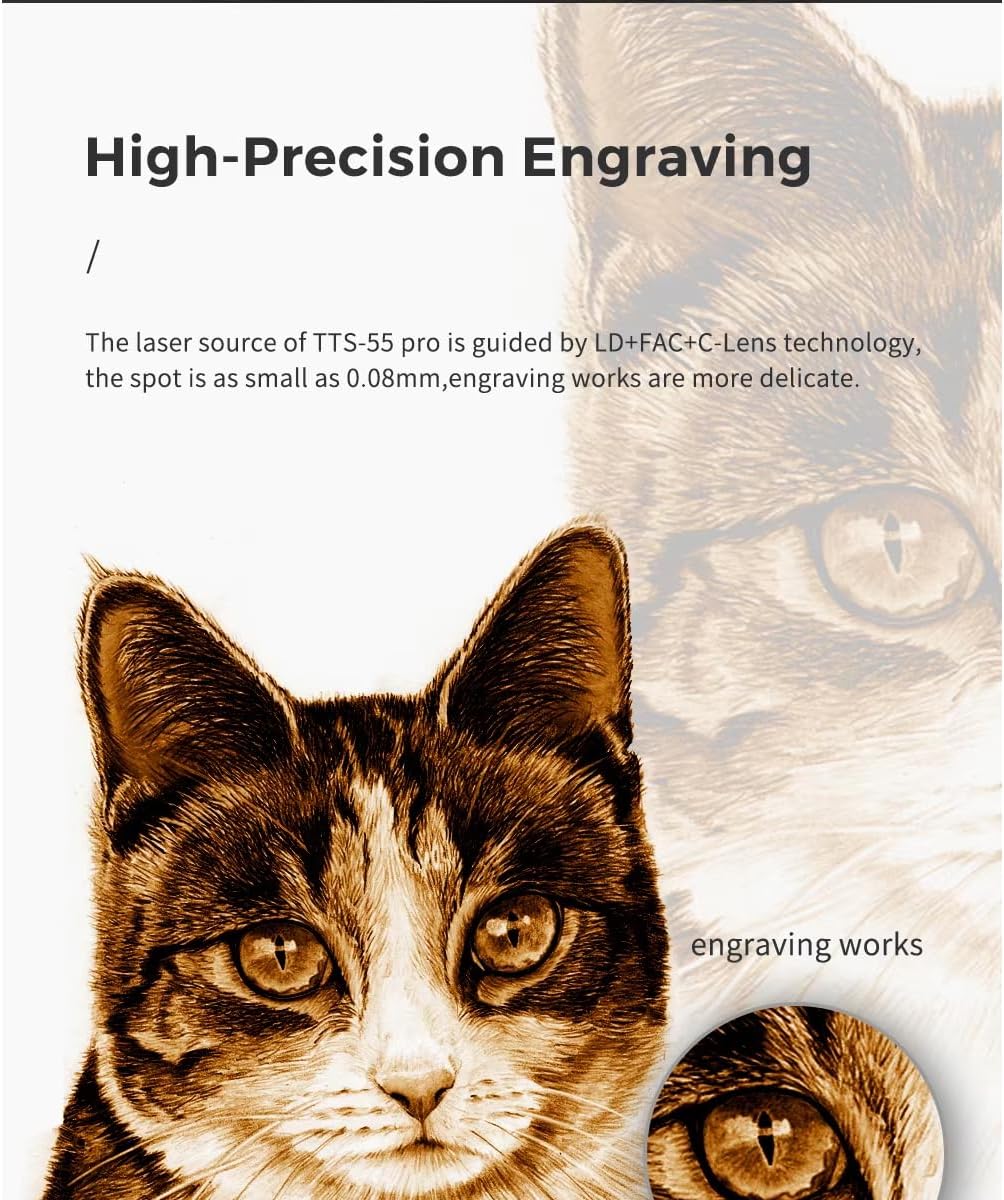
Figure 6.2: Example of high-precision engraving detail.
7. Maintenance
Regular maintenance ensures the longevity and optimal performance of your laser engraver:
- Clean the Laser Lens: Periodically clean the laser lens with a lint-free cloth and lens cleaning solution to maintain laser beam quality.
- Clean the Work Area: Remove debris and dust from the working surface and around the machine after each use.
- Inspect Belts and Rails: Check the tension of the timing belts and ensure the linear rails are clean and free of obstructions. Lubricate rails if recommended by the manufacturer.
- Firmware Updates: Check the manufacturer's website for any available firmware updates for the engraver's motherboard.
8. Troubleshooting
This section addresses common issues you might encounter:
| Problem | Possible Cause | Solution |
|---|---|---|
| Laser not firing or weak output. | Incorrect focus, dirty lens, low power setting, loose connection. | Adjust focus, clean lens, increase power setting in software, check all cables. |
| Engraving/cutting quality is poor. | Incorrect speed/power, material not flat, loose belts, dirty lens. | Adjust speed/power settings, ensure material is flat, check belt tension, clean lens. |
| Machine not connecting to computer/app. | Incorrect port selected, driver issues, WiFi/Bluetooth off, firewall blocking. | Verify port in software, reinstall drivers, check network settings, disable firewall temporarily. |
| Machine making unusual noises. | Loose components, debris on rails, motor issues. | Inspect for loose parts, clean rails, contact support if motor noise persists. |
9. Specifications
| Feature | Detail |
|---|---|
| Model Number | TTS 10 |
| Manufacturer | Two trees |
| Machine Power | 80W |
| Optical Laser Output Power | 5.5W |
| Laser Technology | LD+FAC+C-Lens Compression Spot |
| Laser Spot Size | 0.08mm |
| Focal Length | 23mm (Fixed Focus) |
| Engraving Area | Approx. 300mm x 300mm (11.8in x 11.8in) |
| Overall Dimensions | Approx. 570mm x 510mm (22.4in x 20.1in) |
| Power Source | Electric |
| Connectivity | USB, WiFi, Mobile App (MKSLaser) |
| Supported Software | LaserGRBL (Windows), Lightburn (Windows, Mac), MKSLaser (Android/iOS) |
| Max Cutting Thickness | 5mm Plywood, 3mm Acrylic, 3mm Cardboard, 0.7mm Leather |
| Frame Material | All Aluminum Alloy |

Figure 9.1: Product dimensions.
10. Warranty and Support
For warranty information and technical support, please refer to the documentation provided with your purchase or contact the seller directly. Keep your purchase receipt as proof of purchase.
For general inquiries or further assistance, you may also visit the official Two trees website or relevant online communities for laser engravers.
Related documentsTTS 10


Ask a question about this manual
Ask about setup, troubleshooting, compatibility, parts, safety, or missing instructions. Manuals+ will review the question and use this page’s manual context to help answer it.