
1. Introduction
This manual provides essential information for the safe and efficient operation of your Philips Evnia 24M2N3200L 24-inch Gaming Monitor. Please read this manual thoroughly before using the product and retain it for future reference.
2. Safety Information
Observe the following safety precautions to prevent damage to the monitor and ensure user safety:
- Do not expose the monitor to rain or moisture.
- Do not open the monitor casing; refer all servicing to qualified personnel.
- Ensure proper ventilation around the monitor.
- Use only the power adapter supplied with the monitor.
- Avoid placing heavy objects on the power cord.
- Clean the screen with a soft, lint-free cloth. Do not use liquid cleaners directly on the screen.
3. Package Contents
Verify that all items are present in the package:
- Philips Evnia 24M2N3200L Monitor
- Monitor Stand (Base and Neck)
- Power Cable
- HDMI Cable
- DisplayPort Cable
- User Manual (this document)

Image: The retail packaging box for the Philips Evnia 24M2N3200L monitor, showing the product name and design awards.
4. Setup
4.1. Stand Assembly
- Place the monitor face down on a soft, clean surface to prevent scratches.
- Attach the stand neck to the monitor's VESA mounting area. Secure with screws if provided.
- Attach the stand base to the bottom of the stand neck. Tighten the thumb screw or screws until secure.

Image: Rear view of the monitor showing the attached stand and the VESA mounting area.
4.2. Connecting to a Computer
The monitor supports HDMI and DisplayPort connections.
- Power Connection: Connect the power cable to the monitor's power input and then to a power outlet.
- Video Connection:
- For HDMI: Connect one end of the HDMI cable to the monitor's HDMI port and the other end to your computer's HDMI output.
- For DisplayPort: Connect one end of the DisplayPort cable to the monitor's DisplayPort and the other end to your computer's DisplayPort output.
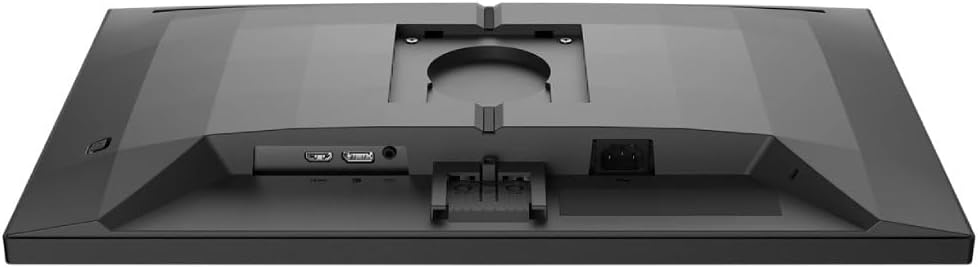
Image: Detailed view of the monitor's rear panel, showing the HDMI, DisplayPort, and power input ports.
5. Operating the Monitor
5.1. Power On/Off
Press the power button, usually located on the bottom right or rear of the monitor, to turn it on or off. The power LED will indicate the monitor's status.
5.2. On-Screen Display (OSD) Menu
The OSD menu allows you to adjust various monitor settings. Use the joystick or buttons (refer to your monitor's specific layout) to navigate and select options.
- Picture: Adjust brightness, contrast, sharpness, and gamma.
- Color: Select color temperature, sRGB mode, or user-defined color settings.
- Audio: Control volume if the monitor has built-in speakers or an audio output.
- Input: Manually select the input source (HDMI, DisplayPort).
- Gaming: Access specific gaming features like SmartImage Game, Low Input Lag, and Adaptive Sync settings.
- OSD Settings: Adjust OSD language, transparency, and timeout.

Image: The Philips Evnia 24M2N3200L monitor showcasing a high-quality image from a video game, highlighting its display capabilities.
6. Maintenance
6.1. Cleaning the Monitor
- Always unplug the monitor before cleaning.
- Use a soft, clean, lint-free cloth to gently wipe the screen.
- For stubborn marks, lightly dampen the cloth with water or a mild, non-abrasive screen cleaner. Do not spray liquids directly onto the screen.
- Clean the monitor casing with a soft, dry cloth.
6.2. Storage
If storing the monitor for an extended period, disconnect all cables and pack it in its original packaging to protect it from dust and physical damage. Store in a cool, dry place.
7. Troubleshooting
If you encounter issues with your monitor, refer to the following common problems and solutions:
| Problem | Possible Cause | Solution |
|---|---|---|
| No image on screen | Power cable disconnected, video cable loose, incorrect input source. | Check power and video cable connections. Select correct input source via OSD. |
| Image flickering | Loose video cable, graphics card issue, refresh rate mismatch. | Ensure video cable is secure. Update graphics drivers. Adjust refresh rate in OS settings. |
| Colors are incorrect | Incorrect color settings, faulty cable. | Reset color settings in OSD. Try a different video cable. |
| Monitor does not turn on | No power, faulty power adapter. | Check power outlet and cable. Ensure power adapter is functioning. |
8. Specifications
| Feature | Detail |
|---|---|
| Model Number | 24M2N3200L |
| Screen Size | 24 inches |
| Panel Type | IPS |
| Resolution | 1920 x 1080 (Full HD) |
| Aspect Ratio | 16:9 |
| Refresh Rate | 180Hz |
| Response Time | 0.5ms (MPRT) |
| Connectivity | 1x HDMI, 1x DisplayPort |
| Power Source | Electrical Power |
| Product Dimensions (with stand) | 19.5 x 54 x 43.3 cm (Depth x Width x Height) |
| Product Weight (with stand) | 4.96 Kilograms |
| Manufacturer | Philips |
9. Warranty and Support
For warranty information and technical support, please refer to the warranty card included in your package or visit the official Philips support website. Keep your purchase receipt as proof of purchase for warranty claims.
Online Support: www.philips.com/support


