
GeekTale K11
GeekTale K11 Fingerprint Smart Door Lock User Manual
Model: K11
1. Introduction
Thank you for choosing the GeekTale K11 Fingerprint Smart Door Lock. This manual provides detailed instructions for the proper installation, setup, operation, and maintenance of your new smart lock. Please read this manual thoroughly before installation and retain it for future reference.
The GeekTale K11 offers multiple unlocking methods including fingerprint, Bluetooth app control, and traditional mechanical keys, providing enhanced security and convenience for your bedroom, office, or apartment.

Image: The GeekTale K11 Fingerprint Smart Door Lock in silver, shown with two backup keys and a smartphone displaying the unlock interface.
2. Package Contents
Please verify that all components are present before beginning installation:
- Exterior Door Knob (with fingerprint sensor)
- Interior Door Knob
- Latch Bolt
- Strike Plate
- Mounting Screws
- 2 x Backup Mechanical Keys
- Installation Tools (e.g., Allen wrench)
- User Manual

Image: A visual representation of the GeekTale K11 Smart Door Lock, showing the exterior and interior knobs, backup keys, and a smartphone screen with the control app.
3. Installation Guide
Before installation, ensure the door thickness is between 1-3/8" to 2-1/8" (35mm to 54mm) and the door hole diameter is 2-1/8" (54mm). The backset should be 2-3/4" or 2-3/8" (70mm or 60mm).
Important: Fully charge the lock before installation.

Image: A detailed diagram illustrating the required door thickness, door hole diameter, and backset measurements for proper installation of the GeekTale K11 lock.
Installation Steps:
- Install the Latch Bolt: Insert the latch bolt into the door edge. Ensure the latch is oriented correctly for your door's swing. Secure with screws.
- Install the Exterior Door Knob: Insert the exterior knob into the door. Make sure the exterior knob keyhole and Type-C charge port face downward.
- Connect the Cables: Route the cable from the exterior knob through the door hole and connect it to the interior knob's cable. Ensure a secure connection.
- Install the Interior Door Knob: Align the interior knob with the mounting plate and secure it to the exterior knob using the provided screws.
- Close the Lid of the Interior Door Knob: Attach the cover to the interior knob.

Image: A visual step-by-step guide detailing the process of installing the GeekTale K11 Smart Door Lock, from inserting the latch to securing the interior knob.
4. Initial Setup and App Configuration
4.1 App Download and Pairing
- Download the "Smart Life" app from your smartphone's app store (iOS or Android).
- Register an account and log in.
- Enable Bluetooth on your smartphone.
- In the app, tap "Add Device" or the "+" icon. The app should automatically detect the lock. If not, manually select "Lock" or "Door Lock" from the device list.
- Follow the on-screen instructions to pair the lock with your app. Ensure your phone is within Bluetooth range (approximately 10 meters) during pairing.

Image: A smartphone screen showing the "Smart Life" app with options for app support, user management, unlock records, and setting auto-lock time, next to the installed smart lock.
4.2 Fingerprint Registration
- Open the "Smart Life" app and select your K11 lock.
- Navigate to the "Member Management" or "Fingerprint" section.
- Tap "Add Fingerprint" and follow the app's prompts to register your fingerprint. You will typically need to place your finger on the sensor multiple times from different angles for accurate registration.
- The lock can store up to 50 unique fingerprints.

Image: A hand demonstrating fingerprint unlock on the GeekTale K11, highlighting its capacity for 50 fingerprints and a 0.3-second recognition speed.
4.3 User Management
Through the app, you can add or delete users, assign specific fingerprints, and share temporary E-keys for guest access. This feature allows you to manage access permissions efficiently.
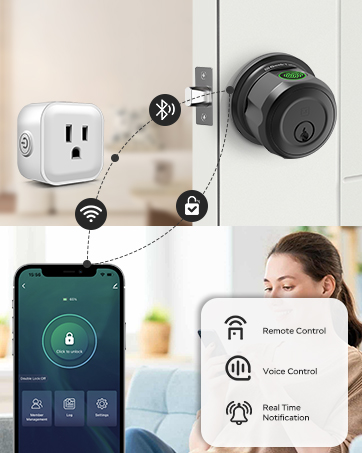
Image: A smartphone displaying the user management section of the app, showing options to add or remove users and their associated fingerprints.
5. Operating Instructions
5.1 Unlocking Methods
- Fingerprint Unlock: Place your registered finger on the sensor. The lock will unlock in approximately 0.3 seconds.
- Bluetooth App Unlock: Open the "Smart Life" app, select your lock, and tap the unlock icon. Ensure Bluetooth is enabled on your phone and you are within range.
- Mechanical Key Unlock: In case of emergency or battery depletion, use one of the provided backup keys to unlock the door manually.

Image: A visual representation of the three primary unlock methods for the GeekTale K11 Smart Door Lock: fingerprint recognition, Bluetooth app control, and traditional key access.
5.2 Smart Lock Modes
The K11 lock features three operational modes, which can be changed by turning the button on the interior knob:
- Auto Lock Mode: The door will automatically lock after 5 seconds of being unlocked. This is the default security mode.
- Passage Mode: The door remains unlocked after being opened. To activate, unlock with a fingerprint or the app, then turn the button on the interior knob to Passage Mode. The door will stay unlocked until manually re-locked or switched back to Auto Lock/Security Mode.
- Security Mode: Only the app or an admin fingerprint can unlock the door. Other registered fingerprints will be invalid.

Image: A diagram explaining the three smart lock modes: Passage Mode (door remains unlocked), Auto Lock (locks after 5 seconds), and Security Mode (only admin or app can unlock).
5.3 Remote Control (with Gateway - Sold Separately)
To enable remote unlocking and voice control (via Alexa or Google Home), you will need to connect the lock to a compatible gateway (sold separately). Once connected, you can:
- Unlock the door remotely from anywhere.
- Receive instant unlock notifications.
- Integrate with smart home assistants for voice commands.

Image: An illustration showing the GeekTale K11 Smart Door Lock wirelessly connected to a gateway, enabling remote control and instant unlock notifications via a smartphone app.
6. Maintenance
6.1 Battery Charging
The GeekTale K11 features a built-in rechargeable lithium-ion battery. A full charge typically lasts up to 8 months. The app will provide low battery warnings. To charge, connect a Type-C USB cable to the charging port located on the exterior knob.
Image: The GeekTale K11 Smart Door Lock connected to a power bank via its Type-C charging port, illustrating its rechargeable battery feature and indicating low battery alarm and long-lasting power.
6.2 Cleaning
Wipe the lock's surface with a soft, dry cloth. Avoid using abrasive cleaners or solvents, as these can damage the finish and electronic components.
7. Troubleshooting
- Lock not responding: Check battery level in the app or attempt to charge the lock. Use the mechanical key as a backup.
- Fingerprint not recognized: Ensure your finger is clean and dry. Try re-registering your fingerprint from different angles. Ensure the sensor is clean.
- App connection issues: Ensure Bluetooth is enabled on your phone and you are within range of the lock. Restart the app or your phone.
- Auto-lock not working: Verify the lock is not in Passage Mode. Check auto-lock settings in the app.
- Remote unlock not working: Ensure a gateway is properly installed and connected to both the lock and your home Wi-Fi network. Check internet connectivity.
8. Specifications
| Feature | Detail |
|---|---|
| Model Number | K11 |
| Material | Stainless Steel |
| Color | Silver |
| Product Dimensions | 2.95"L x 2.95"W |
| Item Weight | 1.79 pounds (0.81 Kilograms) |
| Lock Type | Smart Lock |
| Special Features | Fingerprint Door Knob, Up to 50 Fingerprints, Bluetooth Unlock, Smart Control with App, Auto Lock, Change Lock Mode from Inside, Mute Mode, Easy Install |
| Included Components | Lock And Key |
| Batteries | 1 Lithium Ion battery (included, rechargeable) |
| Battery Life | Up to 8 months per charge |
| Application | Indoor Use Only (Bedroom, Office, Apartment) |
9. Warranty and Support
GeekTale products are designed for reliability and performance. For warranty information, technical support, or assistance with your K11 Smart Door Lock, please refer to the contact details provided on the product packaging or visit the official GeekTale website. Please have your model number (K11) and purchase information ready when contacting support.
Related documentsK11


Ask a question about this manual
Ask about setup, troubleshooting, compatibility, parts, safety, or missing instructions. Manuals+ will review the question and use this page’s manual context to help answer it.