
1. Introduction
The Teslong USB-C Digital Microscope MS100-C is a portable digital imaging device designed for detailed inspection and observation. It offers a magnification range of 10X to 200X, making it suitable for examining intricate details on various objects. This manual provides essential information for setting up, operating, and maintaining your microscope.

Image 1.1: Teslong USB-C Digital Microscope with smartphone connection and accessories.
2. What's in the Box
Verify that all items are present in your package:
- Teslong USB-C Digital Microscope (MS100-C)
- Rotating Metal Stand
- 2 Ear Specula
- 1 Protective Cover
- 1 Side-viewing Mirror
- User Manual

Image 2.1: Package contents of the Teslong USB-C Digital Microscope.
3. Setup
3.1. App Download
To use the microscope with your smartphone or tablet, download the recommended application. Scan the QR code or visit the provided link:
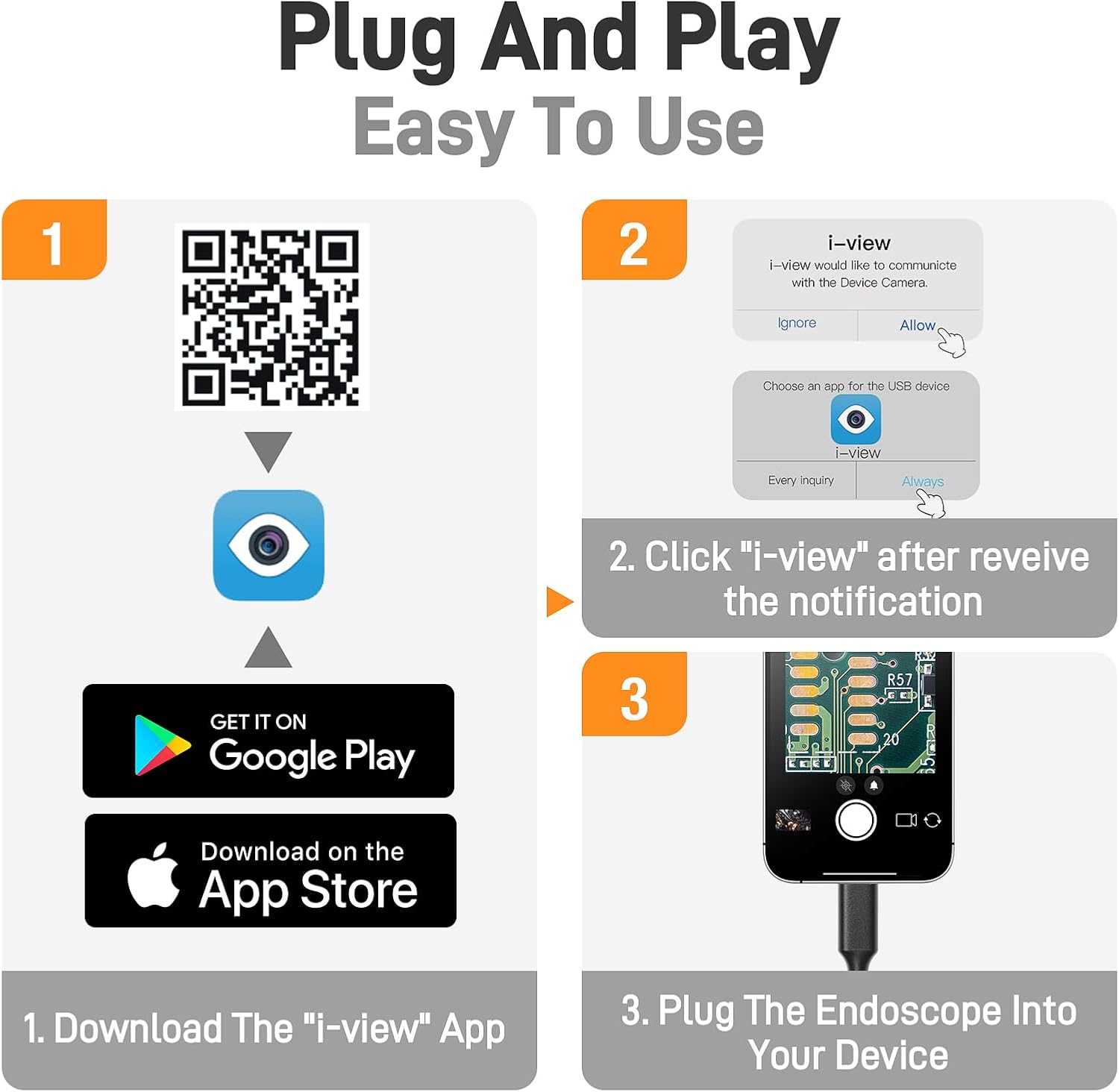
Image 3.1: App download and connection guide.
Download Link: https://gto.so/i-camera
3.2. Device Connection
The microscope is compatible with various devices. Ensure your device has a compatible port.
- USB-C Devices: Connect the microscope's USB-C cable directly to your iPhone 15/16, Android device with a Type-C port, or MacBook.
- Windows PCs: Use the included USB-A adapter to connect the microscope to a standard USB port on your Windows PC.

Image 3.2: Universal compatibility with USB-C and USB-A devices.
After connecting, open the downloaded application. You may receive a notification asking for permission to communicate with the device camera; select "Allow" or "Always" to proceed.
4. Operating Instructions
4.1. Adjusting Magnification
The microscope offers a magnification range from 10X to 200X. To change the magnification, adjust the distance between the microscope lens and the object. Closer proximity increases magnification.

Image 4.1: Demonstrating 10X to 200X magnification range.
4.2. Adjusting LED Lights
The microscope is equipped with 8 adjustable LED lights to provide optimal illumination. Use the control wheel on the cable to cycle through three brightness levels or turn the lights off. Proper lighting enhances image clarity.

Image 4.2: Adjustable LED lights and IP67 waterproof feature.
4.3. Focusing
Achieve a clear image by rotating the focusing ring located on the microscope body. Adjust slowly until the image on your connected device appears sharp.
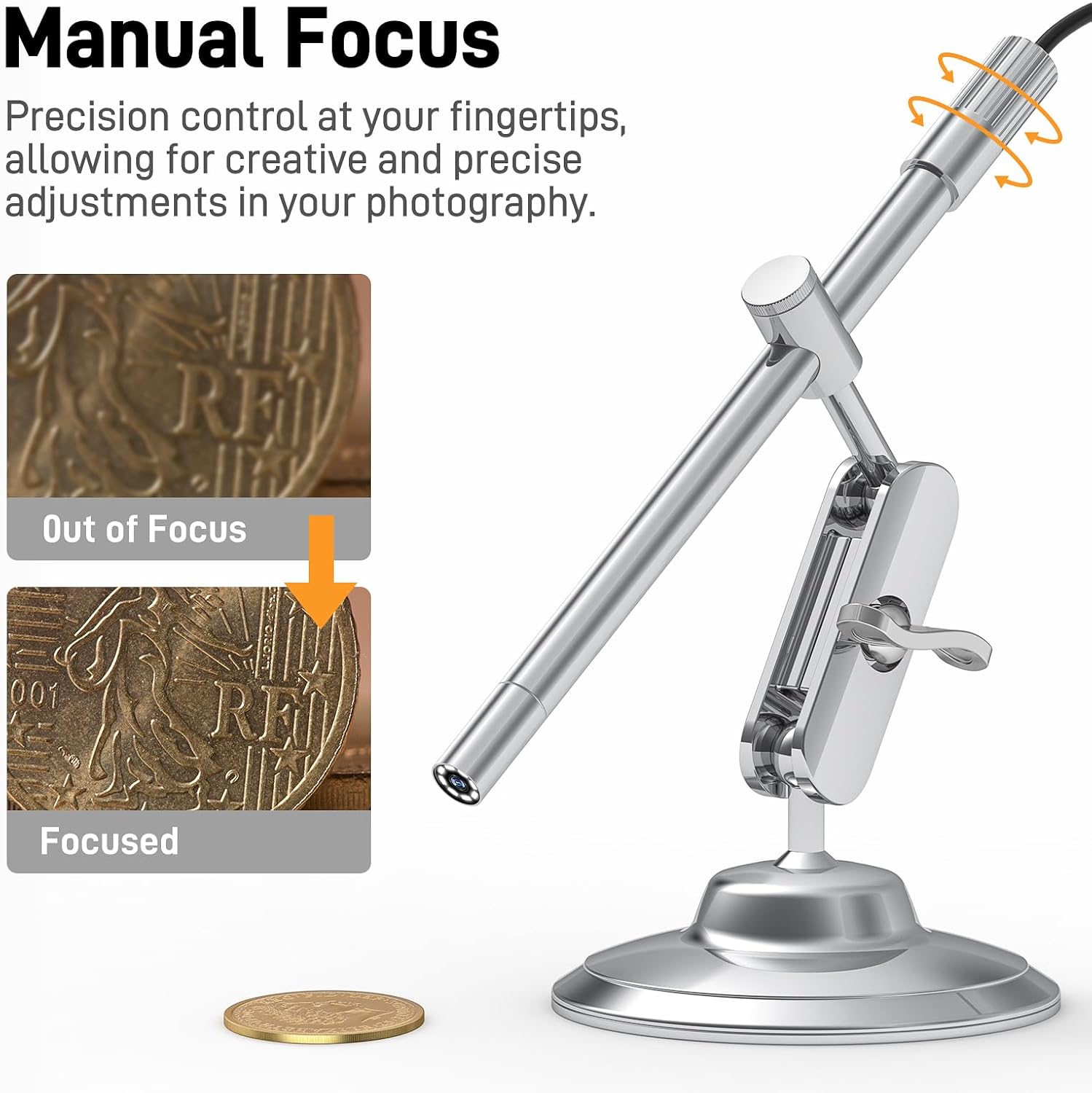
Image 4.3: Manual focus adjustment.
4.4. Using the Rotating Metal Stand
The included metal stand provides stability and allows for flexible viewing angles. Adjust the arm and base to position the microscope precisely over your subject. The stand can rotate 360 degrees for versatile observation.
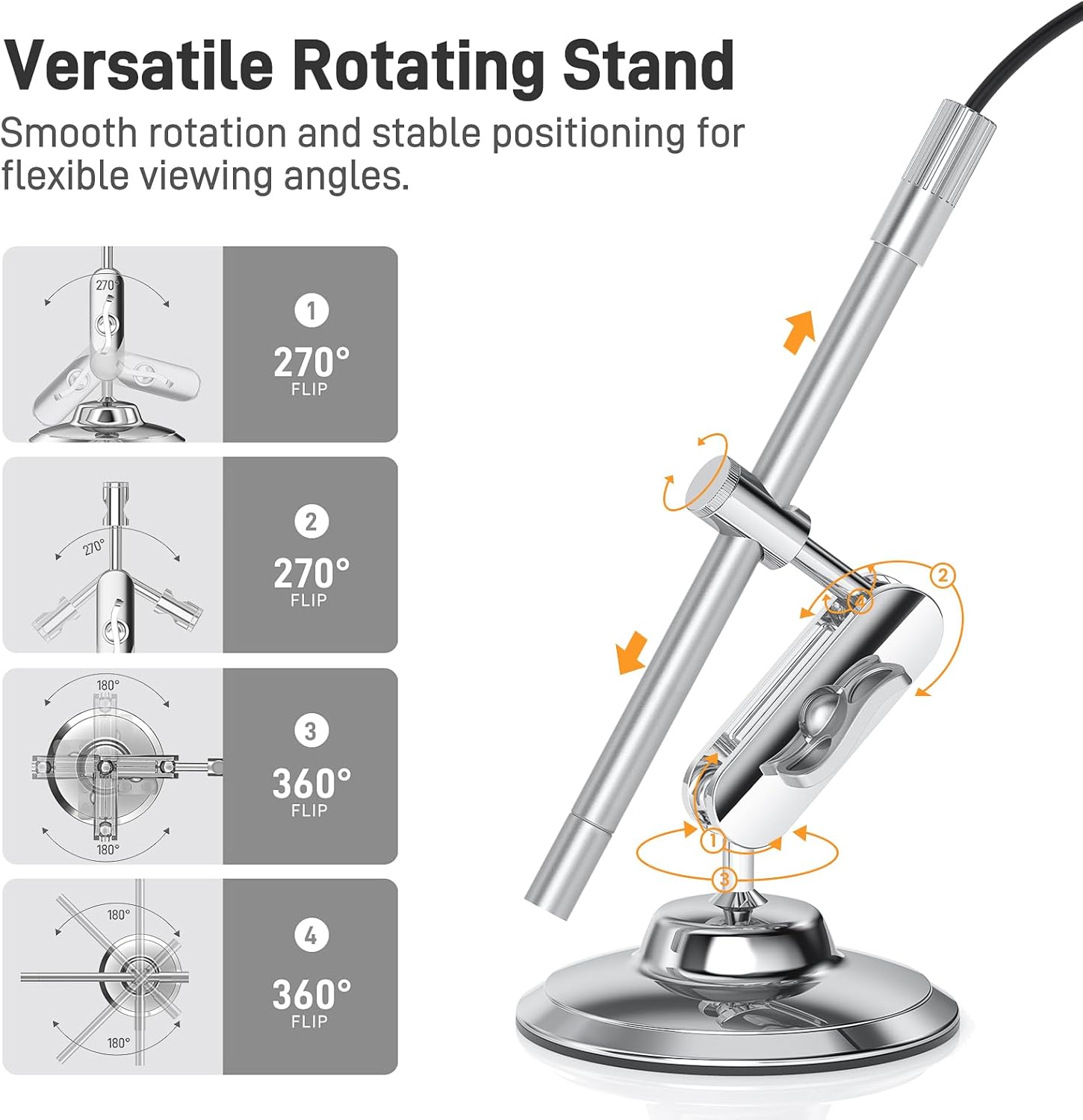
Image 4.4: Versatile rotating stand adjustments.
4.5. Using Accessories
The accessory kit enhances the microscope's functionality:
- Ear Specula: For safe and hygienic ear inspections.
- Protective Cover: Use for hygiene during pet health checks or skin assessments.
- Side-viewing Mirror: Attach to the microscope tip to inspect hard-to-reach areas or view objects from an angled perspective.

Image 4.5: Complete accessory kit.
5. Applications
The Teslong USB-C Digital Microscope is suitable for a wide range of applications:
- Coin Inspection: Examine details on coins for collection or authentication.
- Electronics Inspection: Assess circuit boards, solder joints, and small electronic components.
- Jewelry Examination: Appraise gemstones and inspect intricate jewelry designs.
- Skin Inspection: Observe skin conditions or hair follicles.
- Insect Observation: Explore the microscopic world of insects for educational or research purposes.


6. Maintenance
- Cleaning: Use a soft, dry cloth to clean the microscope body. For the lens, use a lens cleaning cloth and solution. Avoid abrasive materials or harsh chemicals.
- Storage: Store the microscope and its accessories in a clean, dry place away from direct sunlight and extreme temperatures.
- Water Resistance: The microscope tip is IP67 rated, meaning it is protected against dust and can withstand immersion in water up to 1 meter for 30 minutes. However, avoid prolonged exposure to water and ensure the USB connection is dry before use.
7. Troubleshooting
- No Image on Screen:
- Ensure the microscope is securely connected to your device.
- Verify that the application has permission to access the device camera.
- Restart the application or your device.
- Blurry Image:
- Adjust the focusing ring on the microscope body.
- Ensure the object is within the microscope's working distance.
- Clean the microscope lens if smudges are present.
- Insufficient Lighting:
- Adjust the LED light brightness using the control wheel on the cable.
- App Not Recognizing Device:
- Ensure your device's operating system is up to date.
- Try a different USB-C port or adapter if available.
- Some third-party USB camera applications may offer better compatibility or features.
8. Specifications
| Feature | Specification |
|---|---|
| Model Name | MS100-C |
| Magnification | 10X to 200X |
| Light Source | 8 Adjustable LED Lights |
| Connectivity | USB-C (with USB-A adapter) |
| Compatibility | iPhone 15+, Android (Type-C), Windows PC, MacBook |
| Waterproof Rating | IP67 (Microscope Tip) |
| Material | Metal |
| Item Weight | 7 ounces (0.2 Kilograms) |
9. Warranty and Support
For warranty information, technical support, or any inquiries regarding your Teslong USB-C Digital Microscope MS100-C, please refer to the official Teslong website or contact their customer service directly. Contact details are typically provided on the product packaging or the official brand website.
