Product Overview
The Goldtouch Elite Numeric Keypad is a compact, wired numeric keypad designed to enhance data entry efficiency for both PC and Mac users. It features industry-leading Cherry MX Red mechanical keys for a tactile and responsive typing experience. Its plug-and-play USB connectivity ensures easy setup and immediate use.

Figure 1: Top-down view of the Goldtouch Elite Numeric Keypad, showcasing its compact design and key layout.
Setup
The Goldtouch Elite Numeric Keypad is designed for simple plug-and-play installation. No additional drivers are typically required for basic functionality on compatible operating systems.
Connecting the Keypad
- Locate the USB-A to USB-C cable included with your keypad.
- Connect the USB-C end of the cable to the USB-C port on the Goldtouch Elite Numeric Keypad.
- Connect the USB-A end of the cable to an available USB-A port on your computer (PC or Mac).
- For Mac users, ensure the switch on the side of the keypad is set to 'MAC'. For PC users, set it to 'PC'.
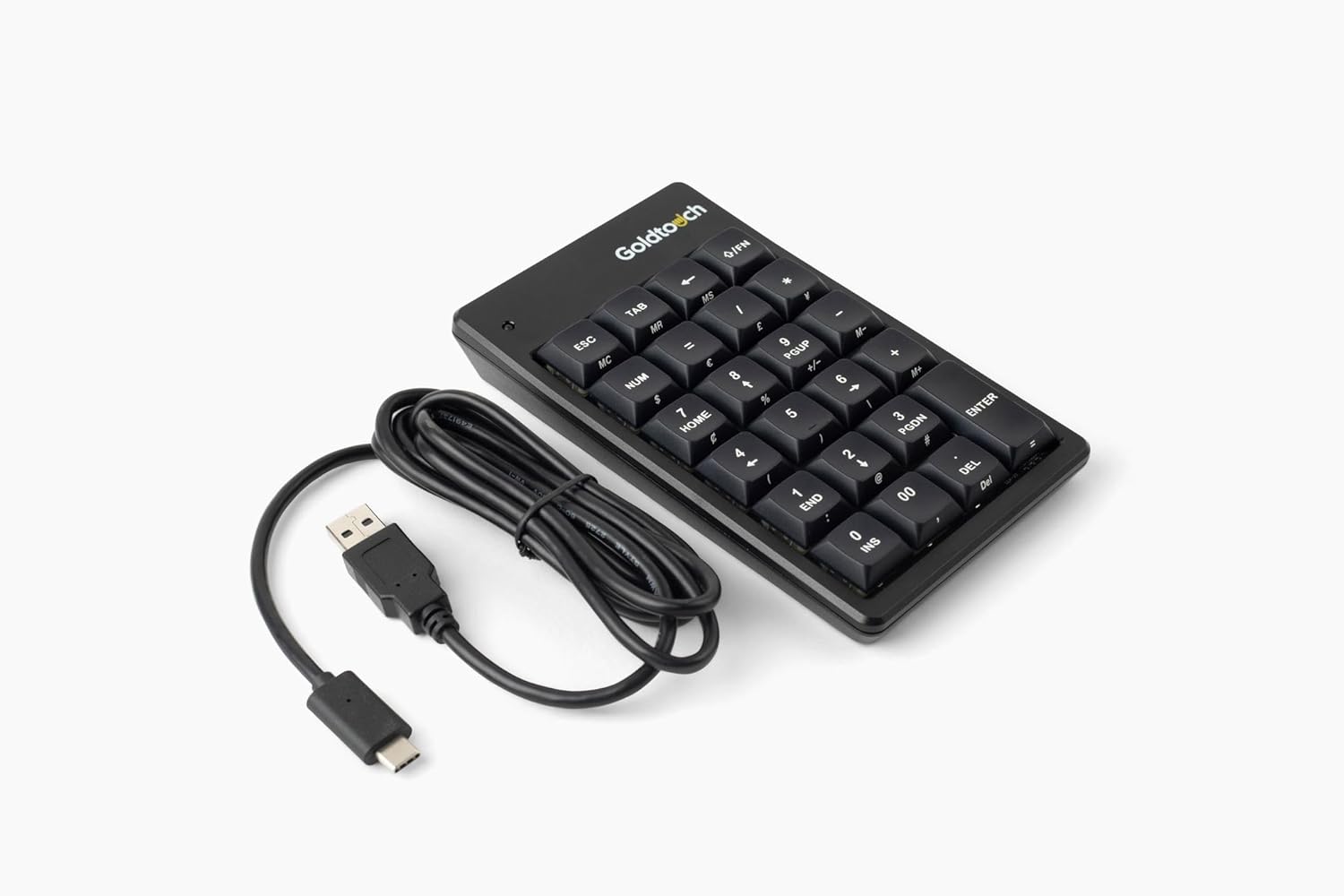
Figure 2: The Goldtouch Elite Numeric Keypad connected via its USB-A to USB-C cable.
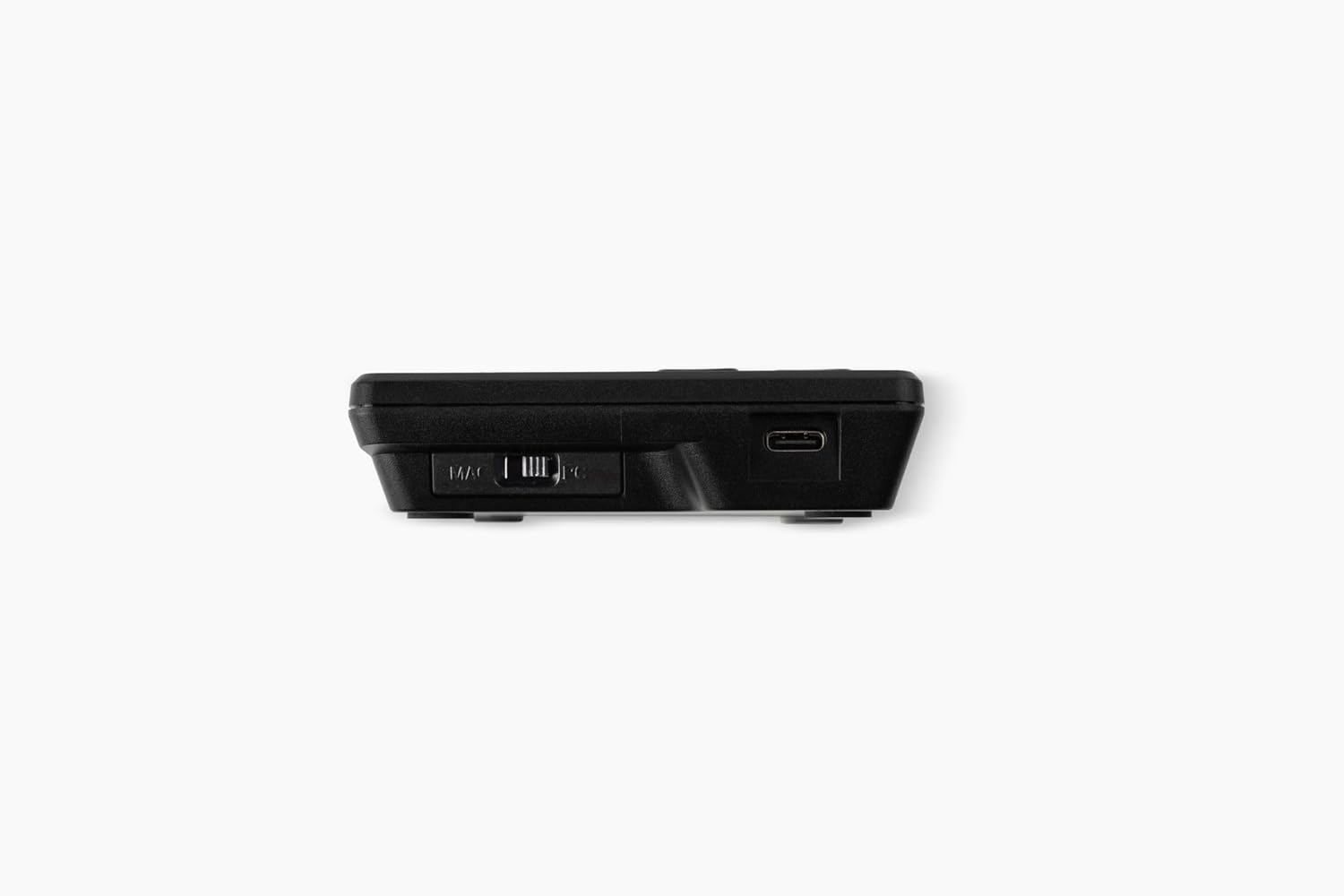
Figure 3: Side view illustrating the Mac/PC compatibility switch and the USB-C port for connection.
Your operating system should automatically detect the keypad, and it will be ready for use.
Operating Instructions
The Goldtouch Elite Numeric Keypad functions as a standard numeric input device, compatible with most applications requiring numerical data entry.
Basic Keypad Functions
- Numeric Input: Use the number keys (0-9) for numerical data entry.
- Arithmetic Operations: Utilize the +, -, *, / keys for calculations.
- Enter Key: Functions as a standard Enter key for confirming input or moving to the next field.
- Num Lock: The 'NUM' key toggles the numeric lock function, enabling or disabling the numeric input. An indicator light on the keypad will show its status.
- Special Keys: Keys like 'ESC', 'TAB', 'DEL', 'INS', 'HOME', 'END', 'PGUP', 'PGDN' provide additional functionality commonly found on full-size keyboards.
PC and Mac Compatibility
The keypad includes a physical switch to optimize its functionality for either PC or Mac operating systems. Ensure this switch is set correctly for your system to ensure proper key mapping and performance.

Figure 4: The Goldtouch Elite Numeric Keypad positioned for use alongside an ergonomic keyboard, demonstrating its integration into a workspace.
Maintenance
Proper maintenance will extend the lifespan of your Goldtouch Elite Numeric Keypad.
- Cleaning: Use a soft, lint-free cloth slightly dampened with water or a mild cleaning solution to wipe the surface of the keypad. Avoid harsh chemicals, abrasive cleaners, or excessive moisture.
- Dust Removal: Use compressed air to remove dust and debris from between the keys.
- Storage: When not in use for extended periods, store the keypad in a clean, dry environment away from extreme temperatures.
- Cable Care: Avoid sharp bends or kinks in the USB cable to prevent internal damage.
Troubleshooting
If you encounter issues with your Goldtouch Elite Numeric Keypad, refer to the following common troubleshooting steps:
| Problem | Possible Cause | Solution |
|---|---|---|
| Keypad not recognized by computer. | Loose USB connection, incorrect Mac/PC switch setting, faulty USB port. |
|
| Keys are not responding or typing incorrect characters. | Num Lock is off, software conflict, debris under keys. |
|
| Keypad disconnects intermittently. | Loose cable, power management settings, faulty cable. |
|
Specifications
Detailed technical specifications for the Goldtouch Elite Numeric Keypad:
| Model Number | GTC-ELITE |
| Product Dimensions | 5.75"L x 3.5"W x 1"H (14.6 cm x 8.9 cm x 2.5 cm) |
| Item Weight | 8 ounces (226.8 grams) |
| Connectivity Technology | Wired USB-A (via USB-C port on keypad) |
| Key Type | Cherry MX Red Mechanical Keys |
| Compatible Devices | Laptop, PC (Windows), Mac |
| Color | Black |
| Material | Plastic |
| Included Components | USB-A to USB-C cable |

Figure 5: Dimensional diagram of the Goldtouch Elite Numeric Keypad, including width, depth, height, weight, and cable length.
Warranty and Support
Goldtouch products are designed for durability and performance. For information regarding product warranty, please refer to the warranty card included with your purchase or visit the official Goldtouch website.
For technical support, troubleshooting assistance beyond this manual, or to inquire about replacement parts, please contact Goldtouch customer service through their official support channels. Contact information can typically be found on the Goldtouch website or on the product packaging.
Online Resources:


