
Introduction
This manual provides essential information for setting up, operating, maintaining, and troubleshooting your HP V24 24-inch Full HD LED Backlit LCD Monitor. Designed for productivity and entertainment, this monitor offers a crisp 1920 x 1080 resolution, a 75Hz refresh rate, and AMD FreeSync technology for a smooth visual experience. It also features a Low Blue Light mode to enhance eye comfort during extended use.
Your HP V24 monitor is equipped with both HDMI and VGA ports for versatile connectivity. The anti-glare screen and adjustable tilt feature allow for personalized viewing comfort. This bundle includes two monitors, enabling an expanded multi-screen setup for enhanced workflow.
Setup
1. Unpacking and Assembly
Carefully remove all components from the packaging. Ensure you have the monitor panel, stand base, stand neck, power cable, and video cables (HDMI/VGA).
Attach the stand neck to the monitor panel, then secure the stand base to the neck. Refer to the diagram below for visual guidance.
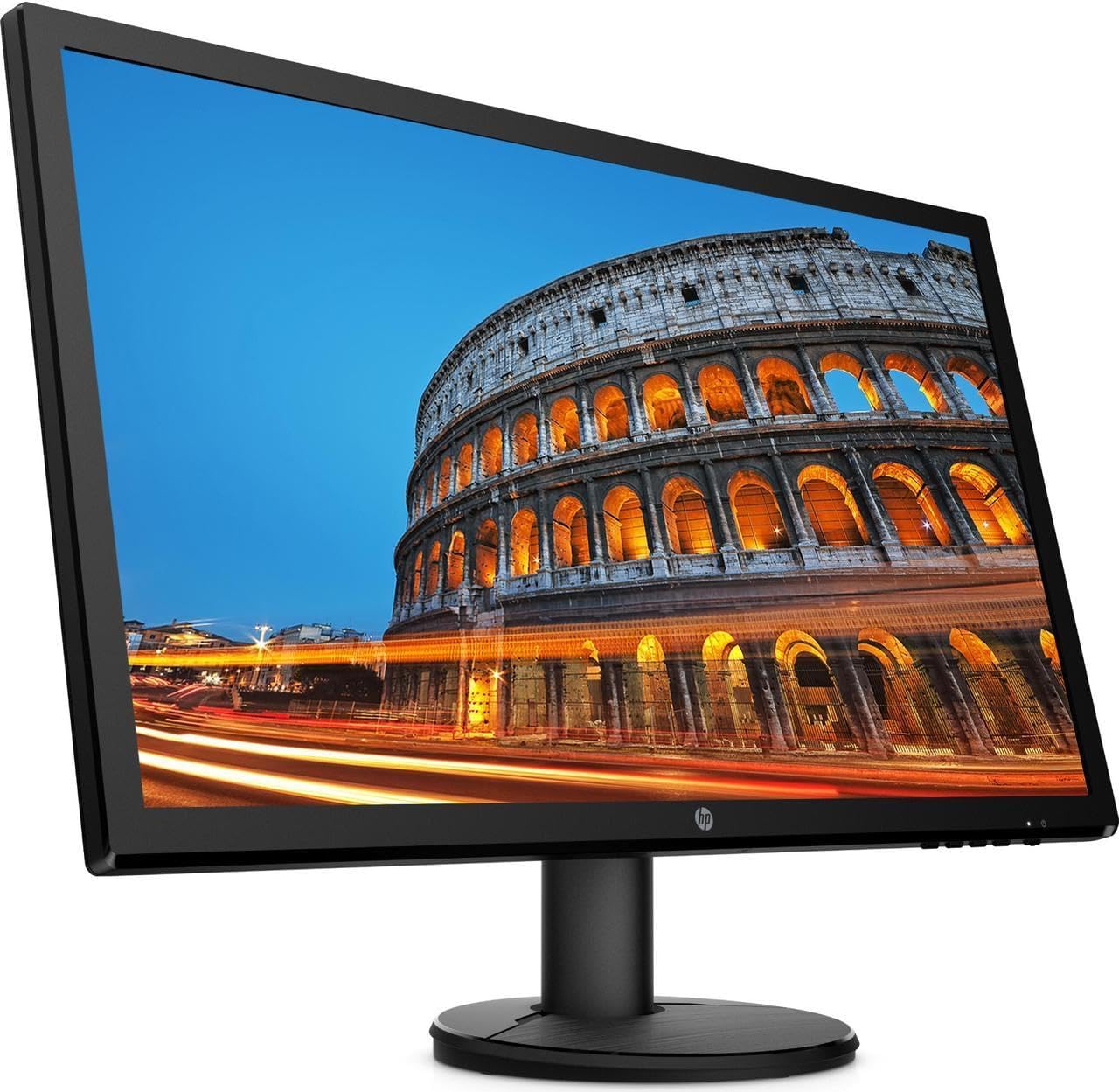
Image: Front view of the HP V24 monitor with its stand fully assembled, ready for connection.
2. Connecting Cables
Connect the power cable to the monitor's power input and then to a wall outlet. Choose either an HDMI or VGA cable to connect your computer to the monitor. For optimal performance and Full HD resolution, HDMI is recommended.
- Power Cable: Connect to the monitor's power port and a power source.
- HDMI Cable: Connect one end to the monitor's HDMI port and the other to your computer's HDMI output.
- VGA Cable: Alternatively, connect one end to the monitor's VGA port and the other to your computer's VGA output.

Image: Side profile of the HP V24 monitor, illustrating its slim design and the location of the rear input ports.
3. Initial Power On
Press the power button on the monitor. Your computer should automatically detect the monitor. If not, you may need to adjust display settings in your operating system.
Operating Instructions
1. Power On/Off
The power button is located on the bottom right side of the monitor. Press it once to turn the monitor on or off.
2. On-Screen Display (OSD) Controls
The OSD menu allows you to adjust various display settings. Buttons for OSD navigation are typically located on the bottom right bezel of the monitor.
- Menu Button: Opens the OSD menu.
- Navigation Buttons: Used to move through menu options.
- Select/OK Button: Confirms a selection.
- Exit Button: Closes the OSD menu or goes back to the previous level.
Common OSD settings include:
- Brightness/Contrast: Adjusts the overall luminance and difference between light and dark areas.
- Color Control: Adjusts color temperature, RGB levels, and preset color modes.
- Input Control: Manually selects the input source (HDMI or VGA).
- Image Control: Adjusts sharpness, aspect ratio, and other image properties.
- Management: Accesses power-saving options, OSD timeout, and factory reset.
3. Low Blue Light Mode
To reduce eye strain, especially during prolonged use, activate the Low Blue Light mode through the OSD menu. This feature shifts the display's color spectrum to warmer tones, minimizing blue light emissions.
4. AMD FreeSync
The HP V24 monitor supports AMD FreeSync technology, which synchronizes the monitor's refresh rate with your AMD graphics card's frame rate. This helps eliminate screen tearing and stuttering for a smoother gaming and video experience. Ensure FreeSync is enabled in your graphics card settings and on the monitor (if an option is available in the OSD).
5. Adjusting Monitor Tilt
You can adjust the tilt angle of the monitor to find your most comfortable viewing position. Gently hold the top and bottom edges of the monitor panel and tilt it forwards or backwards. Do not apply excessive force.

Image: Front view of the HP V24 monitor displaying a vibrant image, highlighting its visual clarity.
Maintenance
Cleaning the Monitor
To clean the monitor screen, first turn off the monitor and unplug the power cord. Use a soft, lint-free cloth lightly dampened with water or a non-abrasive screen cleaner. Do not spray cleaner directly onto the screen. For the monitor casing, use a soft, dry cloth.
- Avoid using harsh chemicals, abrasive cleaners, or solvents.
- Do not apply pressure to the screen while cleaning.
- Ensure the monitor is completely dry before plugging it back in and powering it on.
Troubleshooting
If you encounter issues with your HP V24 monitor, refer to the following common problems and solutions:
- No Image on Screen:
- Ensure the power cable is securely connected to both the monitor and the power outlet.
- Verify that the video cable (HDMI/VGA) is firmly connected to both the monitor and your computer.
- Check if the monitor is powered on (power indicator light should be lit).
- Press the Input Control button on the OSD to ensure the correct input source is selected.
- Restart your computer.
- Image is Flickering or Unstable:
- Check the video cable connections. Try a different cable if possible.
- Ensure your graphics card drivers are up to date.
- Adjust the refresh rate in your computer's display settings to 75Hz.
- Disable AMD FreeSync temporarily to see if the issue persists.
- Colors Appear Incorrect:
- Adjust color settings in the OSD menu (Color Control).
- Perform a factory reset through the OSD menu.
- Ensure the Low Blue Light mode is not causing unintended color shifts if you prefer standard colors.
- OSD Menu Does Not Appear:
- Ensure the monitor is powered on.
- Press the Menu button firmly.
If these steps do not resolve the issue, please contact HP customer support.
Specifications
| Feature | Detail |
|---|---|
| Model Number | CustomASIHL4516 |
| Screen Size | 24 inches (23.8-inch diagonal) |
| Panel Type | TN (Twisted Nematic) |
| Resolution | 1920 x 1080 (Full HD) |
| Aspect Ratio | 16:9 |
| Refresh Rate | 75Hz |
| Response Time | 1 ms (typical) |
| Contrast Ratio | 1000:1 (typical) |
| Connectivity | 1 x HDMI, 1 x VGA |
| Display Features | Anti-glare, Low Blue Light Mode, LED Backlights, Tilt Adjustment, On-screen Controls |
| Power Input | 100 - 240 VAC, 50/60 Hz |
| Product Dimensions (W x D x H) | 22.38 x 13.4 x 19 inches (with stand) |
| Manufacturer | HP |
Warranty and Support
Warranty Information
Your HP V24 monitor is covered by HP's standard limited warranty. Please refer to the warranty card included with your product or visit the official HP website for detailed terms and conditions. Keep your proof of purchase for warranty claims.
The return policy allows for returns within 30 days of purchase for refund or replacement, subject to seller terms.
Customer Support
For technical assistance, troubleshooting beyond this manual, or warranty service, please contact HP customer support. You can find contact information and additional resources on the official HP support website:


