
1. Introduction
The RAINPOINT Ethernet Gateway, model HWG040, is designed to enhance the connectivity and range of your RAINPOINT smart watering system. This gateway supports both 2.4GHz WiFi and Ethernet cable connections, providing a stable and extended signal range for your RAINPOINT devices.
It can transmit signals up to 250 meters, effectively penetrating 3-4 walls, ensuring your smart watering devices remain online and responsive. The HWG040 gateway is compatible with up to 8 RAINPOINT WiFi devices, including various smart hose timers (HTV107B, HTV145, HTV210B, HTV245) and environmental sensors like soil and rain sensors, allowing you to create a comprehensive and fully connected smart irrigation network.
Note: This gateway connects exclusively to 2.4GHz WiFi networks and is managed through the RAINPOINT HOME app.
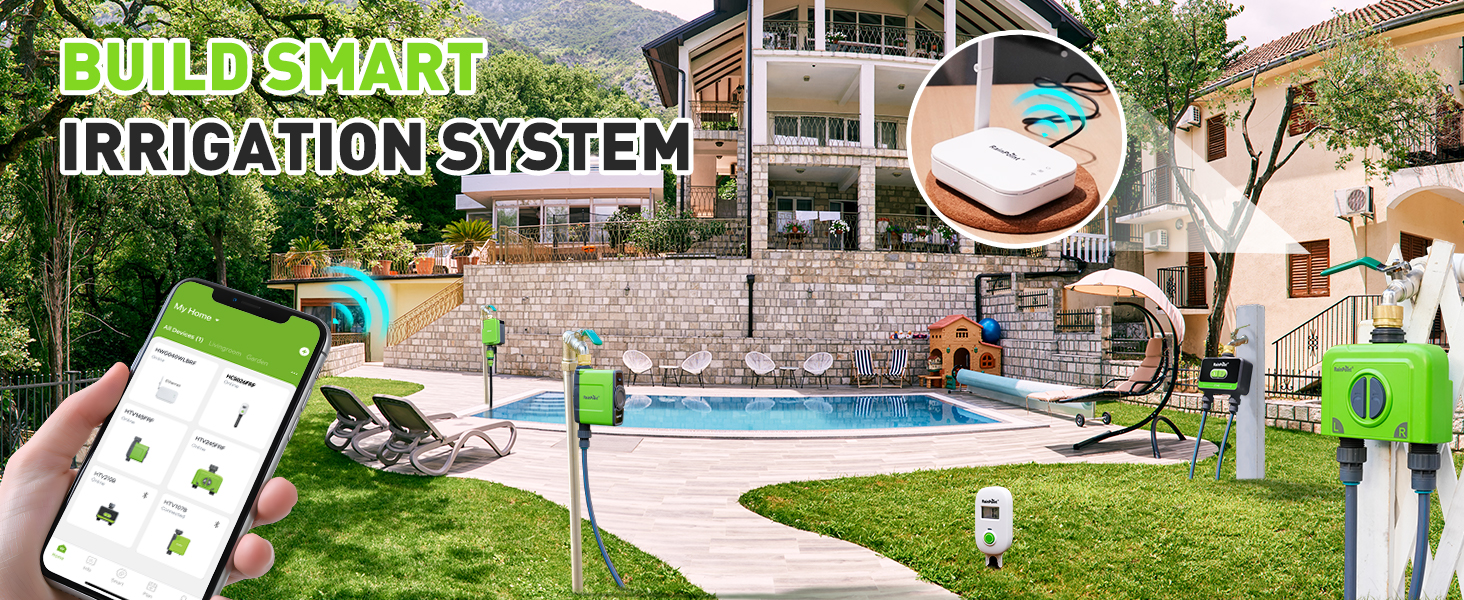
Image: The RAINPOINT Ethernet Gateway (HWG040) providing a stable connection to a smartphone running the RainPoint app, illustrating its extended range capabilities.
2. What's in the Box
Please verify that all components are present before proceeding with the setup:
- RAINPOINT Ethernet Gateway (HWG040)
- Type-C USB Power Cable
- Power Adapter (may be integrated with USB cable or separate)
- Instruction Manual (this document)
3. Product Overview
Familiarize yourself with the various parts of your RAINPOINT Ethernet Gateway:

Image: Detailed diagram highlighting the components of the RAINPOINT Ethernet Gateway, including its foldable antenna, various indicators, and connection ports.
- Foldable Antenna: For enhanced wireless signal transmission and reception.
- Ethernet Interface: RJ45 port for wired network connection.
- Operation Button: Used for pairing and resetting the device.
- WiFi Connecting Indicator: LED light indicating WiFi connection status.
- Ethernet Indicator: LED light indicating Ethernet connection status.
- Power Indicator: LED light indicating power status.
- Type-C USB Power Port: For connecting the power cable.
4. Setup
Follow these steps to set up your RAINPOINT Ethernet Gateway:
4.1. Powering On the Gateway
- Connect the Type-C USB power cable to the gateway's power port.
- Plug the power adapter into a standard electrical outlet.
- The Power Indicator LED on the gateway will illuminate, indicating it is powered on.
4.2. Network Connection (WiFi or Ethernet)
Choose your preferred connection method:
Option A: WiFi Connection
- Ensure your router is broadcasting a 2.4GHz WiFi network. The gateway does not support 5GHz WiFi.
- Proceed to section 4.3 to connect via the RAINPOINT HOME app.
Option B: Ethernet Connection
- Connect one end of an Ethernet cable to the gateway's Ethernet Interface.
- Connect the other end of the Ethernet cable to an available LAN port on your router.
- The Ethernet Indicator LED on the gateway will illuminate, confirming a wired connection.

Image: The RAINPOINT Gateway illustrating its dual connection capabilities: 2.4GHz WiFi and Ethernet, with labeled ports.
4.3. Connecting to the RAINPOINT HOME App
- Download the RAINPOINT HOME app from your smartphone's app store (iOS or Android).
- Open the app and create an account or log in if you already have one.
- Tap the "+" icon in the top right corner to add a new device.
- Select the "Gateway" category and follow the in-app instructions to add your HWG040 gateway. This typically involves confirming the gateway's power status and network connection.
- Once the gateway is successfully added, you can proceed to pair your RAINPOINT watering devices and sensors with it through the app.

Image: A smartphone displaying the RainPoint app interface, indicating a quick setup process for the gateway.
5. Operating the Gateway and Connected Devices
The RAINPOINT Ethernet Gateway acts as a central hub for your smart watering system, extending the reach and stability of your connected devices.
5.1. Monitoring and Control via RAINPOINT HOME App
- Open the RAINPOINT HOME app on your smartphone.
- The app will display the status of your HWG040 gateway and all paired RAINPOINT devices.
- From the app, you can schedule watering times, adjust irrigation durations, view sensor data (if applicable), and manually control your watering timers.
- The gateway's stable connection ensures that commands from the app are reliably transmitted to your watering devices, even over longer distances or through obstacles.

Image: The RainPoint app interface demonstrating effortless management of watering schedules and connected devices.
5.2. Expanding Your Smart Watering System
The HWG040 gateway can support up to 8 RAINPOINT WiFi devices. This allows you to expand your smart irrigation system to cover multiple zones or integrate various sensors for optimized watering.

Image: An illustration of how the RAINPOINT Gateway can expand a garden watering system by connecting to multiple watering timers across a large area.
6. Maintenance
To ensure the longevity and optimal performance of your RAINPOINT Ethernet Gateway, follow these simple maintenance guidelines:
- Cleaning: Wipe the gateway with a soft, dry cloth. Avoid using abrasive cleaners, solvents, or harsh chemicals.
- Environment: Place the gateway in a dry, well-ventilated area, away from direct sunlight, extreme temperatures, and high humidity.
- Ventilation: Ensure that the ventilation openings on the device are not blocked to prevent overheating.
- Cable Management: Keep power and Ethernet cables neatly organized and free from kinks or damage.
7. Troubleshooting
If you encounter issues with your RAINPOINT Ethernet Gateway, refer to the following common problems and solutions:
| Problem | Possible Cause | Solution |
|---|---|---|
| Gateway is offline in the app. | No power, network disconnection, app issue. |
|
| Connected devices (e.g., water timers) are offline. | Device out of range, gateway offline, device battery low. |
|
| Cannot add gateway to the app. | Incorrect WiFi band, network issues, incorrect pairing steps. |
|
8. Specifications
Technical details for the RAINPOINT Ethernet Gateway (HWG040):
- Model Number: HWG040
- Product Dimensions: 2 x 2 x 2 inches (5.08 x 5.08 x 5.08 cm)
- Item Weight: 6.7 ounces (190 grams)
- Connectivity: 2.4GHz WiFi, Ethernet
- Material: Plastic
- Color: White
- Manufacturer: RAINPOINT
- Compatibility: Up to 8 RAINPOINT WiFi devices (e.g., HTV107B, HTV145, HTV210B, HTV245, soil/rain sensors)
- App Required: RAINPOINT HOME app
9. Warranty & Support
For detailed warranty information, including terms and conditions, please refer to the official RAINPOINT website or the warranty card included with your product. RAINPOINT offers customer support for product inquiries and technical assistance.
9.1. Customer Support
If you require further assistance or have questions not covered in this manual, please contact RAINPOINT customer support through their official website or the contact information provided in the RAINPOINT HOME app.
Online Resources:
- Visit the RAINPOINT Store on Amazon for product information.
- Check the RAINPOINT official website for FAQs and support articles.
