
1. Introduction
This user manual provides detailed instructions for the installation, operation, and maintenance of your BoyKeep D112-10 Light Bulb Security Camera. Please read this manual thoroughly before using the product to ensure proper functionality and safety.

Figure 1.1.1: BoyKeep D112-10 Light Bulb Security Camera (10-pack). This image displays the product as a bundle of ten light bulb-shaped security cameras.
2. Product Overview
2.1. Package Contents
The package for the BoyKeep D112-10 Light Bulb Security Camera (10-pack) includes:
- 10 x BoyKeep D112-10 Light Bulb Security Camera bodies
- User Manual (this document)
2.2. Key Features
- 1080P High-Resolution Video: Provides clear and detailed images.
- Color Night Vision: Enhanced visibility in low-light conditions.
- 24/7 Real-time Motion Alerts: Notifies your device upon motion detection.
- Two-Way Talk: Built-in microphone and speaker for communication.
- One-Touch Connection: Simplifies pairing with your device.
- Multi-Device Viewing & Sharing: Monitor multiple cameras and share access.
- Cloud & Memory Card Storage: Flexible recording options (memory card not included).
- 360° Pan & 95° Tilt: Wide area coverage with remote control.
- Easy Installation: Designed for standard E27 light sockets.
2.3. Camera Components

Figure 2.3.1: Camera Component Diagram. This image illustrates the various parts of the BoyKeep D112-10 camera, including the E27 light socket base, enhanced WiFi module, microphone, 4 array LEDs, HD lens, 4 white LEDs, light sensor, memory card slot, and reset button. Dimensions are also shown: 6 cm (2.35 in) width and 15 cm (5.9 in) height.
3. Setup
3.1. Installation
The BoyKeep D112-10 camera is designed for easy installation into a standard E27 light bulb socket.
- Power Off: Ensure the power to the light socket is turned off before installation to prevent electrical shock.
- Screw In: Carefully screw the camera into a standard E27 light socket until it is securely fastened.
- Power On: Restore power to the light socket. The camera will power on and initiate its startup sequence.
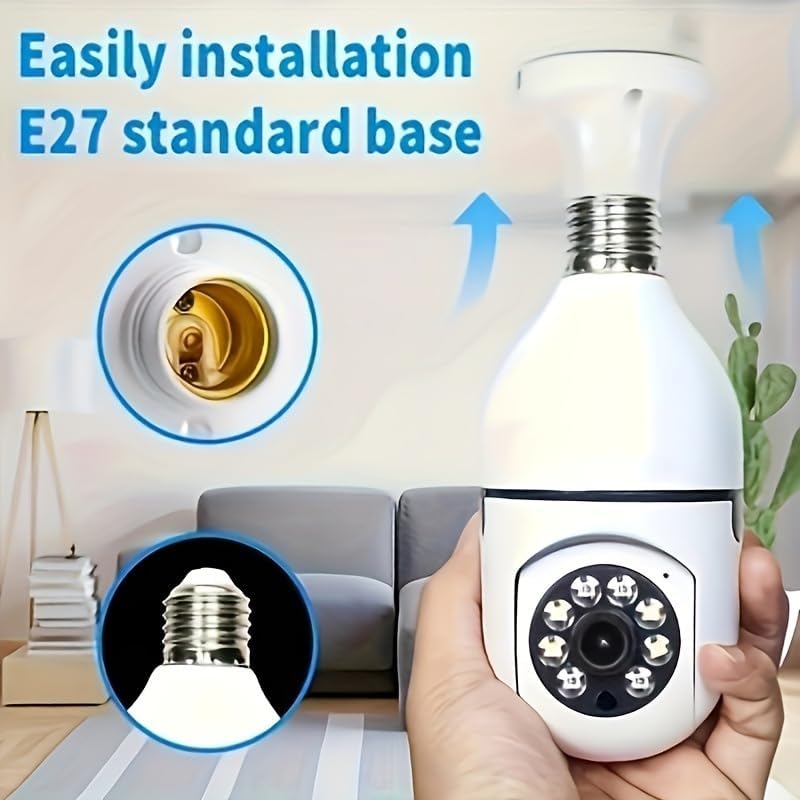
Figure 3.1.1: Easy Installation. This image demonstrates the simple process of screwing the camera into a standard E27 light bulb socket for quick setup.
3.2. App Download and Connection
To operate the camera, you need to download the dedicated mobile application.
- Download App: Search for the "BoyKeep" app (or specified app name in product packaging) on your smartphone's app store (Google Play Store for Android or Apple App Store for iOS).
- Register/Login: Open the app and follow the on-screen instructions to register a new account or log in if you already have one.
- Add Device: In the app, select "Add Device" or the '+' icon. Choose the camera type (e.g., "Smart Camera" or "Light Bulb Camera").
- Connect to Wi-Fi: Ensure your smartphone is connected to a 2.4GHz Wi-Fi network. The camera only supports 2.4GHz Wi-Fi. Follow the app's instructions to connect the camera to your Wi-Fi network. This usually involves scanning a QR code generated by the app with the camera, or entering Wi-Fi credentials.
- Completion: Once connected, the camera will appear in your device list within the app.
Note: Ensure your Wi-Fi router supports 2.4GHz and that your phone is connected to the 2.4GHz band during setup. 5GHz networks are not supported by this device.
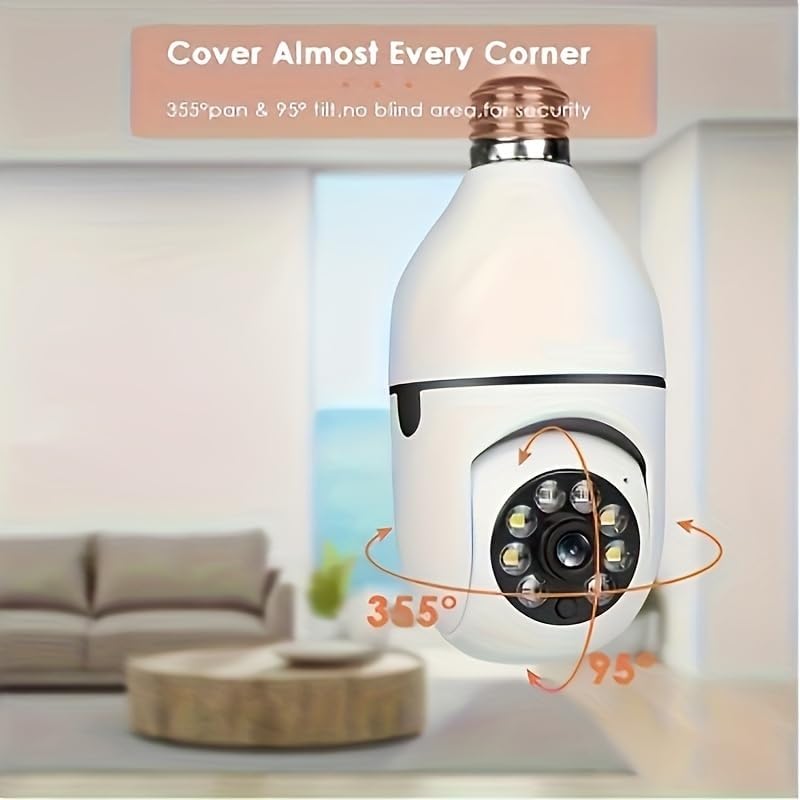
Figure 3.2.1: Wi-Fi Connection and Two-Way Talk. This diagram illustrates how the camera connects to a 2.4GHz Wi-Fi network and enables two-way communication between the camera and a smartphone or computer via the internet, allowing for interactions like speaking to a delivery person.
4. Operating Instructions
4.1. Live View and Playback
- Live View: Open the app and select the camera from your device list to view the live feed.
- Playback: Access recorded footage by selecting the "Playback" option within the camera's interface in the app. You can navigate through the timeline to view specific events.
4.2. Pan and Tilt Control
The camera offers 360° horizontal pan and 95° vertical tilt capabilities.
- Control: In the live view interface of the app, use the directional controls (usually a joystick or arrow icons) to remotely adjust the camera's viewing angle.
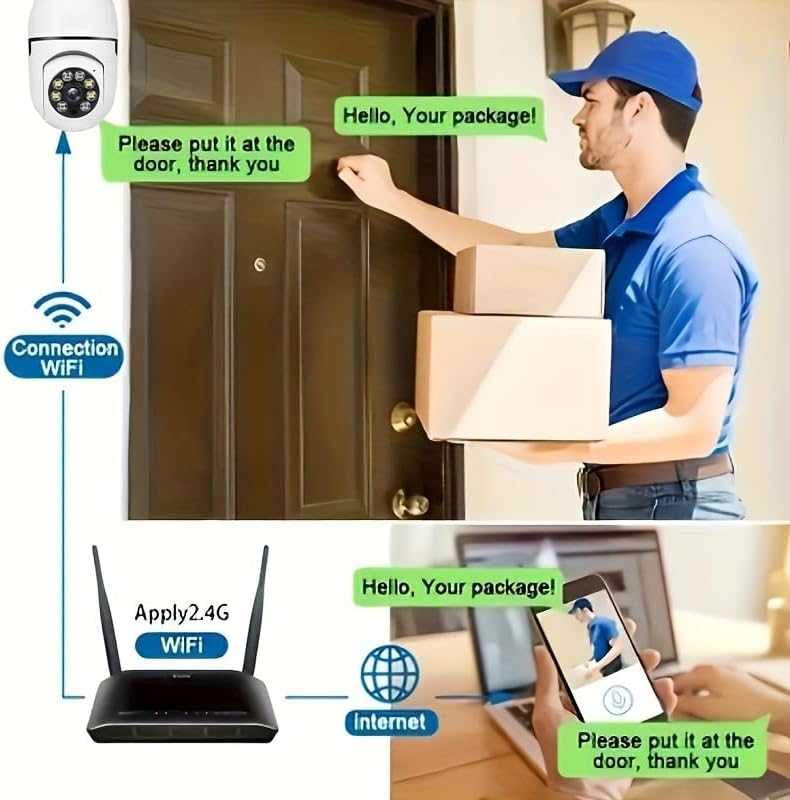
Figure 4.2.1: Pan and Tilt Coverage. This image demonstrates the camera's ability to cover almost every corner with its 355° pan and 95° tilt functions, eliminating blind spots for comprehensive security.
4.3. Motion Detection and Alerts
- Enable/Disable: Navigate to the camera settings in the app to enable or disable motion detection.
- Sensitivity: Adjust the motion detection sensitivity level to minimize false alarms.
- Alerts: When motion is detected, the camera will send push notifications to your smartphone. Recorded events will be stored in the cloud (if subscribed) or on the inserted memory card.
4.4. Two-Way Audio
- Activate: In the live view, tap the microphone icon to speak through the camera's speaker. Tap it again to mute.
- Listen: The camera's microphone is active during live view, allowing you to hear audio from the camera's vicinity.
- One-Touch Call: If available, press the physical one-touch call button on the camera (if present) to initiate a call to your linked smartphone.
4.5. Night Vision Modes
The camera supports both infrared and full-color night vision.
- Automatic Mode: The camera automatically switches between day and night vision based on ambient light.
- Infrared Night Vision: Provides clear black and white images in complete darkness.
- Full-Color Night Vision: Utilizes built-in white LEDs to provide color images in low light, similar to daytime viewing. This mode can be activated manually or set to trigger upon motion detection.

Figure 4.5.1: Smart Dual Light LED Night Vision. This image compares the visual output of infrared night vision (top, black and white) and full-color night vision (bottom, color) provided by the camera's smart dual light LEDs, showcasing improved visibility in low-light conditions.
4.6. Storage Options
- Memory Card (MicroSD): Insert a compatible MicroSD card (up to 128GB, Class 10 or higher recommended, not included) into the camera's memory card slot for local storage of recordings. The camera supports 24/7 continuous recording to the memory card.
- Cloud Storage: The camera offers cloud storage services (e.g., a 30-day trial may be included). Refer to the app for subscription details and management.
5. Maintenance
- Cleaning: Use a soft, dry cloth to clean the camera lens and body. Do not use liquid cleaners or abrasive materials.
- Firmware Updates: Regularly check the app for firmware updates. Keeping the firmware updated ensures optimal performance and security.
- Network Stability: Ensure your Wi-Fi network is stable and strong in the camera's location for uninterrupted operation.
- Environmental Conditions: The camera is designed for indoor use. Avoid exposing it to extreme temperatures, direct sunlight, or high humidity.
6. Troubleshooting
| Problem | Possible Cause | Solution |
|---|---|---|
| Camera not powering on. | No power to the light socket; camera not screwed in properly. | Ensure the light socket has power. Re-screw the camera firmly into the socket. |
| Cannot connect to Wi-Fi. | Incorrect Wi-Fi password; connecting to 5GHz network; weak Wi-Fi signal. | Verify Wi-Fi password. Ensure you are connecting to a 2.4GHz network. Move camera closer to router or use a Wi-Fi extender. Reset camera and try again. |
| Motion alerts not received. | Motion detection disabled; app notifications turned off; low sensitivity. | Enable motion detection in app settings. Check phone's notification settings for the app. Increase motion detection sensitivity. |
| Poor video quality. | Weak Wi-Fi signal; dirty lens. | Improve Wi-Fi signal strength. Clean the camera lens with a soft, dry cloth. |
| Two-way audio not working. | Microphone/speaker muted in app; network issues. | Check audio settings in the app. Ensure stable network connection. |
7. Specifications
| Feature | Detail |
|---|---|
| Model Name | D112-10 |
| Video Resolution | 1080P |
| Connectivity | 2.4GHz Wi-Fi (IEEE 802.11b/g/n) |
| Power Source | Corded Electric (E27 Light Socket) |
| Pan/Tilt Range | 355° Horizontal, 95° Vertical |
| Night Vision | Infrared & Full-Color Night Vision |
| Storage Options | MicroSD Card (up to 128GB, not included), Cloud Storage |
| Audio | Two-Way Talk (Built-in Mic & Speaker) |
| Indoor/Outdoor Usage | Indoor |
| Dimensions (Camera Body) | Approx. 6 cm (2.35 in) diameter, 15 cm (5.9 in) height |
| Included Components | Camera body |
8. Warranty Information
BoyKeep products are manufactured to the highest quality standards. This product comes with a standard manufacturer's warranty. Please refer to the product packaging or the official BoyKeep website for specific warranty terms and conditions, including duration and coverage details.
9. Customer Support
For technical support, troubleshooting assistance, or any inquiries regarding your BoyKeep D112-10 Light Bulb Security Camera, please contact our customer support team:
- Online Support: Visit the official BoyKeep store on Amazon: BoyKeep Store
- Email Support: Refer to the contact information provided in your product packaging or on the BoyKeep website.
When contacting support, please have your product model number (D112-10) and purchase details ready.