
Sharkoon AK5G RGB
Sharkoon AK5G RGB White ATX PC Case User Manual
Model: AK5G RGB | Brand: Sharkoon
1. Introduction
This manual provides comprehensive instructions for the installation, operation, and maintenance of your Sharkoon AK5G RGB White ATX PC Case. Please read this manual thoroughly before beginning installation to ensure proper setup and optimal performance.
The Sharkoon AK5G RGB White ATX PC Case features a design with tempered glass side and front panels, ideal for showcasing high-end hardware. Its spacious ATX interior supports up to eleven fans or two radiators. Modern front ports and BTF motherboard compatibility ensure future-proof performance.
2. Key Features
- Tempered Glass Panels: Front and side panels made of tempered glass for an attractive hardware display.
- Pre-installed Cooling: Four 120mm PWM RGB fans with three circumferential LED rows are pre-installed. The case supports up to eleven fans in total.
- Radiator Support: Accommodates up to two 360mm radiators for liquid cooling solutions.
- Motherboard Compatibility: Supports Mini-ITX, Micro-ATX, ATX, and E-ATX motherboards, including most BTF formats.
- Modern Connectivity: Features TRRS and USB-C ports on the top panel. Includes an RGB controller for up to four LED elements and four PWM fans.
- Spacious Interior: Supports graphics cards up to 41 cm, CPU coolers up to 17 cm, and power supplies up to 23.5 cm. Provides space for up to two 3.5" HDDs or four 2.5" SSDs.
3. Package Contents
Please verify that all components are present and undamaged upon opening the package. If any items are missing or damaged, contact your retailer immediately.
- Sharkoon AK5G RGB White ATX PC Case
- Accessory Box (containing screws, cable ties, standoffs, etc.)
- User Manual (this document)
4. Setup and Installation
4.1 Preparing the Case
Before installing components, ensure the case is placed on a stable, flat surface. Remove the tempered glass side panel by unscrewing the thumb screws at the rear of the case.

Image 4.1: Front-side view of the Sharkoon AK5G RGB White ATX PC Case, showcasing the tempered glass side panel and front panel with three RGB fans.
4.2 Motherboard Installation
- Install the necessary standoffs for your motherboard form factor (Mini-ITX, Micro-ATX, ATX, E-ATX) onto the motherboard tray.
- Carefully place your motherboard onto the standoffs, aligning the screw holes.
- Secure the motherboard with the provided screws.

Image 4.2: Interior view of the PC case, highlighting the spacious motherboard tray and cable management cutouts.
4.3 Power Supply Unit (PSU) Installation
- Position the PSU in the dedicated compartment at the bottom rear of the case.
- Secure the PSU with screws from the rear of the case.
4.4 Storage Drive Installation
The case supports up to two 3.5" HDDs or four 2.5" SSDs.
- 3.5" HDDs: Install into the drive cage located beneath the PSU shroud.
- 2.5" SSDs: Mount onto the dedicated SSD brackets behind the motherboard tray or on top of the PSU shroud.

Image 4.3: Rear interior view of the PC case, illustrating the mounting points for 2.5" SSDs and cable management options.
4.5 Graphics Card and Expansion Card Installation
- Remove the necessary expansion slot covers from the rear of the case.
- Insert your graphics card or other expansion cards into the PCIe slots on the motherboard.
- Secure the cards with screws.
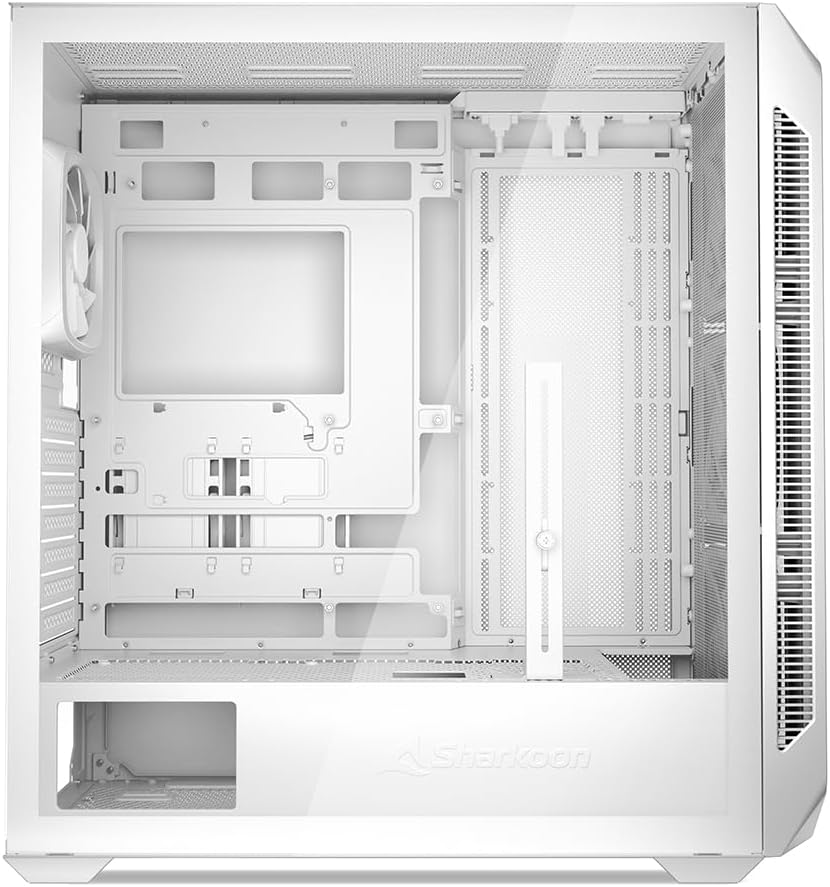
Image 4.4: Rear exterior view of the PC case, showing the expansion slots and rear fan mount.
4.6 Fan and Radiator Installation
The case comes with four pre-installed 120mm PWM RGB fans. Additional fans or radiators can be installed as follows:
- Front: Up to 3 x 120mm or 2 x 140mm fans, or 1 x 240/280/360mm radiator.
- Top: Up to 3 x 120mm or 2 x 140mm fans, or 1 x 240/280/360mm radiator.
- Rear: 1 x 120mm fan (pre-installed).
- Bottom: Up to 3 x 120mm fans.
- Side (Motherboard Tray): Up to 3 x 120mm fans.
Connect fan power cables to the motherboard or the integrated RGB controller.
4.7 Front Panel Connections
Connect the front panel cables (USB, audio, power/reset switches, LED indicators) to the corresponding headers on your motherboard. The case features modern TRRS and USB-C ports.
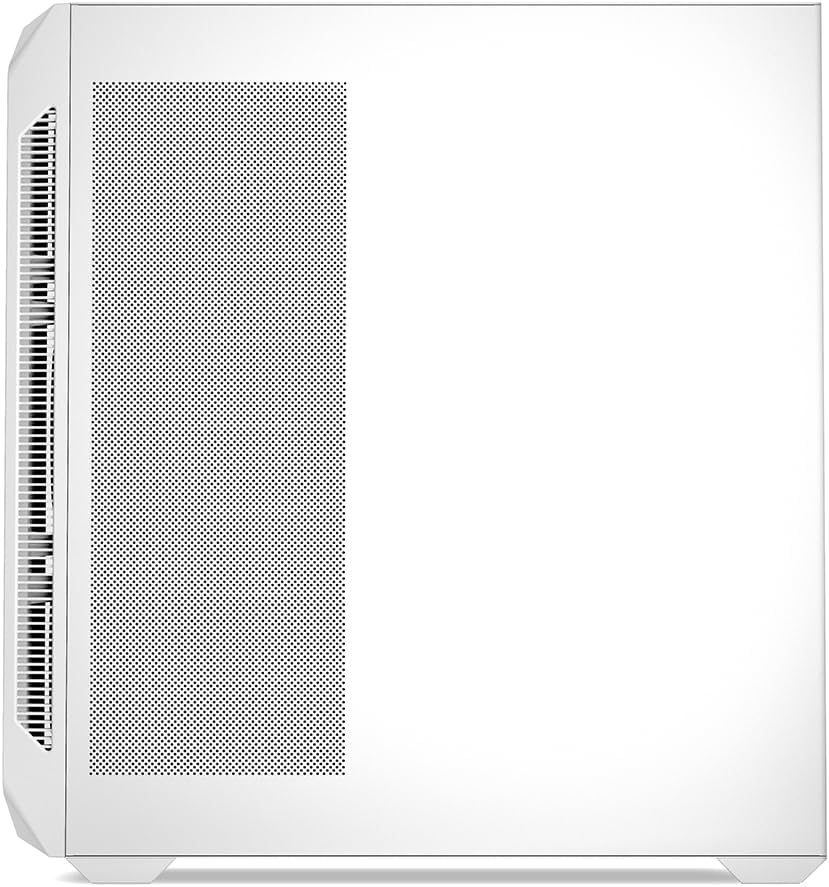
Image 4.5: Top-front view of the PC case, showing the top panel I/O ports including USB and audio jacks.
5. Operating Instructions
5.1 Powering On Your System
After all components are securely installed and cables connected, replace the side panel. Connect your monitor, keyboard, mouse, and power cable to the PSU. Press the power button on the top panel of the case to start your system.
5.2 RGB Lighting Control
The pre-installed RGB fans are connected to an integrated RGB controller. This controller can be connected to your motherboard's RGB header for software control, or it can operate independently with pre-set lighting modes. Refer to your motherboard manual for specific RGB software instructions.
6. Maintenance
Regular maintenance helps ensure optimal performance and longevity of your PC case and components.
- Dust Filters: The case is equipped with removable dust filters (e.g., top, bottom, front). Clean these filters regularly (monthly or as needed) by removing them and gently brushing or washing off accumulated dust. Ensure they are completely dry before re-installing.
- Interior Cleaning: Periodically (every 3-6 months), open the case and use compressed air to remove dust from fans, heatsinks, and other components. Ensure the system is powered off and unplugged before cleaning.
- Exterior Cleaning: Wipe the exterior surfaces, including tempered glass panels, with a soft, damp cloth. Avoid abrasive cleaners or harsh chemicals.
7. Troubleshooting
This section addresses common issues you might encounter. For more complex problems, consult a qualified technician or Sharkoon support.
| Problem | Possible Cause | Solution |
|---|---|---|
| System does not power on. | Loose power cables, faulty PSU, incorrect front panel connections. |
|
| Fans are not spinning or RGB not lighting up. | Loose fan/RGB connections, faulty fan/controller. |
|
| Poor airflow or overheating. | Dust accumulation, incorrect fan orientation, insufficient cooling. |
|
8. Specifications
| Feature | Detail |
|---|---|
| Model Name | AK5G RGB |
| Model Number | SHA-AK5G-RGB-WT |
| Brand | Sharkoon |
| Color | White |
| Case Type | ATX Tower |
| Motherboard Compatibility | Mini ITX, Micro ATX, ATX, E-ATX, BTF |
| Material | Tempered Glass, Steel |
| Special Features | ARGB Fan, Tempered Glass Front Panel |
| Pre-installed Fans | 4 x 120mm PWM RGB Fans |
| Max GPU Length | 41 cm |
| Max CPU Cooler Height | 17 cm |
| Max PSU Length | 23.5 cm |
| Drive Bays | 2 x 3.5" HDD, 4 x 2.5" SSD |
| Front I/O Ports | TRRS, USB-C |
| Cooling Method | Air |
| Item Weight | 7 Kilograms |
9. Warranty Information
Sharkoon products are covered by a limited warranty against defects in materials and workmanship. The specific warranty period may vary by region and product. Please retain your proof of purchase for warranty claims.
For detailed warranty terms and conditions, please visit the official Sharkoon website or contact their customer support.
10. Support and Contact
If you encounter any issues or have questions not covered in this manual, please contact Sharkoon customer support.
- Official Website: www.sharkoon.com (for product information, drivers, and FAQs)
- Technical Support: Refer to the support section on the official website for contact details specific to your region.
Related documentsAK5G RGB


Ask a question about this manual
Ask about setup, troubleshooting, compatibility, parts, safety, or missing instructions. Manuals+ will review the question and use this page’s manual context to help answer it.