
XSDTS CS7
Contents
XSDTS CS7 Smart Door Lock User Manual
Model: CS7
1. Introduction
This manual provides comprehensive instructions for the installation, operation, and maintenance of your XSDTS CS7 Smart Door Lock. Please read this manual carefully before installation and use to ensure proper functionality and safety. Keep this manual for future reference.
2. Product Features
The XSDTS CS7 Smart Door Lock is an advanced security solution designed for modern homes and offices, offering multiple convenient and secure access methods.
- 7 Unlocking Methods: Enjoy flexible access with 3D Face Recognition, Biometric Fingerprint, Password, IC Card, Tuya App, Mechanical Key, and Temporary/Virtual Passwords.
- Integrated Cat Eye Camera: Monitor your doorstep with a high-definition camera, providing enhanced security and visibility.
- Remote Control via Tuya App: Manage access, view logs, and unlock your door remotely from anywhere.
- Advanced Biometric Technology: Features an AI fingerprint algorithm for fast and accurate recognition with high success rates.
- Long Battery Life: The included 4200mAh battery provides over two months of operation.
- Multiple Alarm Functions: Equipped with anti-pry, false alarm, and low battery alerts for increased security awareness.

Figure 2.1: Overview of the 7 unlocking methods available on the XSDTS CS7 Smart Door Lock.
3. Package Contents
Please verify that all components are present and in good condition before proceeding with installation.
- Front Panel (Outdoor Unit) x 1
- Rear Panel (Indoor Unit) x 1
- Lock Body (Mortise) x 1 (Optional, depending on purchase variant)
- Smart IC Cards x 4
- Mechanical Keys x 2
- Screw Set and Installation Accessories x 1
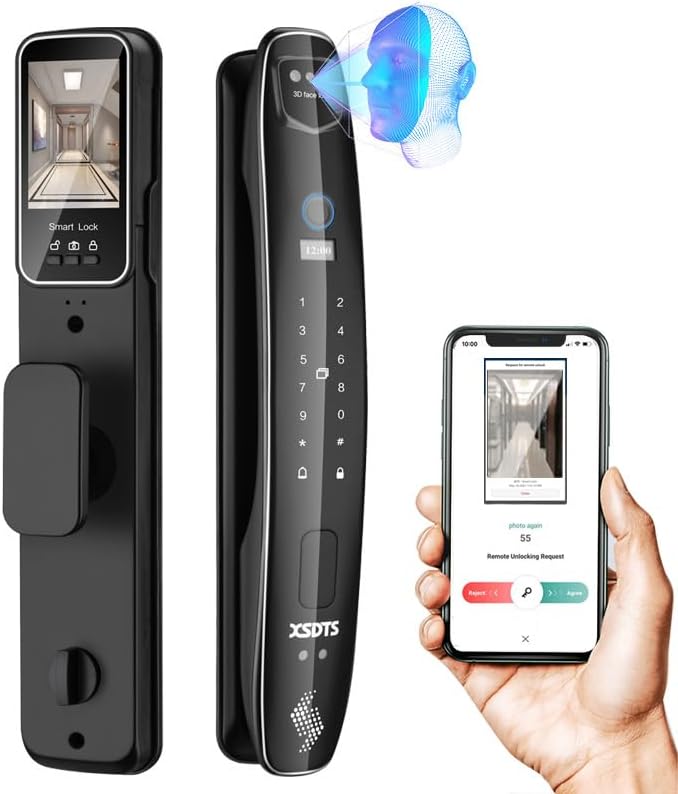
Figure 3.1: Main components of the XSDTS CS7 Smart Door Lock.
4. Installation Guide
4.1 Door Compatibility
Ensure your door meets the following specifications for proper installation:
- Door Thickness: 35mm to 90mm (1.38 inches to 3.54 inches).
- Lock Body Type: Compatible with 6068-U-240-260-R mortise.

Figure 4.1: Lock body and panel dimensions for door compatibility assessment.

Figure 4.2: Various lock body options and their corresponding door thickness suitability.
4.2 General Installation Steps
While specific steps may vary slightly based on your door type, the general process involves:
- Prepare the Door: Ensure the door is properly drilled according to the provided template (if applicable) for the lock body and panels.
- Install the Mortise: Insert the lock body (mortise) into the door edge and secure it with screws.
- Install the Spindles and Screws: Insert the necessary spindles and mounting screws through the mortise.
- Attach the Front Panel: Connect the front panel to the mortise and secure it to the door. Ensure cables are routed correctly.
- Attach the Rear Panel: Connect the rear panel to the front panel's cables and secure it to the door.
- Install Batteries: Insert the 4200mAh battery into the designated compartment in the rear panel.
- Test Functionality: After installation, test all unlocking methods and ensure the lock operates smoothly.
5. Operating Instructions
5.1 Initial Setup and Administration
Upon first use, you will need to set up an administrator. Refer to the on-screen prompts on the lock's display for guided setup. The administrator can then add other users and manage access methods.
5.2 Unlocking Methods
- 3D Face Recognition:
To unlock using face recognition, simply approach the lock. The 3D face recognition system will automatically wake up and scan your face for authentication. Ensure your face is within the recognition area.

Figure 5.1: 3D Face Recognition in action.
- Biometric Fingerprint:
Place your registered finger on the fingerprint sensor. The lock will recognize your fingerprint and unlock within 0.5 seconds. Ensure your finger is clean and dry for optimal recognition.

Figure 5.2: AI Fingerprint Algorithm for quick and reliable access.
- Password:
Enter your registered password on the keypad and press the '#' key to confirm. The lock supports virtual passwords to prevent peeping, allowing you to enter random digits before or after your actual password.
- IC Card:
Tap your registered IC card against the card reader area on the lock's front panel. The lock will verify the card and unlock.
- Tuya App Control:
Download the Tuya or Smart Life app from your app store. Follow the in-app instructions to pair your lock. You can then remotely unlock the door, generate temporary passwords, receive information notifications, and view access logs.

Figure 5.3: Tuya/Smart Life App features for remote management.
- Mechanical Key:
In case of emergency or battery depletion, insert the mechanical key into the hidden keyhole and turn to unlock the door manually.
5.3 Cat Eye Camera and Monitoring
The integrated cat eye camera allows you to view the outdoor situation on the lock's high-definition screen when the door is closed. This feature enhances security by providing visual confirmation of visitors.
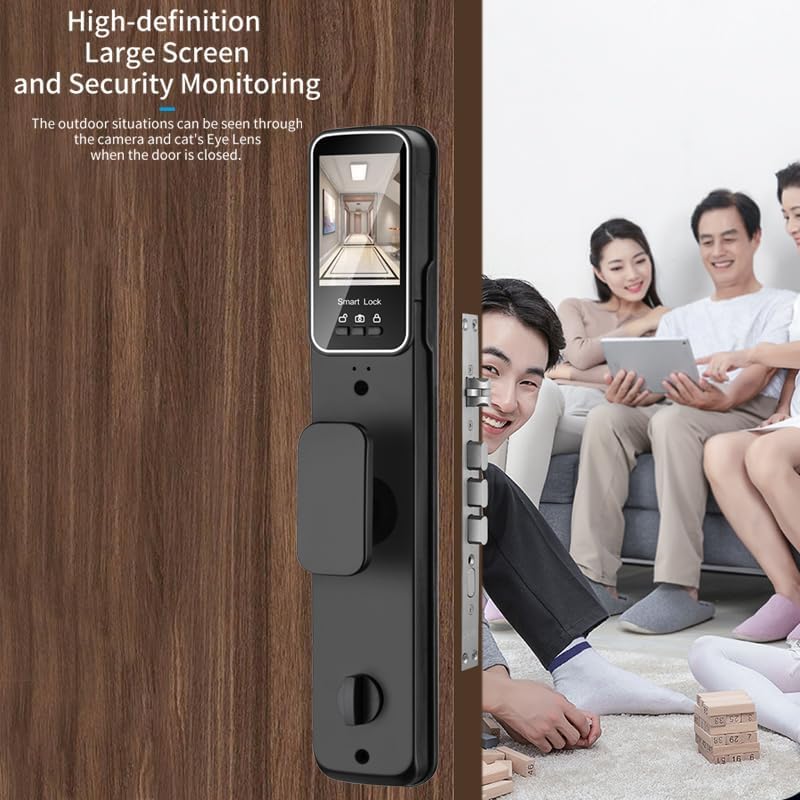
Figure 5.4: High-definition screen for security monitoring via the cat eye camera.
6. Maintenance
- Battery Replacement: The lock will provide a low battery warning. Replace the 4200mAh battery promptly when indicated to ensure continuous operation.
- Cleaning: Use a soft, dry cloth to clean the lock's surface. Avoid abrasive cleaners or solvents that could damage the finish or electronic components.
- Fingerprint Sensor: Keep the fingerprint sensor clean and free of debris for optimal performance.
- Mechanical Key: Store the mechanical keys in a safe, accessible location outside the property in case of emergency.
7. Troubleshooting
- Lock Not Responding: Check the battery level. If the battery is depleted, use the mechanical key or connect a power bank via the emergency USB port (if available) to temporarily power the lock.
- Fingerprint/Face Recognition Failure: Ensure the sensor/camera is clean. Re-register your fingerprint/face if issues persist. Ensure proper lighting for face recognition.
- Password Not Working: Verify the correct password is being entered. Try resetting the password via the administrator menu or app.
- App Connectivity Issues: Ensure your Wi-Fi network is stable and the lock is within range. Restart the lock and your router if necessary. Re-pair the lock with the app if the connection is lost.
- False Alarms: If the lock triggers false alarms, check for any obstructions or loose components. Review the alarm settings in the app.
- Low Battery Alarm: The lock will emit an alarm when the battery is low. Replace the battery as soon as possible.

Figure 7.1: Understanding different alarm types and their indicators.
8. Specifications
| Feature | Specification |
|---|---|
| Brand | XSDTS |
| Model Number | CS7 |
| Lock Type | Biometric (Face, Fingerprint), Password, IC Card, App, Mechanical Key |
| Material | Aluminum |
| Color | CS7 - Black |
| Product Dimensions | 8.5 x 40 x 8 cm (3.35 x 15.75 x 3.15 inches) |
| Item Weight | 4 Kilograms (8.82 lbs) |
| Door Thickness Compatibility | 35mm - 90mm (1.38 - 3.54 inches) |
| Battery Type | 4200mAh (Rechargeable, Included) |
| Special Features | Fingerprint, Password Unlock, Resettable, One-Touch Lock, Scratch Resistant, Cat Eye Camera |
| Recommended Uses | Families, Airbnb, Rentals, Offices, Business Sections |
9. Warranty and Support
For warranty information and technical support, please refer to the documentation provided at the time of purchase or contact XSDTS customer service through their official website or authorized retailers. Keep your purchase receipt as proof of purchase.
Ask a question about this manual
Ask about setup, troubleshooting, compatibility, parts, safety, or missing instructions. Manuals+ will review the question and use this page’s manual context to help answer it.