
ProtoArc EKM04
ProtoArc EKM04 Ergonomic Keyboard Mouse Combo User Manual
Model: EKM04 | Brand: ProtoArc
1. Introduction
Thank you for choosing the ProtoArc EKM04 Ergonomic Keyboard Mouse Combo. This wireless combo is designed to enhance comfort and productivity for users of Windows desktop, PC, and laptop systems. Its split keyboard design, separate numeric keypad, and ergonomic mouse aim to provide a more natural and relaxed posture during extended use. This manual provides detailed instructions for setting up, operating, maintaining, and troubleshooting your new device.
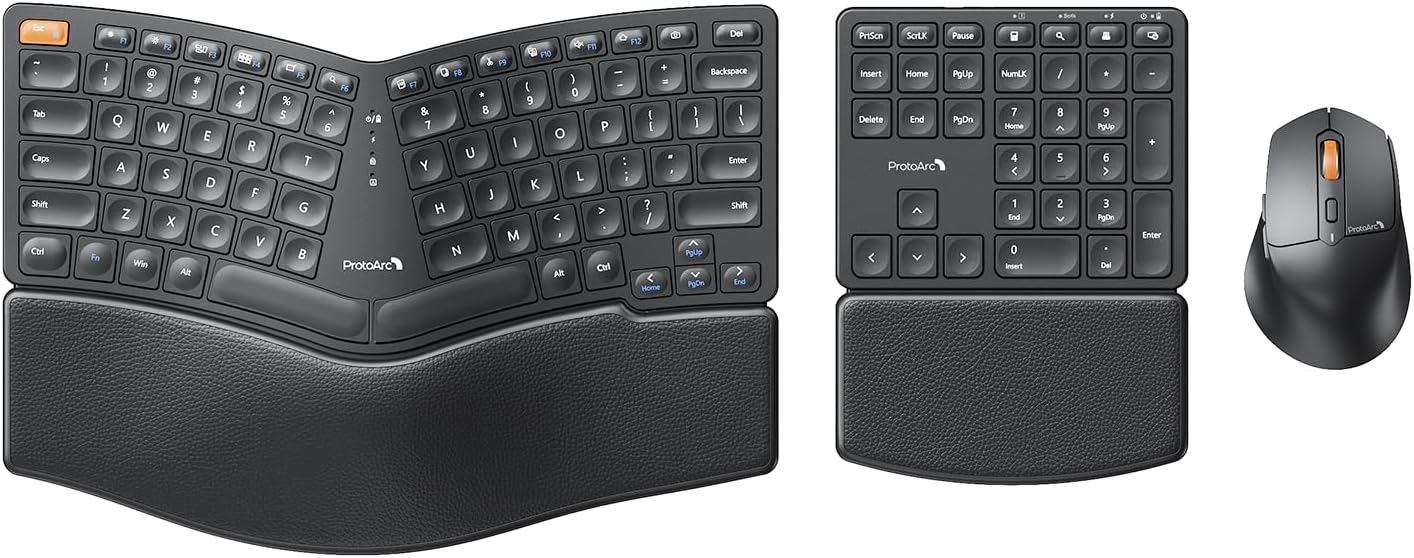
Image: The ProtoArc EKM04 ergonomic keyboard, separate numeric keypad, and ergonomic mouse, showcasing the complete combo.
2. Package Contents
Please verify that all items are present in your package:
- ProtoArc Ergonomic Split Keyboard
- ProtoArc Separate Numeric Keypad
- ProtoArc Ergonomic Wireless Mouse
- USB Receiver (located in the mouse battery compartment)
- USB-C Charging Cable
- User Manual

Image: An overhead view of the ProtoArc EKM04 combo components laid out, including the keyboard, numeric keypad, mouse, charging cable, and user manual, alongside the product box.
3. Setup Guide
3.1 Initial Charging
Before first use, it is recommended to fully charge the keyboard, numeric keypad, and mouse. Use the provided USB-C charging cable to connect each device to a USB power source (e.g., computer USB port, USB wall adapter). A full charge takes approximately 2 hours and provides up to 250 hours of standby time.
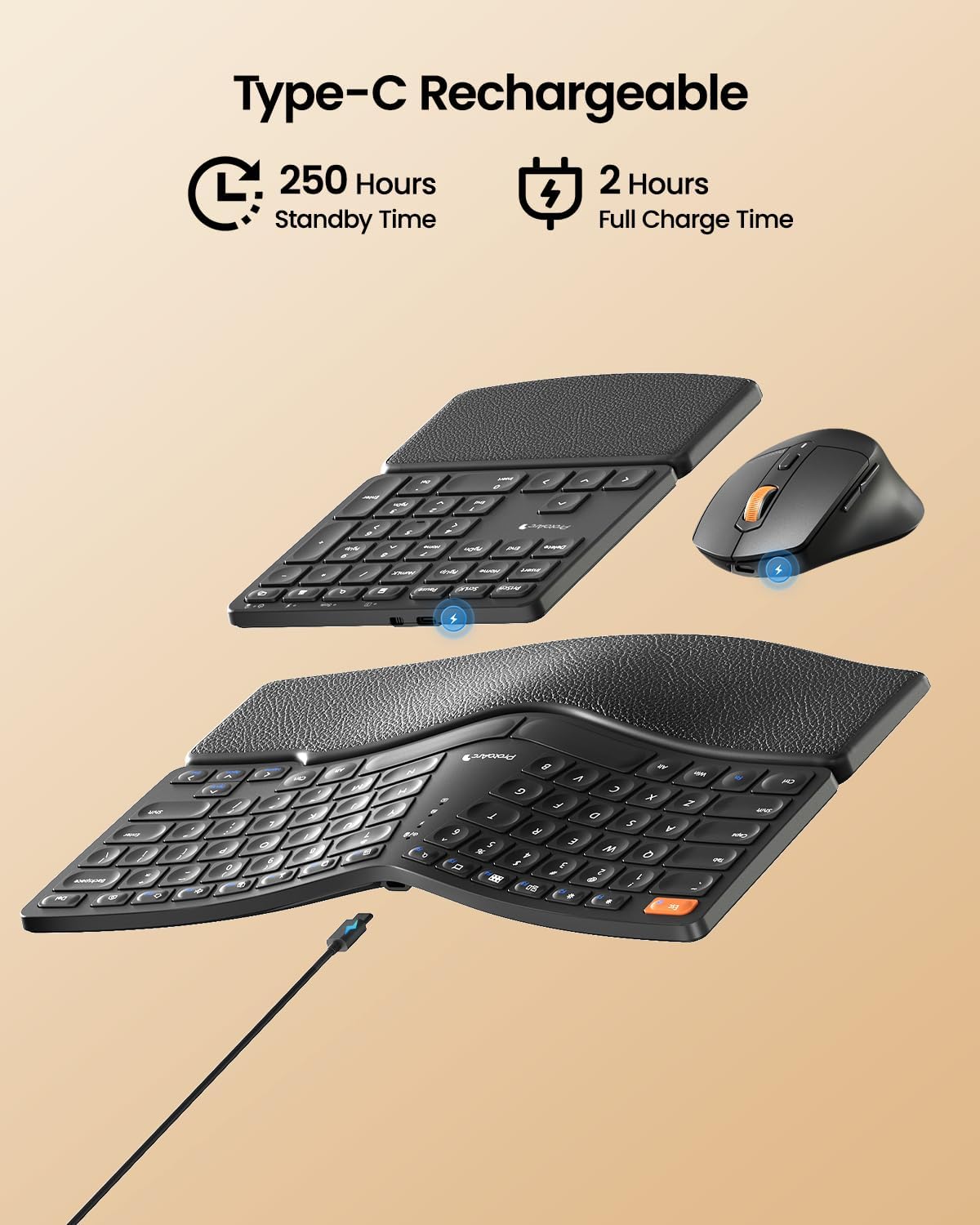
Image: The ProtoArc EKM04 keyboard, numeric keypad, and mouse are shown with USB-C charging cables connected, illustrating the charging process. Icons indicate 250 hours standby time and 2 hours full charge time.
3.2 Connecting the Devices (2.4GHz Wireless)
The ProtoArc EKM04 combo utilizes a 2.4GHz wireless connection via a single USB receiver. This system is compatible only with Windows operating systems (Windows Desktop, Windows Laptop, Windows Personal Computer).
- Locate the USB receiver: The USB receiver is conveniently stored in the battery compartment on the bottom of the mouse. Gently open the compartment to retrieve it.
- Plug and Play: Insert the USB receiver into an available USB port on your Windows computer.
- Power On: Ensure the keyboard, numeric keypad, and mouse are powered on. They will automatically connect to your computer. No additional drivers are required.
Kindly Note: This combo does not support Bluetooth connection and is not compatible with Mac OS.

Image: A laptop on a desk with the ProtoArc EKM04 keyboard, numeric keypad, and mouse positioned nearby, showing wireless connection signals emanating from the USB receiver plugged into the laptop.

Image: The underside of the ProtoArc EKM04 ergonomic keyboard and separate numeric keypad, showing their respective power switches and battery compartments.
4. Operating Instructions
4.1 Ergonomic Design Benefits
The EKM04 combo is engineered for comfort and to promote a natural posture. The keyboard features a curved and split keyset design, which helps align your wrists and forearms in a more relaxed position. The scooped scissors-switch keys are shaped to fit your fingertips, providing responsive and comfortable typing.

Image: The ProtoArc EKM04 ergonomic keyboard and numeric keypad on a desk, emphasizing the curved and split design of the keyboard for natural typing posture. An inset shows a top-down view with arrows indicating the ergonomic curve.

Image: A magnified view of a single key on the ProtoArc EKM04 keyboard, revealing the underlying scissor-switch mechanism for precise and quiet keystrokes.
4.2 Hard Palm Rest
The integrated, curved hard palm rest features a leather surface, providing durable and comfortable support for your wrists during extended typing sessions. This wrist rest is non-removable and is designed to be firm rather than soft-cushioned.

Image: The ProtoArc EKM04 keyboard and numeric keypad on a desk, highlighting the textured leather surface of their integrated palm rests, designed for wrist support and comfort.
4.3 Adjustable Tilt Legs
The ergonomic keyboard is equipped with two adjustable tilt legs on its back. These legs allow you to lift the bottom of the keyboard, helping to maintain a relaxed typing posture, especially when standing. The numeric keypad does not have adjustable tilt legs.

Image: A user's hands are shown typing on the ProtoArc EKM04 keyboard, which is elevated by its adjustable tilt legs. An inset compares the keyboard's flat profile with its tilted profile when the legs are extended.

Image: Two side-by-side views of the ProtoArc EKM04 keyboard from the side, demonstrating the difference in angle when the adjustable tilt legs are retracted (flat) versus extended (tilted).
4.4 Separate Numeric Keypad
The independent numeric keypad offers enhanced flexibility for your workspace. You can position it wherever it's most convenient, optimizing your desk space and improving productivity, especially for data entry tasks.
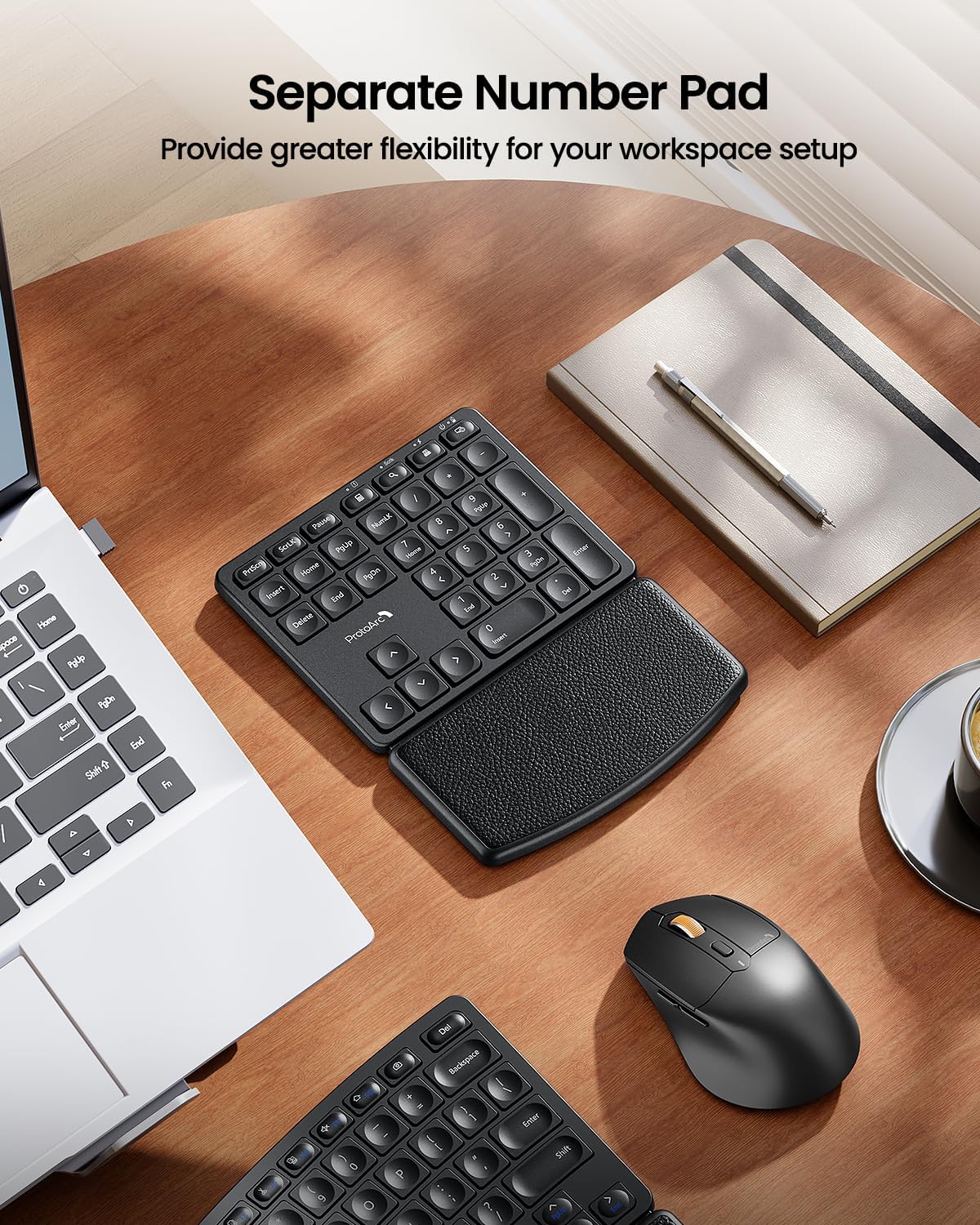
Image: The ProtoArc EKM04 separate numeric keypad positioned on a desk, illustrating its independent placement from the main keyboard, offering flexible workspace arrangement.
4.5 Ergonomic Sculpted Mouse
The wireless mouse is designed with an ergonomic sculpted shape to fit comfortably in your hand, reducing wrist strain and pain. It features adjustable DPI settings (up to 2400 DPI) for precise control and includes convenient forward and backward buttons for web browsing.

Image: A hand resting comfortably on the ProtoArc EKM04 ergonomic mouse, demonstrating its sculpted design for a natural grip.

Image: A close-up of the ProtoArc EKM04 ergonomic mouse, with labels indicating the adjustable DPI settings (800, 1200, 1600, 2400 DPI) and the DPI adjustment button.
5. Charging and Battery Life
The ProtoArc EKM04 keyboard, numeric keypad, and mouse are equipped with built-in rechargeable lithium batteries. To charge, connect the provided USB-C cable to the charging port on each device and a USB power source.
- Charging Time: Approximately 2 hours for a full charge.
- Standby Time: Up to 250 hours on a full charge.
It is recommended to charge the devices when the battery indicator light (if present) signals low power or when you notice a delay in responsiveness.
6. Maintenance and Care
6.1 Cleaning
To maintain the performance and appearance of your ProtoArc EKM04 combo:
- Use a soft, dry, lint-free cloth to wipe down the surfaces of the keyboard, numeric keypad, and mouse.
- For stubborn dirt, slightly dampen the cloth with water or a mild, non-abrasive cleaning solution. Avoid excessive moisture.
- Do not use harsh chemicals, abrasive cleaners, or solvents, as these can damage the surfaces.
- Use compressed air to remove dust and debris from between the keys.
6.2 Storage
When not in use for extended periods, store the devices in a cool, dry place away from direct sunlight and extreme temperatures. Ensure the devices are powered off to conserve battery life.
7. Troubleshooting
If you encounter issues with your ProtoArc EKM04 combo, please refer to the following common solutions:
| Problem | Possible Cause | Solution |
|---|---|---|
| Devices not connecting or unresponsive | Low battery; USB receiver not properly inserted; devices not powered on; incorrect system compatibility. | 1. Ensure all devices are fully charged. 2. Verify the USB receiver is securely plugged into a working USB port on your Windows computer. 3. Confirm the power switches on the keyboard, numeric keypad, and mouse are in the 'ON' position. 4. Remember, this combo is only compatible with Windows systems and does not support Bluetooth. |
| Lag or intermittent connection | Interference from other wireless devices; distance from receiver; low battery. | 1. Move the USB receiver closer to the devices, or try a different USB port. 2. Ensure there are no large metal objects between the devices and the receiver. 3. Charge the devices fully. |
| Mouse cursor erratic or imprecise | Dirty sensor; unsuitable surface; incorrect DPI setting. | 1. Clean the mouse sensor with a soft cloth. 2. Use the mouse on a clean, non-reflective surface or a mouse pad. 3. Adjust the mouse DPI setting using the DPI button on the mouse. |
| Keyboard/Numpad keys not responding | Low battery; connection issue. | 1. Charge the keyboard/numpad. 2. Re-establish the connection by unplugging and re-plugging the USB receiver. |
Warm Tips: Unlike traditional keyboards, adjusting to an ergonomic split keyboard layout may require an initial adaptation period as you become accustomed to its design and layout.
8. Specifications
| Feature | Detail |
|---|---|
| Brand | ProtoArc |
| Model | EKM04 |
| Color | Black |
| Connectivity Technology | 2.4GHz USB Wireless |
| Compatible Devices | Windows Desktop, Windows Laptop, Windows Personal Computer |
| Special Features | Ergonomic Split Design, Hard Wrist Rest, Rechargeable, Separate Number Pad |
| Keyboard Dimensions (L x W) | 13 inches x 9 inches |
| Numeric Keypad Dimensions (L x W) | 6 inches x 8 inches |
| Mouse Dimensions (L x W) | 4.3 inches x 2.8 inches |
| Item Weight | 3.39 pounds (total package) |
| Mouse DPI Settings | Up to 2400 DPI |
| Charging Port | USB-C |
| Battery Life | 250 hours standby time (after 2 hours full charge) |
| Backlight | Not backlit |

Image: An overhead diagram illustrating the dimensions of the ProtoArc EKM04 ergonomic keyboard (13x9 inches), separate numeric keypad (6x8 inches), and mouse (4.3x2.8 inches).
9. Warranty and Support
9.1 Warranty Information
ProtoArc products are manufactured to high-quality standards. This product comes with a standard manufacturer's warranty against defects in materials and workmanship. Please refer to the warranty card included in your package or visit the official ProtoArc website for specific warranty terms and conditions.
9.2 Customer Support
For technical assistance, troubleshooting, or warranty claims, please contact ProtoArc customer support through the following channels:
- Official Website: Visit the ProtoArc Store on Amazon for FAQs and support contact information.
- Email Support: Refer to your product packaging or the ProtoArc website for the dedicated support email address.
When contacting support, please have your product model (EKM04) and purchase details ready.
Related documentsEKM04


Ask a question about this manual
Ask about setup, troubleshooting, compatibility, parts, safety, or missing instructions. Manuals+ will review the question and use this page’s manual context to help answer it.