
Dragon Touch TM10
Dragon Touch 10.1 inch Digital Calendar Chore Chart User Manual
Model: TM10 | Brand: Dragon Touch
Introduction
This manual provides comprehensive instructions for the setup, operation, and maintenance of your Dragon Touch 10.1 inch Digital Calendar Chore Chart. This interactive touchscreen device is designed to streamline family scheduling, manage chores, and serve as a smart family planner and digital display.

Figure 1: Dragon Touch Digital Calendar and companion mobile application.
Setup
- Unboxing and Power Connection: Carefully remove the device from its packaging. Connect the provided power adapter to the device and plug it into a standard electrical outlet.
- Initial Boot-up: The device will automatically power on. Follow the on-screen prompts to select your preferred language and region.
- Wi-Fi Connection: Select your Wi-Fi network from the list and enter the password. A stable internet connection is required for full functionality and calendar synchronization.
- Mobile App Installation: Download the "eCalendar App" from your device's app store (available for iOS and Android).
- Calendar Linking: Open the eCalendar App and follow the instructions to link your personal calendars (e.g., iOS, Google Calendar, Outlook). The device will seamlessly integrate these calendars into a unified interface.
- Authorize Additional Devices: If desired, authorize other family members' devices to access and manage the calendar through the app.

Figure 2: The digital calendar supports synchronization with various popular calendar services.
Operating Instructions
Calendar Management
- Viewing Schedules: Navigate through daily, weekly, and monthly views using the touchscreen interface.
- Adding Events: Tap the '+' icon to add new events. Assign different colors to events for each family member for easy identification.
- Event Details: Tap on an event to view or edit its details, including time, location, and participants.

Figure 3: Seamless event synchronization between the digital calendar and your mobile device.
Interactive Chore Chart
- Creating Chores: Access the "Chores" section to create and assign tasks to family members.
- Tracking Progress: Family members can mark chores as complete directly on the touchscreen.

Figure 4: The interactive chore chart helps organize household tasks.
Dinner Planner & Grocery List
- Meal Planning: Utilize the dinner planner feature to display upcoming meal plans for the family.
- Grocery List: Create and manage grocery lists directly on the device or through the app.

Figure 5: Easily plan your family's dinners using the dedicated feature.

Figure 6: Manage your grocery list efficiently through the device or app.
Digital Picture Frame Function
- Photo Display: When not actively used as a calendar, the device can function as a digital picture frame, displaying cherished family photos.
- Uploading Photos: Upload photos to the device via the eCalendar App.

Figure 7: The device transforms into an elegant digital picture frame.
App Cloud Access
- Remote Management: Manage your calendar, chores, and lists from anywhere using the eCalendar App on your smartphone.
- Software Updates: The device receives regular software updates through the app to ensure optimal performance and new features.
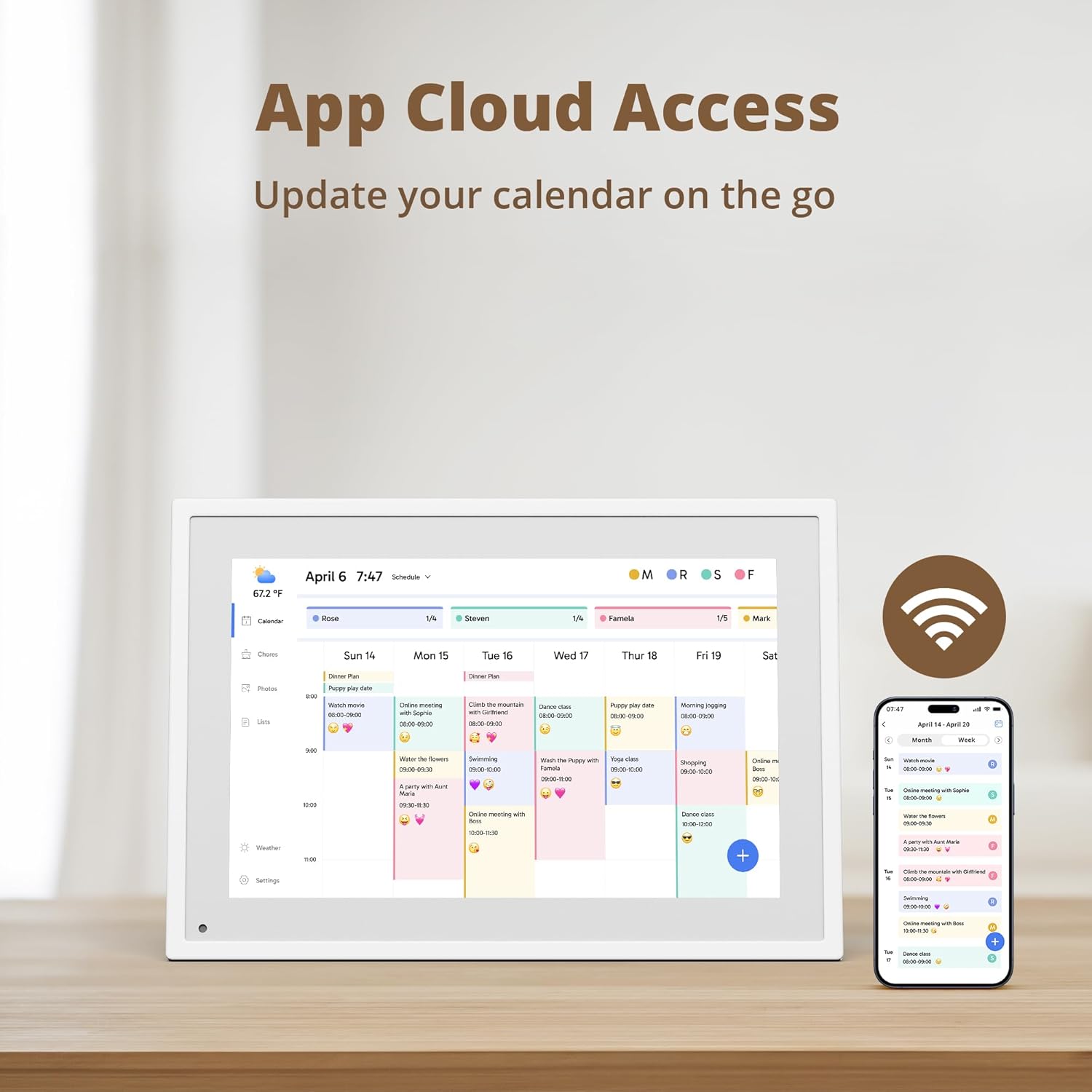
Figure 8: Access and update your calendar on the go via the cloud app.
Maintenance
- Cleaning: Use a soft, dry, lint-free cloth to clean the screen and exterior. Avoid abrasive cleaners or sprays directly on the screen.
- Software Updates: Ensure the device is connected to Wi-Fi to receive automatic software updates. Regularly check the settings menu for available updates.
- Placement: Place the device on a stable, flat surface away from direct sunlight, excessive heat, or moisture.
Troubleshooting
| Problem | Possible Cause | Solution |
|---|---|---|
| Device does not power on. | Power adapter not connected or faulty outlet. | Ensure the power adapter is securely connected to the device and a working electrical outlet. Try a different outlet. |
| Cannot connect to Wi-Fi. | Incorrect password, weak signal, or router issue. | Verify the Wi-Fi password. Move the device closer to the router. Restart your router. |
| Calendar events not syncing. | No internet connection, app not linked, or calendar permissions. | Check Wi-Fi connection. Ensure your external calendars are correctly linked in the eCalendar App and that necessary permissions are granted. |
| Keyboard not appearing (as reported by some users). | Software glitch or specific app interaction issue. | Restart the device. Check for available software updates in the settings menu. If the issue persists, contact customer support. |
| Color coding from external calendars not displayed. | Feature limitation or specific integration behavior. | The device may not fully support color coding from all external calendar services. You can manually assign colors to events within the device's interface if needed. |
Specifications
- Model: TM10
- Display: 10.1 inch Touchscreen
- Color: White
- Material: Plastic
- Item Weight: 2.57 pounds
- Product Dimensions: 10.53 x 7.33 x 0.99 inches
- Connectivity: Wi-Fi
- Supported Calendars: iOS, Google, Outlook, Yahoo, Cozi (via eCalendar App)
- Features: Digital Calendar, Chore Chart, Dinner List, Grocery List, Digital Picture Frame, Weather Forecast, Auto-Brightness Sensor, Sleep Mode, Auto-Rotate.
Warranty and Support
For warranty information and technical support, please refer to the official Dragon Touch website or contact their customer service directly. Keep your purchase receipt for warranty claims.
Online Support: Visit the Dragon Touch Store on Amazon for product information and support resources.
Related documentsTM10


Ask a question about this manual
Ask about setup, troubleshooting, compatibility, parts, safety, or missing instructions. Manuals+ will review the question and use this page’s manual context to help answer it.