
1. Product Overview
The Daewoo Thunder Plus 2x10 speaker is a powerful portable audio system designed for high-quality sound reproduction. It features an integrated subwoofer for enhanced bass, a rechargeable battery for portability, and dynamic LED lights to create an engaging atmosphere. This speaker supports True Wireless Stereo (TWS) for connecting two units wirelessly, Bluetooth connectivity for streaming, and multiple input options including USB and auxiliary.
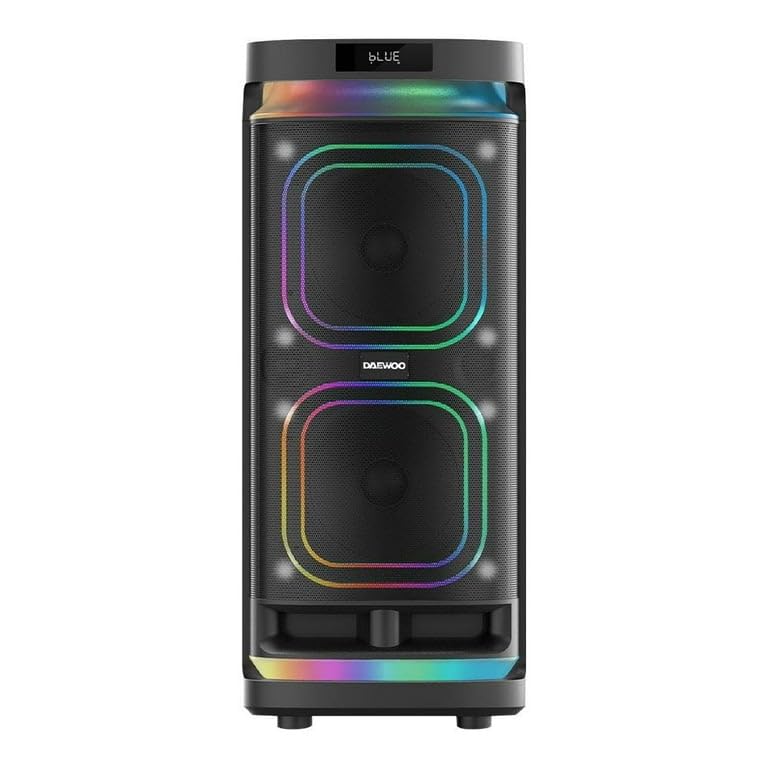
Image 1.1: Daewoo Thunder Plus 2x10 Portable Speaker.
Key Features:
- Powerful Sound System: Equipped with dual 10-inch speakers and an integrated subwoofer for deep, immersive audio.
- True Wireless Stereo (TWS): Allows wireless pairing of two Thunder Plus speakers for a synchronized stereo experience.
- Rechargeable Battery: Provides extended playback time, enabling use without a constant power connection.
- Integrated LED Lights: Dynamic lighting effects enhance the listening experience and create a vibrant ambiance.
- Multiple Connectivity Options: Includes Bluetooth, USB, TF Card, Auxiliary (Line-in), and Microphone inputs.
- Karaoke Functionality: Features microphone inputs and volume controls for karaoke sessions.
2. Setup Guide
2.1 Unpacking
Carefully remove the speaker and all accessories from the packaging. Ensure all components are present:
- Daewoo Thunder Plus 2x10 Speaker
- Power Adapter
- Microphone (if included with your model)
- Remote Control
- User Manual
2.2 Charging the Battery
Before first use, fully charge the speaker's internal rechargeable battery. Connect the power adapter to the 'DC IN 15V' port on the rear panel and plug it into a standard electrical outlet. The charging indicator light will illuminate. Charging time may vary.
2.3 Initial Power On
Locate the POWER switch on the control panel (usually on the top or rear). Flip the switch to the 'ON' position. The display will light up, and the speaker will enter its default mode, typically Bluetooth.
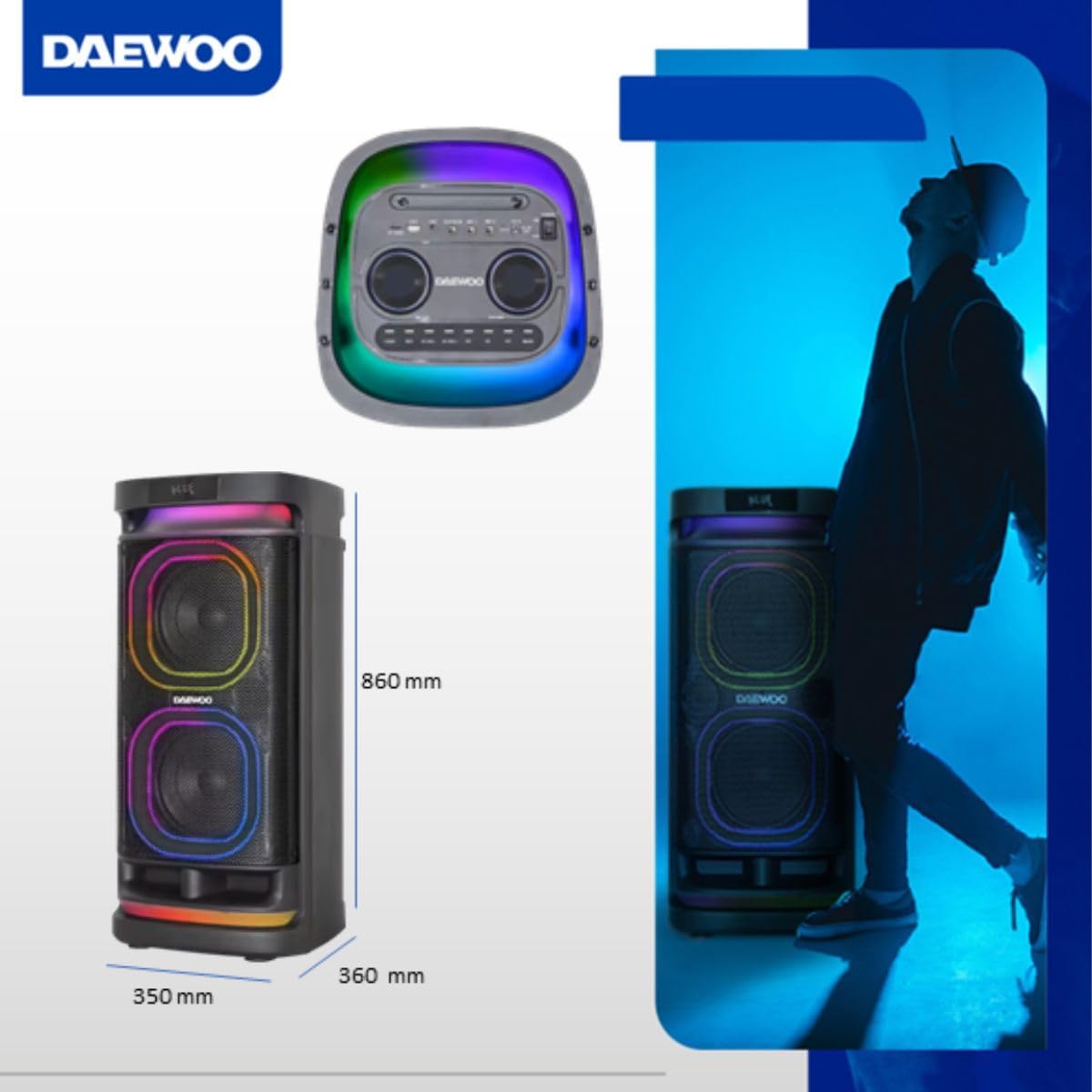
Image 2.1: Speaker dimensions for placement reference.
3. Operating Instructions
3.1 Control Panel Overview
Familiarize yourself with the speaker's control panel, typically located on the top of the unit. It includes various knobs, buttons, and input ports for controlling playback, volume, and other functions.
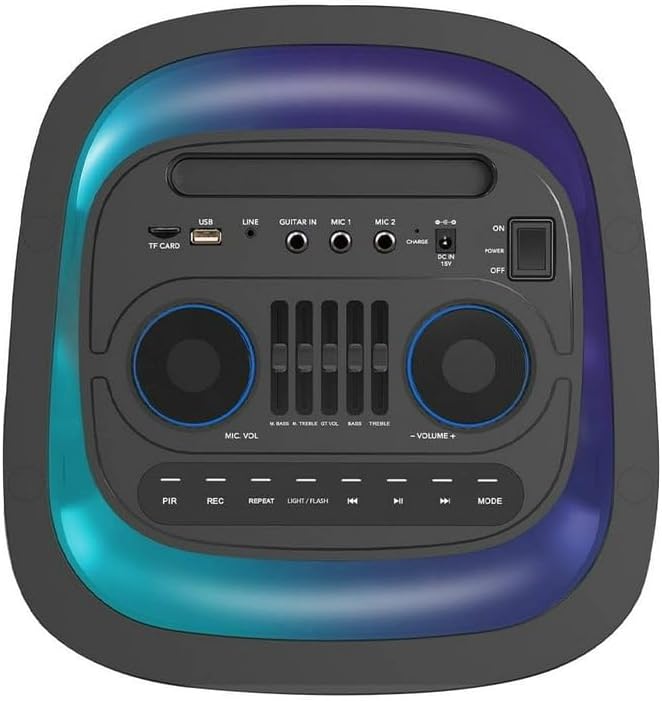
Image 3.1: Detailed view of the control panel.
3.2 Bluetooth Connection
- Power on the speaker. It will automatically enter Bluetooth mode, indicated by 'BLUE' on the display and a blinking Bluetooth icon.
- Enable Bluetooth on your mobile device (smartphone, tablet, etc.).
- Search for available Bluetooth devices and select 'DAEWOO Thunder Plus' from the list.
- Once connected, the speaker will emit a confirmation sound, and 'BLUE' will stop blinking. You can now stream audio from your device.
3.3 True Wireless Stereo (TWS) Pairing
To pair two Daewoo Thunder Plus speakers for TWS stereo sound:
- Ensure both speakers are powered on and in Bluetooth mode, but not connected to any device.
- On one speaker (this will be the master unit), press and hold the 'TWS' button. The speaker will emit a pairing tone.
- The two speakers will automatically search for and connect to each other. A confirmation tone will sound once paired.
- Now, connect your mobile device to the master speaker via Bluetooth as described in section 3.2. Audio will play in stereo across both speakers.
3.4 Using the Microphone (Karaoke)
Connect a wired microphone to the 'MIC 1' or 'MIC 2' input on the control panel. Adjust the 'MIC VOLUME' knob to control the microphone's output level. Use the 'ECHO' knob to add reverberation effects for karaoke. The 'MIC BASS' and 'MIC TREBLE' controls allow for further sound customization.
Video 3.1: Demonstration of speaker controls and karaoke functionality.
Video 3.2: Example of using the speaker for karaoke in a festive setting.
3.5 Auxiliary and USB Playback
- Auxiliary Input: Connect an external audio device (e.g., MP3 player, laptop) to the 'LINE IN' port using a 3.5mm audio cable. Press the 'MODE' button to select 'LINE' input.
- USB/TF Card Playback: Insert a USB flash drive or TF (microSD) card into the respective port. The speaker will automatically detect and begin playing compatible audio files. Use the playback controls (Play/Pause, Next/Previous) to manage your music.
3.6 LED Light Modes
The speaker features dynamic LED lights. Press the 'LIGHT/FLASH' button on the control panel to cycle through different light modes or to turn the lights off. Enjoy various patterns and colors that synchronize with your music.
Video 3.3: Visual demonstration of the speaker's LED lighting effects.
4. Maintenance
Proper care ensures the longevity and performance of your speaker.
- Cleaning: Use a soft, dry cloth to clean the exterior of the speaker. Do not use abrasive cleaners, waxes, or solvents.
- Storage: When not in use for extended periods, store the speaker in a cool, dry place away from direct sunlight and extreme temperatures.
- Battery Care: To maintain battery health, avoid fully discharging the battery frequently. Recharge the battery periodically even if the speaker is not in regular use.
- Water Exposure: This speaker is not waterproof. Avoid exposure to water, rain, or excessive humidity.
5. Troubleshooting
If you encounter issues, refer to the following common solutions:
- No Power: Ensure the power adapter is securely connected and the power switch is ON. Check if the battery is charged.
- No Sound: Verify the volume is turned up on both the speaker and the connected device. Check that the correct input mode (Bluetooth, AUX, USB) is selected.
- Bluetooth Disconnection: Ensure your device is within the speaker's Bluetooth range (typically 10 meters). Disconnect and re-pair the device. Avoid obstacles between the speaker and the device.
- Microphone Not Working: Check microphone connection and ensure 'MIC VOLUME' is adjusted.
- TWS Pairing Failure: Ensure both speakers are in Bluetooth mode and not connected to any other device before initiating TWS pairing.
6. Technical Specifications
| Feature | Specification |
|---|---|
| Model Name | Thunder Plus |
| Speaker Type | Portable Speaker |
| Connectivity Technology | Bluetooth |
| Power Source | Rechargeable Battery |
| Speaker Size | 2x10 inch (main drivers) |
| Maximum Speaker Output Power | 50 Watts |
| Frequency Response | 20 GHz |
| Control Method | Tactile (Buttons/Knobs) |
| Product Dimensions (D x W x H) | 36 x 35 x 86 cm |
| Product Weight | 9 Kilograms |
| Waterproof | No |
| Components Included | Speaker |
7. Warranty and Support
This Daewoo product comes with a limited warranty. Please refer to the warranty card included in your packaging for specific terms and conditions. For technical support, troubleshooting assistance, or warranty claims, please contact Daewoo customer service through their official website or the contact information provided with your purchase.
Keep your purchase receipt as proof of purchase for any warranty-related inquiries.