
1. Introduction
Thank you for choosing the WiMiUS W1 5G WiFi Bluetooth Projector. This manual provides essential information for the safe and efficient operation of your device. Please read it thoroughly before use and retain it for future reference.
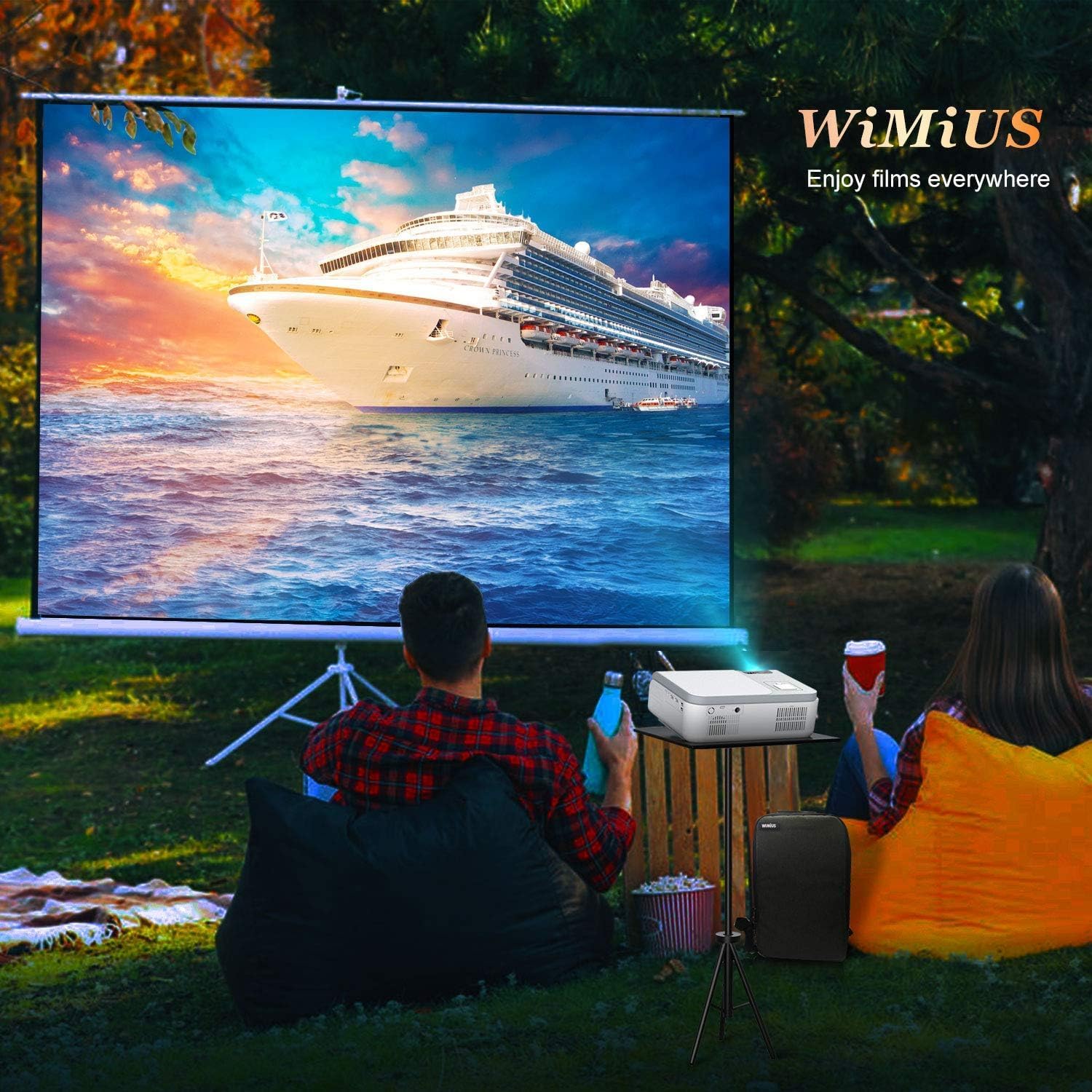
2. Package Contents
Verify that all items are present in the package:
- W1 Projector x 1
- Lens Cover x 1
- Remote Controller x 1
- Power Cable x 1
- 3-in-1 AV Cable x 1
- HDMI Cable x 1
- Cleaning Cloth x 1
- User Manual x 1
- Support Base x 1
- Projector Backpack Bag x 1
3. Product Overview
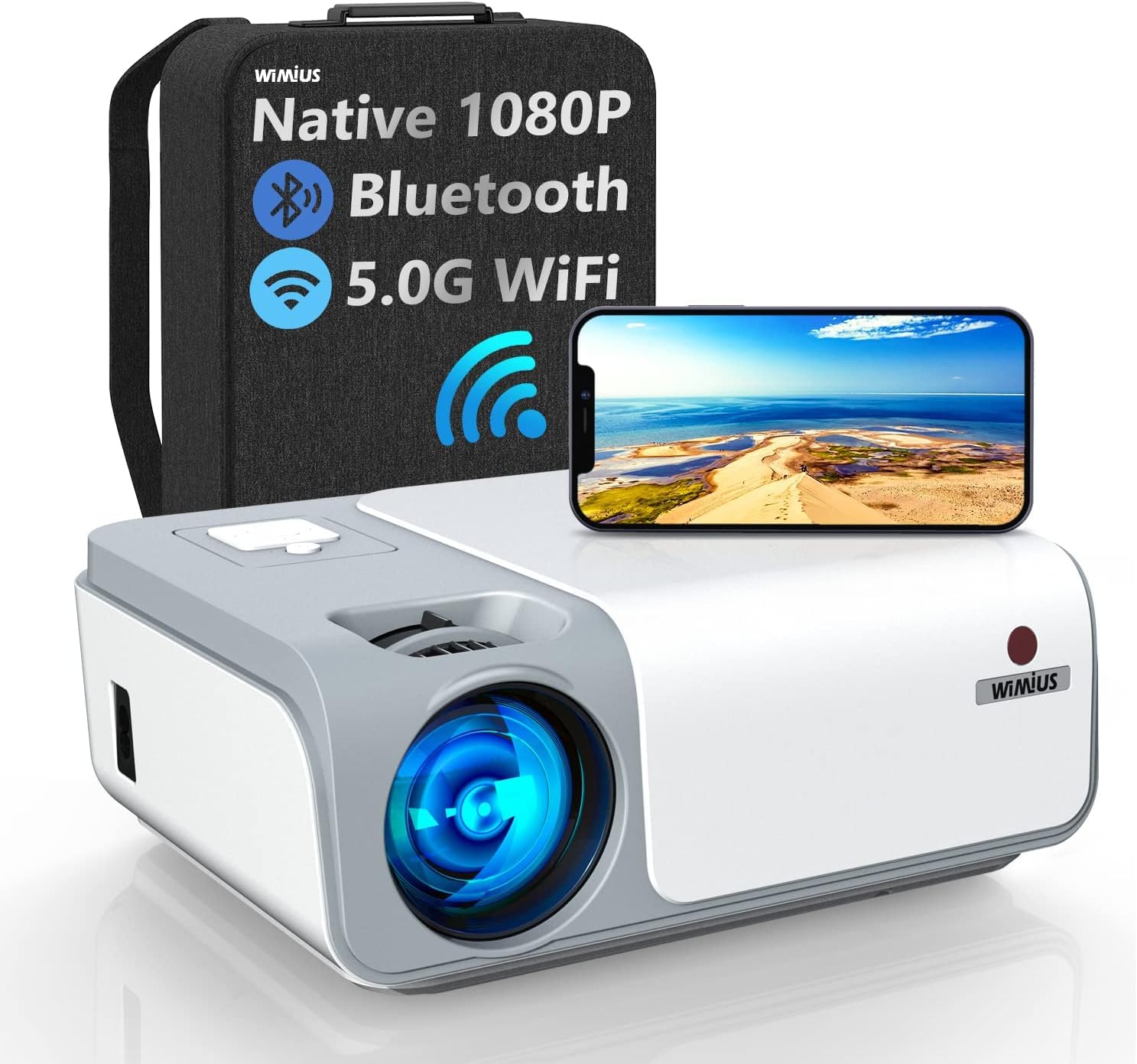
The WiMiUS W1 projector features native 1080P resolution, 5G WiFi, and Bluetooth connectivity. It supports 4K input and offers advanced keystone correction for optimal image display.

4. Setup
4.1 Placement
Position the projector on a stable, flat surface. Ensure adequate ventilation around the device. The projection distance affects the screen size. Refer to the diagram below for recommended distances.

4.2 Power Connection
- Connect the power cable to the projector's power port.
- Plug the other end of the power cable into a power outlet.
- Press the power button on the projector or remote control to turn it on.
4.3 Focus and Keystone Correction
Adjust the focus ring on the projector lens until the image is clear. For trapezoidal images, use the 4D ±50° Electronic Keystone Correction feature to adjust the picture shape vertically and horizontally. This is particularly useful when the projector is not perfectly centered with the screen.
5. Operating Instructions
5.1 Connecting Devices
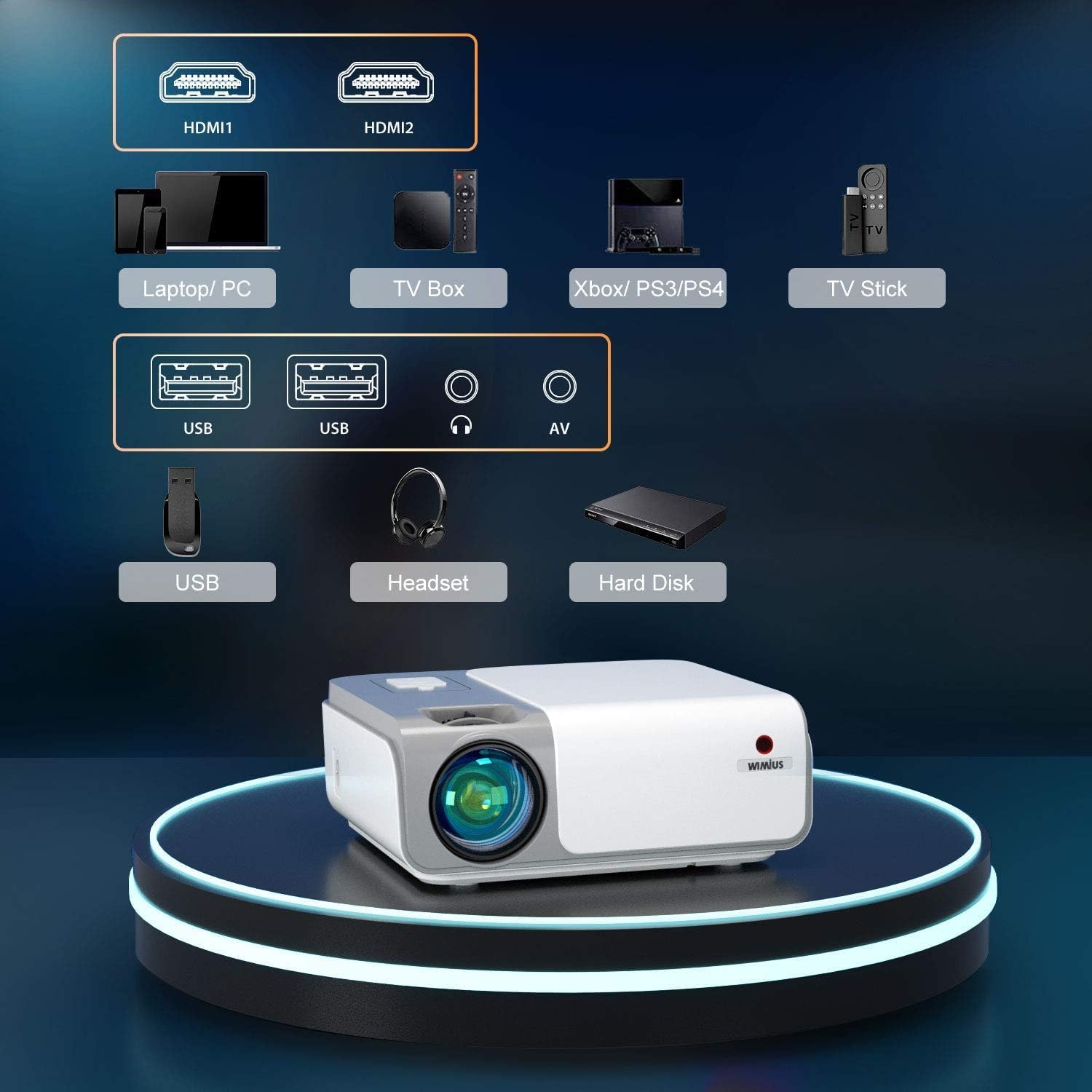
The projector supports various input sources:
- HDMI: Connect laptops, PCs, TV boxes, gaming consoles (PS3/PS4), or TV sticks using an HDMI cable. The projector has two HDMI ports (HDMI1, HDMI2).
- USB: Insert USB drives for media playback.
- AV: Use the provided 3-in-1 AV cable for older devices.
- Audio Out: Connect external speakers or headphones via the 3.5mm audio jack.
5.2 Wireless Connectivity (WiFi)
The projector supports both 2.4G and 5G WiFi for screen mirroring. The 5G WiFi chip provides faster and smoother screen mirroring performance.

5.2.1 iOS Screen Mirroring
To mirror your iPhone screen:
- Open the screen mirroring interface on your projector.
- Connect your iPhone directly to the projector using a Lightning to USB cable.
- Follow the on-screen prompts to complete the connection.
Note: This direct cable connection feature is not supported for Android devices.
5.2.2 Android Screen Mirroring
For Android devices, use the wireless screen mirroring function via WiFi. Ensure both the projector and your Android device are connected to the same WiFi network.
5.3 Bluetooth Connection
The projector can connect to external Bluetooth speakers for enhanced audio. It can also function as a Bluetooth speaker itself.
5.4 Zoom Function
The projector supports a 50% zoom function, allowing you to adjust the screen size without moving the projector.
6. Maintenance
6.1 Lens Cleaning
Use the provided cleaning cloth or a professional lens cleaning kit to gently wipe the projector lens. Avoid using abrasive cleaners or harsh chemicals, as they can damage the lens coating.
6.2 Dust Filter Cleaning
Regularly check and clean the dust filter to ensure proper airflow and prevent overheating. Refer to the projector's physical design for the location of the dust filter cover.
6.3 Storage
When not in use for extended periods, cover the lens with the lens cap and store the projector in a cool, dry place, away from direct sunlight and extreme temperatures. Use the provided backpack bag for protection during storage or transport.
7. Troubleshooting
7.1 No Image or Poor Image Quality
- Check Power: Ensure the projector is powered on and the power cable is securely connected.
- Input Source: Verify that the correct input source (HDMI1, HDMI2, USB, AV) is selected.
- Focus Adjustment: Adjust the focus ring on the lens.
- Keystone Correction: Use the keystone correction feature to adjust image shape.
- Cable Connection: Ensure all video cables are securely connected to both the projector and the source device.
- Resolution: Ensure the source device's output resolution is compatible with the projector (Native 1080P, supports 4K input).

7.2 No Sound
- Volume: Check the volume settings on both the projector and the source device.
- Audio Output: If external speakers are connected, ensure they are powered on and properly connected.
- Bluetooth: If using Bluetooth audio, ensure the projector is correctly paired with the Bluetooth speaker.
7.3 Remote Control Not Working
- Batteries: Replace the batteries in the remote control.
- Line of Sight: Ensure there is no obstruction between the remote control and the projector's IR receiver.
8. Specifications
| Feature | Specification |
|---|---|
| Brand | WiMiUS |
| Model | W1 |
| Native Resolution | 1920 x 1080 (1080P) |
| Supported Resolution | Up to 4K |
| Brightness | 370 ANSI Lumens |
| Contrast Ratio | 10000:1 |
| Aspect Ratio | 16:9 |
| Keystone Correction | 4D ±50° Electronic (Vertical & Horizontal) |
| Zoom Function | 50% |
| WiFi Support | 5G & 2.4G |
| Bluetooth | Yes |
| Hardware Interface | HDMI, USB |
| Connector Type | HDMI |
| Compatible Devices | Laptop, TV Stick, PC, Gaming Consoles |
| Display Type | LED |
| Refresh Rate | 60 Hz |
| Voltage | 110 Volts |
| Wattage | 200 watts |
| Product Dimensions | 26 x 21 x 10.2 cm |
| Item Weight | 2.2 kg |
9. Warranty and Support
9.1 Warranty Information
Please refer to the warranty card included in your package for detailed warranty terms and conditions. Keep your purchase receipt as proof of purchase for warranty claims.
9.2 Customer Support
For technical assistance, troubleshooting, or any inquiries regarding your WiMiUS W1 Projector, please contact our customer support team:
- Email: support@wimius.com


