
Introduction
This manual provides detailed instructions for the installation, operation, and maintenance of your TECXERLLON 9.0'' Wireless Carplay Screen. This device integrates a 4K dash cam, 1080P backup camera, wireless CarPlay, Android Auto, GPS navigation, and screen mirroring functionalities to enhance your driving experience. Please read this manual thoroughly before using the product to ensure proper function and safety.
Package Contents
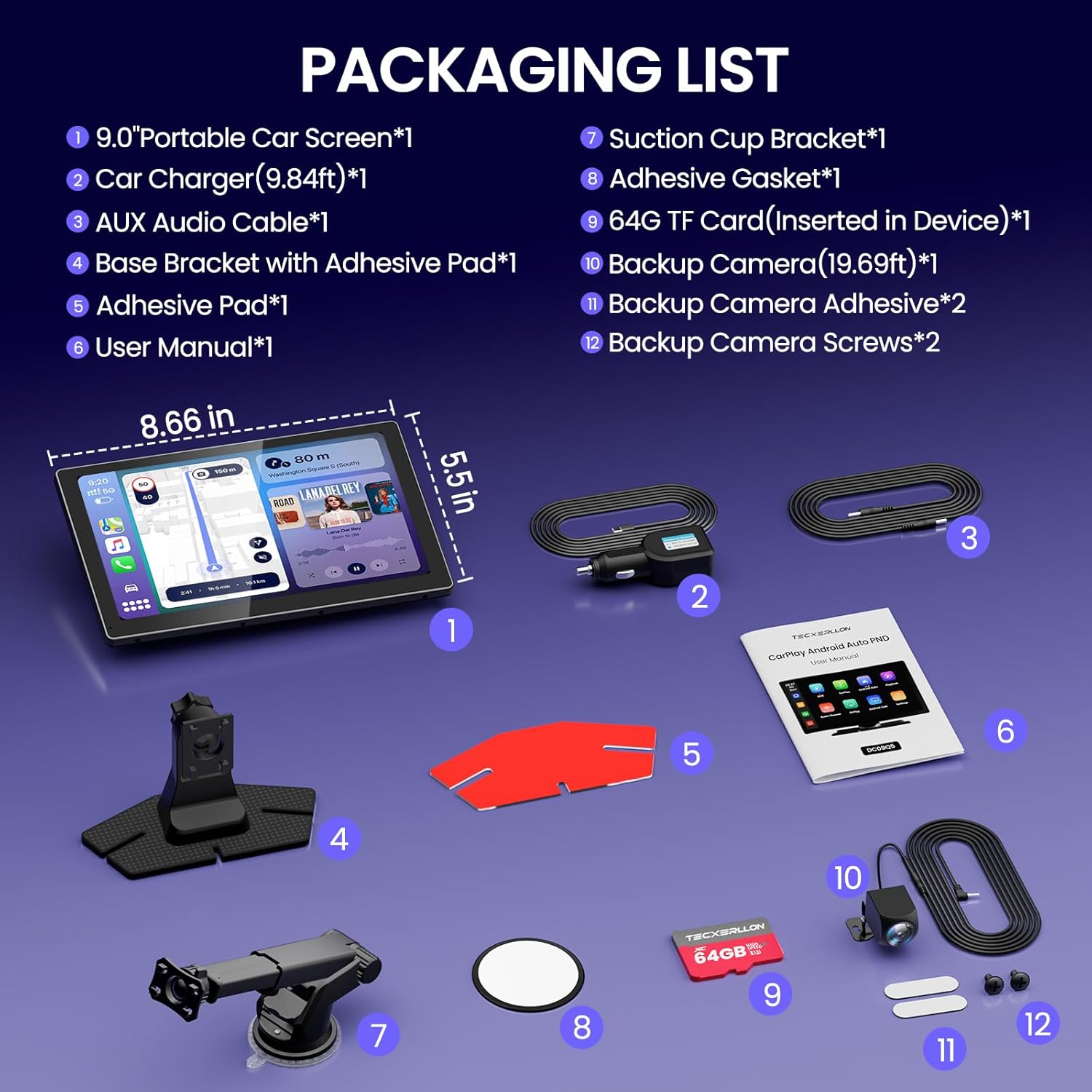
Verify that all items listed below are included in your package:
- Carplay Screen Body with Soft Plastic Base + Suction Mount Bracket
- Backup Camera
- Power Cord
- AUX Cable
- 64G TF Card (Inserted in Device)
- User Manual
- Car Charger (9.84ft)
- Adhesive Pad (for base bracket)
- Adhesive Gasket (for suction cup bracket)
- Backup Camera Adhesive (x2)
- Backup Camera Screws (x2)
Setup and Installation
1. Main Unit Installation
The TECXERLLON Carplay Screen offers multiple mounting options for flexible positioning on your dashboard or windshield. Choose the method that best suits your vehicle and ensures an unobstructed view for safe driving.
- Dashboard Mount (Adhesive Base):
- Adjust the angle of the flexible rubber base bracket.
- Remove the protection film from the adhesive pad.
- Stick the base to a clean, flat area on your dashboard.
- Install the Carplay screen onto the base.
- Windshield Mount (Suction Cup Bracket):
- Clean the desired area on your windshield.
- Peel off the film from the suction cup.
- Press the suction cup firmly against the windshield and press the bar to lock it.
- Adjust the angle and lock the screw for secure positioning.
Important: Ensure the mounting surface is clean and free of debris for optimal adhesion. For suction cup mounts, allow 10 hours for a stronger finish. The device is recommended to be affixed in the center of the dashboard to avoid covering the airbag area.


2. Power Connection
Connect the provided power cord to the device's Type-C port and then plug the car charger into your vehicle's 12V-24V power outlet. The device will power on automatically.
Note: Please use the original power cord of the device for power supply. Non-original power cords may affect the normal use of the product.
3. Backup Camera Installation
The 1080P rearview camera provides a clear, wide-angle view for safer parking. Follow these steps for installation:
- Mount the backup camera at the rear of your vehicle using the provided adhesive and screws.
- Connect the backup camera cable to the AV IN port on the Carplay screen.
- Connect the red wire of the backup camera cable to your vehicle's reverse light power source. This ensures the camera activates automatically when shifting into reverse.
Warning: If you have no experience in vehicle repair/modification or rear camera installation, please seek professional assistance for installation.

Operating Instructions
1. Wireless CarPlay & Android Auto
The device supports both wireless Apple CarPlay and Android Auto. After the initial setup, your smartphone will automatically connect via Bluetooth when you start your car.
- Ensure Bluetooth and Wi-Fi are enabled on your smartphone.
- On the Carplay screen, select either "CarPlay" or "Android Auto" mode.
- Search for the device's Bluetooth name (e.g., MS746_e66fb6) on your phone and pair.
- Confirm any pairing requests on both your phone and the Carplay screen.
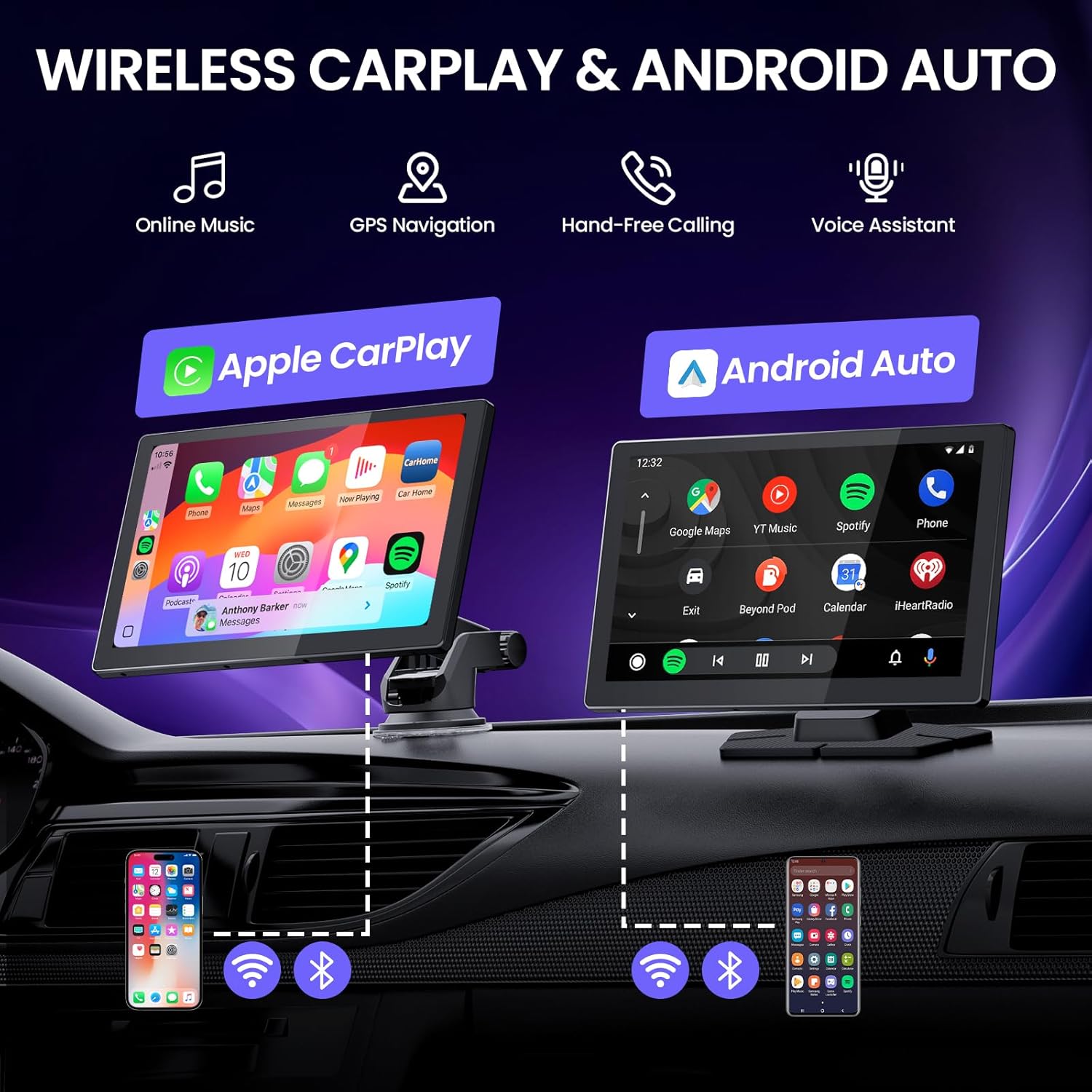
Video: A detailed guide on connecting your smartphone to the TECXERLLON Carplay screen using CarPlay, AirPlay, Android Auto, and Android Cast functionalities.
2. Online Maps & Real-Time GPS Navigation
Once connected via CarPlay or Android Auto, the screen displays real-time maps and supports popular navigation apps like Google Maps and Waze. The system syncs with your smartphone's latest GPS data for up-to-date navigation.

3. High-Quality & Stable Audio Output
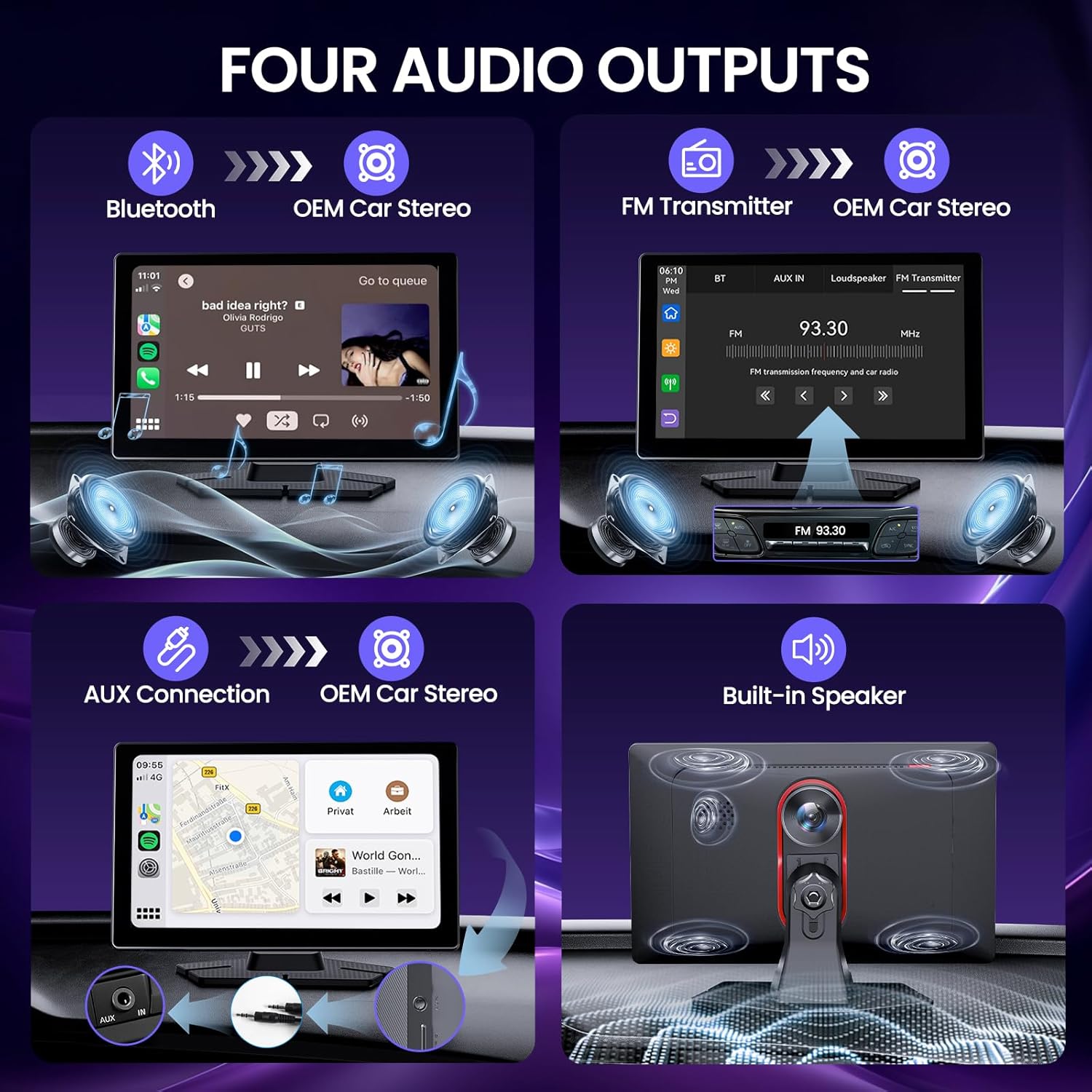
You have several options for audio output:
- Bluetooth: Stream audio wirelessly to your car's stereo speakers for a lossless music experience.
- FM Transmitter: Transmit audio to your car's FM radio by tuning both devices to the same frequency.
- AUX Connection: Use the provided AUX cable to connect the Carplay screen to your car's AUX input.
- Built-in Speaker: The screen features built-in high-quality speakers for direct audio output.
4. Hands-Free Operation (Voice Control)
Utilize Siri or Google Voice Assistant for hands-free control. This allows you to manage navigation, make phone calls, play music, and perform other commands safely while driving.

5. Screen Mirroring Function (Airplay & Android Cast)
The device supports Airplay for iOS and Android Cast for Android, allowing you to mirror your smartphone's screen to the Carplay display. This feature is useful for viewing videos or playing games.
Note: Some apps (e.g., Netflix, YouTube, Apple TV, Amazon Video, ESPN, MLB) may not support mirroring or casting due to licensing or system restrictions.
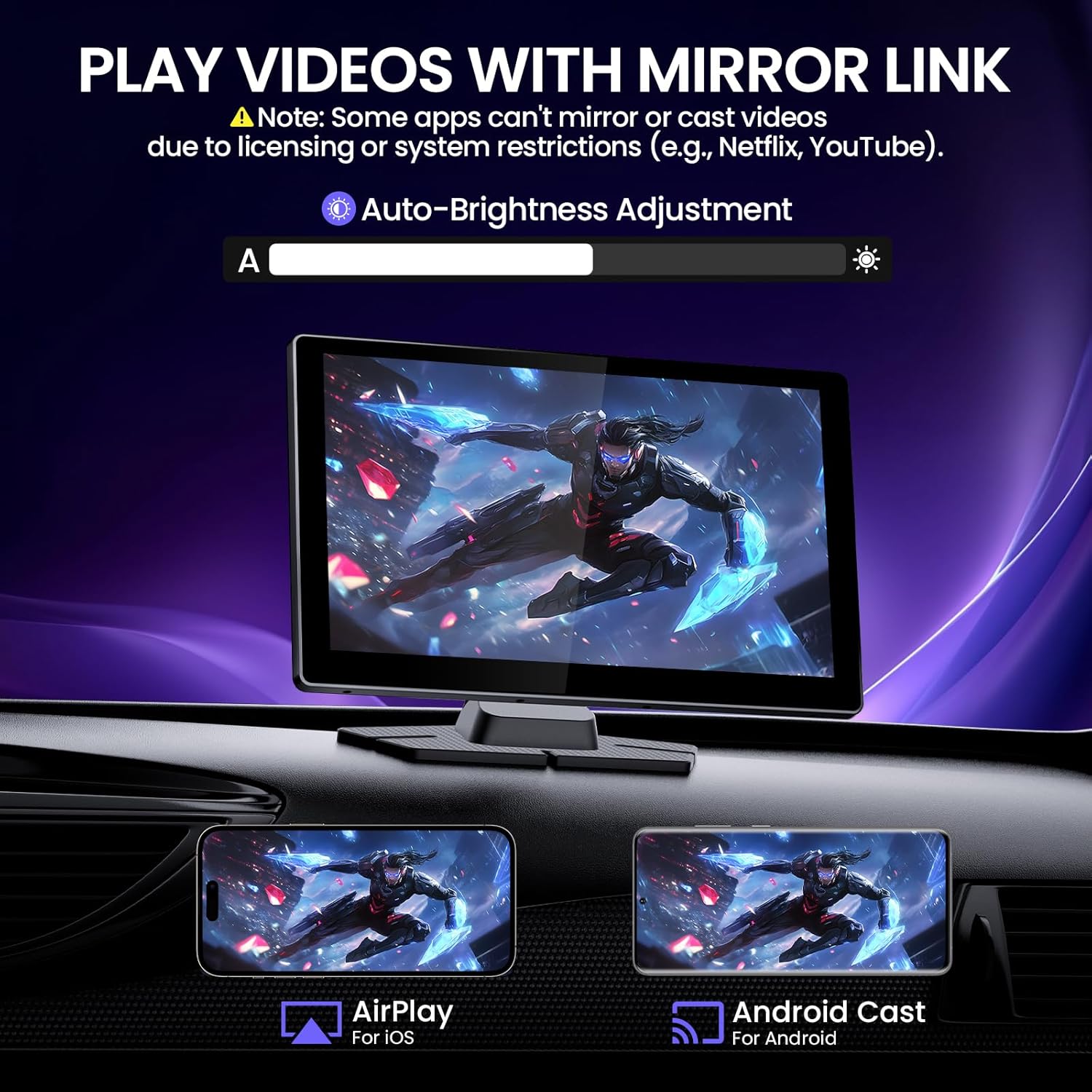
6. Auto-Brightness Adjustment
The Carplay screen features an auto-brightness function that adapts to ambient lighting conditions. This ensures optimal visibility in various light environments, reducing glare and enhancing safety and comfort.
7. Dash Cam & Backup Camera Features
- 4K Dash Cam: Records high-resolution video of the road ahead. Equipped with a built-in G-sensor that automatically detects collisions and locks footage to protect critical evidence.
- 1080P Rearview Camera: Activates instantly when shifting into reverse, providing a clear, wide-angle view with customizable guide lines for precise parking.
- Loop Recording: Ensures continuous recording by overwriting the oldest footage when the memory card is full.
- 64GB TF Card: A 64GB TF card is pre-installed in the device for immediate use and ample storage space.
Maintenance
- Regularly clean the screen with a soft, dry cloth to remove dust and fingerprints.
- Ensure all cable connections are secure to prevent interruptions in power or data transmission.
- Periodically check the mounting bracket for stability, especially if using the suction cup mount, to ensure the device remains securely in place.
- Format the TF card periodically to maintain optimal recording performance and prevent data corruption.
Troubleshooting
| Problem | Solution |
|---|---|
| Device does not power on. | Check if the DC head of the cigarette lighter power cord is damaged or tightly connected. Ensure the fuse of the power plug is connected or turned on. |
| No touch screen operation. | Touch the screen firmly during power-on. Wait for normal power-on before operation. Check whether the touch screen is damaged; do not touch the screen with sharp objects. |
| Rearview camera has no image. | Verify that the AV IN interface is inserted correctly. Check if the camera format matches. |
| CarPlay/Android Auto connection issues. | Only iPhone supports CarPlay. Only Android phones are supported for Android Auto. Check that the Wi-Fi and Bluetooth functions of the mobile phone are normal. Enter Settings->General->CarPlay/Android Auto, delete all records and reconnect. Restart the phone and reconnect it. Update Android Auto and related applications on mobile phone to the latest version. Restart the Android phone and connect again. |
| iOS 26 CarPlay connection issues. | Contact customer support via the email address provided in the instruction manual for a device update file and step-by-step guide. |
Specifications
- Product Dimensions: 1.57 x 8.66 x 5.5 inches
- Item Weight: 2.48 pounds
- Model Number: DC09Q5
- Brand: TECXERLLON
- Model Name: RM
- Vehicle Service Type: All
- Connectivity Technology: Bluetooth, Wi-Fi
- Special Features: Android Auto, Apple CarPlay, GPS Navigation, Hands-Free Calling, Voice Control
- Video Capture Resolution: 1080p (for backup camera, dash cam is 4K)
- Mounting Type: Dashboard Mount
- Color: Black
- Control Method: Touch, Voice
Warranty and Support
TECXERLLON is committed to quality and reliability. For technical services, support, or any issues with your product, please contact our customer support team.
Technical Services: support@texcerllon.com
We offer 24/7 support to assist you with any questions or concerns.