
Introduction
This manual provides detailed instructions for the setup, operation, and maintenance of your Coolaado Bluetooth Mobile Gaming Controller. This wireless gamepad is designed to enhance your mobile gaming experience on iOS, Android, and Windows systems, offering precise control and ergonomic comfort.
Package Contents
- 1x Coolaado Bluetooth Gaming Controller
- 1x User's Manual
- 1x Type-C Charging Cable
Product Overview
Familiarize yourself with the components and features of your Coolaado Mobile Gaming Controller.

Figure 1: Overall view of the Coolaado Bluetooth Mobile Gaming Controller with a smartphone inserted.

Figure 2: Detailed view highlighting the 360° Hall Effect Joysticks, Hall Effect Triggers, Easy Control D-Pad, and colorful illuminated buttons.

Figure 3: The stretchable design supports phones with lengths from 12.8cm to 18.2cm, including those with cases and multi-camera setups.
Setup
Charging the Controller
Before initial use, ensure the controller is fully charged. Connect the included Type-C charging cable to the controller's charging port and a suitable power source. A full charge typically takes 2-3 hours.

Figure 4: The controller features Bluetooth 5.3 connectivity and a 350mAh battery, providing up to 20 hours of gameplay on a 2-3 hour charge.
Connecting to iOS Devices (MFI Mode)
- Locate the mode switch on the side of the controller. Switch it to the "MFI Mode" position.
- Long-press the "Home" button on the controller for 3 seconds to power it on.
- The indicator light on the controller will flash purple, indicating it is in pairing mode.
- On your iOS device, go to Settings > Bluetooth. Turn on Bluetooth.
- In the "Other Devices" list, select "DUALSHOCK 4 Wireless Controller" to connect. Once connected, the indicator light will become solid.
Video 1: Step-by-step guide on connecting the controller to an iPhone in MFI Mode.
Connecting to Android Devices (HID Mode)
- Locate the mode switch on the side of the controller. Switch it to the "HID Mode" position.
- Long-press the "Home" button on the controller for 3 seconds to power it on.
- The indicator light on the controller will flash green, indicating it is in pairing mode.
- On your Android device, go to Settings > Bluetooth. Turn on Bluetooth.
- In the "Available devices" list, select "D3S-HID" to connect. Once connected, the indicator light will become solid.
Video 2: Step-by-step guide on connecting the controller to an Android phone in HID Mode.
Operating Instructions
Adjustable TURBO Function
The controller features an adjustable TURBO function with three speed levels. This allows for rapid, repeated input of a button press, which can be beneficial in certain games. Refer to the in-game settings or controller-specific instructions for activating and adjusting TURBO speeds.
Dual Vibration Feedback
Built-in dual-vibration motors provide tactile feedback during gameplay, enhancing immersion. This feature is automatically active when supported by the game and platform.

Figure 5: Visual representation of the adjustable TURBO speeds and dual vibration features.
Programmable M1/M2 Buttons
The back of the controller includes two programmable buttons, M1 and M2. These buttons can be mapped to perform up to 12 different button combinations or macro commands, allowing for personalized control schemes. Consult the controller's advanced settings or accompanying software (if applicable) for detailed programming instructions.

Figure 6: Location of the M1/M2 programmable buttons for custom macro assignments.
Supported Gaming Platforms
The controller supports various popular gaming platforms, including Mobile Gaming, PS Remote Play, Xbox Cloud, and Steam Link. It is compatible with a wide range of games such as Call of Duty, Roblox, and Minecraft.
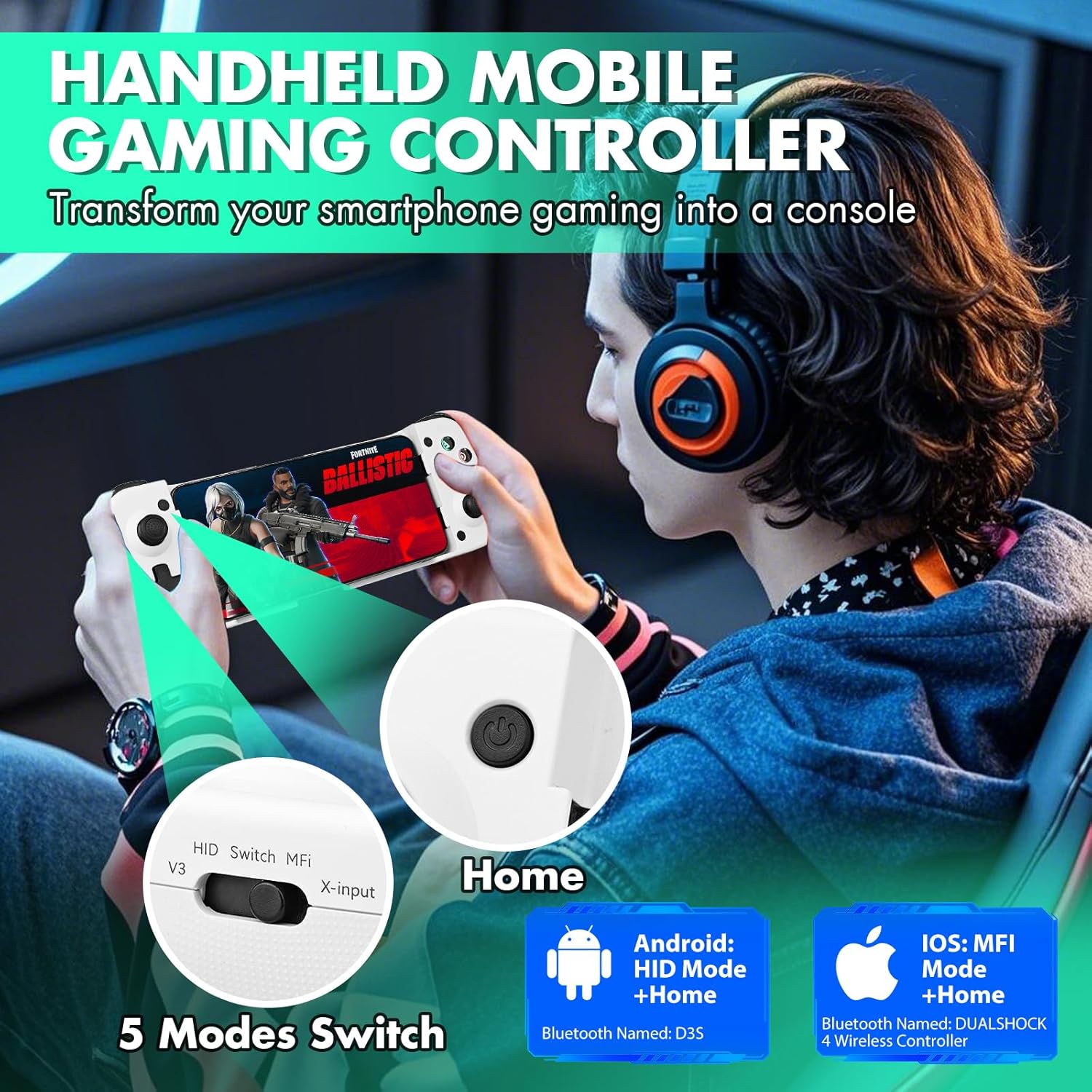
Figure 7: The controller is compatible with multiple gaming platforms and popular mobile titles.
Maintenance
To ensure the longevity and optimal performance of your controller, follow these maintenance guidelines:
- Cleaning: Use a soft, dry cloth to clean the surface of the controller. Avoid using harsh chemicals or abrasive materials.
- Storage: Store the controller in a cool, dry place away from direct sunlight and extreme temperatures.
- Battery Care: Do not expose the battery to high temperatures or attempt to disassemble it. Charge the controller regularly, even if not in frequent use, to maintain battery health.
Troubleshooting
If you encounter issues with your Coolaado Mobile Gaming Controller, refer to the following common problems and solutions:
- Controller does not power on:
Ensure the controller is fully charged. Connect it to a power source using the Type-C cable and allow it to charge for at least 30 minutes before attempting to power on again. - Unable to pair via Bluetooth:
Verify that the mode switch on the controller is set to the correct position for your device (MFI for iOS, HID for Android). Long-press the Home button to enter pairing mode (purple light for iOS, green light for Android). On your phone, try forgetting the controller from your Bluetooth device list and then re-scanning and pairing. Ensure your phone's Bluetooth is enabled. - Buttons or joysticks are unresponsive:
Check if the controller is properly connected to your device. If connected, try restarting both the controller and your device. Ensure the game you are playing supports external controllers. - Connection drops frequently:
Ensure there are no significant obstructions between the controller and your device. Move closer to your device to minimize interference. Check for other active Bluetooth devices that might be causing interference. - Controller shuts off unexpectedly:
The controller has an automatic power-off feature after 5 minutes of inactivity to save power. If it shuts off during active use, ensure the battery is sufficiently charged.
Specifications
| Model Number | 41c26a51-e722-414e-8e4a-216b8556d0d4 |
| Connectivity | Bluetooth 5.3 EDR/BLE |
| Battery Capacity | 350mAh Lithium Ion (included) |
| Charging Time | 2-3 hours |
| Play Time | Up to 20 hours |
| Standby Time | Up to 60 days |
| Supported Phone Length | 12.8cm - 18.2cm |
| Weight | 8.8 ounces |
| Dimensions (Package) | 8.46 x 3.54 x 1.93 inches |
Warranty and Support
For warranty information or technical support, please refer to the contact details provided with your purchase or visit the official Coolaado website. Keep your purchase receipt as proof of purchase for any warranty claims.