
1. Introduction
This manual provides detailed instructions for the setup, operation, and maintenance of your MAONO DM40 Pro Wireless Condenser USB Microphone. Please read this manual thoroughly before using the product to ensure optimal performance and longevity.
2. Package Contents
Verify that all items listed below are included in your package:
- DM40 Pro Gaming Microphone with Base Stand
- Shock Mount and Pop Filter
- USB-C Connector (Wireless Receiver)
- USB-A Adapter
- 2-in-1 Charging/Audio Cable
- User Manual (this document)

Image: Contents of the MAONO DM40 Pro package. This includes the microphone, its base stand, a shock mount, a pop filter, a USB-C wireless receiver, a USB-A adapter, and a 2-in-1 charging/audio cable.
Video: An unboxing video for the DM40 Pro wireless microphone, demonstrating the items included in the package and their initial presentation.
3. Product Overview
The MAONO DM40 Pro is a versatile wireless condenser microphone designed for various applications including gaming, streaming, and podcasting. It features a 16mm capsule for broadcast-quality sound, AI voice change capabilities, 3-level noise cancellation, customizable RGB lighting, and flexible connectivity options.

Image: The MAONO DM40 Pro microphone in use, highlighting its broadcast-quality audio with 48kHz/24bit sampling, a 16mm capsule, and EQ adjustment capabilities.
Key Features:
- Wireless Connectivity: Offers freedom of movement with a USB-C wireless receiver.
- Long Battery Life: Up to 75 hours of usage on a single charge.
- One-tap Noise Cancellation: Three preset levels (Low, Medium, High) and customizable noise reduction.
- AI Voice Change: 10 different AI voice-changing modes for creative expression.
- Broadcast-Quality Sound: Delivers clear, precise audio with a 16mm condenser capsule.
- Customizable RGB Lighting: Over 16 million configurable colors to personalize your setup.
- Easy Controls: Integrated mute, gain, and monitoring features directly on the microphone.
- Maono Link App: Software for advanced control over settings, EQ, AI voice changers, and RGB.
- Wide Compatibility: Plug-and-play with PC, Mac, laptops, phones, PS4, and PS5.
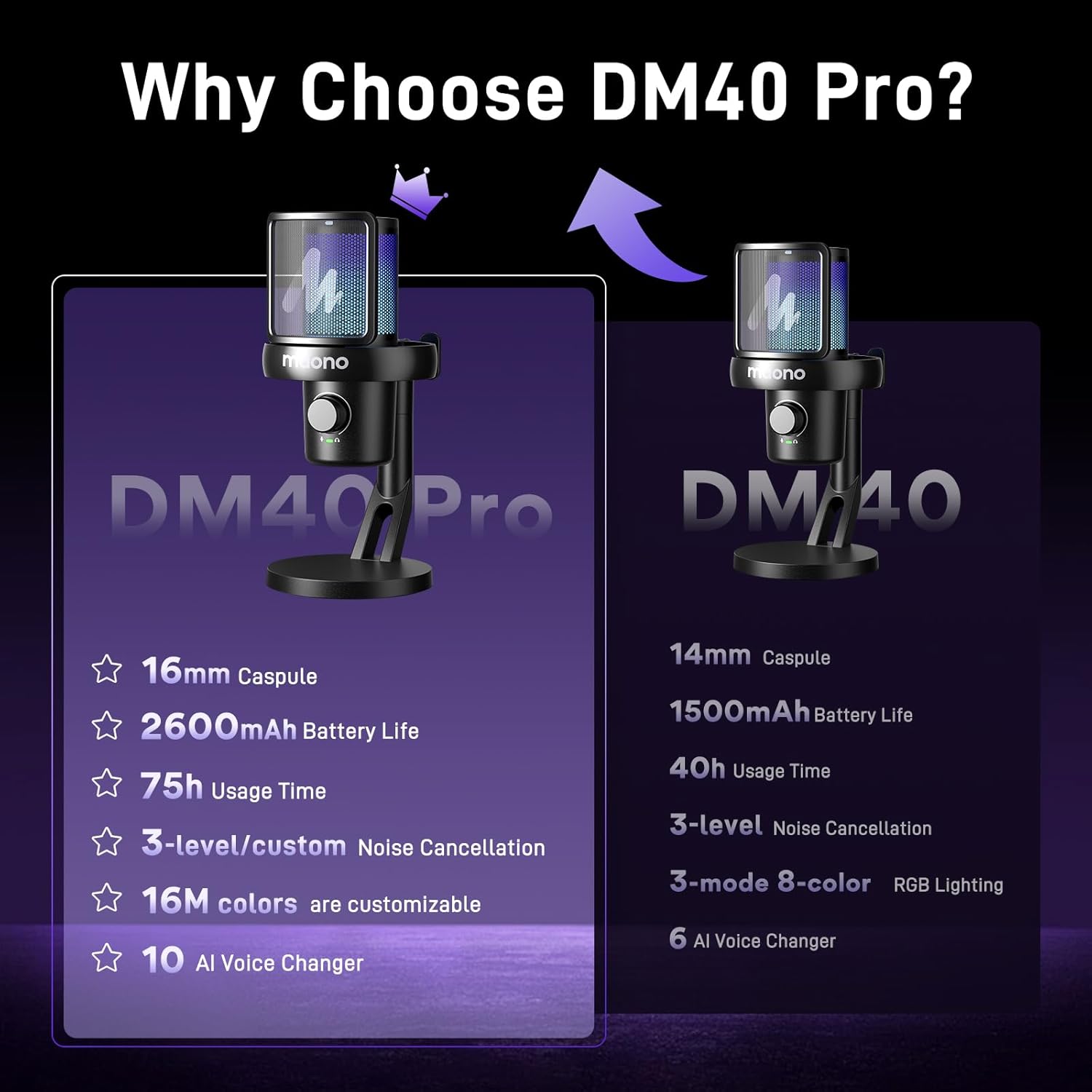
Image: A comparison chart detailing the differences between the MAONO DM40 Pro and the standard DM40 model, focusing on technical specifications and features.

Image: The MAONO DM40 Pro microphone in a wireless setup, emphasizing its freedom from cables, 75-hour battery life, and low latency for an optimized user experience.
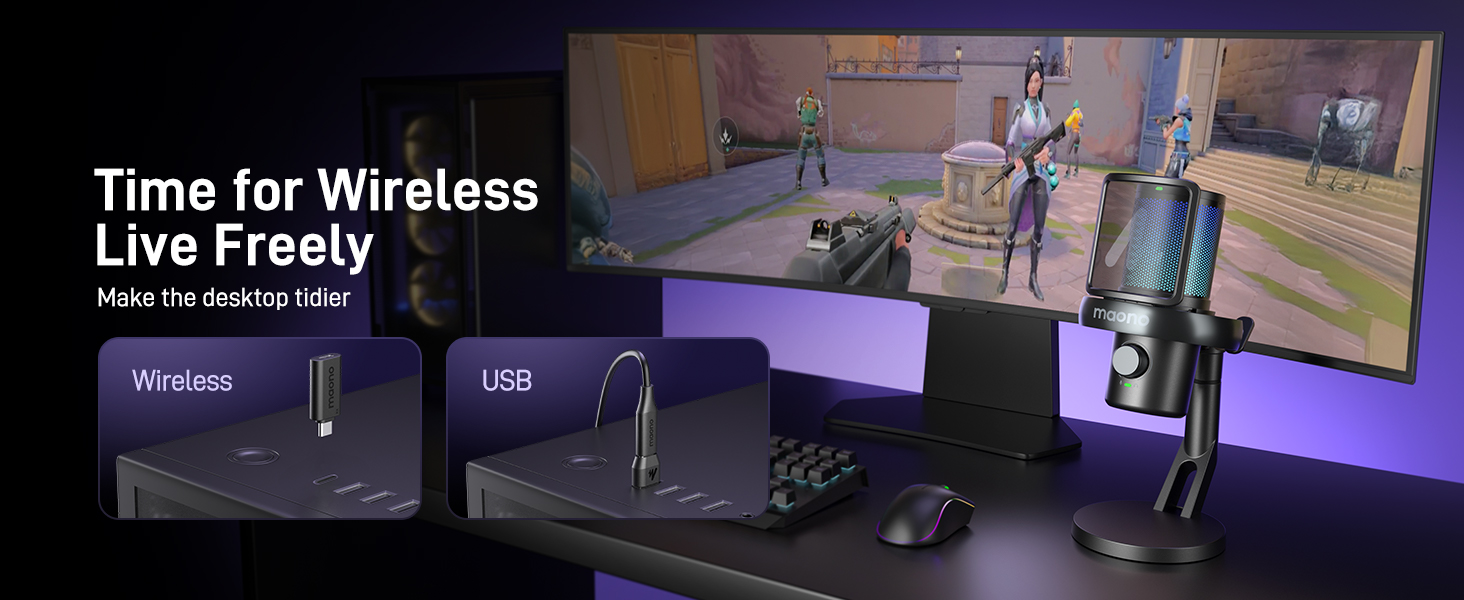
Image: A visual representation of the microphone's zero-latency transmission, indicating a rapid 0.02-second response time for real-time audio processing.
4. Setup
4.1 Initial Assembly
- Attach the shock mount to the microphone.
- Secure the pop filter to the shock mount.
- Mount the microphone assembly onto the base stand.
- Ensure all connections are firm.
4.2 Connecting to Your Device
The DM40 Pro offers both wireless and wired connectivity.
- Wireless Connection:
- Plug the USB-C wireless receiver directly into a USB-C port on your computer, console (PS4/PS5), or mobile device.
- If your device only has USB-A ports, use the provided USB-A adapter with the USB-C wireless receiver.
- Power on the microphone. The device should automatically recognize the microphone.
- Wired Connection:
- Connect the 2-in-1 Charging/Audio Cable to the USB-C port on the microphone.
- Connect the other end of the cable to a USB-A or USB-C port on your device.
- The device should automatically recognize the microphone.
4.3 System Sound Settings (Mac Example)
For Mac users, configure your system sound settings as follows:
- Open "System Settings" on your Mac.
- Navigate to "Sound."
- Under the "Output" tab, select "Maono DM40 Mic USB" as the output device.
- Under the "Input" tab, select "Maono AI Microphone" as the input device.
Video: A detailed guide on configuring Mac system sound settings for the MAONO DM40 microphone, including steps for output and input device selection.
5. Operating Instructions
5.1 Microphone Controls
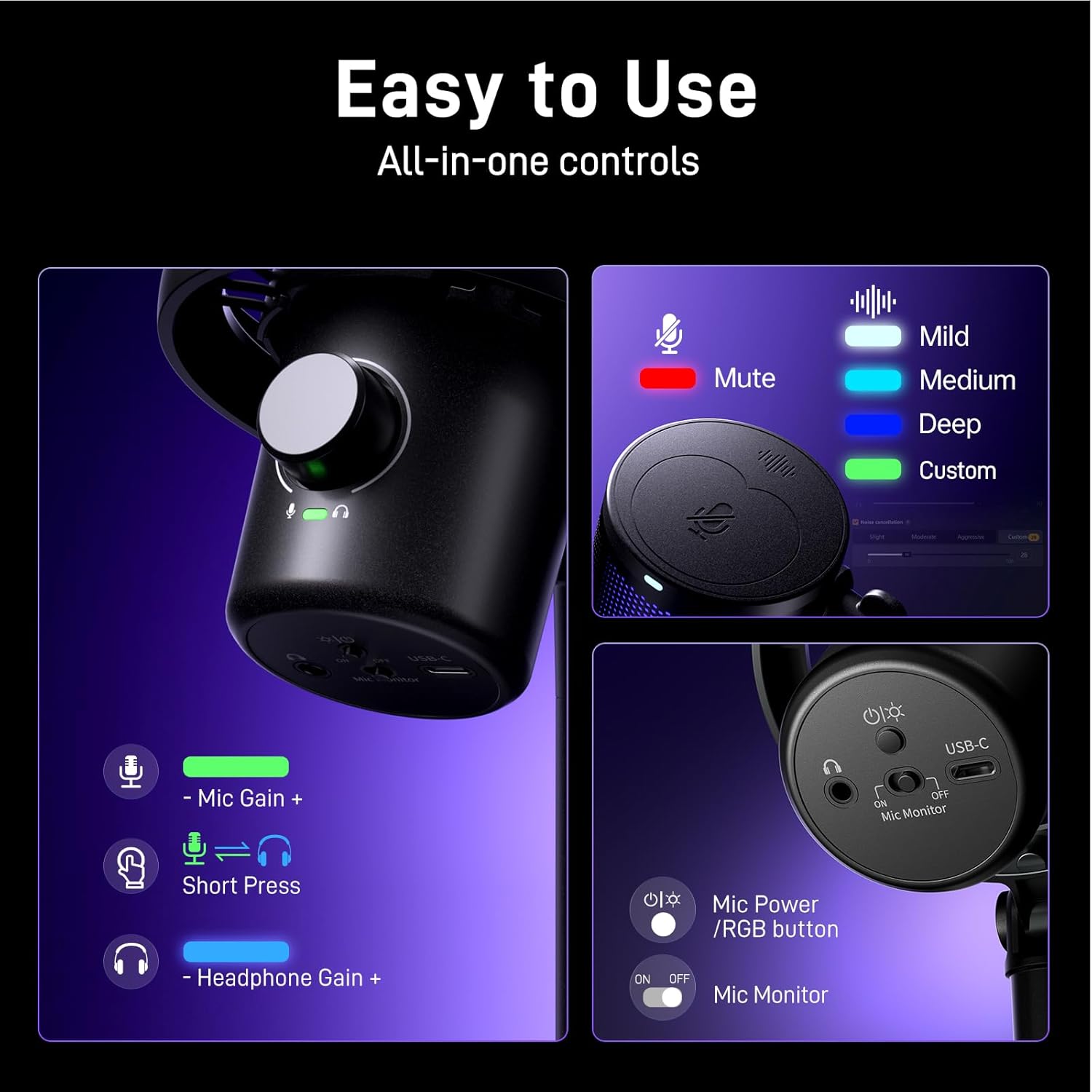
Image: Detailed view of the MAONO DM40 Pro's integrated controls, including the mute function, microphone gain, headphone gain, power/RGB button, and mic monitor switch.
- Mute Button: Tap the top of the microphone to instantly mute/unmute. An indicator light will show the mute status.
- Mic Gain Knob: Rotate the knob on the front to adjust the microphone's input sensitivity (gain).
- Headphone Gain: Short press the mic gain knob to switch to headphone gain adjustment, then rotate to control headphone volume.
- Mic Power/RGB Button: Press to power on/off. Short press to cycle through RGB lighting modes.
- Mic Monitor Switch: Toggle the switch on the bottom to turn real-time monitoring on or off.
5.2 Noise Cancellation
The DM40 Pro features a one-tap noise cancellation button with four preset levels: Low, Medium, High, and a customizable noise level. This helps to filter out background sounds like fans, air conditioners, and keyboard clicks.
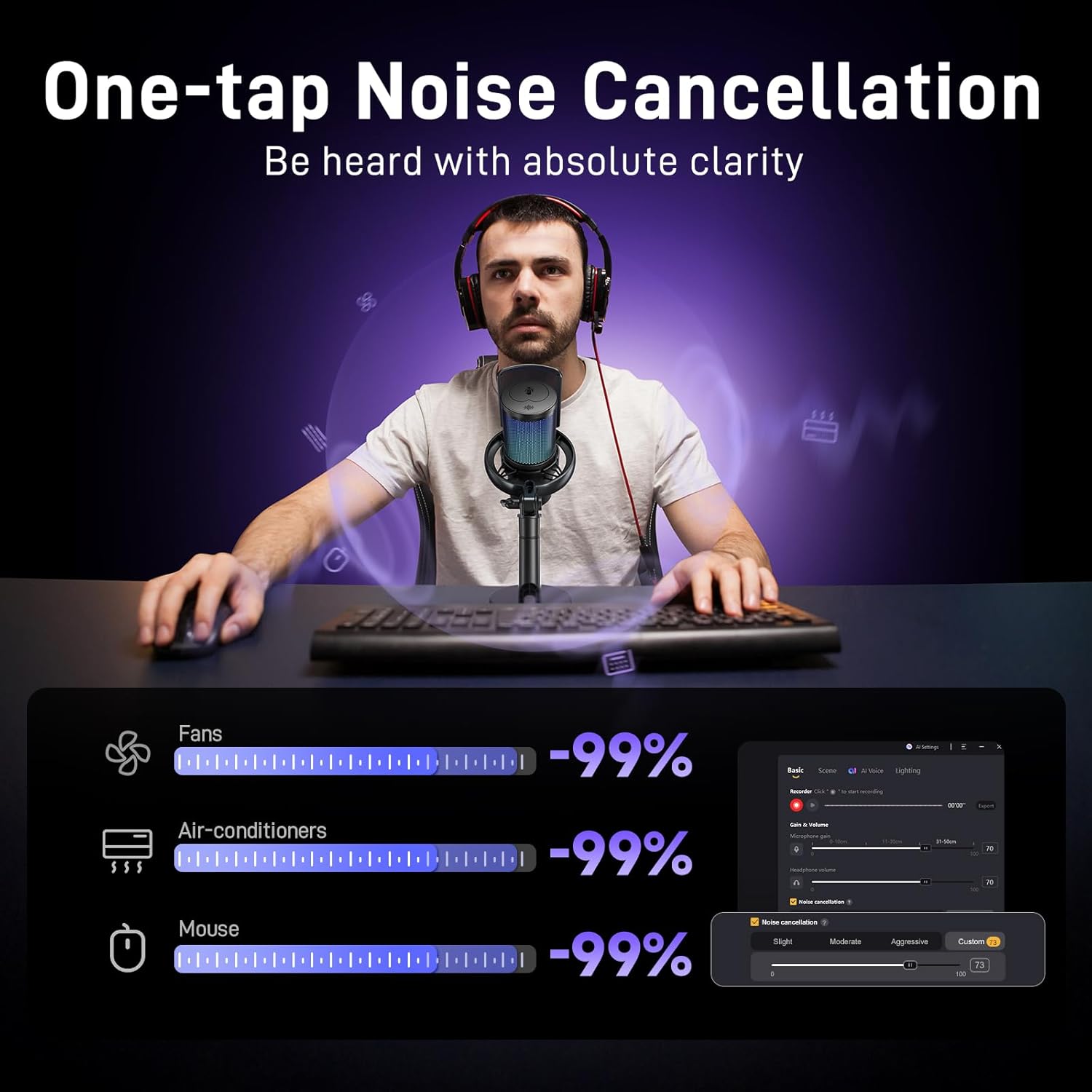
Image: The microphone's one-tap noise cancellation feature, illustrating its effectiveness in reducing common background noises such as fans, air conditioners, and mouse clicks, with an accompanying software interface for fine-tuning.
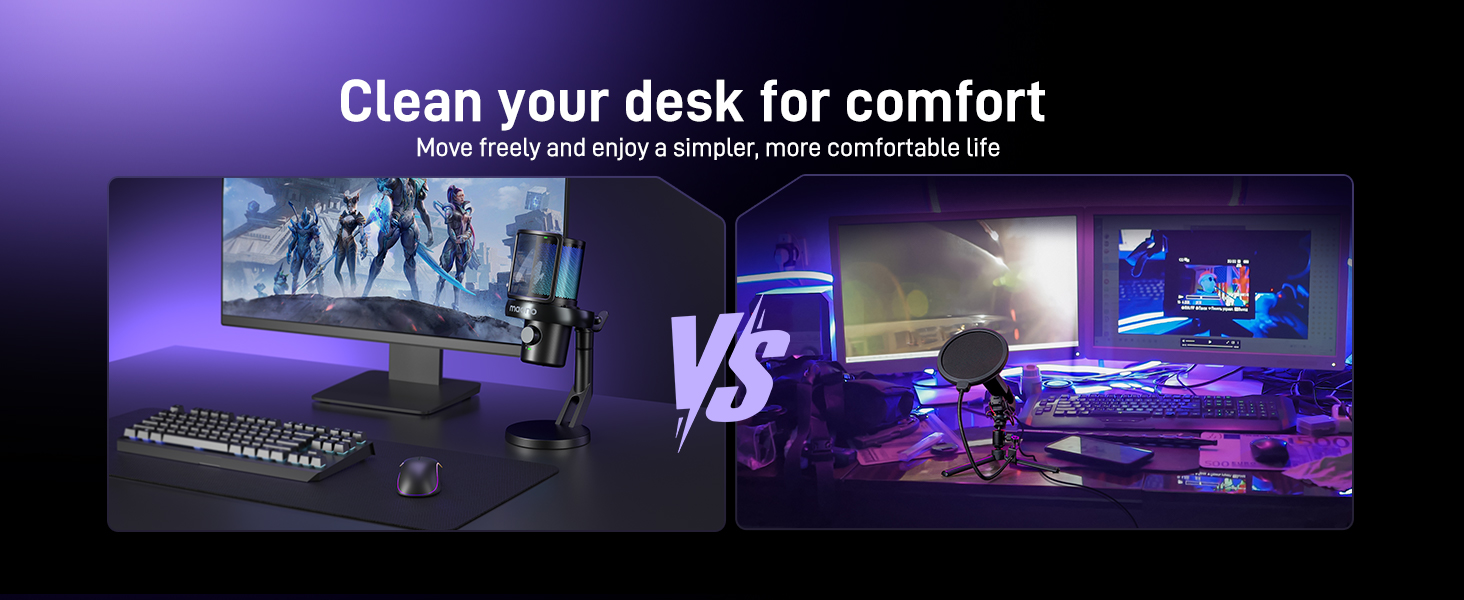
Image: The custom noise cancellation interface within the Maono Link software, providing options for slight, moderate, aggressive, and custom noise reduction levels via adjustable sliders.
5.3 AI Voice Change
Transform your voice with 10 exciting AI voice-changing modes. These modes can be accessed and selected via the Maono Link software.

Image: The AI Voice Change feature of the MAONO DM40 Pro, illustrating how a user's voice can be transformed into different character voices using the microphone's software.
5.4 RGB Lighting
The microphone features over 16 million configurable colors. You can adjust the lighting to match your mood or environment directly from the microphone or through the Maono Link app.

Image: The MAONO DM40 Pro microphone displaying its 16 million configurable RGB colors, with vibrant light effects enhancing a gaming or streaming setup.
6. Maono Link Software
The Maono Link app provides comprehensive control over your DM40 Pro microphone. It allows you to manage various settings and features from your computer.
6.1 Enabling AI Voice Changer
- Ensure the microphone is not muted and your Maono Link account is logged in.
- Click "AI Settings" in the top-right corner of the Maono Link settings interface.
- Turn on "AI voice changer" and "Hear-Self."
- Click "AI Voice" to access the voice-changing models.
- Select any of the 10 different AI models to switch and use them.
6.2 EQ Adjustment and Scene Presets
The software allows for detailed EQ adjustments to tailor your sound. You can also utilize multi-scene presets for quick switching between different audio configurations for gaming, vlogging, or voiceovers.
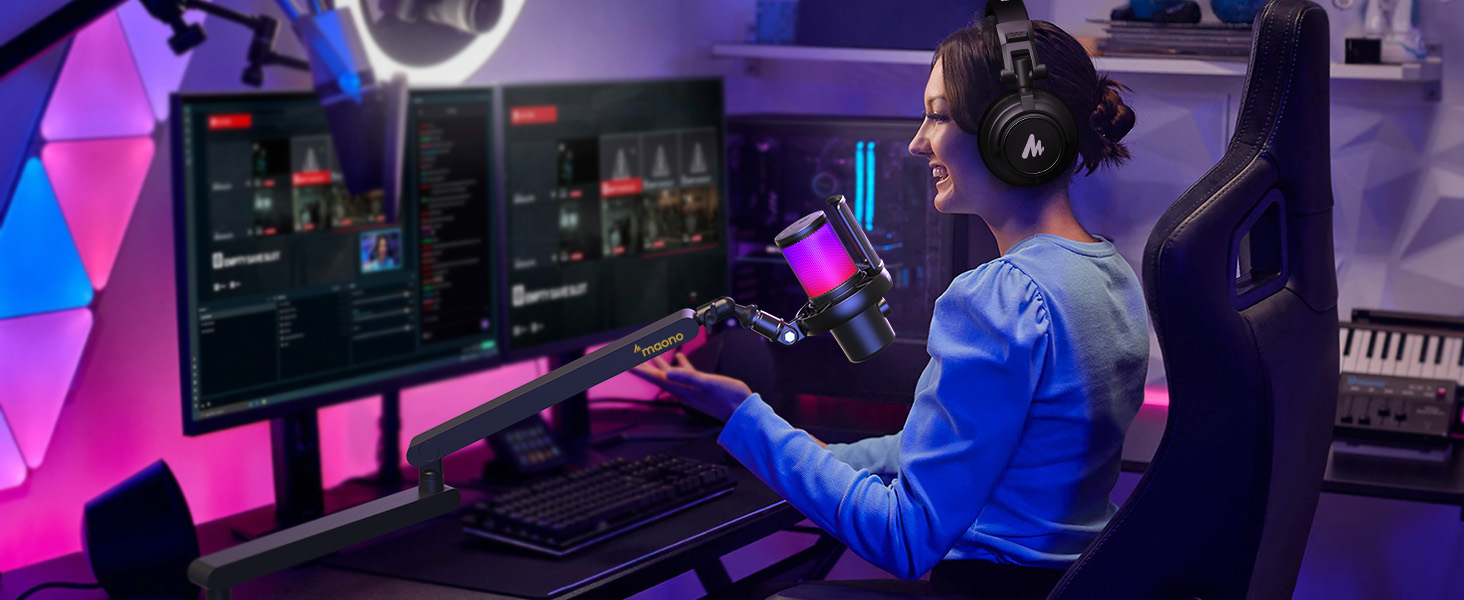
Image: The Maono Link software displaying multi-scene presets, allowing users to quickly switch between optimized audio settings for different activities like gaming, vlogging, and live streaming.
7. Compatibility
The MAONO DM40 Pro is designed for broad compatibility, offering plug-and-play functionality with a variety of devices and platforms:
- Computers: PC, Laptops, Desktops (Windows, Mac OS)
- Gaming Consoles: PlayStation 4 (PS4), PlayStation 5 (PS5)
- Mobile Devices: Smartphones, Tablets
- Streaming Platforms: Twitch, YouTube
- Communication Software: Discord, OBS (Open Broadcaster Software)
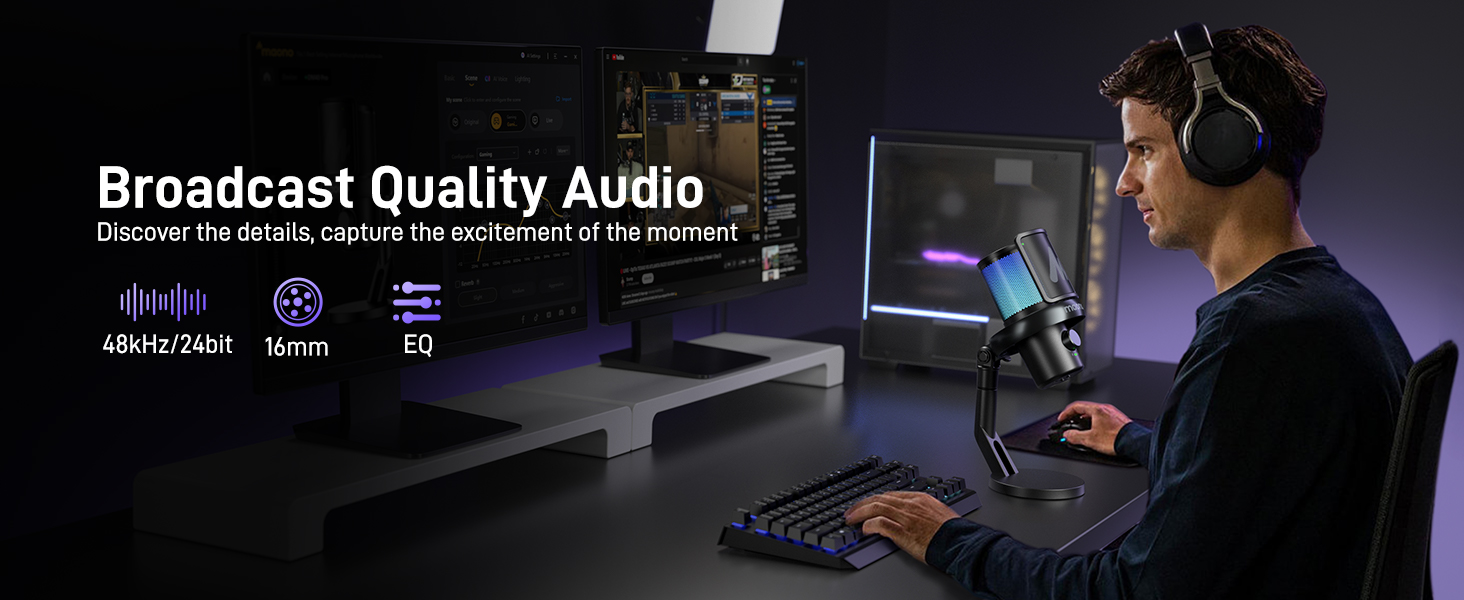
Image: The MAONO DM40 Pro demonstrating its wide compatibility by connecting to multiple platforms such as computers, laptops, smartphones, and gaming consoles.
8. Specifications
| Model Name | DM40 Pro Wireless Microphone |
| Microphone Form Factor | Handheld |
| Polar Pattern | Unidirectional |
| Connectivity Technology | Wireless USB/USB C |
| Audio Sensitivity | 3 Decibels |
| Frequency Response | 20 KHz |
| Signal-to-Noise Ratio | 73 dB |
| Power Source | Battery Powered, Corded Electric |
| Battery Type | Lithium Ion (1 C battery included) |
| Material | Metal, Plastic |
| Item Weight | 1.72 pounds |
| Compatible Devices | Gaming Console (PS5, PS4), Laptop, PC, Computer, Tablet, Desktop, Smartphone |
9. Troubleshooting
- No Sound Output:
- Ensure the microphone is powered on and not muted.
- Check that the wireless receiver is securely plugged into your device.
- Verify that the correct input/output device is selected in your system's sound settings (e.g., "Maono AI Microphone" for input).
- Test with both wireless and wired connections to isolate the issue.
- Background Noise:
- Activate the one-tap noise cancellation feature.
- Adjust the noise cancellation levels in the Maono Link software.
- Ensure the microphone is positioned correctly, facing away from noise sources.
- AI Voice Changer Not Working:
- Confirm that the Maono Link software is running and you are logged in.
- Check that "AI voice changer" and "Hear-Self" are enabled in the AI Settings within the software.
- Ensure "Maono AI Microphone" is selected as the input device in your application (e.g., Discord, OBS).
- RGB Lights Not Changing:
- Short press the Mic Power/RGB button to cycle through modes.
- Use the Maono Link software to customize and apply RGB settings.
10. Warranty and Support
MAONO products are designed and manufactured to the highest quality standards. For warranty information, technical support, or service inquiries, please refer to the official MAONO website or contact their customer support directly. Keep your purchase receipt as proof of purchase for warranty claims.
Online Resources:
- Official MAONO Website: www.maono.com
- Product Support Page: Refer to the specific product page on the MAONO website for FAQs and additional resources.


