
1. Introduction
Thank you for choosing the AUSDOM Hola 87 Wireless Mechanical Gaming Keyboard. This manual provides detailed instructions for setting up, operating, and maintaining your new keyboard. Please read this manual thoroughly before use to ensure optimal performance and longevity of your device.
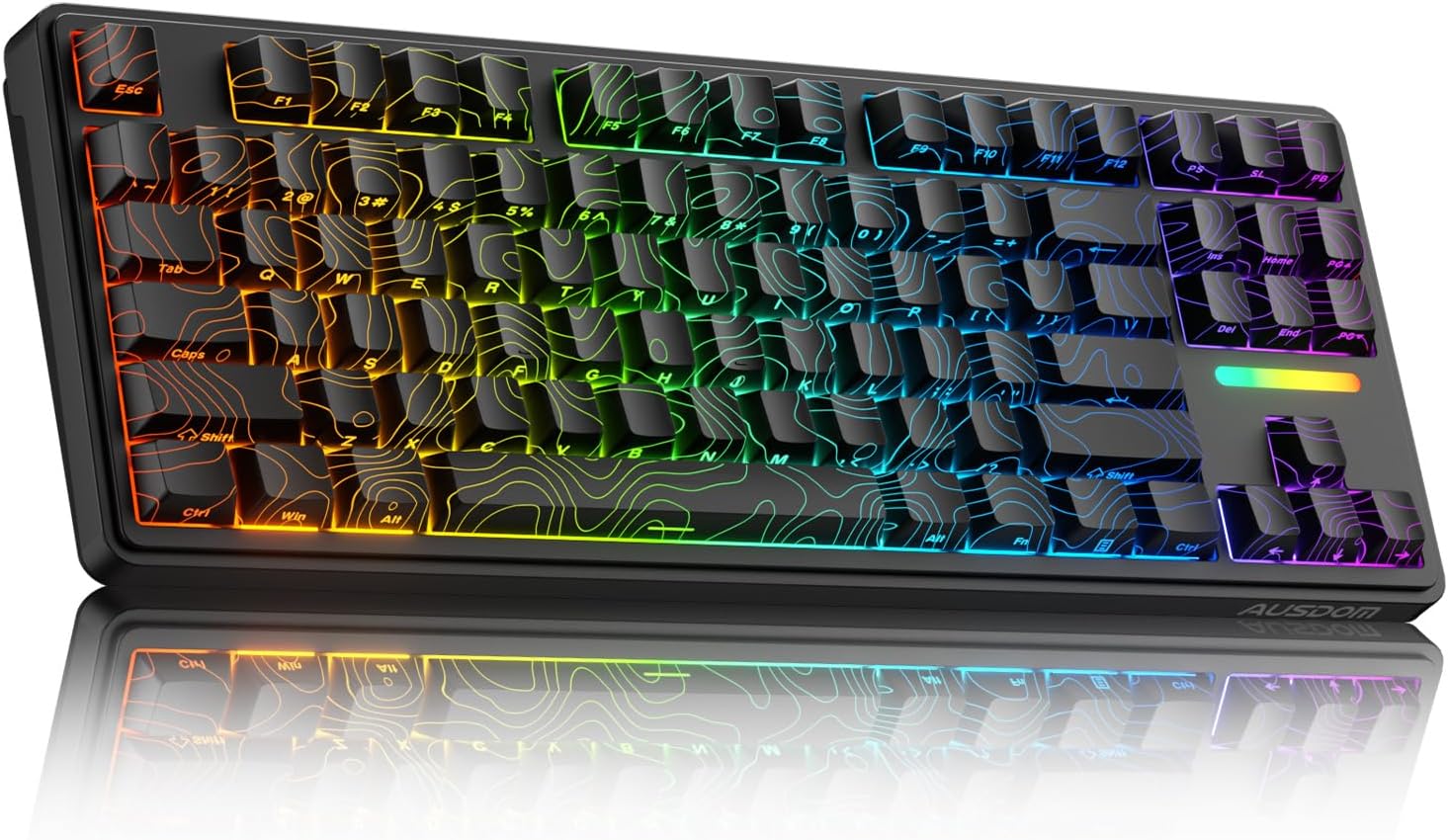
Figure 1: AUSDOM Hola 87 Wireless Mechanical Gaming Keyboard
2. Package Contents
Ensure all items are present in the package:
- 1 x Hola 87 10000mAh Topographic Mechanical Keyboard
- 1 x USB Cable (Type-C to USB-A)
- 1 x Switch and Keycaps Puller
- 2 x Mechanical Shaft Body (Spare Switches)
- 1 x Quick Guide (User Manual)

Figure 2: Package Contents
3. Product Overview
The AUSDOM Hola 87 keyboard is designed for versatility and performance, featuring advanced connectivity options, a durable build, and customizable aesthetics.
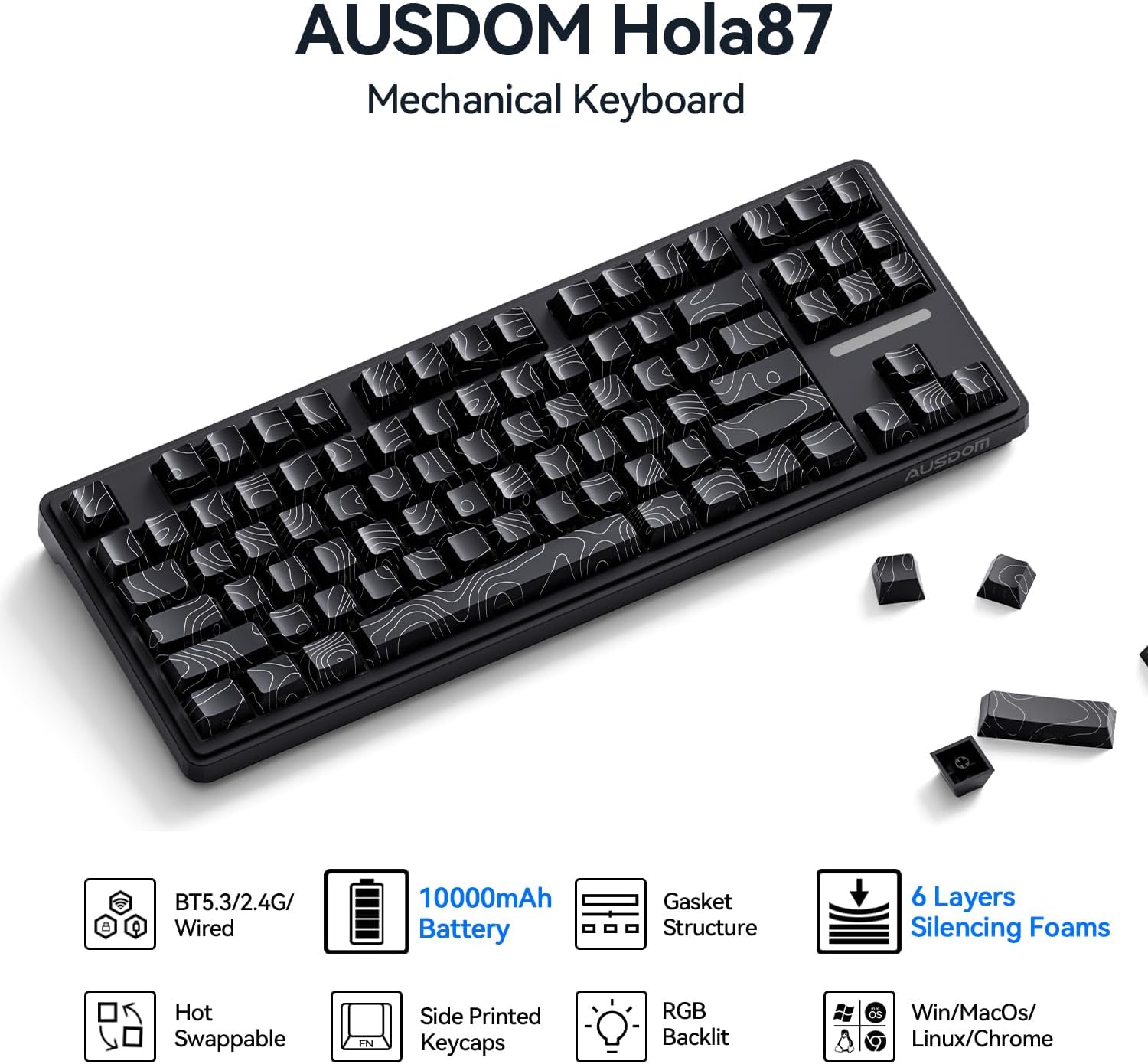
Figure 3: Key Features Overview
3.1. Tri-Mode Connectivity
The keyboard supports three connection modes: Bluetooth 5.3, 2.4GHz wireless, and USB-C wired. It can connect to up to 5 devices simultaneously, allowing seamless switching between various platforms such as gaming consoles, laptops, tablets, and desktops.

Figure 4: Tri-Mode Connection Capabilities
3.2. High-Capacity Battery
Equipped with a 10000mAh rechargeable battery, the keyboard offers extended usage. It provides up to 79.68 hours with the backlight on and an impressive 700 hours with the backlight off.

Figure 5: 10000mAh Battery Life
3.3. 15-Layer Gasket Structure
The 75% TKL keyboard features a 15-layer gasket construction and PCB single key slot design. This optimizes resilience and stability, resulting in a softer and more elastic typing feel. A 6-layer filling muffler design effectively counteracts cavity noise, ensuring a quieter and more solid typing experience.
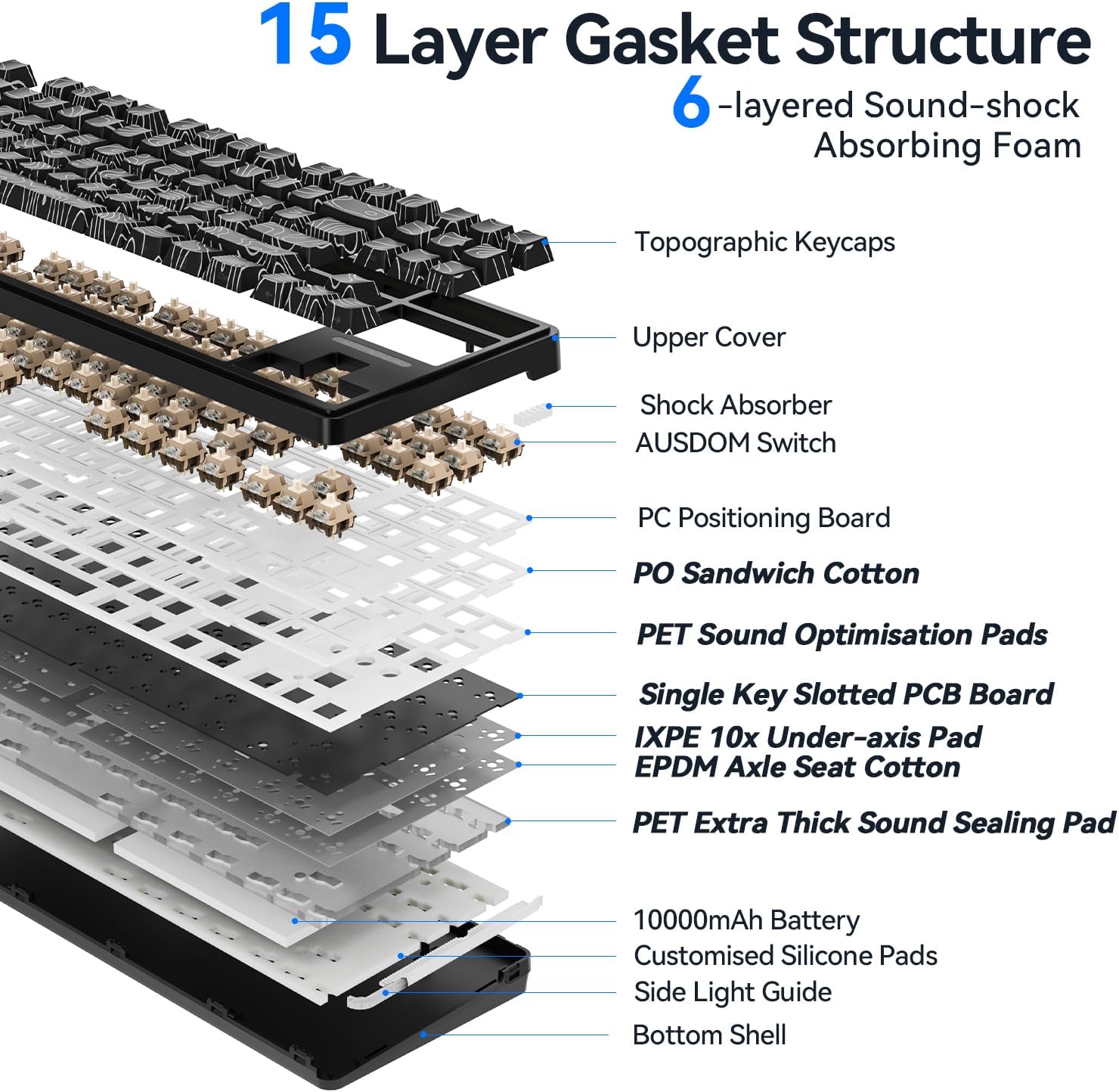
Figure 6: Gasket Structure Layers
3.4. Hot-Swappable Switches & PBT Keycaps
The keyboard supports 3/5-pin switch replacement, allowing users to customize switches without soldering. The side-printed PBT keycaps, made with two-color injection molding and heat sublimation, are durable, fade-resistant, sweat-proof, and offer a soft touch with clear legends even after prolonged use.

Figure 7: Hot-Swappable Switches and Keycap Details
3.5. RGB Backlighting & Programmable Macros
With 105 RGB lighting beads, the keyboard offers 21 RGB backlit effects and a variety of vibrant colors. Programmable macros allow customization of keyboard layouts, shortcuts, and backlight effects. (Note: Key remapping is supported in Wired Mode and 2.4G Mode on Windows systems; the keymap will then work across all three modes).

Figure 8: RGB Backlight Effects
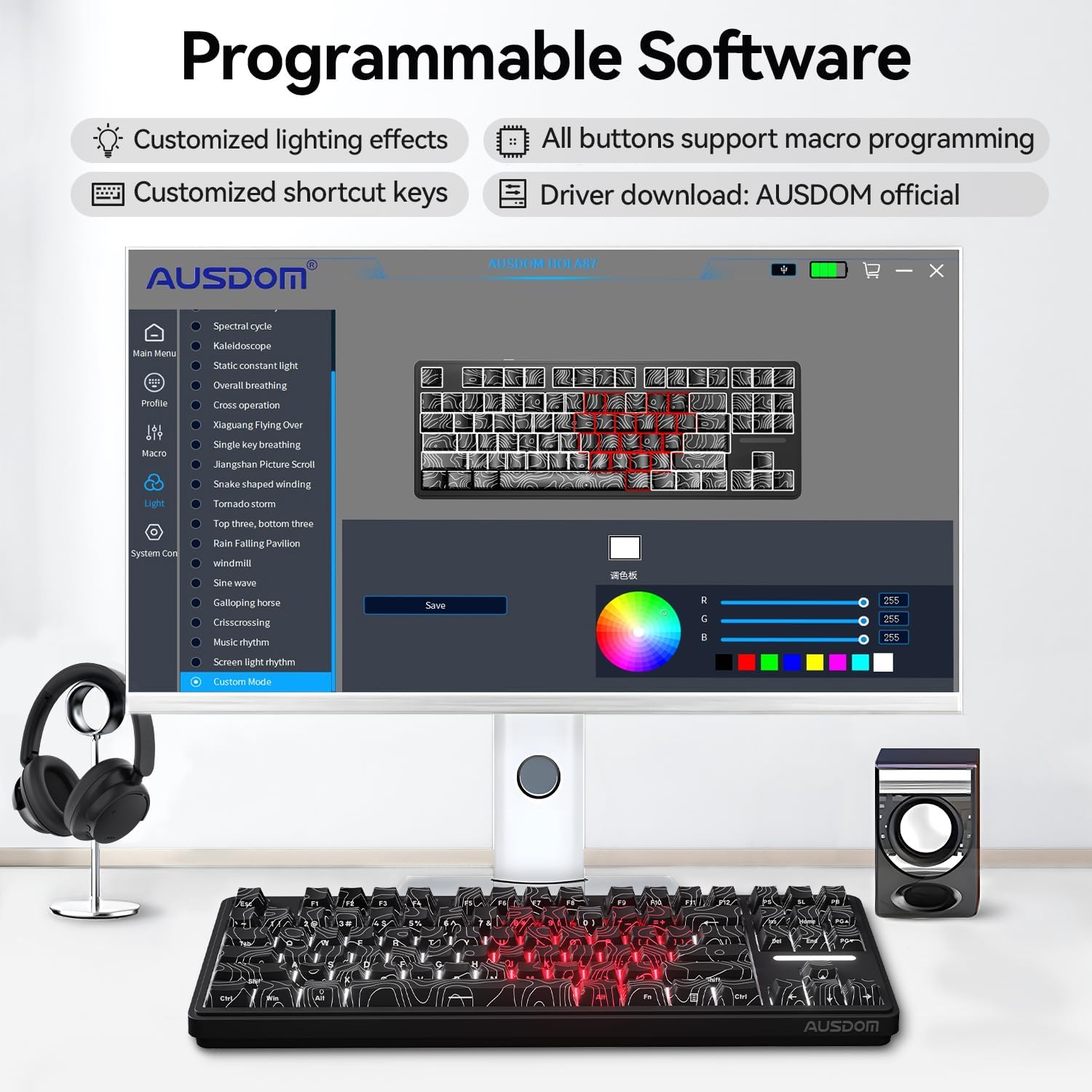
Figure 9: Programmable Software Interface
4. Setup
4.1. Powering On/Off
Locate the ON/OFF switch on the back of the keyboard. Slide the switch to 'ON' to power on the device. Slide to 'OFF' to power it down.
4.2. Wired Connection (USB-C)
Connect the provided USB-C cable to the keyboard's USB-C port and the other end to your computer's USB port. The keyboard will automatically switch to wired mode.
4.3. 2.4GHz Wireless Connection
- Remove the 2.4GHz USB receiver from its storage slot on the keyboard.
- Plug the USB receiver into an available USB port on your computer.
- Press FN + 4$ once to switch to 2.4G channel automatically.
- To enter 2.4G pairing status, press and hold FN + 4$ for 3 seconds. The corresponding key will flash blue, indicating it's ready to pair.
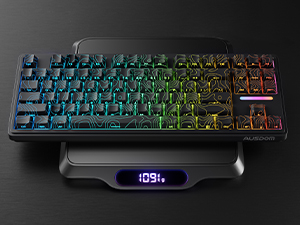
Figure 10: 2.4GHz USB Dongle Storage
4.4. Bluetooth Connection
The keyboard supports up to three Bluetooth devices (BT1, BT2, BT3).
- Press FN + 1, FN + 2, or FN + 3 to select a Bluetooth channel.
- Press and hold FN + 1 (or 2, or 3) for 3 seconds to enter pairing status. The selected key will flash blue.
- On your device (e.g., laptop, tablet, phone), search for Bluetooth devices and select "Hola 87 BT1" (or BT2, BT3) to connect.
- Once connected, the key will stop flashing and remain solid blue.
4.5. Charging the Keyboard
Connect the USB-C cable to the keyboard and a power source (e.g., computer USB port, USB wall adapter). The indicator light will show charging status. The keyboard can be used while charging.
5. Operating Instructions
5.1. System Compatibility Switch
The keyboard supports both Windows and macOS systems. Press FN + A for macOS or FN + W for Windows to switch between operating system modes.
5.2. RGB Backlight Control
Control the RGB backlighting using the following key combinations:
- FN + \|: Turn On/Off RGB Backlight
- FN + INS: Switch Backlight Effect (21 effects available)
- FN + DEL: Change RGB Backlight Colors
- FN + ←/→: Switch Left/Right Side Lights
- FN + ↑/↓: Adjust Backlight Brightness/Speed

Figure 11: RGB Backlight Controls and System Switch
5.3. Multimedia Functions (Windows System)
Use FN in combination with the F-keys for multimedia control:
- FN + F1: Screen Brightness -
- FN + F2: Screen Brightness +
- FN + F3: Open Calculator
- FN + F4: Open My Computer
- FN + F5: Open Multimedia Player
- FN + F6: Previous Track
- FN + F7: Next Track
- FN + F8: Play/Pause
- FN + F9: Stop Playback Controls
- FN + F10: Mute
- FN + F11: Volume -
- FN + F12: Volume +
5.4. Keyboard Height Adjustment
The keyboard features two-level adjustable kickstand feet on the underside, allowing you to choose your preferred typing angle for comfort and ergonomics.
6. Maintenance
6.1. Cleaning
To clean the keyboard, power it off and disconnect any cables. Use a soft, lint-free cloth slightly dampened with water or a mild cleaning solution. For dust and debris between keycaps, use a brush or compressed air. Avoid excessive moisture.
6.2. Replacing Switches and Keycaps
The keyboard is hot-swappable, allowing for easy replacement of switches and keycaps.
- Use the provided keycap puller to gently remove the desired keycap.
- Use the provided switch puller to carefully grip the switch and pull it straight up.
- Align the pins of the new switch with the sockets on the PCB and press down firmly until it clicks into place.
- Place the new keycap onto the switch stem and press down gently.

Figure 12: Replacing Switches and Keycaps
7. Troubleshooting
- Keyboard not connecting: Ensure the keyboard is powered on. Check the connection mode (wired, 2.4G, Bluetooth) and ensure it matches your device. For wireless modes, ensure the keyboard is in pairing mode and your device's Bluetooth is enabled.
- Keys not responding: Check if the keyboard is properly connected. If using wireless, ensure the battery is charged. Try reconnecting or restarting the keyboard.
- RGB backlight not working: Ensure the backlight is turned on (FN + \|). Adjust brightness (FN + ↑/↓). If issues persist, try resetting the backlight settings (refer to the Quick Guide).
- Lag or input delay in wireless mode: Ensure the keyboard is within range of the receiver/device. Minimize interference from other wireless devices. Try switching to a different 2.4G channel or Bluetooth channel if available.
8. Specifications
| Feature | Detail |
|---|---|
| Model Number | Hola 87 |
| Connectivity Technology | 2.4G Wireless, Bluetooth 5.3, USB-C Wired |
| Battery Capacity | 10000mAh |
| Keycap Material | Side-Printed PBT |
| Switch Type | Hot-Swappable (3/5-pin compatible) |
| Backlighting | RGB (105 beads, 21 effects) |
| Compatible Devices | Gaming Console, Laptop, PC, Desktop |
| Product Dimensions | 14.17 x 5.12 x 1.57 inches |
| Item Weight | 2.4 pounds |
9. Warranty and Support
AUSDOM products are designed and manufactured to the highest quality standards. For warranty information, technical support, or customer service, please refer to the contact details provided in your Quick Guide or visit the official AUSDOM website.
