
1. Introduction
The TJGOPKUJ XDrive3.6 is a high-precision brushless servo motor controller designed for advanced motion control applications. Based on the ODrive3.6 architecture, this controller provides robust and efficient operation for various brushless DC (BLDC) motors, enabling precise position, velocity, and torque control. It is suitable for use in robotics, CNC machines, 3D printers, and other automation projects requiring accurate motor synchronization and performance.
2. Safety Information
WARNING: Improper use of this device can result in electric shock, fire, or damage to the equipment. Always follow safety guidelines.
- Ensure all power connections are correct and secure before applying power.
- Do not exceed the specified voltage and current ratings for the controller and connected motors.
- Operate the controller in a well-ventilated area to prevent overheating.
- Avoid contact with live electrical components when power is applied.
- Disconnect power before making any wiring changes or performing maintenance.
- This device is intended for use by individuals with experience in electronics and motor control systems.
3. Package Contents
Verify that all items listed below are present in your package. If any components are missing or damaged, please contact customer support.

Image: The TJGOPKUJ XDrive3.6 controller board shown with included accessories such as heatsinks, various connection cables, and a power resistor.
- 1x TJGOPKUJ XDrive3.6 Brushless Servo Motor Controller (MKS XDRIVE)
- 4x Heatsinks (typically blue or black)
- Assorted connection cables (e.g., power, signal)
- 1x Power resistor (for regenerative braking)
- 1x USB cable (for communication and configuration)
4. Product Overview
The XDrive3.6 controller features a compact design with clearly labeled connection points for power, motors, encoders, and communication interfaces. Understanding the layout is crucial for proper setup and operation.
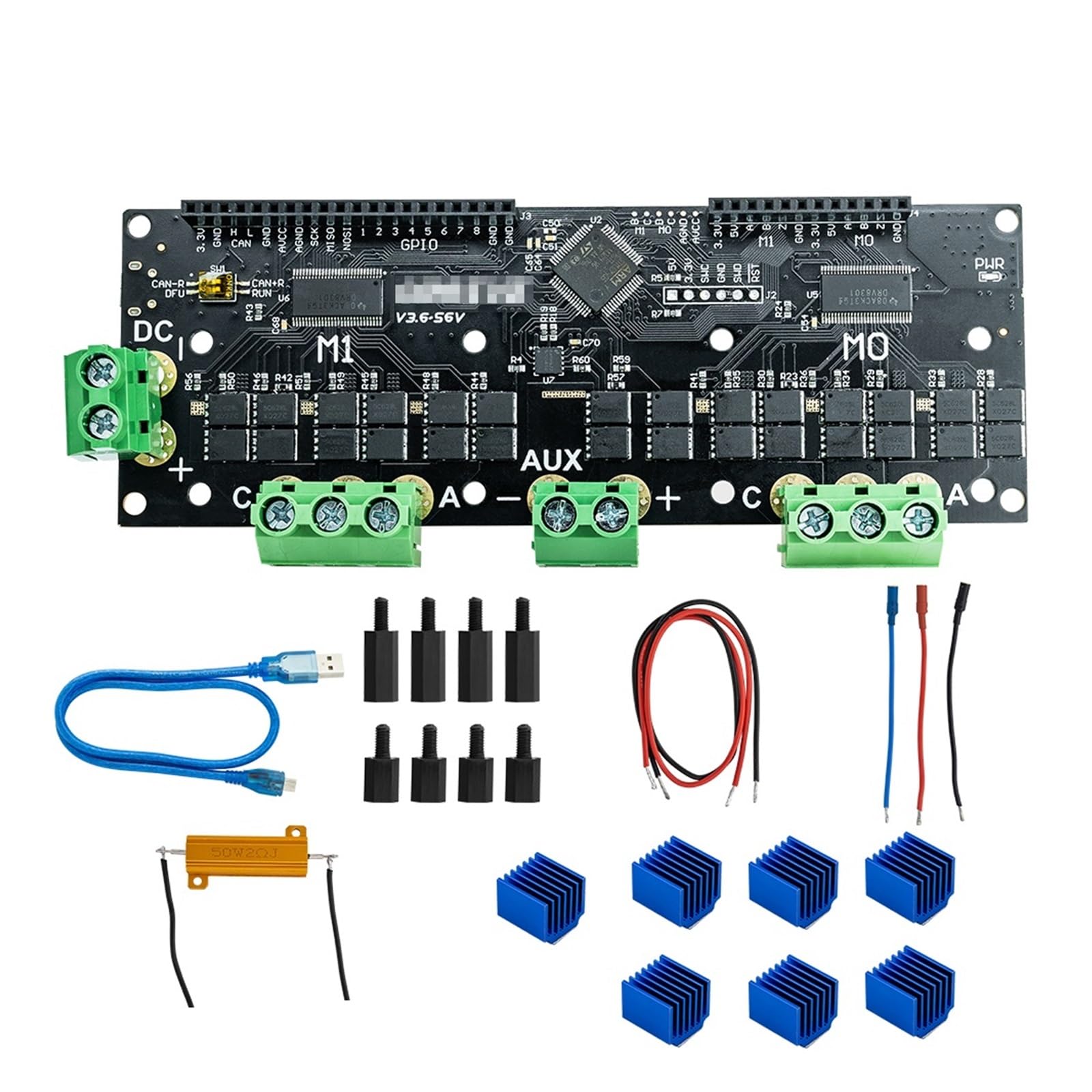
Image: Top view of the TJGOPKUJ XDrive3.6 controller board, highlighting the main components and terminal blocks for power and motor connections.
Key Components:
- Power Input (DC): Terminal block for connecting the main power supply (up to 56V).
- Motor Outputs (A, B, C): Terminal blocks for connecting the three phases of a brushless motor.
- Encoder Inputs: Headers for connecting incremental or absolute encoders for motor position feedback.
- Communication Ports: USB port for PC connection and configuration, CAN bus for multi-device communication.
- Auxiliary (AUX) Pins: General purpose input/output (GPIO) pins for external control signals.
- Regenerative Braking Resistor Port: Connection for the included power resistor to dissipate excess energy during braking.

Image: Underside view of the TJGOPKUJ XDrive3.6 controller board, showing the array of capacitors and other surface-mounted components essential for power filtering and motor control.
5. Setup Instructions
Follow these steps to correctly set up your XDrive3.6 controller.
- Mounting: Securely mount the XDrive3.6 controller to a stable surface using appropriate standoffs or screws. Ensure adequate airflow around the board for cooling.
- Heatsink Installation: Apply thermal paste (if not pre-applied) and attach the provided heatsinks to the main power MOSFETs or other designated heat-generating components on the board.
- Motor Connection: Connect the three phase wires of your brushless servo motor to the A, B, and C motor output terminals on the XDrive3.6. Ensure a secure connection.
- Encoder Connection: Connect your motor's encoder to the designated encoder input header. Refer to the specific pinout for your encoder type (e.g., A/B/Z for incremental, SPI/UART for absolute).
- Power Resistor Connection: Connect the included power resistor to the regenerative braking resistor port. This resistor dissipates energy generated by the motor during deceleration.
- Power Supply Connection: Connect a DC power supply (within the 56V limit) to the DC input terminal block. Observe correct polarity (+ and -). Do not apply power yet.
- USB Connection: Connect the XDrive3.6 to your computer using the provided USB cable. This is required for initial configuration and firmware flashing.
- Software Configuration: Download and install the ODrive toolchain and firmware. Follow the ODrive documentation for initial setup, motor calibration, and tuning. This typically involves flashing the firmware, configuring motor and encoder parameters, and performing calibration sequences.
- Apply Power: Once all connections are verified and initial software configuration is complete, apply power to the XDrive3.6 controller.
6. Operating Instructions
After successful setup and calibration, the XDrive3.6 controller can be operated through its various control modes. The primary method of operation is via software commands sent through the USB or CAN interface.
- Control Modes: The XDrive3.6 supports position control, velocity control, and torque control modes. Select the appropriate mode based on your application requirements.
- Commanding Motion: Send commands (e.g., target position, target velocity, target torque) to the controller using the ODrive communication protocol.
- Monitoring: Monitor motor status, encoder readings, current, and voltage through the ODrive software interface to ensure proper operation and diagnose issues.
- Safety Limits: Configure software limits for current, velocity, and position to prevent damage to the motor or mechanical system.
7. Maintenance
Regular maintenance helps ensure the longevity and reliable performance of your XDrive3.6 controller.
- Keep Clean: Periodically clean the board to remove dust and debris using compressed air or a soft brush. Ensure power is disconnected before cleaning.
- Check Connections: Regularly inspect all electrical connections for looseness or corrosion. Tighten terminal screws as needed.
- Thermal Management: Ensure heatsinks are securely attached and free from obstructions. Monitor operating temperature, especially during high-load conditions.
- Firmware Updates: Check for official firmware updates from the ODrive community or manufacturer to benefit from bug fixes and new features.
8. Troubleshooting
This section addresses common issues you might encounter with the XDrive3.6 controller.
- Motor Not Moving:
Possible Causes: Incorrect wiring, failed calibration, insufficient power, software configuration error.
Solutions: Verify motor and encoder wiring. Re-run motor and encoder calibration. Check power supply voltage. Review ODrive configuration parameters. - Communication Errors (USB/CAN):
Possible Causes: Driver issues, incorrect port selection, faulty cable, firmware problem.
Solutions: Install correct USB drivers. Ensure the correct COM port is selected in the software. Try a different USB cable. Re-flash the firmware. - Overheating:
Possible Causes: Inadequate heatsinking, excessive motor current, poor ventilation.
Solutions: Ensure heatsinks are properly installed. Reduce motor current limits in software. Improve airflow around the controller. - Motor Jitter/Instability:
Possible Causes: Incorrect encoder calibration, poor PID tuning, mechanical issues with the motor.
Solutions: Re-calibrate the encoder. Adjust PID gains in the ODrive software. Inspect motor for mechanical problems. - Error Codes:
Possible Causes: Various hardware or software faults.
Solutions: Refer to the official ODrive documentation for a comprehensive list of error codes and their meanings, along with recommended troubleshooting steps.
9. Specifications
Technical specifications for the TJGOPKUJ XDrive3.6 Brushless Servo Motor Controller.
| Feature | Specification |
|---|---|
| Model | MKS XDRIVE |
| Input Voltage | Up to 56V DC |
| Motor Type | Brushless DC (BLDC) Servo Motors |
| Control Modes | Position, Velocity, Torque |
| Communication Interfaces | USB, CAN |
| Encoder Support | Incremental, Absolute (specific types depend on firmware) |
| Weight | 99 g |
| Manufacturer | TJGOPKUJ |
| ASIN | B0DQ135CH5 |
10. Warranty and Support
For warranty information, please refer to the purchase documentation or contact your retailer. For technical support, firmware updates, and community resources related to the ODrive platform, please visit the official ODrive website or forums. For specific product inquiries regarding the TJGOPKUJ XDrive3.6, please contact TJGOPKUJ customer service.