
FOXWELL NT809BT
FOXWELL NT809BT Bidirectional Scan Tool User Manual
Model: NT809BT | Brand: FOXWELL
Introduction
The FOXWELL NT809BT is an advanced, professional-grade automotive diagnostic scan tool designed for comprehensive vehicle system analysis, bidirectional control, and maintenance functions. This manual provides detailed instructions for setting up, operating, maintaining, and troubleshooting your NT809BT device to ensure optimal performance and accurate vehicle diagnostics.

Image: The FOXWELL NT809BT diagnostic tablet with its wireless VCI dongle and carrying case.
Getting Started
1. Unpacking the Box
Carefully unpack all items from the product packaging. The standard package contents include:
- 1X NT809BT Auto OBD2 Scanner (Main Tablet Unit)
- 1X Bluetooth VCI Dongle (Vehicle Communication Interface)
- 1X Handheld box (Protective Carrying Case)
- 1X Quick Guide
- 1X User's Manual
- 1X USB TYPE C Cable (for charging and data transfer)

Image: A visual representation of all items included in the FOXWELL NT809BT package.
2. Initial Power-Up and Registration
Before first use, ensure the NT809BT scanner is fully charged using the provided USB-C cable. The device features a 4000mAh lithium-ion battery, providing over 3 hours of continuous runtime. Upon initial power-up, you will be prompted to create an account and register your device directly on the scanner. This step is essential for accessing software updates and technical support.
3. Connecting to Your Vehicle
The NT809BT utilizes a wireless VCI (Vehicle Communication Interface) dongle for connection to your vehicle's OBD-II port. This wireless capability allows for a stable connection range of up to 65.62 feet (20 meters), providing flexibility during diagnostics.
- Locate the OBD-II port in your vehicle. This is typically found under the dashboard on the driver's side. The VCI dongle includes a built-in LED light to assist in locating the port in dark environments.
- Plug the Bluetooth VCI Dongle firmly into the vehicle's OBD-II port. The dongle will power on automatically.
- Ensure the NT809BT tablet is powered on and Bluetooth is enabled. The tablet will automatically establish a wireless connection with the VCI dongle.
- Turn the vehicle's ignition to the 'ON' position (engine can be off or running, depending on the diagnostic task).

Image: The wireless VCI dongle with its integrated light, simplifying connection to the vehicle's OBD-II port.
Operating the NT809BT
1. User Interface and Navigation
The NT809BT operates on Android 9.0 OS and features a 7-inch ultra-responsive touchscreen (1024x600 resolution). The interface is designed for intuitive operation, allowing users to swipe through modules and select from various font sizes for improved readability. The main menu provides access to Diagnostics, Maintenance, Data Manager, and other functions.
2. Vehicle Identification
The device supports automatic VIN identification for most vehicles, quickly retrieving vehicle information. If automatic VIN detection takes too long or fails, you can manually enter the VIN.

Image: A quick guide illustrating the steps for VIN identification, reading/clearing codes, and accessing maintenance functions.
3. Core Diagnostic Functions
The NT809BT provides comprehensive diagnostic capabilities for all available vehicle systems, including Engine, Transmission, ABS, SRS, Air Conditioning, and more.
- Read Codes: Retrieves Diagnostic Trouble Codes (DTCs) from the vehicle's control modules.
- Clear Codes: Erases DTCs from the vehicle's memory after repairs are completed.
- Live Data Stream: Displays real-time data parameters from various sensors and components in text or graph format. This allows for dynamic monitoring of vehicle performance.
- Freeze Frame Data: Captures a snapshot of vehicle operating conditions at the moment a DTC was set, aiding in diagnosis.
- I/M Readiness: Checks the status of emission-related monitors to determine if the vehicle is ready for an emissions test.
4. Bidirectional Control (Active Tests)
Bidirectional control allows the diagnostic tool to send commands to the vehicle's ECUs to perform specific tests and functions, verifying component integrity and operation. This includes, but is not limited to:
- Fuel Pump activation
- Parking Brake release/engagement
- Radiator Fan activation
- Injector tests
- Doors and Windows operation
- Modulate Throttle
- Cycle A/C
- Operate Mirrors
- Interior/Exterior Lights activation
- Sound Horn
- And many more system-specific tests.
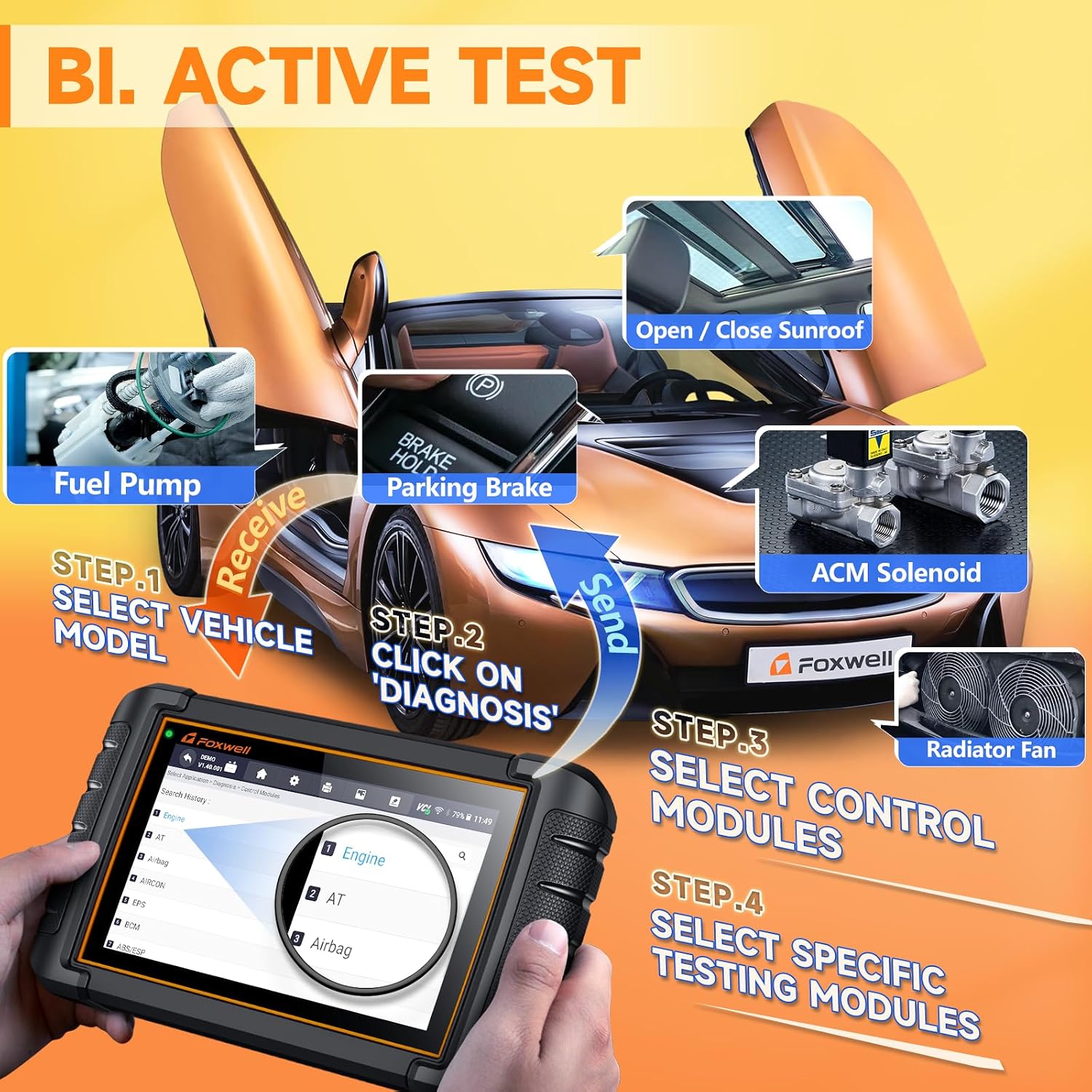
Image: A visual guide to performing bidirectional active tests, showing the scanner sending commands to vehicle components.

Image: A comprehensive list of active tests supported by the NT809BT, including radiator fan, injector, parking brake, and more.
Maintenance and Service Functions
The NT809BT offers over 30 specialized maintenance and reset functions to assist with common vehicle service tasks. These functions help in resetting warning lights, calibrating components, and performing adaptations after repairs.
Key Maintenance Functions:
- ABS Bleeding: Releases air from the ABS brake pump pressure system after repairing the brake system or replacing brake fluid, ensuring optimal braking performance.
- Oil Reset: Resets mileage or maintenance time to zero after an oil change, turning off the maintenance light and initiating a new maintenance cycle.
- EPB Service: Diagnoses and resets the Electronic Parking Brake system by communicating with the control module, ensuring proper actuator operation and brake effectiveness after repairs or adjustments.
- SAS Alignment: Calibrates the Steering Angle Sensor after replacement or alignment, ensuring correct steering angle readings.
- Throttle Adaptation: Recalibrates the throttle body after cleaning or replacement to correct distortion, inaccuracies, or sticking, ensuring smooth engine performance.
- Injector Programming: Writes or updates injector codes in the ECU when replacing or swapping fuel injectors, enabling precise control of fuel injection per cylinder.
- DPF Regeneration: Burns off accumulated carbon particles in the Diesel Particulate Filter to reduce back pressure, restoring engine power and ensuring unobstructed exhaust flow.
- TPMS Reset: Resets the Tire Pressure Monitoring System after tire rotation, sensor replacement, or tire pressure adjustment.
- Window-Door Calibration: Performs initial setup for power windows and doors after battery disconnection or component replacement.
- Transmission Learning: Resets transmission adaptive values after repairs or component replacement.
- Suspension Reset: Adjusts or calibrates the vehicle's suspension system.
- Battery Coding (BMS Reset): Registers a new battery with the vehicle's Battery Management System.
- And many more, including Gear Learn, CVT, Seat Match, G Sensor Learn, Headlamp, Odometer, Prime Fuel Pump, Turbo, and Windows/Door.
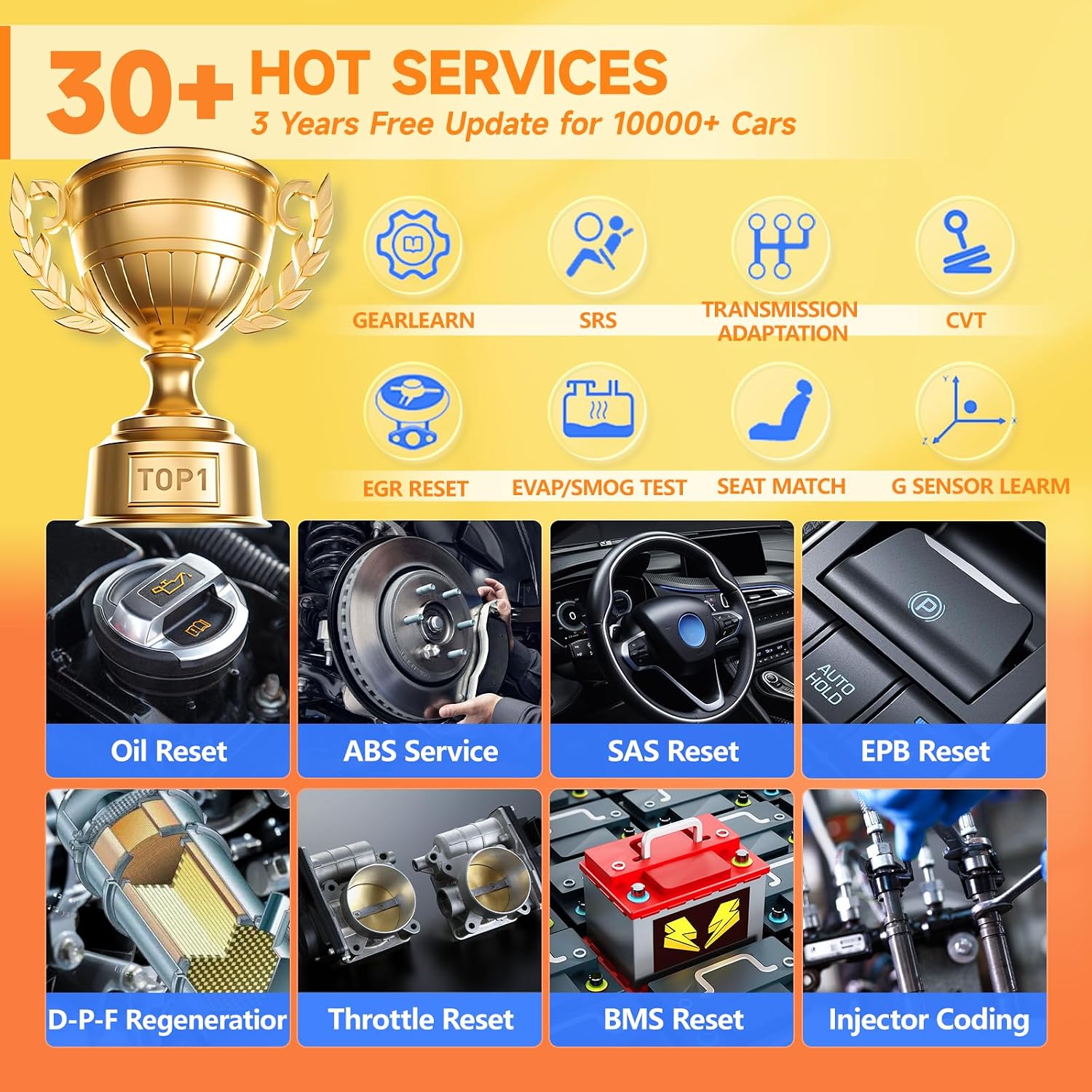
Image: A visual summary of over 30 maintenance and hot services available on the NT809BT, including Oil Reset, ABS Service, and DPF Regeneration.

Image: A comprehensive list of all reset functions supported by the NT809BT, such as ABS Service, AFR Adaptation, BRT, Clutch Adaptation, and more.
Software and Updates
The NT809BT comes with 3 years of free software updates, ensuring compatibility with the latest vehicle models and diagnostic protocols. After the initial 3-year period, technical guidance remains available. Updates are performed via Wi-Fi directly on the device.
- Connect the NT809BT to a stable Wi-Fi network.
- Navigate to the 'Update' section on the main menu.
- The device will check for available software and vehicle database updates.
- Select the desired updates and follow the on-screen prompts to download and install them.
Reporting and Data Management
The NT809BT allows for efficient data management, including recording, playback, and report generation.
- Data Playback & Recording: Record live data streams for later review and analysis.
- PDF Reporting: Generate professional PDF diagnostic reports with a single click. These reports can be saved, printed, or shared via email, Bluetooth, or Wi-Fi.
- Screenshots: Capture screenshots of diagnostic screens at any time for documentation.

Image: An illustration of the NT809BT's capabilities for data playback, recording, generating PDF diagnostic reports, and remote diagnosis support.
Specifications
| Feature | Description |
|---|---|
| Model | NT809BT Wireless Scan Tool Orange |
| Operating System | Android 9.0 |
| Processor | 4-Core (1.3Ghz) |
| Display | 7-inch HD Touch Screen (1024x600) |
| Memory | 1GB RAM + 32GB Storage |
| Battery | 4000mAh Lithium Ion (3+ hours runtime) |
| Connectivity | Wireless VCI (Bluetooth, 65.62ft range), Wi-Fi |
| Dimensions | 9.84"L x 5.7"W x 1.5"H (24.99 x 14.48 x 3.81 cm) |
| Item Weight | 4.58 pounds (2.08 kg) |
| Supported Languages | 24+ languages |
| Vehicle Coverage | 100+ car makes, 10000+ models (USA, Europe, Asia compatible) |

Image: Key technical specifications and features of the NT809BT, including its processor, operating system, display, and battery capacity.

Image: Geographic representation of the extensive vehicle compatibility of the NT809BT across American, European, and Asian car markets.
Troubleshooting
This section addresses common issues and provides solutions to help you resolve problems encountered during the use of your NT809BT scanner.
Common Issues and Solutions:
- Device Not Starting or Charging:
Ensure the device is sufficiently charged, especially before first use. If the device does not power on, press and hold the power button. If charging issues persist, it might not be a battery defect but rather a self-protection system. Try cleaning the metal plug of the charging cable with alcohol to resolve poor contact. Ensure you are using the original USB-C cable.
- Automatic VIN Function Takes Too Long or Fails:
While 99% of cars support automatic VIN detection, if it takes an extended period, stop the process and manually enter the VIN. This ensures accurate vehicle identification.
- "No Communication" Error:
This error typically indicates a problem with the connection between the scanner and the vehicle. Verify the following:
- The VCI dongle is correctly and firmly plugged into the vehicle's OBD-II port.
- The vehicle's ignition is turned to the 'ON' position.
- The NT809BT tablet's battery is sufficiently charged.
- Bluetooth is enabled on the tablet and the VCI dongle is paired.
- TPMS Sensor Programming:
The NT809BT handles TPMS reset functions. However, it does not support direct TPMS sensor programming or "learning" new sensors. A separate dedicated TPMS tool may be required for these specific tasks.
- Vehicle Compatibility Concerns (e.g., Chrysler):
While the NT809BT offers broad compatibility, specific functions or full system access may vary by vehicle year, model, and VIN. For detailed functional compatibility, it is recommended to contact FOXWELL support with your vehicle's VIN.
- Incorrect Code Descriptions:
If you encounter instances where code descriptions do not match the expected fault (e.g., P0455 for traction control instead of EVAP system), ensure your device software is fully updated. If the issue persists, contact technical support for assistance, as continuous software updates aim to improve accuracy.

Image: A visual FAQ section addressing common user queries regarding product issues, updates, and functionality.
Warranty and Support
FOXWELL is committed to providing reliable products and excellent customer service.
- After-Sales Service: A one-year after-sales service is provided for product quality issues. If you experience any usage or quality issues within one year of purchase, contact FOXWELL directly through your order interface for verification and assistance with returns or exchanges.
- Software Updates: Enjoy 3 years of free software updates from the date of purchase. After this period, technical guidance remains available.
- Technical Support: Lifelong technical support is provided by FOXWELL engineers. Remote guidance is available to help resolve complex diagnostic problems.
- VCI Replacement: If the matching VCI dongle is accidentally lost, it can be purchased separately by contacting FOXWELL support.
For technical support or inquiries, please refer to the contact information provided with your product or reach out via the official FOXWELL support channels.

Image: Overview of FOXWELL's customer support commitments, including update policies and technical assistance availability.
Related documentsNT809BT


Ask a question about this manual
Ask about setup, troubleshooting, compatibility, parts, safety, or missing instructions. Manuals+ will review the question and use this page’s manual context to help answer it.