
mingwear K69-BS1
mingwear Military Smart Watch K69-BS1 User Manual
Model: K69-BS1
1. Introduction
This manual provides detailed instructions for the operation and maintenance of your mingwear Military Smart Watch K69-BS1. Please read this manual thoroughly to ensure proper use and to maximize the device's functionality.

Image 1.1: mingwear Military Smart Watch K69-BS1
2. Package Contents
Verify that all items are present in the package:
- Smart Watch (K69-BS1) x 1
- Silicone Watch Strap x 1
- Black Steel Strip x 1
- Magnetic Charger x 1
- User Manual x 1
3. Getting Started
3.1. Charging the Device
Before initial use, fully charge the smart watch. Connect the magnetic charger to the charging contacts on the back of the watch and plug the USB end into a power adapter (not included) or a computer USB port. A full charge typically takes approximately 3 hours.

Image 3.1: Charging the mingwear K69-BS1 Smart Watch
3.2. Downloading the Companion App
To access all features and synchronize data, download the FitCloudPro app on your smartphone.
- For Android: Search for "FitCloudPro" on the Google Play Store.
- For iOS: Search for "FitCloudPro" on the Apple App Store.
3.3. Pairing with Your Smartphone
Follow these steps to connect your watch to the FitCloudPro app:
- Ensure your phone's Bluetooth is enabled.
- Open the FitCloudPro app.
- Navigate to the 'Device' section within the app.
- Tap 'Add Peripheral Now' or a similar option to search for your watch.
- Select 'K69' or the corresponding device name from the list.
- Confirm the pairing request on both your phone and the watch.

Image 3.2: Pairing Process for iOS Devices
3.4. Setting Up Notifications
To receive message and app notifications on your watch:
- Ensure the watch is connected to your phone via Bluetooth.
- In the FitCloudPro app, go to 'Device' and select 'Push Notifications'.
- Enable notifications for the desired apps (e.g., SMS, Facebook, WhatsApp).
- For iOS: Go to your phone's 'Settings' > 'Bluetooth' > tap the 'i' icon next to your watch > enable 'Share System Notifications'. Also, ensure 'Show Previews' is set to 'Always' or 'When Unlocked' for the specific apps in your phone's notification settings.
- For Android: Grant the FitCloudPro app all necessary notification permissions in your phone's settings. Ensure the app is running in the background and is not restricted by battery optimization settings.

Image 3.3: Enabling Notifications for iOS Devices
4. Operating Instructions
4.1. Display and Navigation
The watch features a 1.75-inch HD AMOLED touchscreen with 466x466 pixels resolution. Swipe across the screen to navigate through different functions and menus. The watch also supports an Always-On Display mode for continuous time visibility.

Image 4.1: 1.75" HD AMOLED Display
4.2. Bluetooth Calling
Once paired with your smartphone, you can make and receive calls directly from your watch.
- Making a Call: Access the dial pad or contact list on the watch to initiate a call.
- Answering/Rejecting Calls: When a call comes in, tap the green icon to answer or the red icon to reject on the watch screen.
- The watch is equipped with a 60-decibel speaker and a noise-cancelling microphone for call clarity.

Image 4.2: Bluetooth Call and Message Reminder
4.3. Voice Assistant
Utilize the integrated voice assistant for hands-free control. Activate the voice assistant feature on your watch and speak commands to perform various tasks.
4.4. LED Flashlight
The watch includes a powerful LED flashlight. Activate it for illumination in dark environments. The flashlight provides an illumination distance of 6-8 meters and includes an SOS mode for emergencies.

Image 4.3: Powerful Flashlight Feature
4.5. Sports Modes
The watch supports over 110 sports modes. Access the sports mode menu to select your activity. The watch will record workout time, calorie expenditure, steps, and distance, providing comprehensive insights into your exercise performance.

Image 4.4: 110+ Sport Modes
4.6. Health Monitoring
The watch provides various health monitoring features:
- Heart Rate: Monitors your heart rate throughout the day.
- Blood Oxygen: Measures blood oxygen levels.
- Sleep Monitoring: Tracks your sleep patterns, including deep and light sleep, to help you adjust your sleep habits.
- Activity Reminders: Provides reminders for activity and drinking water.

Image 4.5: Real-Time Sleep Monitoring
4.7. Other Functions
The 2.5D multifunctional selection interface provides access to additional features:
- Alarm Clock
- Stopwatch
- Timer
- Calculator
- Weather Forecast
- Music Playback Control
- Camera Remote Control
- Find Phone
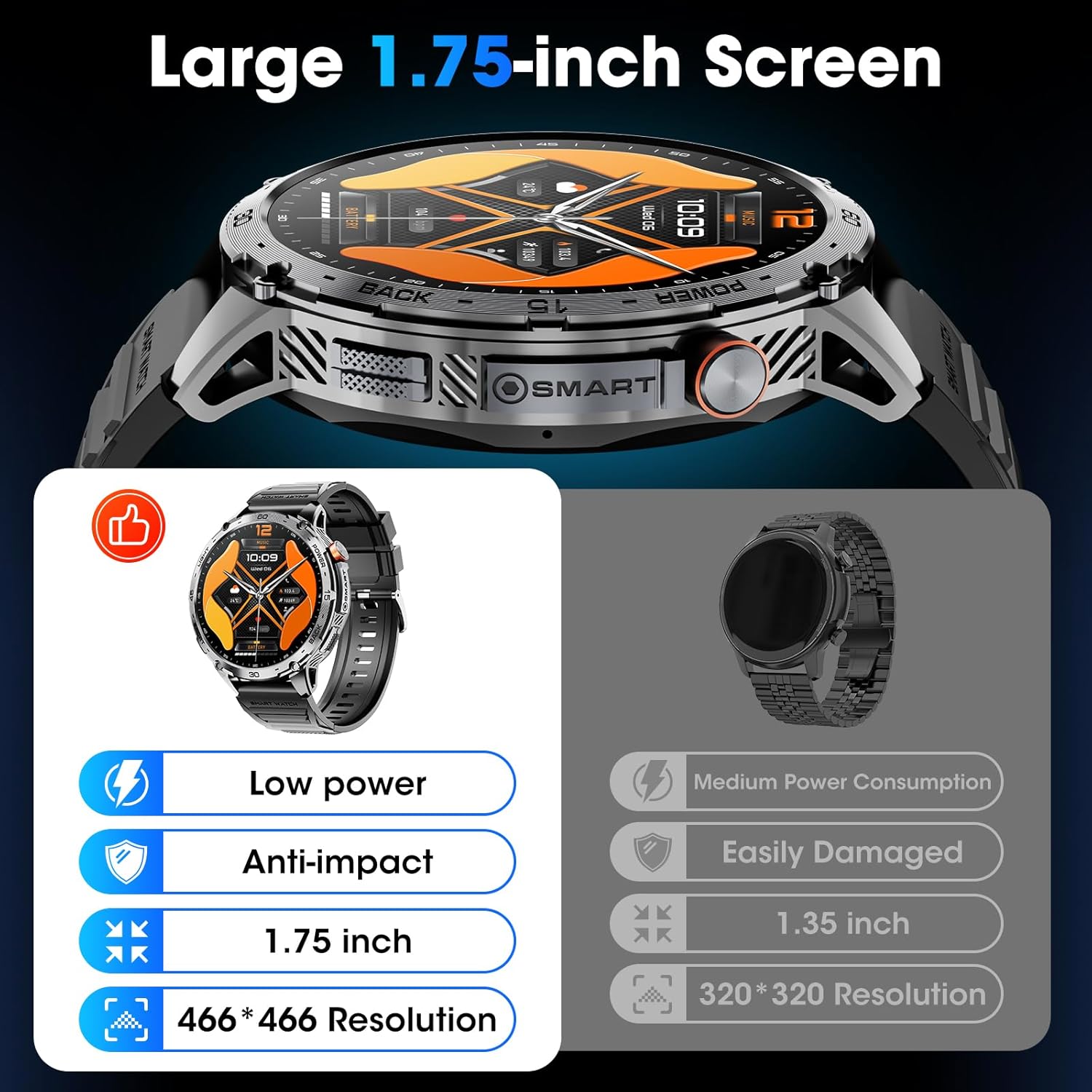
Image 4.6: Multifunctional Selection Interface
5. Maintenance
5.1. Water Resistance (IP68)
The mingwear K69-BS1 smart watch is IP68 rated, meaning it is resistant to dust and can withstand immersion in water up to 1.5 meters for 30 minutes. It is suitable for daily use and activities like hand washing or light rain.
Important Note:
- Do not use the smart watch in hot water, saunas, or steam rooms.
- Avoid bathing or showering with the smart watch, as water pressure and temperature changes, along with steam, can compromise the waterproof seals over time.
- Do not intentionally submerge the watch in water for extended periods or at depths exceeding the specified limit.
5.2. Cleaning
Regularly clean your watch and strap to prevent skin irritation and maintain functionality. Use a soft, damp cloth to wipe the watch body and strap. Ensure the charging contacts are clean and dry before charging.
5.3. Battery Care
To prolong battery life:
- Avoid extreme temperatures.
- Charge the watch fully before long periods of inactivity.
- Do not leave the watch uncharged for extended periods.
6. Troubleshooting
If you encounter issues with your mingwear K69-BS1 smart watch, refer to the following common problems and solutions:
| Problem | Solution |
|---|---|
| Watch does not consistently stay connected to your phone. | Ensure the watch is within 10 meters of your phone. For Android, enable background permissions for the FitCloudPro app and keep it running. For iOS, check Bluetooth settings and app permissions. Restart both devices if issues persist. |
| Cannot receive SMS or app notifications. | Verify that push notifications are enabled in the FitCloudPro app for specific applications. On your phone, ensure all necessary permissions are granted to the app, and that 'Do Not Disturb' or 'Low Power Mode' are not active. For iOS, check 'Share System Notifications' in Bluetooth settings. |
| Cannot get all contacts in the watch. | Contacts with special characters (emoticons, symbols) may not sync. Ensure phone numbers are preceded by '1' (if applicable for your region) and do not contain brackets in the area code. |
| Battery life is shorter than expected. | High usage of features like Bluetooth calling, continuous heart rate monitoring, or frequent screen activation can reduce battery life. Adjust settings to optimize power consumption. Ensure the watch is fully charged (3 hours). |
| Watch faces are limited or do not load. | Ensure the FitCloudPro app is updated to the latest version. Check your internet connection. Some watch faces may require specific app versions or device firmware. |
7. Specifications
| Feature | Detail |
|---|---|
| Model Number | K69-BS1 |
| Display | 1.75-inch HD AMOLED, 466x466 pixels |
| Battery Capacity | 730 mAh Lithium Polymer |
| Battery Life | 7-10 days (typical use), up to 15 days (daily usage), 30 days (standby) |
| Charging Time | Approx. 3 hours |
| Connectivity | Bluetooth 5.0 |
| Water Resistance | IP68 |
| Compatibility | Android 4.4+ / iOS 8.0+ |
| Memory Storage Capacity | 256 MB |
| Item Weight | 9.6 ounces |
| Manufacturer | mingwear |
8. Warranty and Support
Your mingwear Military Smart Watch K69-BS1 comes with a standard manufacturer's warranty. For specific warranty details, please refer to the documentation included with your purchase or contact mingwear customer support.
If you have any questions, require technical assistance, or experience issues not covered in this manual, please contact our professional service team. We aim to reply within 24 hours and provide the best solution.
Contact information can typically be found on the product packaging or the official mingwear website.
Related documentsK69-BS1

Ask a question about this manual
Ask about setup, troubleshooting, compatibility, parts, safety, or missing instructions. Manuals+ will review the question and use this page’s manual context to help answer it.