
IVEOPPE Rebound Series Keyboard Case
IVEOPPE Keyboard Case User Manual
Model: Rebound Series Keyboard Case
Brand: IVEOPPE
Introduction
This manual provides detailed instructions for the setup, operation, and maintenance of your IVEOPPE Rebound Series Keyboard Case. Please read this manual thoroughly before use to ensure optimal performance and longevity of your device.

Image: The IVEOPPE Rebound Series Keyboard Case with an iPad attached, illustrating its design and functionality.
Compatibility
The IVEOPPE Rebound Series Keyboard Case is designed for specific iPad models. Please verify your iPad model number before use.
- iPad Air 13-inch (M3, 2025): Models A3269, A3271, A3268
- iPad Air 13-inch (M2, 2024): Models A2898, A2899, A2900
- iPad Pro 12.9-inch (6th Gen, 2022): Models A2436, A2437, A2764, A2766
- iPad Pro 12.9-inch (5th Gen, 2021): Models A2378, A2379, A2461, A2462
- iPad Pro 12.9-inch (4th Gen, 2020): Models A2229, A2069, A2232, A2233
- iPad Pro 12.9-inch (3rd Gen, 2018): Models A1876, A2014, A1895, A1983
Note: This keyboard case is NOT compatible with iPad Pro 13-inch (2024).

Image: Compatibility chart for IVEOPPE Keyboard Case, detailing supported iPad Air 13-inch (M3/M2) and iPad Pro 12.9-inch (3rd-6th Gen) models with corresponding model numbers. It explicitly states incompatibility with iPad Pro 13-inch (2024).
Package Contents
- 1 x IVEOPPE Magic Keyboard Case
- 1 x USB-C Charging Cable
- 1 x User Manual
Setup
1. Charging the Keyboard
Before initial use, fully charge the keyboard. Connect the provided USB-C charging cable to the keyboard's charging port and a power source. A full charge typically takes approximately 2 hours.
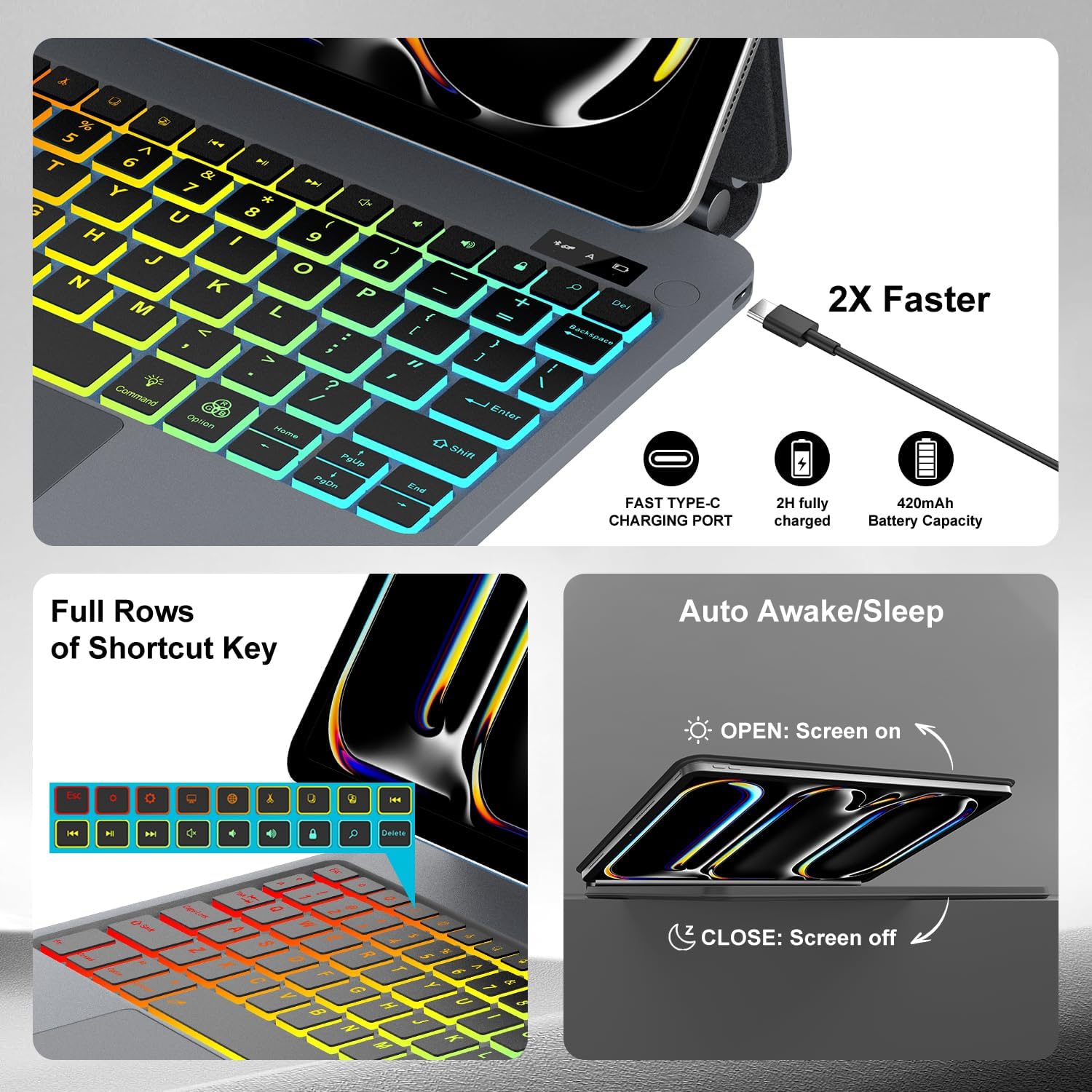
Image: The keyboard's USB-C charging port, highlighting its fast charging capability, a 2-hour full charge time, and a 420mAh battery capacity.
2. Attaching Your iPad to the Case
Gently align your iPad with the magnetic back cover of the case. The magnets will secure the iPad in place. Ensure all ports and buttons are accessible through the precise cutouts.

Image: Visual guide demonstrating the magnetic attachment of the iPad to the case and how to gently remove it.
3. Bluetooth Pairing
- Ensure the keyboard is charged and powered on.
- On your iPad, go to Settings > Bluetooth and turn Bluetooth on.
- The keyboard will appear as a discoverable device (e.g., "IVEOPPE Keyboard"). Tap on it to pair.
- Once paired, the connection indicator on the keyboard will confirm successful pairing.
4. Switching Operating Systems
The keyboard supports multiple operating systems. To switch between them, press the 'FN' key simultaneously with the corresponding system key:
- FN + Q for Android
- FN + W for Windows
- FN + E for iOS
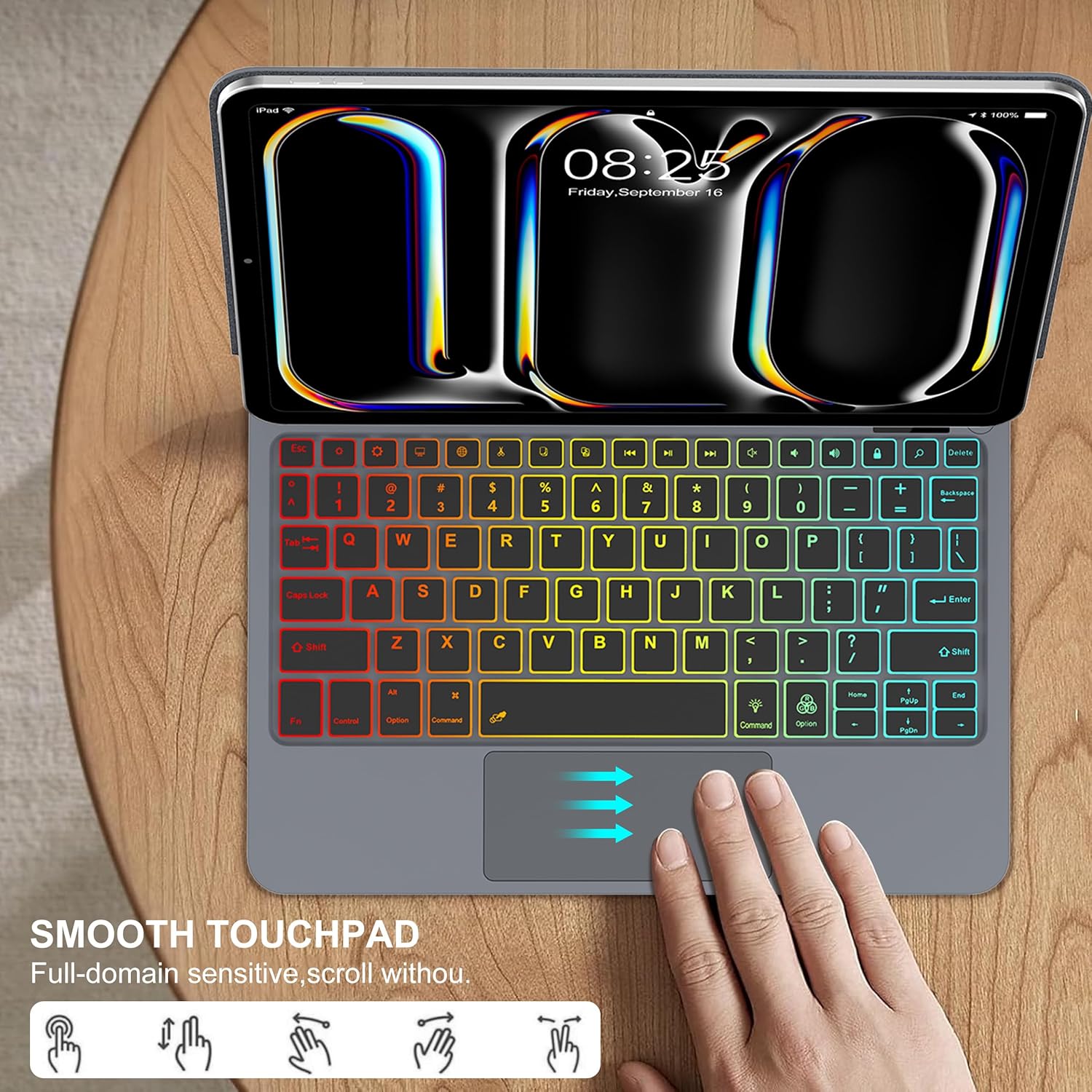
Image: The keyboard demonstrating its compatibility with Android, Windows, and iOS devices, with specific key combinations for switching between operating systems.
Operating Instructions
1. Floating Cantilever Stand Adjustment
The unique floating cantilever design allows for flexible viewing angles. Gently adjust the iPad's position to achieve your desired angle. The hinge is designed for durability, tested for up to 20,000 opening and bending cycles.

Image: The keyboard case in use, showing the iPad screen adjusted to a 130-degree angle, highlighting the flexibility of the floating cantilever design and the robust hinge.
2. Backlight Control
The keyboard features 7 backlight colors and 3 adjustable brightness levels for comfortable typing in various lighting conditions.
- Press the light bulb icon key to cycle through backlight colors.
- Press FN + light bulb icon key to adjust brightness levels.

Image: The keyboard displaying its customizable backlight feature, offering 7 distinct colors and 3 adjustable brightness settings for enhanced visibility.
3. Multi-touch Trackpad Gestures
The integrated multi-touch trackpad supports various gestures to enhance your iPadOS experience. Refer to your iPad's settings for a full list of supported gestures.
- Single-finger tap: Select item.
- Two-finger scroll: Scroll up/down or left/right.
- Pinch to zoom: Zoom in/out on content.
- Three-finger swipe up: Go to Home Screen.
- Three-finger swipe left/right: Switch between open apps.

Image: The keyboard's trackpad, illustrating its smooth operation and various multi-touch gestures for navigation, file management, web browsing, and app switching.
4. Shortcut Keys
The keyboard includes a full row of shortcut keys for quick access to iPadOS features, such as media controls, volume adjustment, and screen brightness.

Image: A user interacting with the keyboard, highlighting the practical design of the shortcut keys for functions like backlight adjustment, volume control, and multimedia playback.
5. Instant Wake and Sleep Function
The case automatically wakes your iPad when opened and puts it to sleep when closed, conserving battery life.
Image: A visual representation of the automatic wake and sleep function, showing the iPad screen activating upon opening the case and deactivating upon closing it.
6. Apple Pencil Charging Support
The case design allows for magnetic attachment and wireless charging of your Apple Pencil (2nd generation) on the side of your iPad.

Image: An Apple Pencil magnetically attached to the side of the iPad, demonstrating the case's support for Apple Pencil charging.
Maintenance
To maintain the appearance and functionality of your keyboard case:
- Wipe the exterior with a soft, damp cloth.
- Avoid using harsh chemicals or abrasive cleaners.
- The case material is designed to be easily wiped clean from spills.
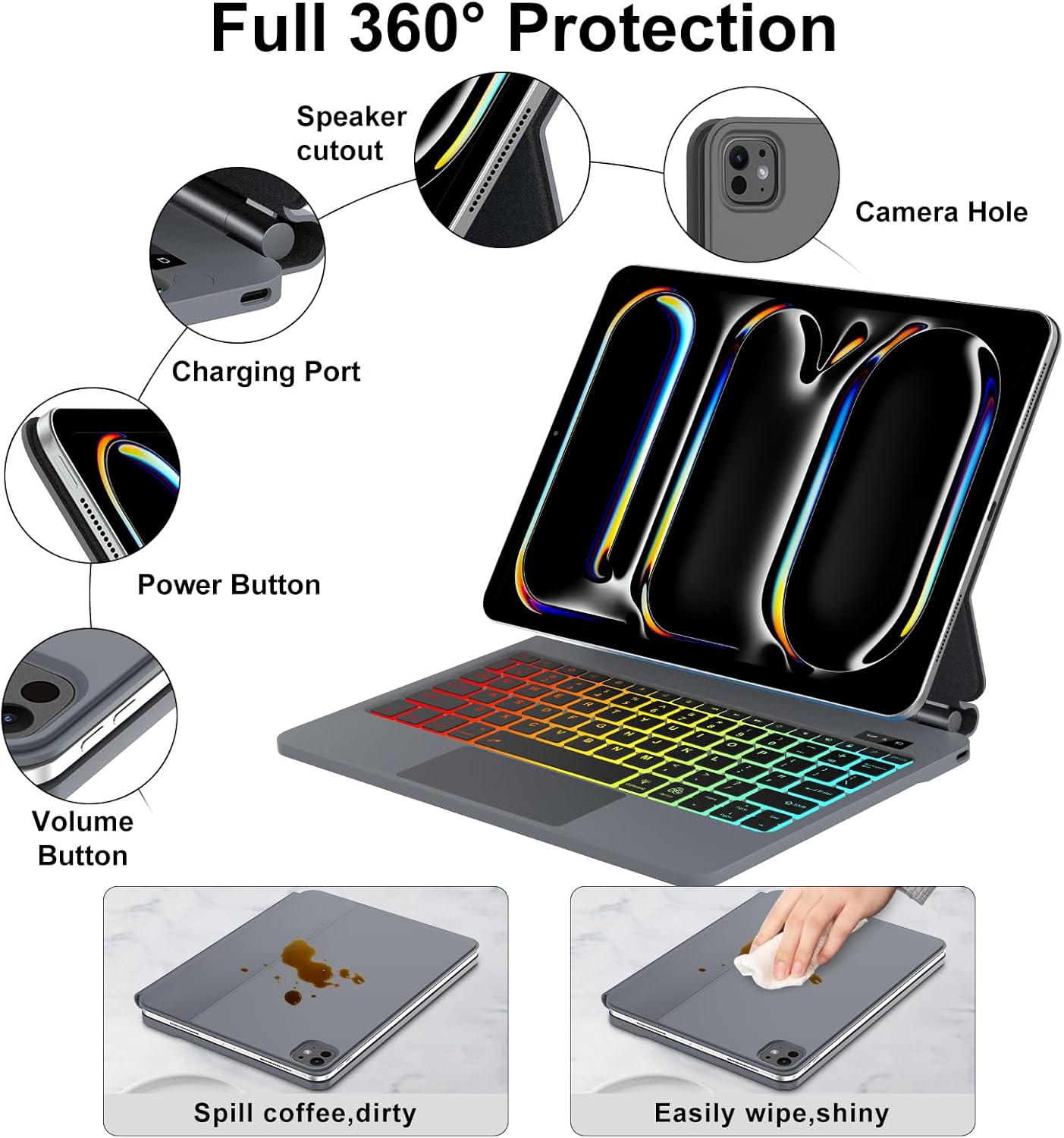
Image: A demonstration of the case's easy-to-clean surface, showing a spilled liquid being wiped away effortlessly.
Troubleshooting
| Issue | Solution |
|---|---|
| Keyboard not connecting via Bluetooth |
|
| Keys not responding |
|
| Trackpad not responding |
|
| Backlight not working |
|
| Cannot determine keyboard battery level | The keyboard does not have a direct battery level indicator visible on the device itself. Monitor battery life by observing performance or charging regularly. A full charge provides extended use. |
Specifications
| Feature | Detail |
|---|---|
| Connectivity | Bluetooth, USB-C (charging) |
| Keyboard Layout | Standard 78 keys with full row of shortcut keys |
| Backlight | 7 colors, 3 brightness levels |
| Trackpad | Multi-touch enabled |
| Standby Time | Up to 3 months (estimated) |
| Battery Capacity | 420mAh (internal, rechargeable) |
| Material | Polyurethane (PU) |
| Weight | Approximately 1.1 pounds (0.5 kg) |
| Dimensions | 13.54 x 10.39 x 1.06 inches (packaged) |
Warranty and Support
IVEOPPE products are designed for reliability and performance. For warranty information or technical support, please refer to the contact details provided with your purchase or visit the official IVEOPPE website.
For further assistance, you may contact customer support via the Amazon platform or the manufacturer's website.
Related Documents - Rebound Series Keyboard Case
 |
Product Safety and Manufacturer Information for IVEOPPE Tablet Case with Keyboard Safety warnings and manufacturer details for an IVEOPPE tablet case with keyboard, including handling instructions and compliance marks. |
 |
CASE U Wireless iPad Stylus Pen 2.0 User Manual Comprehensive user manual for the CASE U Wireless iPad Stylus Pen 2.0, detailing product specifications, compatibility, features, usage instructions, and customer support information. |
 |
NokBabo iPad Keyboard Case with Touchpad User Manual User manual for the NokBabo iPad Keyboard Case with Touchpad, detailing setup, features, and troubleshooting for various iPad models. |
 |
Edaiser Swivel Series Keyboard User Manual for iPad Comprehensive user manual for the Edaiser Swivel Series keyboard case with trackpad, compatible with various iPad models including iPad Pro 11-inch, iPad Air 10.9-inch, iPad 10.2-inch, iPad 10.5-inch, and iPad Mini 8.3-inch. Covers installation, power sources, Bluetooth connection, keyboard functions, trackpad gestures, troubleshooting, and warranty information. |
 |
CHESONA iPad Pro 12.9 Keyboard Case: FAQ, Compatibility & iOS 15 Update Frequently asked questions and troubleshooting guide for the CHESONA iPad Pro 12.9-inch (2020/2018) keyboard case, covering compatibility, charging, and iOS 15 system updates. |
 |
DuraSafe Cases for iPad: Installation, Model Identification, and Design Guide Comprehensive guide to installing DuraSafe iPad cases, identifying your specific iPad model using model numbers, and exploring the wide range of available colors and prints for your device. |
Ask a question about this manual
Ask about setup, troubleshooting, compatibility, parts, safety, or missing instructions. Manuals+ will review the question and use this page’s manual context to help answer it.