
FLIR 435-0010-03
FLIR ONE Gen 3 Thermal Imaging Camera User Manual
Model: 435-0010-03
1. Product Overview
The FLIR ONE Gen 3 is a professional thermal imaging camera designed for iOS smartphones (iPhone 15 and newer with USB-C). It transforms your smartphone into a powerful thermal imager, enabling you to visualize heat energy that is invisible to the naked eye. This device is ideal for various applications including home inspection, HVAC system analysis, automotive diagnostics, and industrial machine maintenance.
It features high-resolution IR images with 1440x1080 visual resolution and 80x60 thermal resolution, enhanced by FLIR's patented MSX technology for clearer details. The FLIR ONE Gen 3 is built to be jobsite tough, rated to withstand drops from 1.5 meters.

Figure 1: The FLIR ONE Gen 3 thermal imaging camera, showing its compact design and USB-C connector.
2. Setup
- Charge the Device: Ensure your FLIR ONE Gen 3 is fully charged before first use. Use the provided USB-C cable to connect it to a power source.
- Download the FLIR ONE App: Search for "FLIR ONE" in the Apple App Store on your iOS device (iPhone 15 or newer). Download and install the official FLIR ONE application.
- Connect to your Smartphone: Plug the FLIR ONE Gen 3 directly into your iPhone's USB-C charging port. The adjustable USB-C connector can extend up to 4 mm to accommodate many protective cases.
- Launch the App: Open the FLIR ONE app. Follow any on-screen prompts for initial setup or calibration.
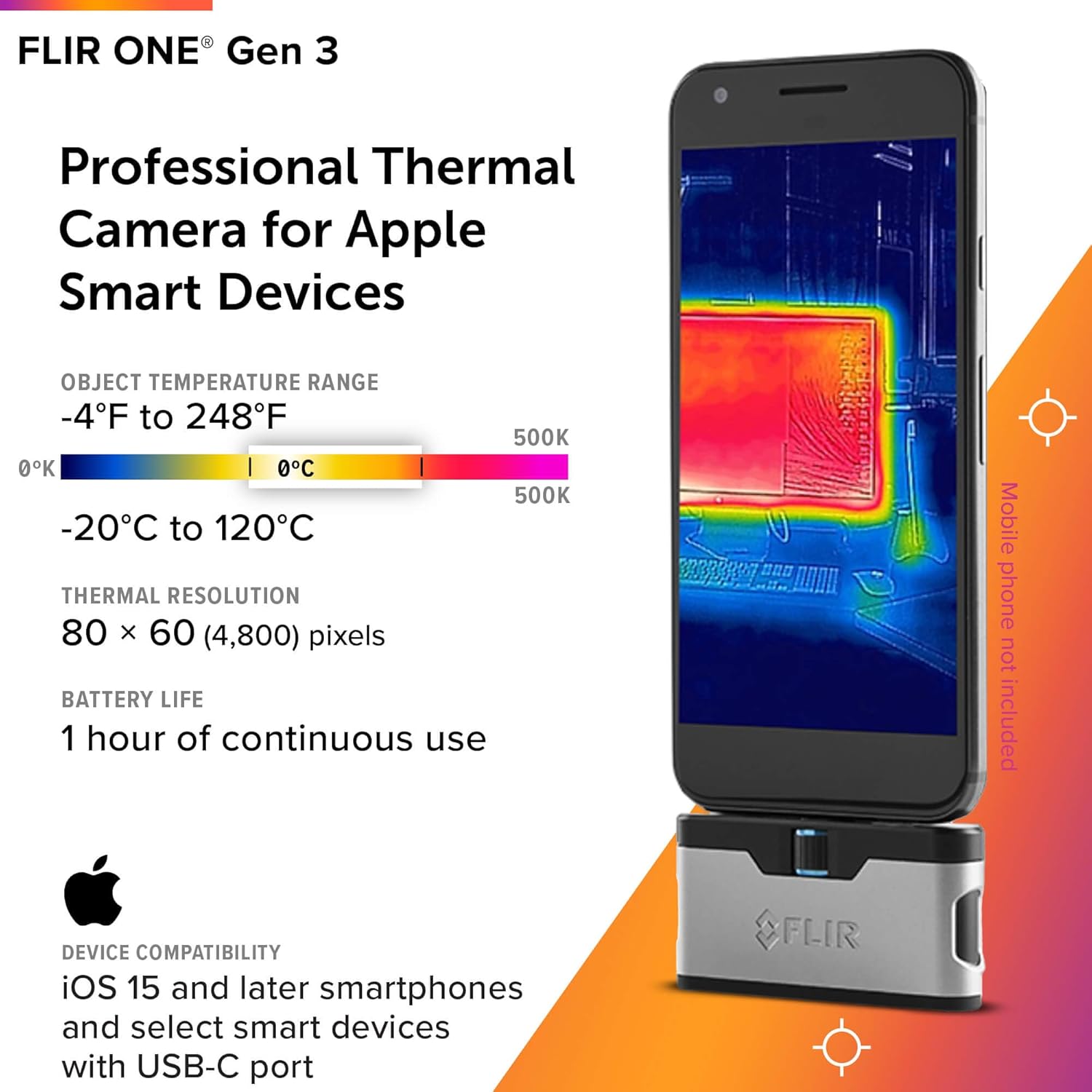
Figure 2: The FLIR ONE Gen 3 connected to an iOS smartphone, illustrating its compact form factor and key specifications like temperature range and thermal resolution.

Figure 3: Close-up view of the FLIR ONE Gen 3, highlighting the adjustable USB-C connector and its rugged design, capable of withstanding a 1.5-meter drop.
3. Operation
3.1 Capturing Thermal Images
Once connected and the app is open, the FLIR ONE Gen 3 will display a live thermal feed on your smartphone screen. You can switch between thermal, visible, and MSX modes within the app. To capture an image, simply tap the capture button on the screen.
3.2 MSX Technology
FLIR's Multi-Spectral Dynamic Imaging (MSX) technology enhances thermal images by embossing visual details from the integrated visible light camera onto the thermal image. This provides greater clarity and makes it easier to identify objects and features in the thermal scene.

Figure 4: Comparison of thermal images with and without MSX technology, demonstrating how MSX enhances lines and edge details for improved clarity.
3.3 FLIR ONE App Features
The FLIR ONE app provides a comprehensive interface for controlling the camera and managing your thermal data. Key features include:
- Temperature Measurement: Display temperature readings for specific points or areas.
- Image and Video Capture: Save thermal images and videos directly to your phone's gallery.
- Thermal Inspection Guides: Access step-by-step guides within the app to help identify common issues like air leaks or moisture buildup.
- FLIR Ignite Cloud Integration: Seamlessly upload, edit, organize, and share images and videos via FLIR Ignite cloud storage.
- Settings: Adjust emissivity, temperature units, color palettes, and other camera settings.

Figure 5: Screenshot of the FLIR ONE App interface, showing options for settings, image capture, and access to help articles.

Figure 6: Examples of the FLIR Thermal Inspection Guides available within the app, assisting users in identifying and documenting common thermal faults.

Figure 7: Illustration of FLIR Ignite cloud storage and reporting software, showing how images can be accessed and managed across mobile and desktop devices.
4. Maintenance
To ensure the longevity and optimal performance of your FLIR ONE Gen 3, follow these maintenance guidelines:
- Cleaning: Gently wipe the lens and device body with a soft, lint-free cloth. Do not use abrasive cleaners or solvents.
- Storage: Store the device in a cool, dry place when not in use. Avoid extreme temperatures.
- Battery Care: For long-term storage, ensure the battery is charged to approximately 50%. Recharge periodically if stored for extended periods.
- Physical Protection: While the device is jobsite tough and rated for drops up to 1.5 meters, avoid unnecessary impacts or rough handling.
5. Troubleshooting
If you encounter issues with your FLIR ONE Gen 3, consider the following common troubleshooting steps:
- Device Not Detected:
- Ensure the FLIR ONE Gen 3 is securely plugged into the USB-C port.
- Verify your smartphone is compatible (iPhone 15 and newer with USB-C).
- Restart the FLIR ONE app and/or your smartphone.
- Check if the device battery is charged.
- Image Quality Issues:
- Clean the thermal and visual camera lenses with a soft cloth.
- Ensure proper focus if applicable (though FLIR ONE Gen 3 is fixed focus).
- Adjust emissivity settings in the app for more accurate temperature readings on different surfaces.
- App Crashing/Freezing:
- Close and reopen the app.
- Ensure your app is updated to the latest version.
- Free up storage space on your smartphone if it's low.
For persistent issues, refer to the FLIR support website or contact customer service.
6. Specifications
| Feature | Detail |
|---|---|
| Model Number | 435-0010-03 |
| Compatibility | iOS Smartphones (iPhone 15 and Newer w/USB-C) |
| Thermal Resolution | 80 x 60 pixels |
| Visual Resolution | 1440 x 1080 pixels |
| Temperature Accuracy | ±3°C or ±5% (within 15°C – 35°C, scene 5°C – 120°C) |
| Object Temperature Range | -20°C to 120°C (-4°F to 248°F) |
| Drop Rating | 1.5 meters (4.9 ft) |
| Product Dimensions | 2.6 x 1.3 x 0.6 inches (67 x 34 x 14 mm) |
| Item Weight | 1.28 ounces |
| Battery Life | Up to 1 hour continuous use (internal rechargeable battery) |
| Shooting Modes | Thermal, Visible, MSX |
7. Warranty and Support
For information regarding product warranty, technical support, or service, please visit the official FLIR website or contact FLIR customer support directly. Details on protection plans may also be available through your point of purchase.
Online Resources:
Related documents435-0010-03


Ask a question about this manual
Ask about setup, troubleshooting, compatibility, parts, safety, or missing instructions. Manuals+ will review the question and use this page’s manual context to help answer it.