
Acer A715-79G
Acer Aspire 7 A715-79G Laptop User Manual
Model: A715-79G
1. Introduction
This manual provides essential information for setting up, operating, maintaining, and troubleshooting your Acer Aspire 7 A715-79G laptop. Please read this manual thoroughly to ensure proper use and to maximize the lifespan of your device. Keep this manual for future reference.
Safety Information
- Always use the original power adapter and battery provided with your laptop.
- Avoid exposing the laptop to extreme temperatures, direct sunlight, or high humidity.
- Do not attempt to disassemble or repair the laptop yourself. Refer to qualified service personnel.
- Keep liquids away from the laptop to prevent electrical shock or damage.
2. Package Contents
Verify that all items are present in the package:
- Acer Aspire 7 A715-79G Laptop (1N)
- Power Cord (1N)
- Power Adapter (1N)
- User Manual (1N)
3. Product Overview
Familiarize yourself with the main components and ports of your Acer Aspire 7 laptop.
Front View

Image: The Acer Aspire 7 A715-79G laptop with its lid open, showcasing the display and keyboard.
Side and Rear Views (Ports)
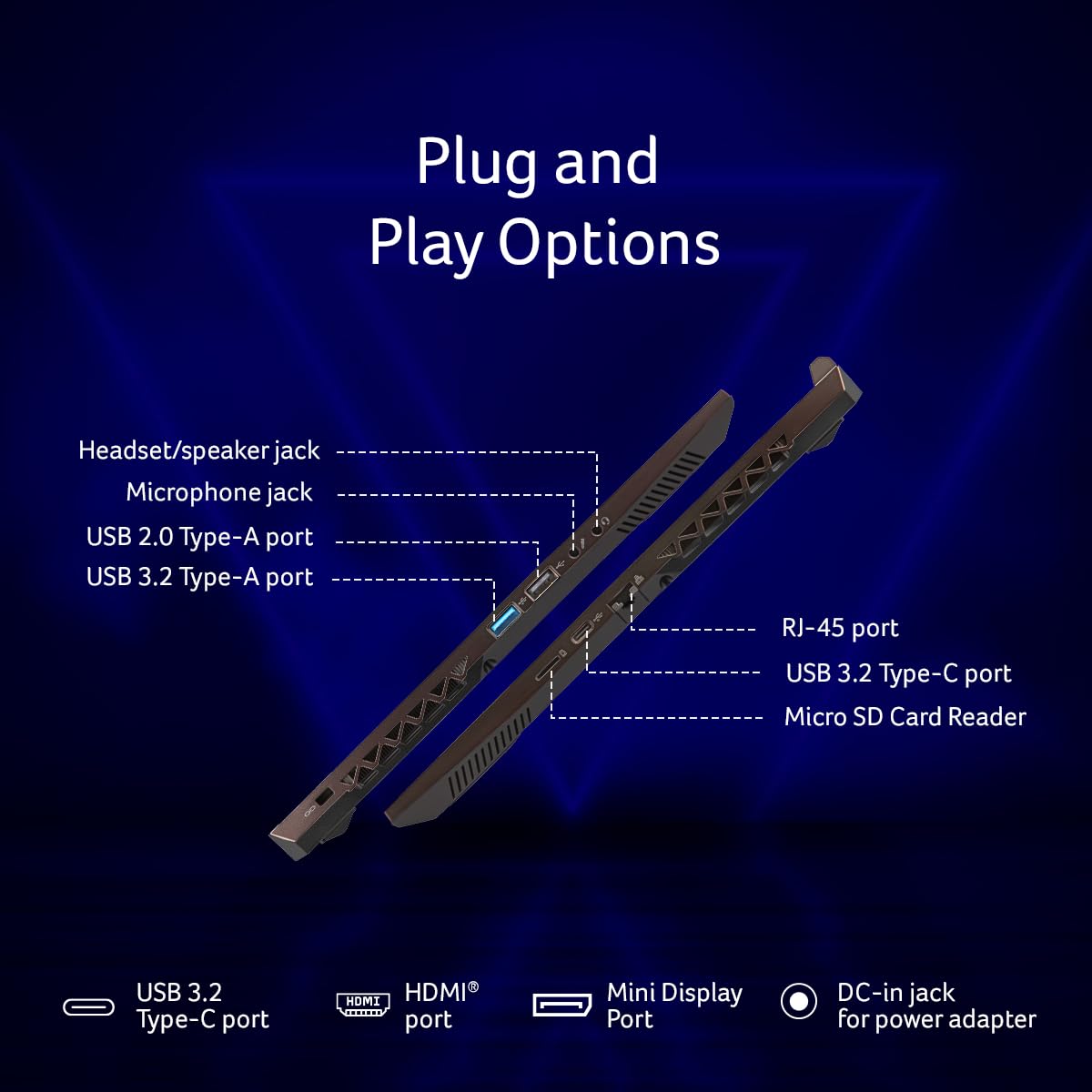
Image: A diagram illustrating the various ports available on the sides of the Acer Aspire 7 laptop.
- Left Side Ports: DC-in jack for power adapter, HDMI port, USB 3.2 Type-C port, USB 3.2 Type-A port, RJ-45 port (Ethernet).
- Right Side Ports: Headset/speaker jack, Microphone jack, USB 2.0 Type-A port, USB 3.2 Type-A port.
4. Initial Setup
4.1 Connecting the Power Adapter
- Connect the power adapter cable to the DC-in jack on the left side of your laptop.
- Plug the power cord into the power adapter.
- Plug the other end of the power cord into a grounded electrical outlet.
- Allow the battery to charge for at least 30 minutes before initial use, or until the battery indicator shows a full charge.
4.2 First Boot and Windows 11 Setup
- Open the laptop lid and press the power button.
- Follow the on-screen instructions to complete the Windows 11 Home setup process. This includes selecting your region, language, and setting up your user account.
- Connect to a Wi-Fi network when prompted to ensure your system can download necessary updates. The laptop supports Intel Wireless Wi-Fi 6 AX101 for fast connectivity.
5. Operating Your Laptop
5.1 Keyboard and Touchpad
- The laptop features a multi-language, multi-color illuminated full-size keyboard with a numeric pad. You can adjust the backlight settings through system utilities or dedicated function keys.
- The precision touchpad supports multi-touch gestures for navigation. Refer to Windows settings for customization options.
5.2 Display
- Your laptop is equipped with a 15.6-inch Full HD (1920 x 1080 pixels) display.
- The display features a 144 Hz refresh rate for smoother visuals, particularly beneficial for fast-paced content.
5.3 Performance Components
- Processor: Intel Core i5-13420H, providing efficient performance for multitasking and demanding applications.
- Graphics: NVIDIA GeForce RTX 3050 with 4 GB GDDR6 dedicated graphics memory, suitable for gaming and graphic-intensive tasks.
- Memory (RAM): 16 GB of DDR4 dual-channel RAM for responsive system performance.
- Storage: 512 GB NVMe SSD (Solid State Drive) for fast boot times and application loading.
6. Maintenance
6.1 Cleaning Your Laptop
- Use a soft, lint-free cloth slightly dampened with water or a specialized screen cleaner to clean the display.
- For the keyboard and chassis, use a soft cloth. A can of compressed air can help remove dust from crevices.
- Always power off and unplug the laptop before cleaning.
6.2 Battery Care
- To prolong battery life, avoid fully discharging the battery frequently.
- Store the laptop in a cool, dry place if not used for extended periods.
- The laptop uses a 54 Watt-Hour Lithium Ion battery.
6.3 Software Updates
- Ensure your Windows 11 Home operating system is regularly updated to receive the latest security patches and features.
- Periodically check for driver updates for your graphics card (NVIDIA) and other components from the Acer support website.
7. Troubleshooting
This section addresses common issues you might encounter with your laptop.
7.1 Power Issues
- Laptop does not turn on: Ensure the power adapter is securely connected to both the laptop and a working electrical outlet. Check the battery charge level.
- Battery not charging: Verify the power adapter and cord are not damaged. Try a different outlet.
7.2 Display Issues
- No image on screen: Connect an external monitor to the HDMI port to check if the issue is with the laptop's display. Restart the laptop.
- Dim display: Adjust screen brightness using the function keys (usually Fn + F3/F4 or similar icons).
7.3 Connectivity Issues
- Wi-Fi not connecting: Ensure Wi-Fi is enabled (check function keys or Windows settings). Restart your router and laptop.
- Bluetooth device not pairing: Ensure Bluetooth is enabled on both devices. Check device compatibility and try re-pairing.
8. Technical Specifications
| Feature | Specification |
|---|---|
| Brand | Acer |
| Model Number | A715-79G |
| Processor | Intel Core i5-13420H (3.4 GHz) |
| Graphics Coprocessor | NVIDIA GeForce RTX 3050 |
| Graphics RAM Type | GDDR6 (4 GB) |
| RAM Memory | 16 GB DDR4 |
| Storage | 512 GB SSD NVMe |
| Operating System | Windows 11 Home |
| Screen Size | 15.6 Inches |
| Screen Resolution | 1920 x 1080 Pixels (Full HD) |
| Refresh Rate | 144 Hz |
| Connectivity | Intel Wireless Wi-Fi 6 AX101, Bluetooth 5.2 |
| USB Ports | 3 x USB 3.0 (Type-A), 1 x USB 2.0 (Type-A), 1 x USB 3.2 (Type-C) |
| HDMI Ports | 1 |
| Battery | 54 Watt Hours Lithium Ion (4 cells) |
| Item Weight | 1.99 kg |
| Included Components | Laptop, Power cord, Adapter, User Manual |
9. Warranty and Support
Your Acer Aspire 7 A715-79G laptop comes with a standard manufacturer's warranty. Please refer to the warranty card included in your package for specific terms and conditions, including warranty duration and coverage details.
Customer Support
For technical assistance, driver downloads, or service inquiries, please visit the official Acer support website or contact Acer customer service in your region. Have your laptop's serial number and model number (A715-79G) ready when contacting support.
You may also find additional support resources and FAQs on the Acer website.