
1. Introduction
Thank you for choosing the OKP Life K5 Robot Vacuum. This intelligent cleaning device is designed to provide efficient and convenient floor cleaning for your home. Featuring Wi-Fi connectivity and remote control capabilities, the K5 offers multiple cleaning modes and smart navigation to ensure a thorough clean. Please read this manual carefully before using the product to ensure proper operation and maintenance.
2. Package Contents
Verify that all items are present and in good condition upon unpacking.
- OKP Life K5 Robot Vacuum Cleaner (1 unit)
- Remote Control (1 unit)
- Charging Dock (1 unit)
- Power Adapter (1 unit)
- Side Brushes (4 units, 2 for immediate use, 2 spares)
- Cleaning Tool (1 unit)
- User Manual (This document)

Image: The OKP Life K5 Robot Vacuum, its remote control, and a set of four side brushes, illustrating the typical package contents.
3. Product Overview
3.1 Robot Vacuum Components
Familiarize yourself with the main parts of your K5 Robot Vacuum.

Image: A top-down view of the OKP Life K5 Robot Vacuum, highlighting its sleek, disc-shaped design and central power button.
- Main Body: Contains the motor, dustbin, and navigation sensors.
- Power Button/Indicator Light: For manual operation and status indication.
- Dustbin: 550ml capacity for collecting debris.
- Side Brushes: Two rotating brushes to sweep debris into the suction path.
- Driving Wheels: For movement across various floor types.
- Charging Contacts: For automatic recharging at the charging dock.
- Sensors: Anti-drop and anti-collision sensors for safe navigation.
3.2 Remote Control
The remote control provides convenient access to various cleaning functions.

Image: A close-up of the white remote control for the OKP Life K5 Robot Vacuum, showing its various function buttons for control and mode selection.
- Power Button: Turns the robot on/off or starts/pauses cleaning.
- Directional Buttons: Manually control the robot's movement.
- Home Button: Sends the robot back to the charging dock.
- Mode Selection Buttons: Switch between Auto, Spot, Edge, and Zigzag cleaning modes.
- Suction Power Adjustment: Adjusts the vacuum's suction strength.
4. Setup
4.1 Preparing the Robot
- Remove all protective films and stickers from the robot and charging dock.
- Attach the side brushes by pressing them onto the square posts until they click into place.
4.2 Placing the Charging Dock
- Place the charging dock against a wall on a hard, level surface.
- Ensure there is at least 0.5 meters (1.6 feet) of clear space on both sides of the dock and 1.5 meters (4.9 feet) in front of it.
- Plug the power adapter into the charging dock and then into a wall outlet.
4.3 Initial Charging
For optimal performance, fully charge the robot before its first use.
- Manually place the robot onto the charging dock, ensuring the charging contacts align.
- The indicator light on the robot will show charging status (e.g., breathing light).
- A full charge typically takes 4-5 hours.

Image: The OKP Life K5 Robot Vacuum automatically navigating back to its charging dock, demonstrating its self-charging capability when the battery is low.
4.4 Connecting to Wi-Fi and App
The OKP Life App allows for advanced control and scheduling.
- Download the "OKP Life" app from the App Store (iOS) or Google Play Store (Android).
- Register an account and log in.
- Follow the in-app instructions to add your K5 robot vacuum. Ensure your Wi-Fi network is 2.4GHz.
- The robot can also be connected to Amazon Alexa and Google Assistant for voice control. Refer to the app for detailed instructions on integrating with these smart home platforms.

Image: A user interacting with the OKP Life K5 Robot Vacuum via a smartphone app, with icons indicating compatibility with Google Assistant and Amazon Alexa, and a note about 2.4GHz Wi-Fi connectivity.
5. Operating Instructions
5.1 Starting a Clean
- From Robot: Press the power button on the robot once.
- From Remote Control: Press the power button on the remote.
- From App: Tap the "Start Cleaning" button in the OKP Life app.
- Voice Command: Use a connected smart assistant (e.g., "Alexa, turn on Robot Vacuum").
5.2 Pausing/Resuming a Clean
- Press the power button on the robot or remote, or use the app/voice command.
- Press again to resume cleaning.
5.3 Sending Robot to Charging Dock
- Press the "Home" button on the remote control or in the app.
- The robot will automatically return to its charging dock when the battery is low.
5.4 Cleaning Modes
The K5 offers multiple cleaning modes to suit different needs, selectable via the remote control or app.
- Auto Cleaning: The robot intelligently navigates and cleans the entire accessible area. This is the default mode.
- Spot Cleaning: The robot cleans a concentrated area in a spiral pattern, ideal for localized dirt or spills.
- Edge Cleaning: The robot cleans along walls and furniture edges to ensure thorough coverage.
- Zigzag Cleaning: The robot cleans in a systematic back-and-forth pattern, covering the maximum area and reducing missed spots.

Image: The OKP Life K5 Robot Vacuum cleaning a room, with an overlay illustrating its efficient Z-Shape (zigzag) cleaning path, designed to maximize coverage and minimize missed areas.
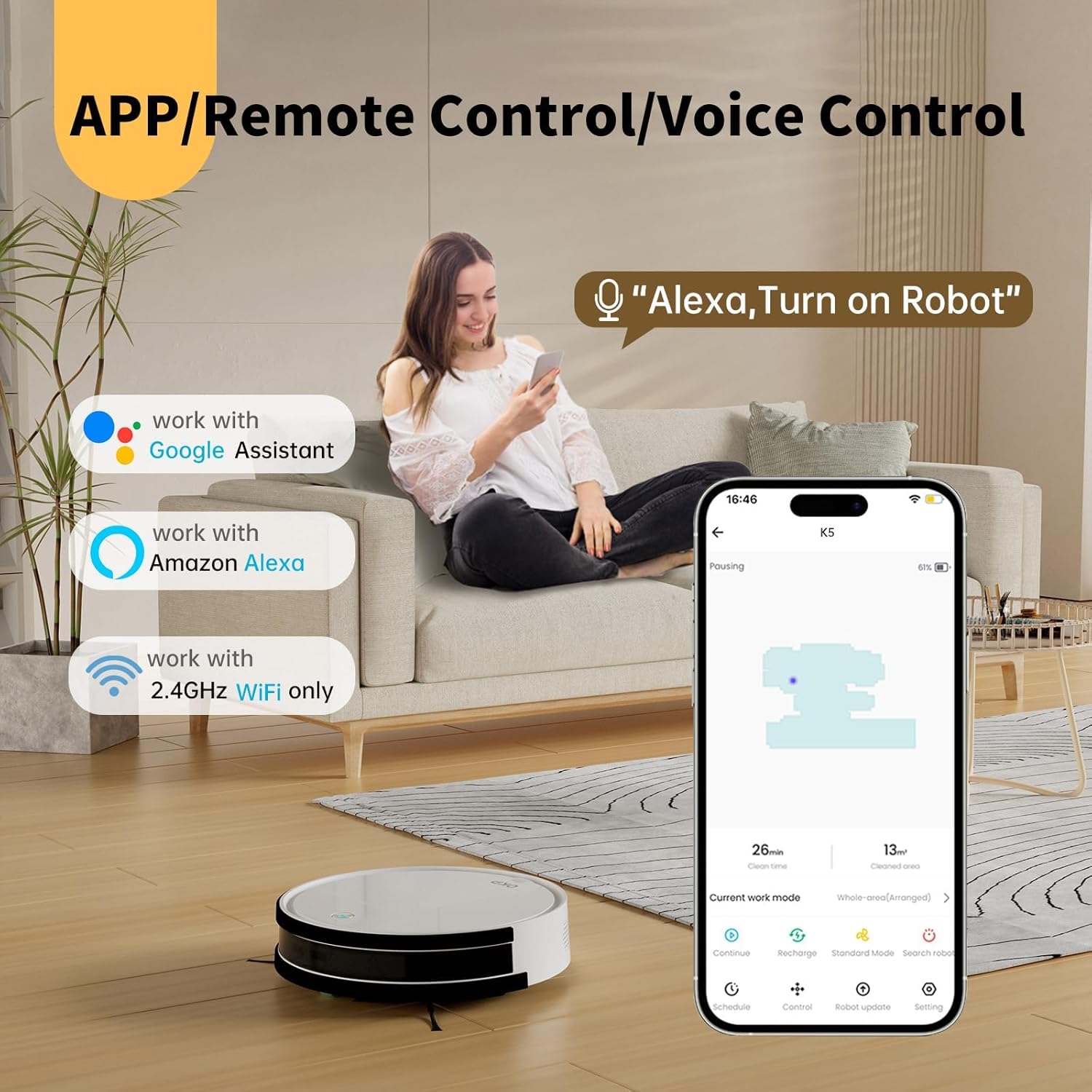
Image: The OKP Life K5 Robot Vacuum demonstrating its suction power, with illustrations of various debris types (debris, dust, beans, hair) being effectively vacuumed, indicating its versatility for different cleaning scenarios.
6. Maintenance
Regular maintenance ensures optimal performance and extends the lifespan of your robot vacuum.
6.1 Emptying the Dustbin
- Press the dustbin release button and pull out the dustbin.
- Open the dustbin lid and empty its contents into a trash can.
- Rinse the dustbin with water if necessary (ensure it is completely dry before reinserting).
6.2 Cleaning the Filter
- Remove the filter from the dustbin.
- Tap the filter gently to remove dust. Do not wash the HEPA filter with water.
- Replace the filter every 3-6 months, depending on usage.
6.3 Cleaning Side Brushes
- Remove the side brushes by pulling them upwards.
- Remove any hair or debris wrapped around the brushes.
- Reattach the brushes. Replace if worn or damaged.
6.4 Cleaning Sensors and Charging Contacts
- Wipe the anti-drop sensors, anti-collision sensors, and charging contacts on both the robot and the charging dock with a clean, dry cloth.
- Keep these areas clean to ensure proper navigation and charging.
7. Troubleshooting
If your robot vacuum encounters issues, refer to the following common problems and solutions.
| Problem | Possible Cause | Solution |
|---|---|---|
| Robot does not turn on. | Low battery; Power switch off. | Charge the robot; Ensure the main power switch (if present) is ON. |
| Robot cannot charge. | Charging contacts dirty; Charging dock not powered. | Clean charging contacts; Ensure charging dock is plugged in and has power. |
| Robot gets stuck frequently. | Obstacles; Sensors dirty. | Clear cables, rugs, or small objects; Clean sensors. |
| Poor cleaning performance. | Full dustbin; Clogged filter; Worn brushes. | Empty dustbin; Clean/replace filter; Clean/replace side brushes. |
| Cannot connect to Wi-Fi/App. | Incorrect Wi-Fi band (only 2.4GHz supported); Incorrect password; Robot too far from router. | Ensure 2.4GHz Wi-Fi; Re-enter password; Move robot closer to router. |
If the problem persists, please contact customer support.
8. Specifications
| Brand | OKP Life |
| Model Name | K5 |
| Suction Power | 2100 PA |
| Dustbin Capacity | 550 ml |
| Power Source | Battery Powered |
| Form Factor | Disc-shaped |
| Special Features | Smart, Edge Cleaning, Obstacle Avoidance, Selective Room Cleaning, Bagless, Wi-Fi Connectivity, Remote Control, Voice Control (Alexa, Google Assistant), Automatic Charging, Multiple Cleaning Modes (Auto/Spot/Edge/Zigzag) |
| Dimensions (Approx.) | 280mm (width) x 77mm (height) / 11.02 inches (width) x 3 inches (height) |
9. Warranty and Support
OKP Life products come with a standard manufacturer's warranty. Please refer to the warranty card included in your package or visit the official OKP Life website for detailed warranty terms and conditions.
For technical support, troubleshooting assistance, or to order replacement parts, please contact OKP Life customer service through the contact information provided on their official website or within the OKP Life app.
Website: Visit the OKP Life Store on Amazon
