
DCHK PTWM-02
Haribo Wireless Mouse User Manual
Model: PTWM-02
Product Overview
The Haribo Wireless Mouse (Model: PTWM-02) is a compact and versatile peripheral designed for seamless connectivity across multiple devices. Featuring both Bluetooth 3.0/5.0 and 2.4GHz wireless options, adjustable DPI settings, and a silent click design, it offers a comfortable and efficient user experience. Its unique gummy bear style adds a touch of fun to your workspace.

Figure 1: Haribo Wireless Mouse (Pink) with its USB receiver.
What's in the Box:
- Haribo Wireless Mouse
- USB Nano Receiver (Dongle)
- User Manual
Note: 1 AA battery is required and not included.
Key Features
- Reliable Wireless Connectivity: Supports both Bluetooth 5.0 and 3.0 revisions for compatibility with a wide range of devices, from new laptops and smartphones to older computers. Also includes a 2.4GHz wireless option via the nano receiver.
- Multi-Device Pairing: Easily switch between up to three paired devices. An LED indicator on the bottom of the mouse shows the currently selected channel and pairing status.
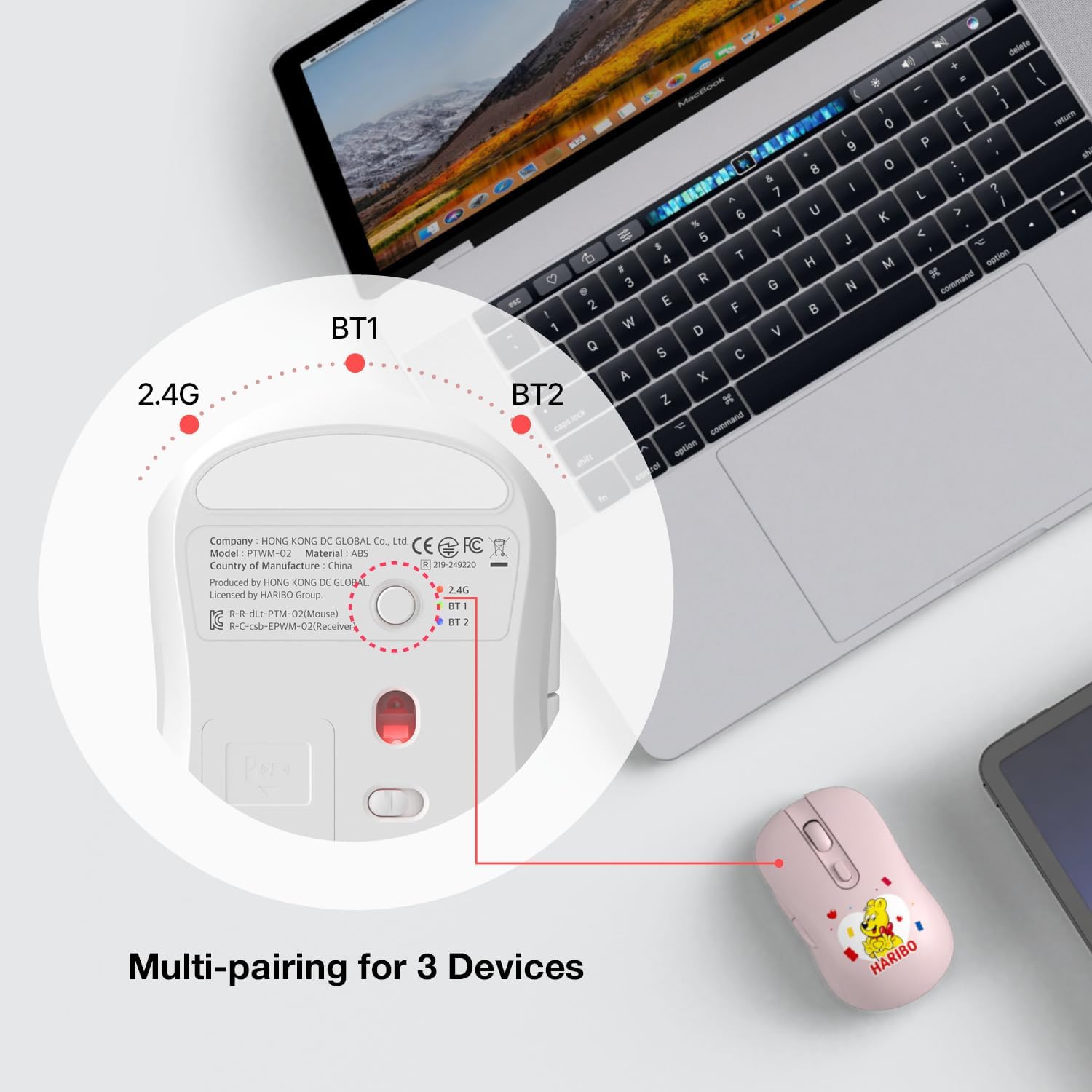
Figure 2: Multi-pairing switch on the bottom of the mouse for seamless device switching.
- Adjustable DPI Settings: Customize cursor sensitivity with three DPI levels: 800, 1200, and 1600 DPI. Adjust easily with the dedicated DPI button to suit your environment and task.
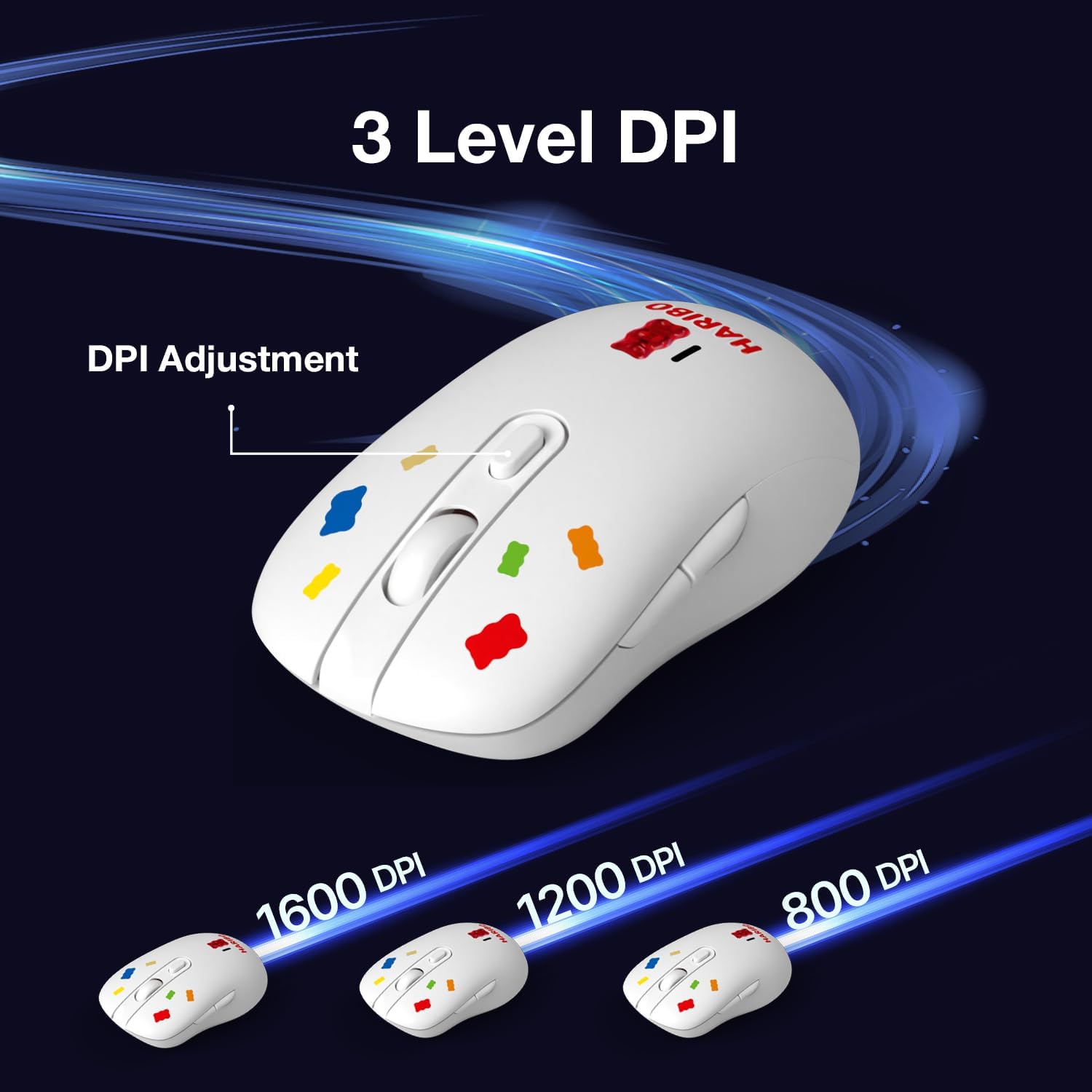
Figure 3: DPI adjustment button and visual representation of different DPI settings.
- Auto Sleep Mode: To conserve battery life, the mouse automatically enters sleep mode when not in use, minimizing power consumption and extending battery longevity.
- Silent Click Design: Enjoy a quiet working environment with silent left and right click buttons, ideal for use in quiet spaces like libraries or offices.
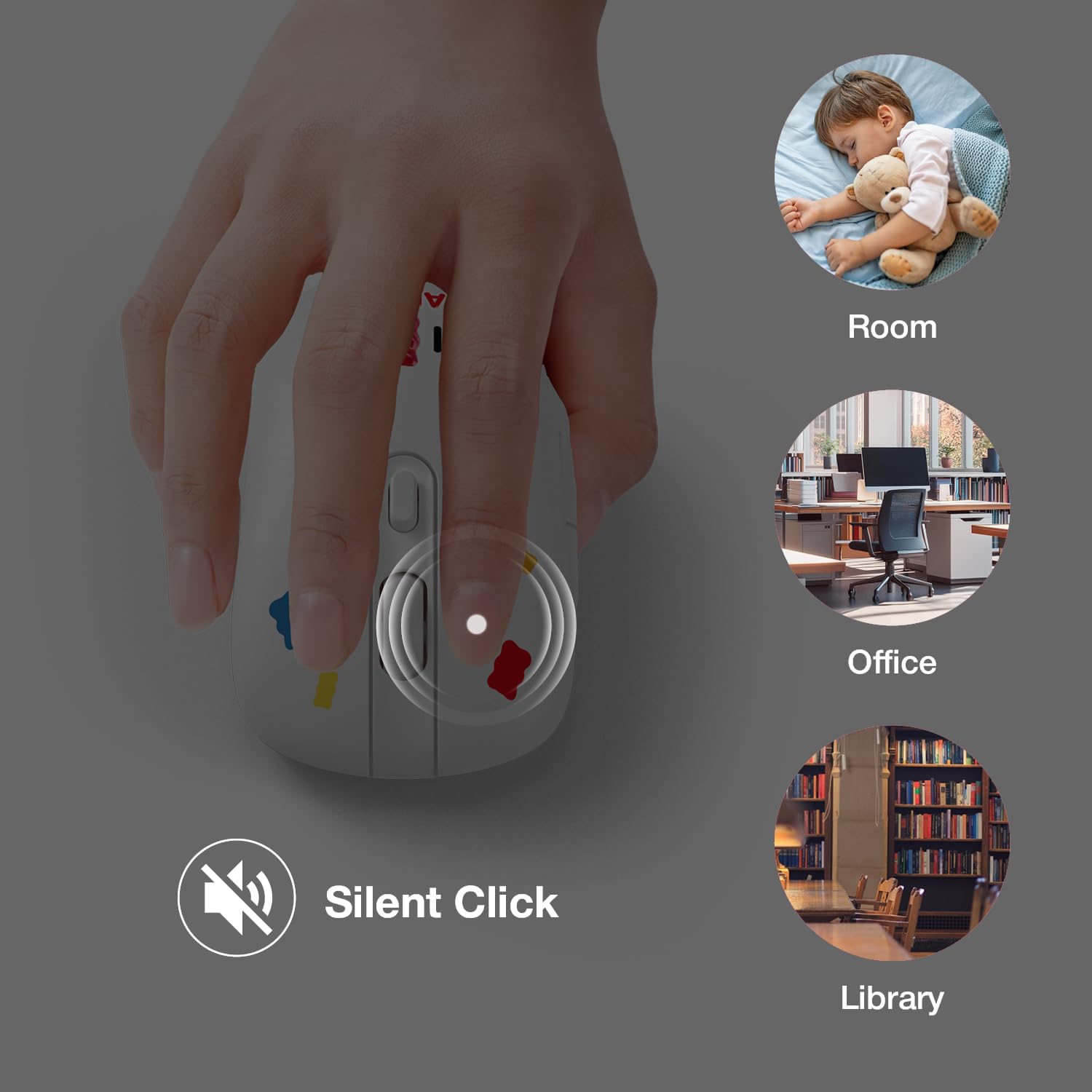
Figure 4: Silent click feature for quiet operation in various settings.
- Plug & Play Nano Receiver: The included nano dongle is stored conveniently in the back of the mouse. It allows for automatic recognition and use without the need for software installation.
Setup Guide
1. Installing the Battery:
- Locate the battery compartment on the underside of the mouse.
- Open the battery cover.
- Insert one AA battery, ensuring correct polarity (+/-).
- Close the battery cover securely.
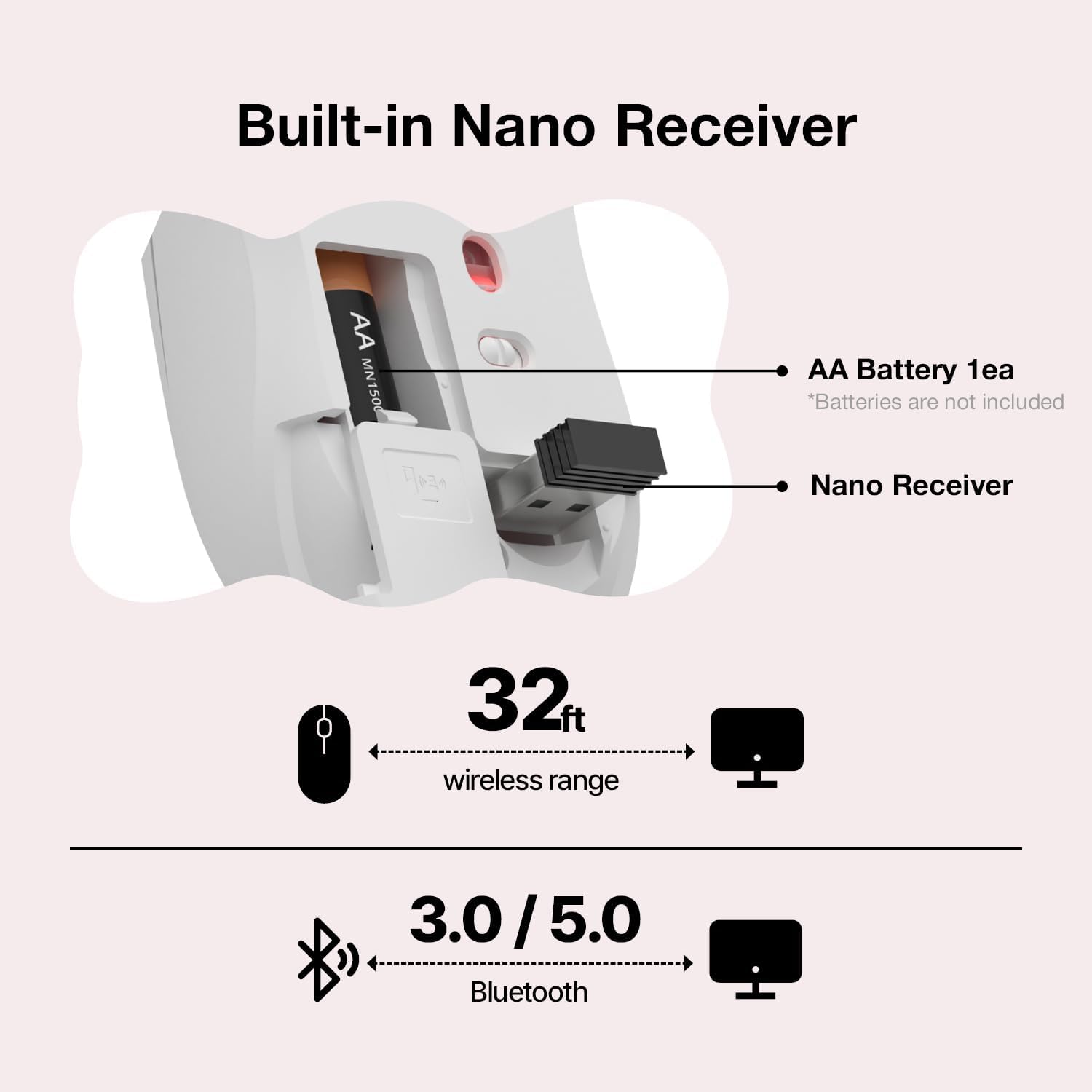
Figure 5: Battery and nano receiver placement.
2. Connecting the Mouse:
The Haribo Wireless Mouse offers two connection methods: 2.4GHz wireless via USB receiver and Bluetooth.
2.1. 2.4GHz Wireless Connection:
- Remove the USB nano receiver from its storage slot on the bottom of the mouse.
- Plug the USB nano receiver into an available USB port on your computer or device.
- Turn on the mouse using the power switch on the bottom.
- Set the switch on the bottom of the mouse to the "2.4G" position. The mouse should automatically connect.
2.2. Bluetooth Connection:
- Turn on the mouse using the power switch on the bottom.
- Set the switch on the bottom of the mouse to either "BT1" or "BT2" position.
- On your device (laptop, tablet, etc.), go to Bluetooth settings.
- Search for new devices and select "Haribo Mouse" (or similar name) from the list.
- Follow any on-screen prompts to complete the pairing process. The LED indicator will confirm successful pairing.
Operating Instructions
Mouse Buttons and Functions:

Figure 6: Haribo Wireless Mouse button layout.
| No. | Button | Function |
|---|---|---|
| 01 | Left Button | Primary click function. Silent operation. |
| 02 | Right Button | Secondary click function (context menu). Silent operation. |
| 03 | Scroll Wheel | Scrolls content vertically. Can also be pressed for middle-click functionality. |
| 04 | DPI Adjustment | Cycles through DPI settings (800, 1200, 1600 DPI). |
| 05 | Forward Button | Navigates forward in web browsers or file explorers. |
| 06 | Backward Button | Navigates backward in web browsers or file explorers. |
Multi-Device Switching:
To switch between paired devices (2.4G, BT1, BT2), simply move the switch on the bottom of the mouse to the desired channel. The mouse will automatically connect to the last paired device on that channel.
Maintenance and Care
- Cleaning: Use a soft, dry cloth to clean the mouse. For stubborn dirt, a slightly damp cloth with mild soap can be used, but ensure no liquid enters the mouse.
- Battery Replacement: When the mouse performance degrades or the LED indicator flashes, replace the AA battery. Always use a fresh, high-quality AA battery.
- Storage: When not in use for extended periods, turn off the mouse to conserve battery life. Store the USB nano receiver inside the mouse's dedicated slot to prevent loss.
- Avoid Extreme Conditions: Do not expose the mouse to extreme temperatures, direct sunlight, or high humidity. Avoid dropping or subjecting the mouse to strong impacts.
Troubleshooting
| Problem | Possible Cause | Solution |
|---|---|---|
| Mouse not responding. | Low battery; Mouse is off; Incorrect connection mode; Receiver not plugged in (2.4G); Not paired (Bluetooth). | Replace battery; Turn on mouse; Switch to correct mode (2.4G/BT1/BT2); Plug in receiver; Re-pair Bluetooth. |
| Cursor movement is erratic or slow. | Low DPI setting; Dirty optical sensor; Unsuitable surface; Interference. | Increase DPI; Clean sensor; Use a mouse pad; Move closer to receiver/device; Reduce other wireless interference. |
| Cannot pair via Bluetooth. | Mouse not in pairing mode; Device's Bluetooth is off; Already paired to max devices. | Ensure mouse is in BT1/BT2 mode and discoverable; Turn on device's Bluetooth; Disconnect from another device if necessary. |
| Side buttons not working. | Application specific; Driver issue (rare). | Some applications may not support forward/backward buttons. No specific driver is usually needed for this plug-and-play mouse. |
Specifications
| Feature | Detail |
|---|---|
| Model Number | PTWM-02 |
| Brand | DCHK |
| Connectivity Technology | Bluetooth 3.0/5.0, 2.4GHz USB Wireless |
| Movement Detection | Optical |
| DPI Settings | 800, 1200, 1600 DPI (Adjustable) |
| Product Dimensions | 4.1 x 2.4 x 0.1 inches |
| Item Weight | 2.3 ounces |
| Battery Type | 1 x AA Battery (not included) |
| Special Features | Compact Design, Lightweight, Portable, Soundless, Multi-Device Pairing |
Warranty and Support
For warranty information and technical support, please refer to the contact details provided on the product packaging or visit the official DCHK website. Keep your purchase receipt for warranty claims.
For further assistance, you may also contact the seller directly through the platform where the product was purchased.
Manufacturer: DCHK
Date First Available: December 6, 2024
Ask a question about this manual
Ask about setup, troubleshooting, compatibility, parts, safety, or missing instructions. Manuals+ will review the question and use this page’s manual context to help answer it.