
1. Introduction
The ZEBRONICS Pixigo A16 is a 15.6-inch portable monitor designed for enhanced productivity and entertainment on the go. Featuring a Full HD 1080p resolution, anti-glare screen, and versatile connectivity options, it serves as an ideal secondary display for laptops, smartphones, and gaming consoles. Its lightweight design and 180° adjustable stand ensure flexibility and ease of use in various environments.
2. Package Contents
Verify that all items listed below are included in your package:
- Monitor - 1 unit
- Mini HDMI Cable - 1 unit
- Type C DP Cable - 1 unit
- Power Adapter - 1 unit
- User Manual - 1 unit
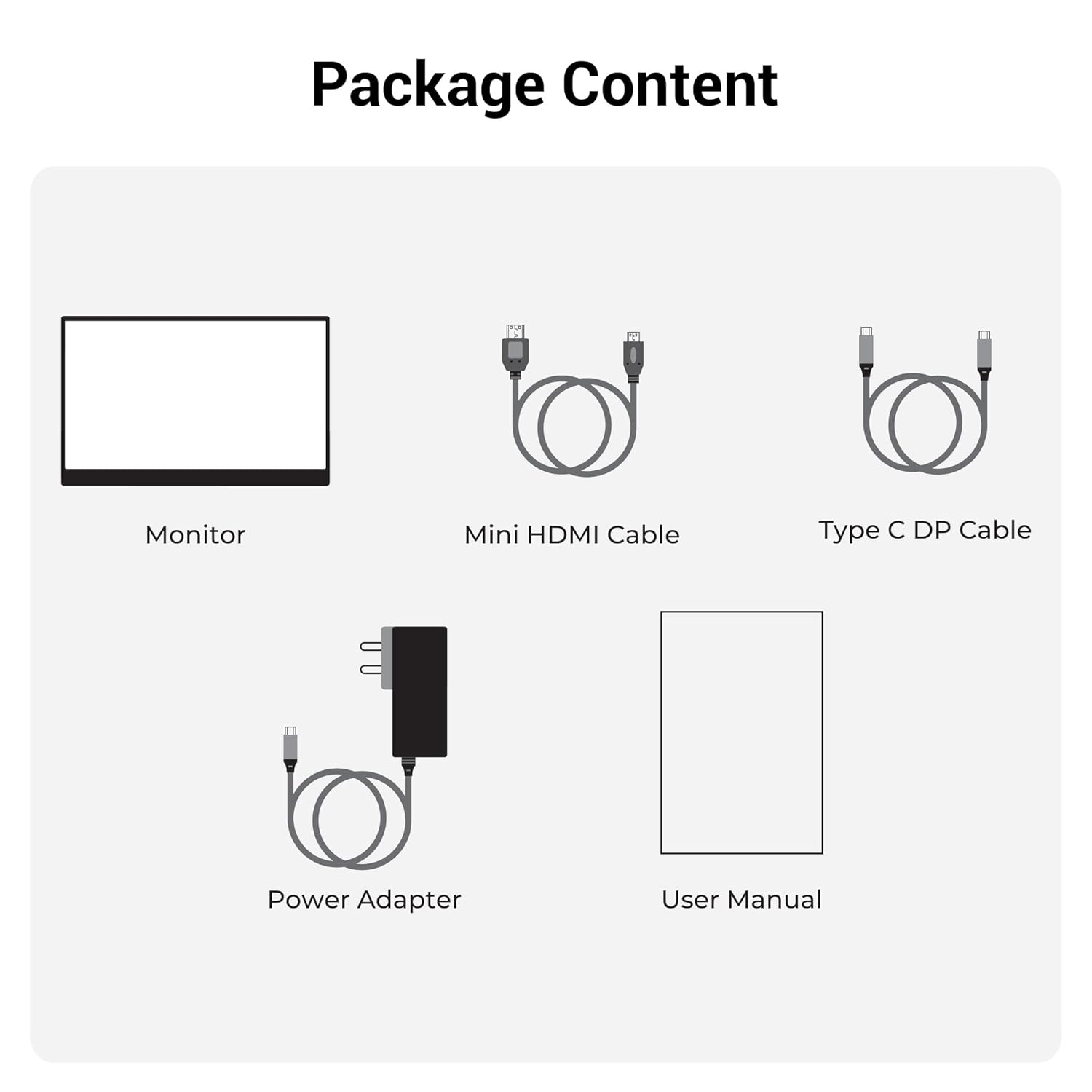
Figure 2.1: Package Contents
3. Product Overview
3.1 Ports and Controls
Familiarize yourself with the various ports and control buttons on your Pixigo A16 monitor:
- Mini HDMI Port: For video input from devices with HDMI output.
- Type C Port 2 (Power + Display): Supports both power delivery and display signal via a single Type-C cable.
- Type C Port 1 (Only Power): Dedicated for power input to the monitor.
- Power / Return Button: Used to power the monitor on/off and navigate back in the OSD menu.
- LED Indicator: Shows the power status of the monitor.
- Roller Key / Menu: Used to access and navigate the On-Screen Display (OSD) menu and adjust settings.
- Headphone Jack: For connecting external audio devices.

Figure 3.1: Monitor Ports and Controls
3.2 Key Features
- 15.6-inch FHD 1080p Display: Delivers sharp and vivid visuals with a resolution of 1920x1080.
- Anti-glare Screen: Minimizes reflections and eye strain for comfortable viewing.
- 180° Adjustable Stand: Offers flexible positioning to achieve the optimal viewing angle.
- Dual Input: Features 1x Type-C DP port and 1x Mini HDMI port for broad compatibility.
- Built-in Speakers: Provides integrated audio output.
- Lightweight and Portable: Compact design for easy transport and use in various locations.
- 300 Nits Brightness: Ensures a bright and vibrant screen, even in well-lit environments.
- 16.7 Million Colors: Supports accurate color reproduction.
- 16:9 Aspect Ratio: Ideal for media consumption and multitasking.
- Wall-mountable: Supports wall mounting for a clutter-free setup.

Figure 3.2: Display Features
4. Setup
Follow these steps to set up your ZEBRONICS Pixigo A16 portable monitor:
- Unpack the Monitor: Carefully remove the monitor and all accessories from the packaging.
- Position the Stand: Adjust the integrated 180° stand to your desired viewing angle.
- Connect Power: Connect the provided Power Adapter to the Type C Port 1 (Power Only) on the monitor and plug it into a power outlet.
- Connect to Device:
- For Type-C Devices (with DisplayPort Alt Mode): Use the Type C DP Cable to connect your device (laptop, smartphone) to Type C Port 2 (Power + Display) on the monitor. This single cable can provide both power and display signal.
- For HDMI Devices: Use the Mini HDMI Cable to connect your device (laptop, gaming console) to the Mini HDMI Port on the monitor. Ensure the monitor is also powered via Type C Port 1.
- Power On: Press the Power / Return Button to turn on the monitor.

Figure 4.1: Wide Compatibility with PC, Laptop, Mobile, and Gaming Console
5. Operating Instructions
5.1 Basic Operation
- Power On/Off: Press and hold the Power / Return Button for a few seconds.
- Input Source Selection: The monitor should automatically detect the input source. If not, access the OSD menu using the Roller Key and manually select the input.
- Volume Adjustment: Use the Roller Key to adjust the volume of the built-in speakers or connected headphones.
5.2 On-Screen Display (OSD) Menu
The OSD menu allows you to customize various display settings:
- Press the Roller Key to open the OSD menu.
- Roll the Roller Key up or down to navigate through menu options.
- Press the Roller Key to select an option or confirm a setting.
- Press the Power / Return Button to go back to the previous menu or exit the OSD.
5.3 Adjusting the Stand
The integrated stand can be adjusted up to 180 degrees to find the most comfortable viewing angle for your needs. Simply pivot the monitor on its stand to tilt it forward or backward.

Figure 5.1: 180° Adjustable Stand
6. Maintenance
To ensure the longevity and optimal performance of your monitor, follow these maintenance guidelines:
- Cleaning the Screen: Use a soft, lint-free cloth slightly dampened with water or a non-abrasive screen cleaner. Avoid harsh chemicals or abrasive materials.
- Cleaning the Casing: Wipe the monitor casing with a soft, dry cloth.
- Storage: When not in use, store the monitor in a cool, dry place, away from direct sunlight and extreme temperatures.
- Handling: Handle the monitor with care, especially when transporting it. Its lightweight design makes it portable, but it should still be protected from impacts.
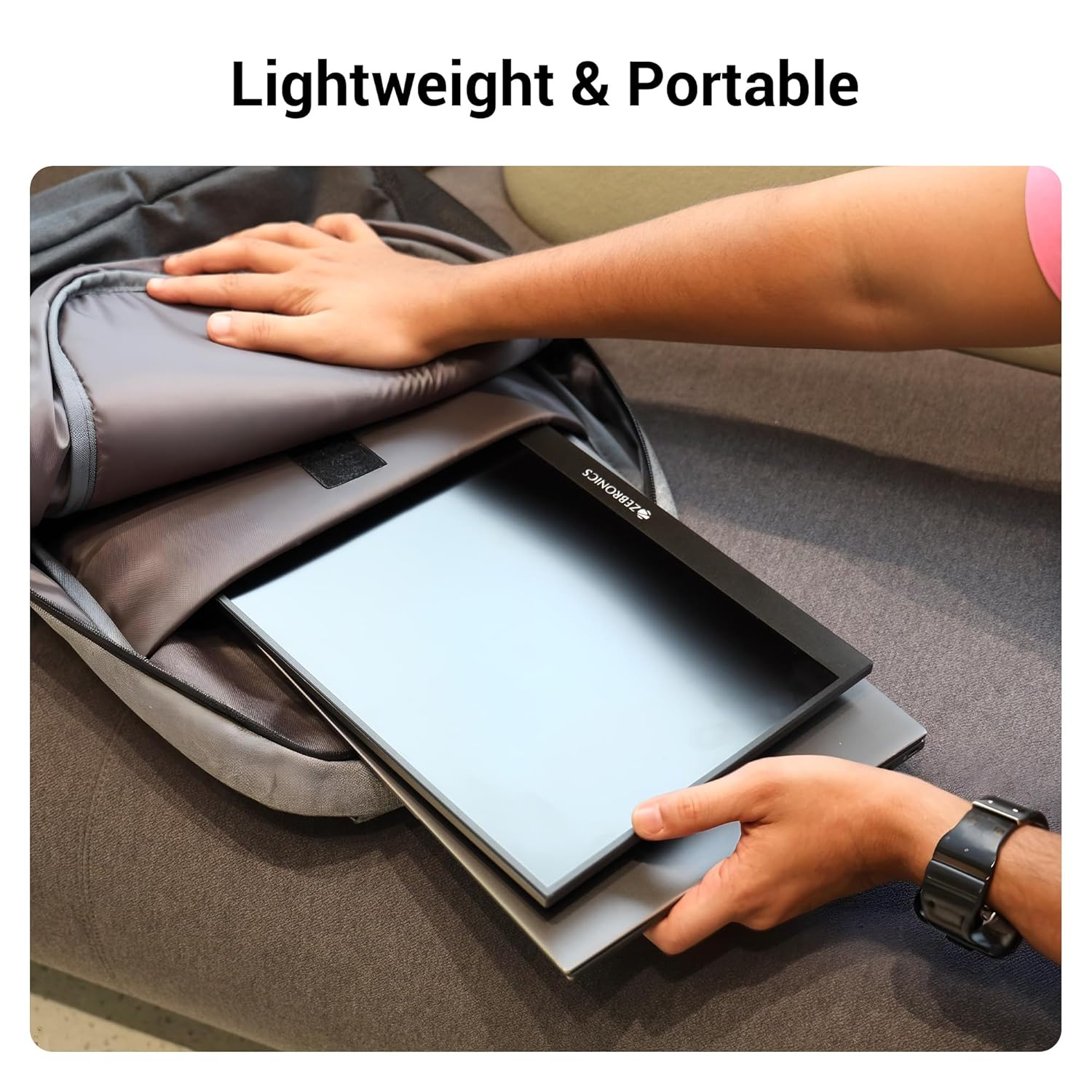
Figure 6.1: Lightweight and Portable Design
7. Troubleshooting
If you encounter issues with your monitor, refer to the following common problems and solutions:
| Problem | Possible Cause | Solution |
|---|---|---|
| No display/No signal | Incorrect input source selected; Loose cable connection; Insufficient power. | Check cable connections (HDMI/Type-C). Ensure the monitor is powered. Select the correct input source via the OSD menu. For Type-C, ensure your device supports DisplayPort Alt Mode. |
| Flickering screen | Faulty cable; Incompatible resolution/refresh rate; Power fluctuations. | Try a different cable. Adjust the resolution or refresh rate on your connected device. Ensure stable power supply. |
| No audio | Volume too low/muted; Incorrect audio output selected on device. | Increase monitor volume using the Roller Key. Check audio settings on your connected device to ensure audio is routed to the monitor. |
| Monitor not turning on | No power; Power adapter issue. | Ensure the power adapter is securely connected to the monitor (Type C Port 1) and a working power outlet. |
8. Specifications
Detailed technical specifications for the ZEBRONICS Pixigo A16 portable monitor:
- Brand: ZEBRONICS
- Model: Zeb-Pixigo A16
- Screen Size: 15.6 Inches (39.6 cm)
- Screen Resolution: 1920 x 1080 Pixels (FHD 1080p)
- Aspect Ratio: 16:9
- Brightness: 300 Nits
- Color Support: 16.7 Million Colors
- Screen Surface Description: Matte (Anti-glare)
- Connectivity: 1x Mini HDMI Port, 2x Type C Ports (1x Power + Display, 1x Power Only), Headphone Jack
- Built-in Speakers: Yes
- Item Weight: 804 g
- Product Dimensions (LxWxH): 1.7 x 35.5 x 22.2 cm
9. Warranty and Support
For warranty information, technical support, or service inquiries, please refer to the warranty card included in your package or visit the official ZEBRONICS website. Keep your purchase receipt as proof of purchase for warranty claims.