
GMKtec GMKtec G5
GMKtec Mini PC G5 User Manual
Model: GMKtec G5
Introduction
The GMKtec Mini PC G5 is a compact and powerful micro desktop computer designed for various applications including business, education, and home use. Featuring the latest 12th Generation Intel Alder Lake N97 processor, it offers efficient and quiet operation with enhanced performance. This manual provides essential information for setting up, operating, maintaining, and troubleshooting your Mini PC G5.
Package Contents
Before you begin, please ensure all items are present in the package:
- 1 x Nucbox G5 Mini PC
- 1 x HDMI Cable
- 1 x Power Adapter (Type-C)
- 1 x User Manual
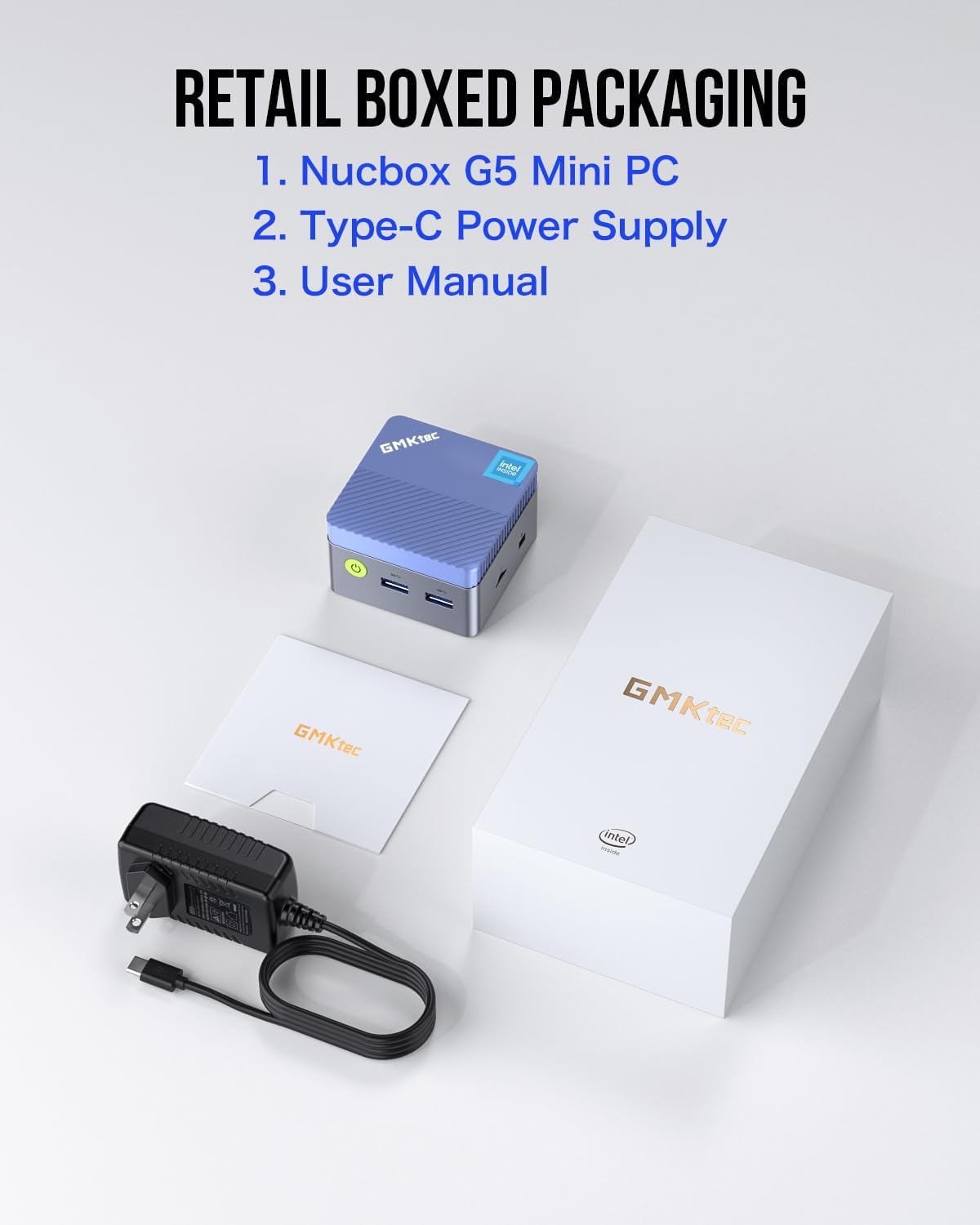
Image: Contents of the GMKtec Mini PC G5 retail box, showing the mini PC, power adapter, HDMI cable, and user manual.
Setup
Connecting Your Mini PC
The GMKtec Mini PC G5 offers versatile connectivity options. Follow these steps to set up your device:
- Power Connection: Connect the provided Type-C power adapter to the Type-C port (Power Only) on the Mini PC and plug it into a power outlet.
- Display Connection: Use the HDMI cable to connect your Mini PC to a monitor or TV. The G5 supports dual 4K UHD displays via its two HDMI ports.
- Peripherals: Connect your keyboard, mouse, and other USB devices to the available USB 3.2 ports.
- Network Connection: For a wired connection, connect an Ethernet cable to the Gigabit Ethernet (RJ45) port. The device also supports Wi-Fi for wireless connectivity.
- Audio: Connect speakers or headphones to the 3.5mm audio jack if needed.
- Micro SD Card: Insert a Micro SD card into the dedicated slot for additional storage.

Image: Detailed view of the GMKtec Mini PC G5's rich interface, showing USB 3.2 ports, HDMI ports, Giga LAN (RJ45), Audio Jack, Type-C power port, and TF/MicroSD slot.

Image: The GMKtec Mini PC G5 connected to a network cable, illustrating its strong LAN and wireless network support.
Operating Instructions
Powering On and Initial Boot
After connecting all necessary cables, press the power button located on the front of the Mini PC. The device comes pre-installed with Windows 11 Pro, and it will guide you through the initial setup process for the operating system.
Dual Display Setup
The Mini PC G5 supports connecting two displays simultaneously for an extended workspace or mirrored display. Simply connect two monitors to the two HDMI ports on the device. Windows 11 will automatically detect the displays, and you can configure their arrangement and resolution through the display settings.

Image: The GMKtec Mini PC G5 demonstrating dual HDMI 4K display capability, connected to two monitors showing different content.
BIOS Settings
The Nucbox G5 desktop mini PC allows you to adjust BIOS settings such as Auto Power On and Wake on LAN. Refer to the on-screen instructions during boot-up (usually by pressing DEL or F2) to access the BIOS menu for advanced configurations.
Maintenance
Cleaning
To ensure optimal performance and longevity, keep your Mini PC clean. Use a soft, dry cloth to wipe the exterior. For dust accumulation in vents, use compressed air. Ensure the device is powered off and unplugged before cleaning.
Ventilation
The Mini PC G5 features a quiet fan designed for efficient cooling. Ensure that the ventilation openings are not obstructed to allow proper airflow. Minimal fan noise is normal, even under load, contributing to a focused work environment.
Troubleshooting
If you encounter issues with your GMKtec Mini PC G5, refer to the following common troubleshooting tips:
- No Power:
- Ensure the power adapter is securely connected to both the Mini PC and a working power outlet.
- Verify the power outlet is functional by plugging in another device.
- No Display:
- Check that the HDMI cable is firmly connected to both the Mini PC and the monitor/TV.
- Ensure the monitor/TV is set to the correct input source (e.g., HDMI 1, HDMI 2).
- Try a different HDMI cable or monitor if possible.
- No Internet Connection:
- For wired connection, check the Ethernet cable and router status.
- For Wi-Fi, ensure Wi-Fi is enabled in Windows settings and you are connected to the correct network with the correct password.
- System Slowdown:
- Close unnecessary applications running in the background.
- Ensure sufficient free space on the hard drive.
- Check for and install any available Windows updates.
For persistent issues, please refer to the Warranty and Support section for contact information.
Specifications
Below are the detailed specifications for the GMKtec Mini PC G5:
| Feature | Detail |
|---|---|
| Brand | GMKtec |
| Model Number | GMKtec G5 |
| Series | GMKtec NUCBOX |
| Operating System | Windows 11 Pro |
| Processor Brand | Intel |
| Processor Type | Mobile CPU (Intel Alder Lake N97) |
| Processor Cores | 4 (4 Cores / 4 Threads) |
| Processor Speed | Up to 3.6 GHz |
| System Memory (RAM) | 12 GB DDR5 (On-board) |
| Hard Drive Size | 512 GB SSD |
| Hard Drive Technology | SSD |
| Hard Drive Interface | PCIE x 4 |
| Max Expandable Storage | Up to 2 TB |
| Micro SD Card Support | Max 512 GB |
| Graphics Chipset | Alder Lake N97 |
| Graphics Processor | Integrated Intel UHD Graphics |
| Display Resolution (Max) | 4096 x 2160 (4K UHD) |
| Wireless Connectivity | Bluetooth, Wi-Fi (802.11a/b/g/n/ac) |
| Wired Connectivity | Gigabit Ethernet (RJ45) |
| USB Ports | 3 x USB 3.2 |
| HDMI Ports | 2 |
| Audio Port | 1 x 3.5mm Audio Jack |
| Power Input | 1 x Type-C (Power Only) |
| Special Features | Card Reader |
| Package Dimensions | 18.4 x 11.1 x 5.7 cm |
| Weight | 570 grams |
Note: Processor core count is based on product description (4C/4T) for Intel N97, which is more typical for this CPU generation.
Warranty and Support
GMKtec provides comprehensive support for your Mini PC G5:
- Warranty: GMKtec offers a one-year warranty for each mini PC, starting from the date of purchase. This covers defects due to design and workmanship.
- Amazon Support: For assistance, you can contact Amazon Support. Log in to your Amazon account, go to "Your Orders," and select "Ask Product Question" for the relevant order.
- After-Sales Support: For direct after-sales support, you can send an email to the GMKtec After-Sales Team at support@gmktec.com. They provide 24/7 customer support.

Image: Visual representation of GMKtec's warranty and support, including contact methods for Amazon Support and direct email support.
Related documentsGMKtec G5


Ask a question about this manual
Ask about setup, troubleshooting, compatibility, parts, safety, or missing instructions. Manuals+ will review the question and use this page’s manual context to help answer it.