
1. Introduction
This manual provides essential instructions for the safe and efficient operation of your Jectse 5G Portable Wi-Fi Hotspot, Model Jectsekwnbat6q37. Please read this manual thoroughly before using the device and retain it for future reference.
2. Package Contents
Verify that all items are present in your package:
- Jectse 5G Portable Wi-Fi Hotspot (Model Jectsekwnbat6q37)
- USB-C Charging Cable
- User Manual (this document)
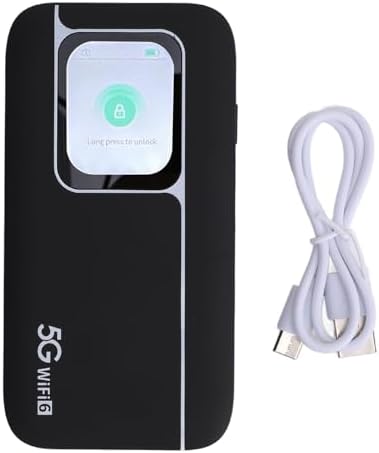
Image: The Jectse 5G Portable Wi-Fi Hotspot shown next to its included USB-C charging cable.
3. Device Overview
Familiarize yourself with the physical components of your hotspot.
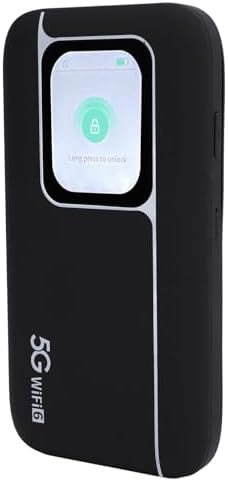
Image: Front view of the Jectse 5G Portable Wi-Fi Hotspot, showcasing its display screen with a lock icon and "Long press to unlock" message.
- Display Screen: Shows network status, signal strength, battery level, and data usage.
- Power Button: Used to turn the device on/off and wake/sleep the screen.
- USB-C Port: For charging the device.
- SIM Card Slot: Located on the side or back, for inserting your 5G/4G/3G SIM card.
- LED Indicators: Provide quick visual cues for device status (e.g., signal, battery).
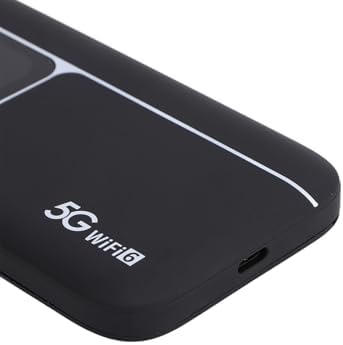
Image: A close-up view of the USB-C charging port located on the side of the Jectse 5G Portable Wi-Fi Hotspot.
4. Setup
- Insert SIM Card:
Locate the SIM card slot. Carefully insert your activated 5G/4G/3G SIM card into the slot until it clicks into place. Ensure the SIM card is correctly oriented.
- Charge the Device:
Connect the provided USB-C cable to the hotspot's charging port and the other end to a compatible USB power adapter (not included) or a computer's USB port. The device features a 7100mAh polymer battery. Allow the device to fully charge before first use.
- Power On:
Press and hold the Power Button for a few seconds until the display screen illuminates. The device will begin to boot up and connect to the cellular network.
- Initial Wi-Fi Connection:
Once powered on, the device's display will show the default Wi-Fi Network Name (SSID) and Password (Wi-Fi Key). You can also find this information on the back of the device.
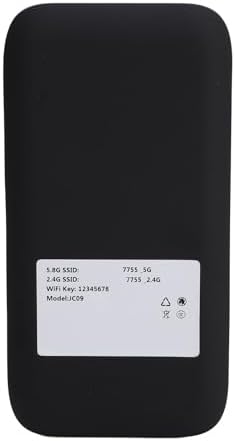
Image: The back panel of the Jectse 5G Portable Wi-Fi Hotspot, displaying the default 5.8G SSID, 2.4G SSID, and Wi-Fi Key.
On your computer, smartphone, or other Wi-Fi enabled device, search for available Wi-Fi networks. Select the SSID matching your hotspot and enter the Wi-Fi Key to connect.
5. Operating Instructions
- Connecting Multiple Devices:
The hotspot supports connecting up to 16 devices simultaneously. It operates on dual bands (2.4GHz and 5.8GHz) with WiFi6 (802.11 a/b/g/n/ac/ax) for optimized performance across various devices.

Image: An illustration depicting the Jectse 5G Portable Wi-Fi Hotspot providing high-speed internet to several users with laptops, tablets, and smartphones.
- Monitoring Device Status:
The display screen and LED lights provide real-time information on signal strength, battery level, and data usage. Refer to the screen for detailed status updates.
- Network Frequency Support:
The device supports a broad range of network frequencies, including 5G NR, 4G, and 3G, ensuring connectivity in various locations. The built-in 1T4R 5G antenna enhances signal reception.
- Hot Swappable SIM:
The device supports hot-swapping of SIM cards, allowing you to change SIM cards without powering down the device, though a brief network re-connection period may occur.
6. Maintenance
- Battery Care: To prolong battery life, avoid exposing the device to extreme temperatures. Charge the 7100mAh battery regularly and avoid complete discharge.
- Cleaning: The device features an IP67 reinforced design, offering protection against dust and water. To clean, gently wipe the exterior with a soft, dry cloth. Do not use harsh chemicals or abrasive materials.
- Storage: When not in use for extended periods, store the device in a cool, dry place.
7. Troubleshooting
If you encounter issues with your Jectse 5G Portable Wi-Fi Hotspot, refer to the following common solutions:
| Problem | Possible Cause | Solution |
|---|---|---|
| No network signal | SIM card not inserted correctly, no cellular coverage, or SIM not activated. | Reinsert SIM card, move to an area with better coverage, or contact your service provider to activate SIM. |
| Cannot connect to Wi-Fi | Incorrect Wi-Fi password, device too far from hotspot, or hotspot is off. | Verify password, move closer to the hotspot, ensure hotspot is powered on. |
| Slow internet speed | Weak signal, too many connected devices, or network congestion. | Check signal strength on the display, reduce number of connected devices, or try connecting in a less congested area. |
| Device not powering on | Low battery or device malfunction. | Charge the device for at least 30 minutes. If issue persists, contact support. |
If the problem persists after attempting these solutions, please contact customer support.
8. Specifications
| Feature | Detail |
|---|---|
| Model Name | Jectsekwnbat6q37 |
| Brand | Jectse |
| Connectivity Technology | 5G |
| Wireless Communication Standard | 802.11ax (WiFi6) |
| Frequency Band Class | Dual-Band (2.4GHz & 5.8GHz) |
| Data Transfer Rate (Download) | Up to 2.77 Gbps |
| Data Transfer Rate (Upload) | Up to 1.25 Gbps |
| Battery Capacity | 7100mAh Polymer Battery |
| Antenna | 1T4R 5G Antenna |
| Rugged Design | IP67 (Protection against drops, dust, and water) |
| Maximum Connected Devices | 16 |
| Operating System | ZyNOS |
| Package Dimensions | 17 x 10 x 4 cm |
| Item Weight | 280 g |
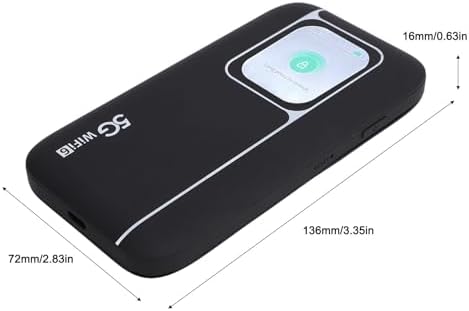
Image: A visual representation of the Jectse 5G Portable Wi-Fi Hotspot's dimensions, showing its length (136mm/3.35in), width (72mm/2.83in), and thickness (16mm/0.63in).
9. Warranty and Support
Jectse products are designed for reliability and performance. For warranty information, please refer to the warranty card included with your purchase or visit the official Jectse website.
For technical support, troubleshooting assistance, or service inquiries, please contact Jectse customer support through the contact information provided on the official website or your purchase documentation.
Please have your model number (Jectsekwnbat6q37) and purchase details ready when contacting support.