
JINSHANGZI H99
H99 Android Smart Watch User Manual
Model: H99
Brand: JINSHANGZI
1. Product Overview
The JINSHANGZI H99 is an advanced Android Smart Watch designed for comprehensive connectivity and functionality. It features 4G network support, a large 1.95-inch AMOLED display, and a unique 180° rotating 2MP camera. This manual provides essential information for setting up, operating, maintaining, and troubleshooting your device.

Figure 1.1: The H99 Smart Watch showcasing its 180° rotating camera mechanism.
Key Features:
- 4G Full Netcom: Global call support with comprehensive network bands.
- Android 8.1 OS: High-performance, low-power operating system for smooth operation.
- 1.95-inch AMOLED Display: Large screen with 490x490 resolution for clear visuals.
- 180° Rotating 2MP HD Camera: Unique pull-out camera for versatile photography.
- 1900mAh Battery: Large capacity battery for extended use.
- App Download Support: Access to Google Play Store for popular apps like WhatsApp, YouTube, Facebook, Instagram, TikTok.
- Health Monitoring: Includes step counting and heart rate monitoring.
- Sports Modes: Dedicated modes for various activities including Run, Walk, Alpinism, and Jump rope.
2. Setup Guide
2.1 Initial Charging
Upon receiving your H99 Smart Watch, it is essential to fully charge the device before first use. This ensures the watch has sufficient power for initial setup and optimal performance.
- Connect the provided charging cable to the charging port on the watch.
- Plug the other end of the cable into a standard USB power adapter (not included) or a computer's USB port.
- Allow the watch to charge until the battery indicator shows 100%.
2.2 SIM Card Installation
The H99 Smart Watch supports 4G network connectivity via a SIM card. Ensure the watch is powered off before inserting or removing the SIM card.
- Locate the SIM card slot on the side of the watch.
- Carefully open the SIM card tray using the provided tool (if applicable) or by gently prying it open.
- Insert a nano-SIM card into the tray with the gold contacts facing down, ensuring it is correctly oriented.
- Gently push the SIM card tray back into the slot until it clicks into place.
2.3 Powering On/Off
- To Power On: Press and hold the power button (usually located on the side) until the screen illuminates and the boot animation appears.
- To Power Off: Press and hold the power button until a power-off menu appears on the screen. Select 'Power Off' and confirm.
2.4 Initial Setup
After powering on for the first time, follow the on-screen prompts to complete the initial setup:
- Select your preferred language.
- Connect to a Wi-Fi network for internet access and app downloads.
- Set the date and time, or allow automatic synchronization via network.
- Log in to your Google account to access the Play Store and other Google services.
3. Operating Instructions
3.1 Navigation and Interface
The H99 Smart Watch features a full-featured, multi-finger touch screen for intuitive navigation. Swipe gestures and taps are used to interact with the interface.
- Swipe Down: Access quick settings and notifications.
- Swipe Up: View recent apps or app drawer.
- Swipe Left/Right: Navigate between different watch faces, widgets, or app screens.
- Tap: Select an item or open an application.
- Press and Hold: Access context-sensitive menus or customize watch faces.
3.2 Main Menu Functions
The main menu provides access to all pre-installed and downloaded applications:
- Communication: Phone, Contacts, Messaging.
- Utilities: Calculator, Calendar, Stopwatch, Clock, FlashLight, Sound Recorder, File Explorer.
- Media: Albums, Music, Video Player.
- Health & Fitness: Sports, Heart Rate, Walk (step counting).
- System: Setting, Super power saving, One-click cleanup, Style setting, Dial market.
- Connectivity: Bluetooth Assistant (requires app download), One-click drainage.
- Google Services: Play Store, Maps, Google Chrome.
- Pre-installed Apps: WhatsApp, Youtube, Facebook, Instagram, TikTok.

Figure 3.1: The H99 Smart Watch screen showing a variety of popular application icons available for download and use.
3.3 Camera Operation
The H99 features a unique 180° rotatable pull-out HD camera.
- To use the camera, gently pull out the camera module from the side of the watch.
- Rotate the camera to the desired angle (up to 180°) for front-facing or side-facing shots.
- Open the 'Camera' application from the main menu.
- Tap the screen to focus and press the shutter button to capture photos or videos.

Figure 3.2: The H99 Smart Watch with its 180° rotatable pull-out HD camera extended, highlighting its unique design.
3.4 App Download and Usage
You can download and install additional applications from the Google Play Store.
- Ensure the watch is connected to Wi-Fi or has an active 4G data connection.
- Open the 'Play Store' application from the main menu.
- Search for desired applications and follow the on-screen instructions to download and install them.
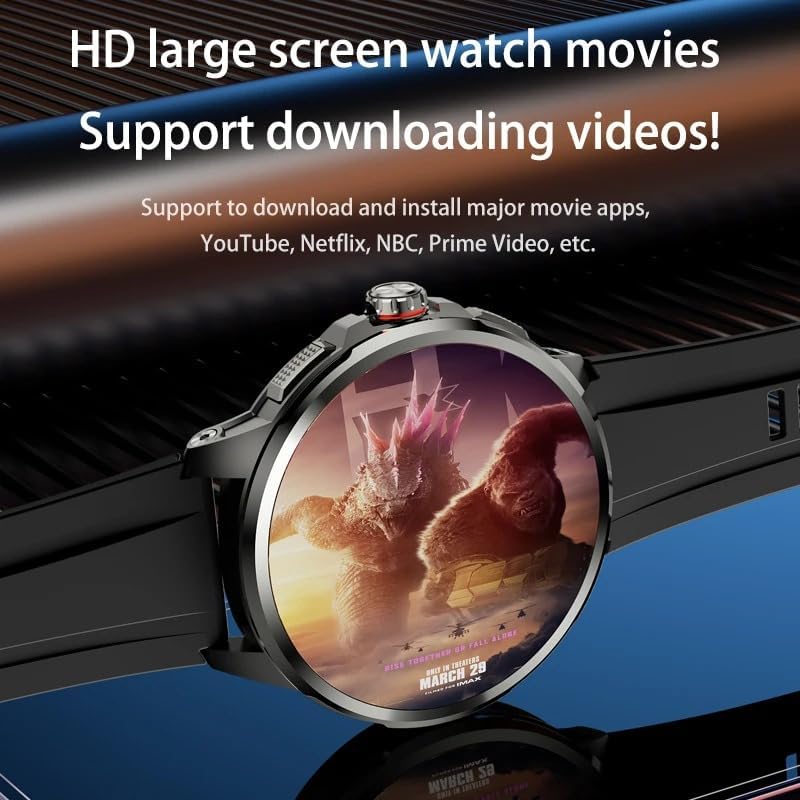
Figure 3.3: The H99 Smart Watch demonstrating its capability to display movies on its large HD screen, supporting video downloads.
3.5 Sports Modes and Health Monitoring
The watch includes various sports modes and health monitoring features.
- Sports Modes: Access the 'Sports' app to select from activities like Run, Walk, On foot, Alpinism, and Jump rope. The watch will track relevant metrics for your chosen activity.
- Heart Rate Monitoring: Use the 'Heart Rate' app to measure your heart rate. Ensure the watch is snug on your wrist for accurate readings.
- Step Counting: The 'Walk' app automatically tracks your daily steps.
4. Maintenance
4.1 Charging
To maintain battery health, use the provided charging cable. Avoid using damaged cables or chargers. Charge the watch when the battery level is low to prevent complete discharge.
4.2 Water Resistance
The H99 Smart Watch is life waterproof. This means it can be used normally when washing hands or in rainy conditions. It is not suitable for swimming, bathing, or soaking in water. Avoid contact with corrosive liquids such as hand sanitizer or soap, as these can damage internal components.
4.3 Cleaning
To clean your watch, gently wipe the screen and body with a soft, dry, lint-free cloth. For stubborn smudges, slightly dampen the cloth with water. Do not use harsh chemicals or abrasive materials.
4.4 Software Updates
Periodically check for software updates in the 'Settings' menu to ensure your watch has the latest features and security patches. Updates can improve performance and stability.
5. Troubleshooting
5.1 Common Issues and Solutions
- Short Battery Life:
The H99 is an Android 4G watch with higher power consumption than a Bluetooth-only watch. Under normal use, it typically lasts 1 to 2 days. To extend battery life, reduce screen brightness, disable unnecessary background apps, turn off Wi-Fi/Bluetooth when not in use, and limit 4G data usage.
- Limited Storage/RAM:
Available storage and RAM will be less than the total memory due to the operating system and pre-installed software. If you experience slow performance, try clearing cache, uninstalling unused apps, or performing a factory reset (backup data first).
- Watch Not Turning On:
Ensure the watch is fully charged. If it still doesn't turn on, try holding the power button for an extended period (10-15 seconds) or connect it to a charger and wait a few minutes before attempting to power on again.
- Network Connectivity Issues:
Check if the SIM card is correctly inserted and activated. Ensure you are within network coverage. Restart the watch. Verify APN settings in the network settings.
- Apps Crashing/Not Responding:
Close and reopen the app. Clear the app's cache and data in 'Settings > Apps'. Ensure the watch's software is up to date. If the issue persists, try reinstalling the app.
- NFC Payment Not Working:
Please note that NFC payment functions are not supported on this model.
6. Specifications

Figure 6.1: Visual representation of the H99 Smart Watch's 1.95-inch AMOLED HD display, highlighting its resolution and color gamut.
| Feature | Detail |
|---|---|
| Model Number | H99 |
| Operating System | Android 8.1 |
| Processor | SL8541E 4-core main control |
| Display | 1.95 Inches AMOLED, 490*490 resolution |
| Memory Storage Capacity | 32 GB (available storage less due to OS) |
| Camera | 2MP HD, 180° Rotatable Pull-out |
| Battery Capacity | 1900 Milliamp Hours |
| Connectivity Technology | Cellular (4G FDD/TDD, 3G, 2G), Bluetooth, Wi-Fi (802.11ac) |
| GPS | GPS Via Smartphone |
| Special Features | Cellular Connectivity, Full Android OS with Google Services |
| Manufacturer | JINSHANGZI |
| Country of Origin | China |

Figure 6.2: The H99 Smart Watch illustrating its powerful internal processor, ensuring strong computing power and stable standby.
7. What's in the Box
The H99 Android Smart Watch package includes the following items:
- Smart Watch (H99)
- Watch Strap
- Charging Cable
- Product Manuals
- Protection film
8. Warranty and Support
This product is manufactured by JINSHANGZI. For warranty information, technical support, or service inquiries, please refer to the contact details provided with your purchase documentation or visit the official JINSHANGZI support website. Keep your proof of purchase for warranty claims.
Ask a question about this manual
Ask about setup, troubleshooting, compatibility, parts, safety, or missing instructions. Manuals+ will review the question and use this page’s manual context to help answer it.